🧐 FAQ for TGShops platform
TGShops SupportWe have prepared a FAQ for the TGShops platform. If you can't find the answer to your question, please contact our support team @ShopDevTeam.
1. How to create a shop?
Go to @TGShopsBuilderBot and follow the instructions.
Please note that if you want to connect a bot to your shop, it needs to be created before the shop itself. For more information on why you need a bot and how to create one, see the section "Bot" below.
See 🤖 How to Create a Store with a Bot?
See 🏕 How to Create a Store Without a Bot?

2. What to do after creating a shop in the builder? How to add products to the shop?
After creating a shop in the @TGShopsBuilderBot, you will receive an email invitation with a link to register in the CRM — this is the control panel for your shop, where you can add products.
Follow the link from the email, register, and start adding products to your shop. It's best to do this from a laptop or tablet.
Read more about how to use the CRM here.
3. Bot

How to create your bot?
Using the @BotFather service in Telegram.
You can find a detailed step-by-step guide here.
What is a token?
A token is a secret key that identifies your bot, its unique number.
Example of a token: 987654321:AABbCCDd_eE11fFgGhHiIJJKKllMMNNOOPp
On the TGShops platform, the token is used to link the bot when creating a shop.
Why do I need a bot? What functionality does it provide?
You will need a bot if you want to:
- Accept payments in Stars, TON, and bank cards
- Send order status updates to customers
- Use inline search
- Manage orders through group chats
- Send newsletters to customers
- Personalize your shop with avatars and welcome messages for customers
When can I connect a bot to the shop?
During the shop creation process.
Can I not connect a bot?
Yes, but your functionality will be limited. Please note that without a bot, you can only accept cash payments.
What is inline search? How to use it?
Inline search allows you to search for products through your bot’s @username and send links to them in private messages, closed and open groups, as well as channels using your bot.
You can easily share products by providing direct access to them, simplifying the purchasing process for your customers.

See 🔍 Inline Search — What Is It, How to Enable It, and How to Use It?
See What Inline Search Looks Like
4. Catalog/CRM
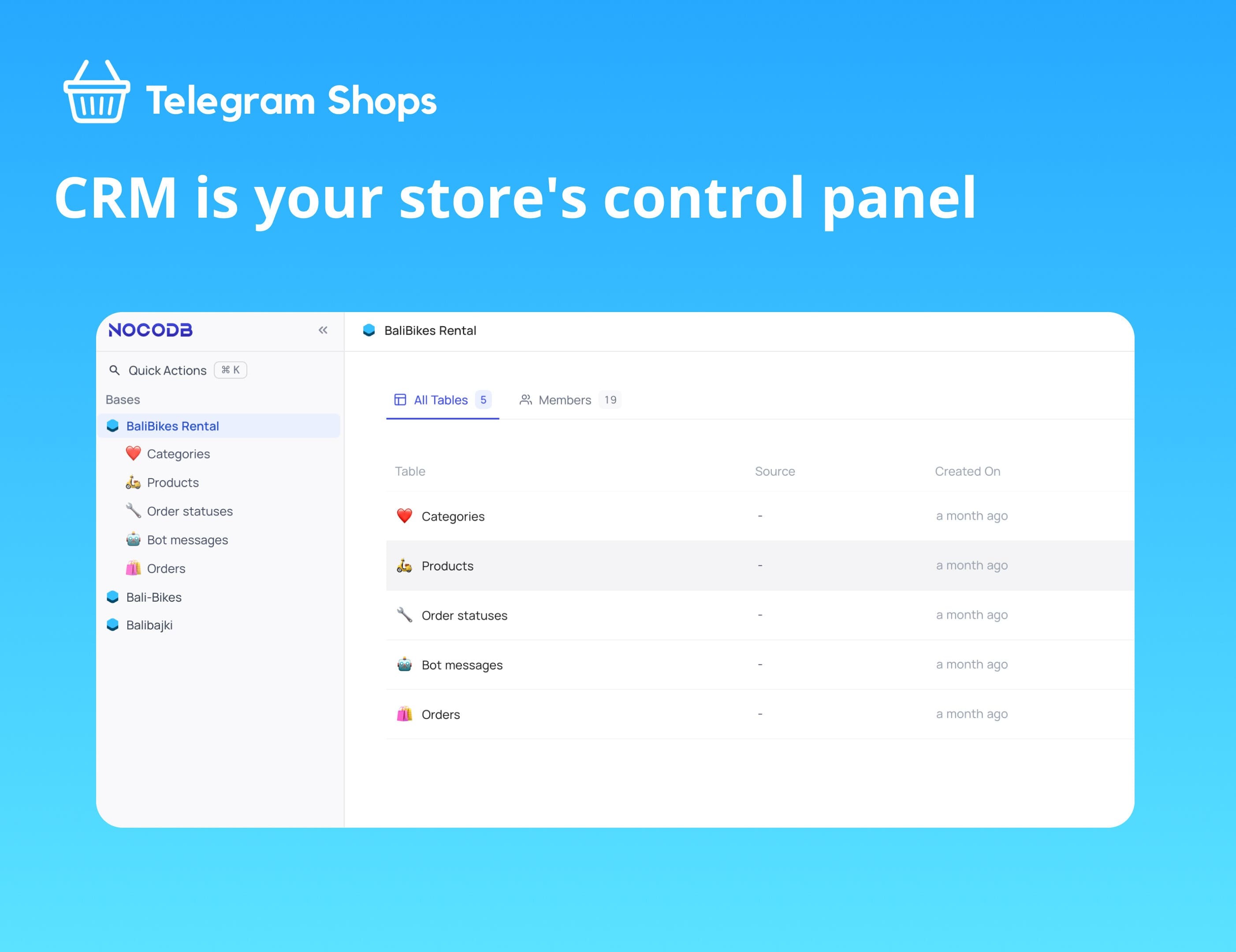
What is CRM?
The CRM (Customer Relationship Management) system on the TGShops platform is a simple control panel on the NocoDB platform, organized as a table with columns and rows. You will enter products and their parameters into this table.
We recommend working with CRM on a computer — it’s much more convenient.
See 🎮 A Guide to Using the CRM
How to fill out the catalog? Where to add products?
After creating a shop in the @TGShopsBuilderBot, you will receive an email invitation with a link to register in the CRM — this is the control panel for your shop, where you can add products.
Follow the link from the email, register, and start adding products to your shop. It's best to do this from a laptop or tablet.
See 🎮 A Guide to Using the CRM
I didn’t receive the registration link for CRM — what should I do?
- Is this your first shop? - No
The invitation is sent only when creating the first shop. If you have already created a shop with this email, the invitation won’t be sent, and the new shop will appear in your current account after it is deployed.
- Is this your first shop? - Yes
If you created the shop for the first time and didn’t receive the registration link — check your "Spam" folder. If there is still no invitation email, contact our support @ShopDevTeam.
How to access the CRM?
Through the invitation in the email or via the link in @TGShopsBuilderBot in the "Shop" section.
See 🎮 A Guide to Using the CRM, section "How to access CRM?"
How to add products?
See 🎮 A Guide to Using the CRM, section "How to add products?"
How to use categories?
See 🎮 A Guide to Using the CRM, section "How to add categories?"
What is a parent category?
See 🎮 A Guide to Using the CRM, section "What is a parent category?"
What images are best for product cards?
- For product cards, it’s best to use square images in .webp format
- For category covers and shop covers — use rectangular images in .webp format

Can I add multiple images to a single product?
Yes, you can add up to 10 images.
Why isn’t the category or product displaying?
After adding a new category or product in the CRM, they may not appear in your shop immediately. You need to wait one minute for the changes to take effect.
What other reasons could there be?
- The product name is not specified
- Product images are not added
- Available product quantity is not specified
- Price and currency are not specified
- The category is set as its own "parent category." In this case, neither the category itself nor the products in it will be displayed in the shop.

Can I move products and categories up or down in the table?
Unfortunately, this function is not available. You can only move products and categories by transferring them row by row.
5. Delivery
Where to add delivery?
In @TGShopsBuilderBot in the "Delivery" section.
Delivery — what options are there, and what should be specified?
You can specify any delivery method you use. For example: "DHL", "Glovo Courier", "Postal Service", "I’ll bring it to you myself", "Self-pickup" etc.

You can request all the necessary customer information: full address, contact details, desired delivery time, special instructions, etc.
If you specified the order pickup method as "Self-pickup," you need to indicate the address of your shop, warehouse, or pickup point.

What’s the difference between self-pickup and shop address?
Self-pickup and shop address are two different elements in our system.
Self-pickup is a method of receiving the order where the customer picks up the order themselves. You specify this in the "Delivery" section.
The shop address is displayed in the marketplace, allowing customers to know where your business is located. In the future, your address will be visible in the marketplace, providing customers with additional information about your business.

See 🚗 How to set up delivery in your TGShops Store
6. Payment
What payment methods are available on TGShops?
On the TGShops platform, you can accept payments via the following methods:
- Cash/transfers to a personal card
- Bank cards
- Telegram Stars
- TON
See 💸 Guide on Payment Methods on the TGShops Platform
How to connect card payment?
To connect card payments, you need to contact a local payment provider. Most likely, you will need to visit a bank branch and open an account.
Which payment provider can I connect?
The list of providers supported by Telegram is available here.
Can I accept payments in crypto?
See 💎 TON - Tutorial for connection and payments
How to accept payments in Telegram Stars?
See ⭐️ Payment through Telegram Stars
How to add my country’s currency to the shop?
Contact our support @ShopDevTeam, and we will assist you.
Will I receive a notification when the buyer makes a payment?
If the buyer pays in TON or Telegram Stars, you will receive a notification in the orders group.
If the payment is made via transfer to a card, you need to arrange with the buyer to notify you after the transfer.
7. Marketplace
We are working on launching our marketplace and will notify you when it is ready. Meanwhile, we can answer a few frequently asked questions:
Where to place the shop?
When our marketplace is ready, you can add your shop to it, and users will see it. Meanwhile, here are a few tips on where else you can place your shop to attract customers:
See 🔥 How to promote your store on Telegram?
See 📌 How to pin a button with a link to your store in your Telegram-channel?
Will I be able to publish the shop in the marketplace?
Yes, you can apply to have your shop added to the marketplace. After successful moderation, we will publish it.
Will it be possible to find the shop by location?
Yes
Will it be possible to find the shop by category?
Yes
Stay updated!
News in English: @TGMarketsNews
Chat in English: @TGMarketsNews_chat