How to create an invoice
Invoice in 001kBOT is a convenient way to issue invoices directly via Telegram, without complex forms or external services. Creating an invoice takes only a few clicks and supports both one-time and recurring payments.
You can create an invoice in two ways:
🔻 quickly, by simply entering a command in the chat;
🔻 via the bot menu with advanced settings.
Why is it convenient?
❇️ Flexibility: Create a single invoice, and the sender will choose the most convenient network (for example, TRC-20 or ERC-20). This takes the burden off you and simplifies the process for both parties.
🔐 Security and organization: the bot automatically assigns a unique address to each user who pays an invoice. This allows you to separate payments from different sources and eliminates confusion when paying.
⏳ Validity period: An invoice with a fixed amount is active until full payment or until you close it manually. An invoice without an amount is unlimited in time or amount (ideal for conditional donations or permanent payment links).
Let's take a closer look at both options below.
The easiest and most convenient way to create an invoice is through inline mode. To do this, enter the command in the message field in any chat, group, or channel:
@OO1kBOT + amount(optional) + currency
For example:
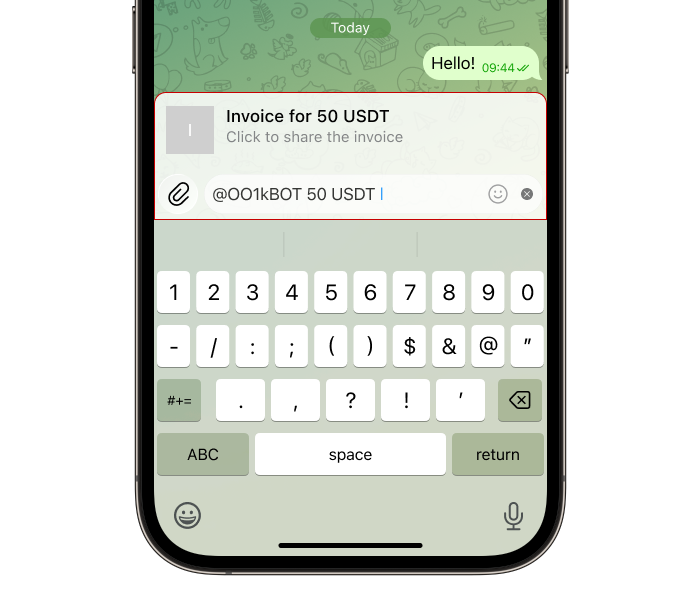
The invoice will be created automatically. When the invoice owner clicks the “Pay” button, the details of the created invoice will open with the option to edit it — for example, add a message or change the parameters.
For all other users, this button opens the standard invoice payment flow.
Step 1. In the main menu, click “Wallet” → “Create an invoice”
.png)
Step 2. Select the desired currency
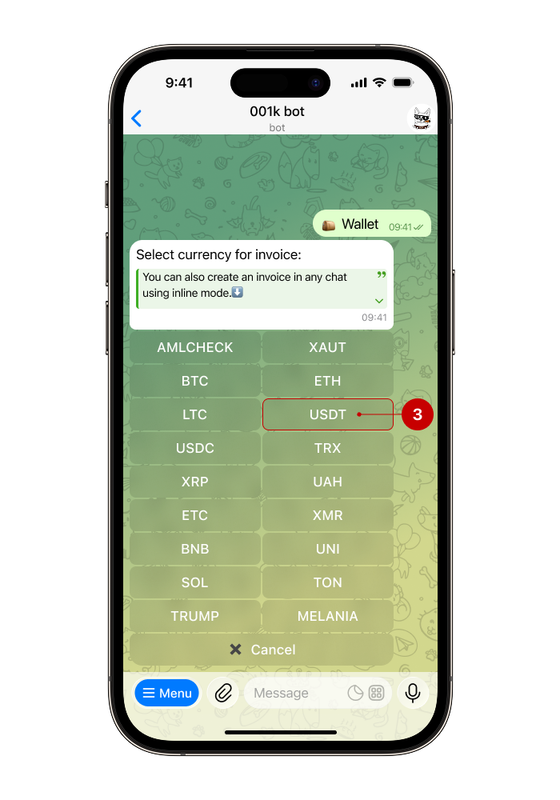
Step 3. Specify the invoice amount
At this step, you can:
- Specify the exact amount to be paid
- Leave the amount open, then the sender will be able to send any amount in the currency you have selected
For example, let's enter 50 (4).
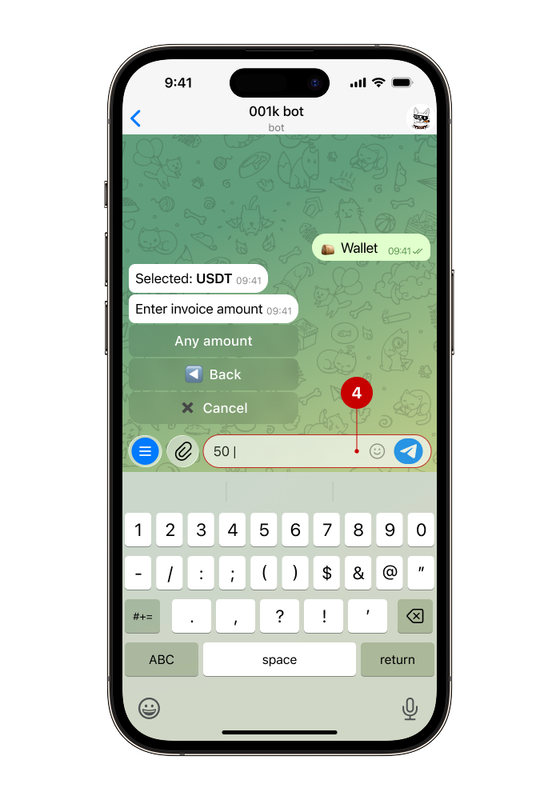
Step 4. Checking and managing the created invoice
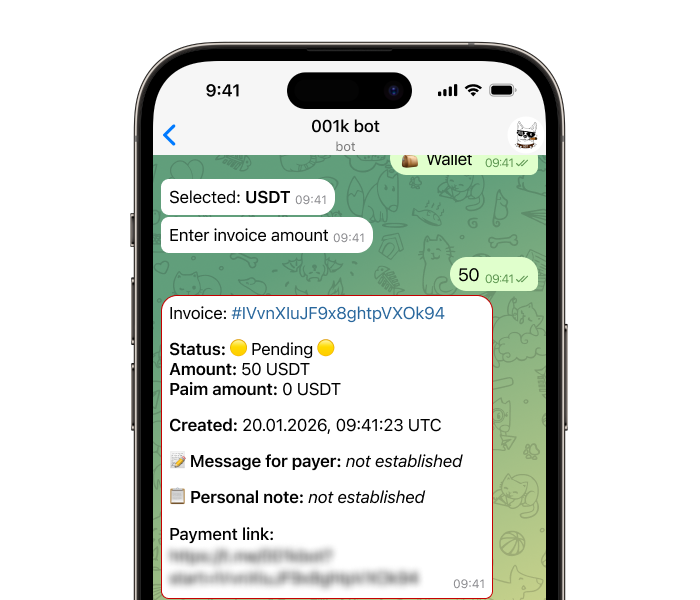
In the next message, the bot will show complete information about the invoice:
- current status;
- invoice ID;
- amount;
- creation date;
- message for the payer;
- note for yourself;
- payment link.
Note: The invoice will remain active until it is paid in full or manually closed. If no amount is specified, the link will remain active indefinitely until you deactivate the invoice.
The following buttons will be available under the invoice:
🔗Share: send the invoice to the desired user or group. There are other ways to do this:
1️⃣ Via Telegram chat
Just enter the command in the message field (in a private chat, group, or channel):
@OO1kBOT + invoice ID (without #)
2️⃣ Via link
Copy the link from the bot's message and send it to the user.
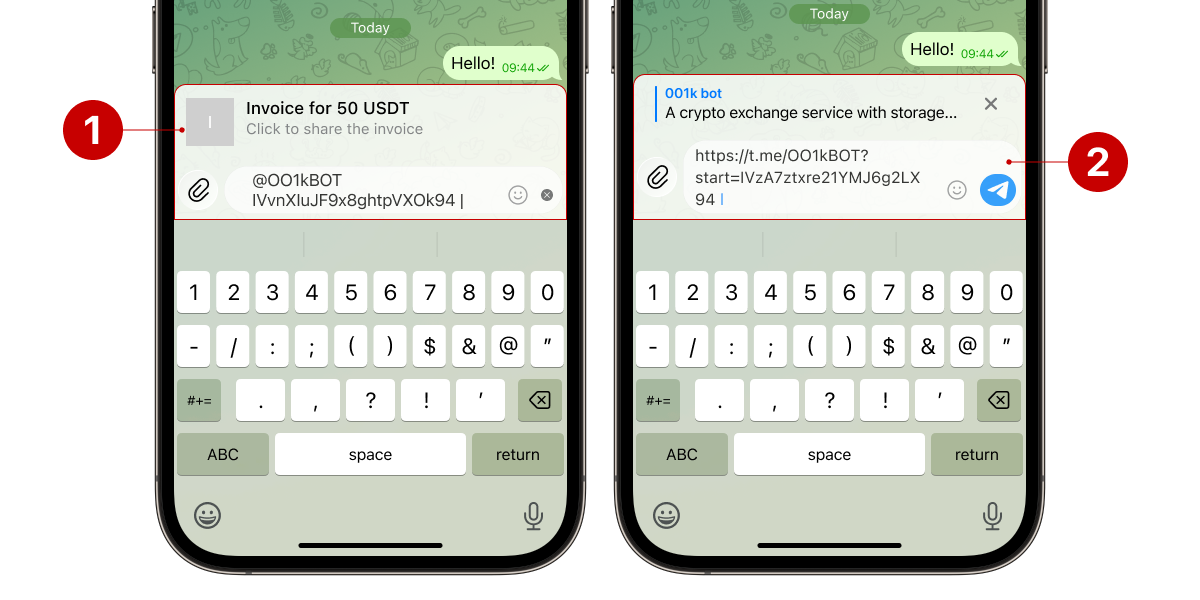
📝 Message for the payer: text that the payer will see (for example: “Payment for services”).
📋 Personal note: optional field, but this way you can sign the invoice so that you can later recognize it among others.
❌ Deactivate invoice: prevents payment.
💰 Show payments: available if there have been any payments on the invoice.
As the invoice owner, you can view details, payments, or change its status at any time.
👀 How can I pay an invoice?
Step 1. After receiving a message with the invoice, click the “Pay” button
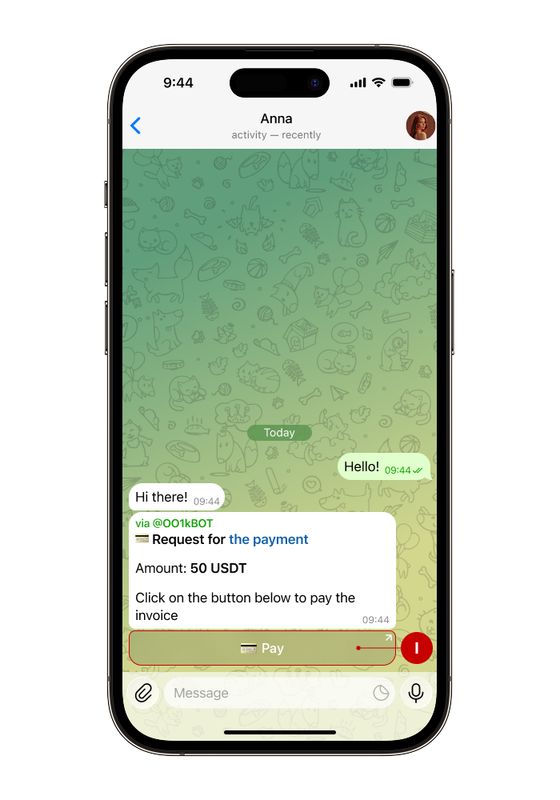
Step 2. Select a payment method
Available options: internal transfer via bot or payment in cryptocurrency (possible both via bot and via external services (at the address).
Let's choose payment via internal transfer (II).
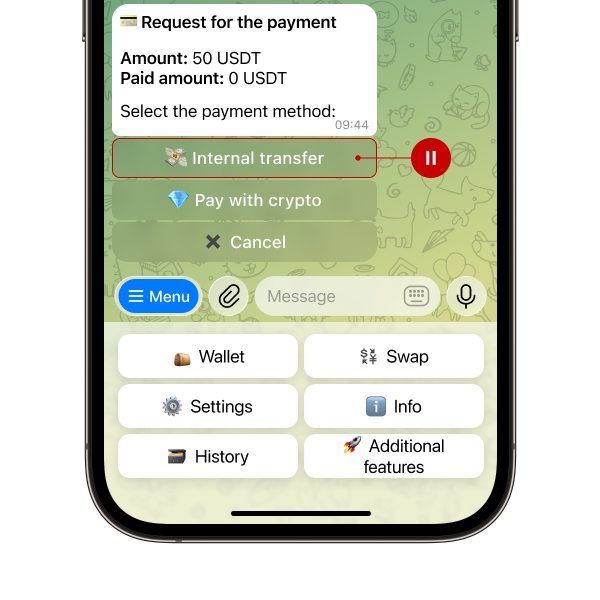
Step 3. Pay the invoice
If no payments have been made on the invoice yet, the user will be prompted to pay the full amount in a single payment.
If the invoice has already been paid but the balance remains unpaid, other users can make a partial payment or pay the balance to close it. It will remain active until the total amount of payments reaches the specified value.
Please note the currency in which the amount to be paid is specified. After the payment is confirmed, you will receive a notification confirming the invoice payment, including the transfer amount. In our example, the invoice was paid in full and was automatically closed, as indicated by the final notification.
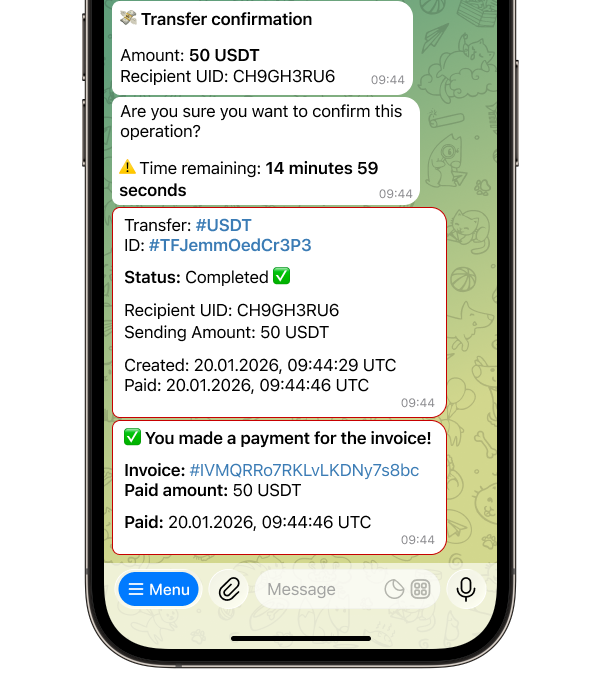
🫣 How to pay an invoice without an account in the bot?
If the payer does not yet have an account in 001kBOT, they can still pay the invoice. After clicking the “Pay” button, the user is automatically redirected to the bot. The invoice can be paid with cryptocurrency from any account: just click “Pay with cryptocurrency,” select a deposit method, get the address from the bot, and send the transfer in the appropriate currency.
If you have not used the bot before but want to pay an invoice with it, follow these steps:
1️⃣ Launch the bot. The system will automatically assign you a unique UID — your personal identifier within our system.
2️⃣ Verify your identity (KYC). Since security is our priority, you will need to complete a quick verification process.
👉 How to pass KYC
3️⃣ Top up your balance. Add funds to your account in any convenient way so that you can use them to pay your invoice.
👉 How to top up the balance
Done! Now just go back to your invoice and click “Pay.”
🤔 Where can I view my invoices?
All created invoices and payments are available in the “🗃 History” → “Invoices” section.