TruFOS (Trusted FOS) Certificates
Brocade CIS SANText: Brocade CIS SAN Telegram channel
TruFOS (Trusted FOS) Certificates
Situations occur when unbeknownst to customers, valid support contracts for their products expire. This is a relatively risky situation that most customers do not want to find themselves in. As such, in part to help ensure underlying products remain under valid support entitlement, Trusted FOS certificates were introduced 2+ years ago in FOS v9.0x. In addition, digitally signed TruFOS certificates harden security by helping to ensure only FOS images with validated digital signatures can be used to upgrade FOS.
TruFOS certificates don’t really come into play until you attempt to upgrade to FOS v9.1x, or when you have products running FOS v9.1 or higher. Note that FOS v9.1 was introduced in December of 2021.
Full details regarding TruFOS certificates can be found in the Brocade Fabric OS Software Upgrade Guide, 9.1x located here: https://techdocs.broadcom.com/fabric-os-software-upgrade - look under the section Brocade TruFOS Certificates.
The following is a primer on all things TruFOS:
• TruFOS certificates only apply to Brocade Gen 6 and Gen 7 Director-class and 2U Enterprise-class switches (i.e. 1U and embedded switches are currently not applicable)
• All products supporting TruFOS certificates that were shipped with FOS v9.0x or later installed, were shipped out with TruFOS certificates installed
• All Gen 7 64Gb/s capable platforms (X7-4, X7-8, and G730) ship out with a three year TruFOS certificate installed
• In FOS v9.0x, TruFOS Certificates do not enable any features or functionality
• Use the following to check expiration status and dates of TruFOS certificates:
• In FOS v9.0x or later, issue the license --show CLI command
• In SANnav, navigate to SANnav->Services->FOS Certificate Management. In the drop-down with blue text to the upper-right, you’ll be able to select either HTTPS Certificates or TruFOS Certificates – select TruFOS certificates. Once there, the TruFOS Expiration Dates for all products will be displayed
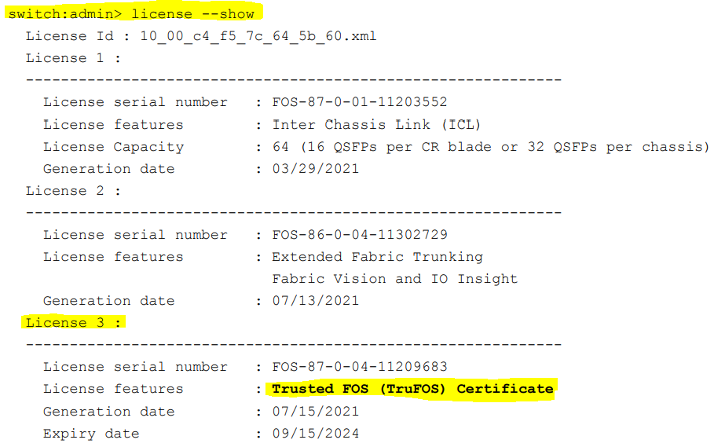
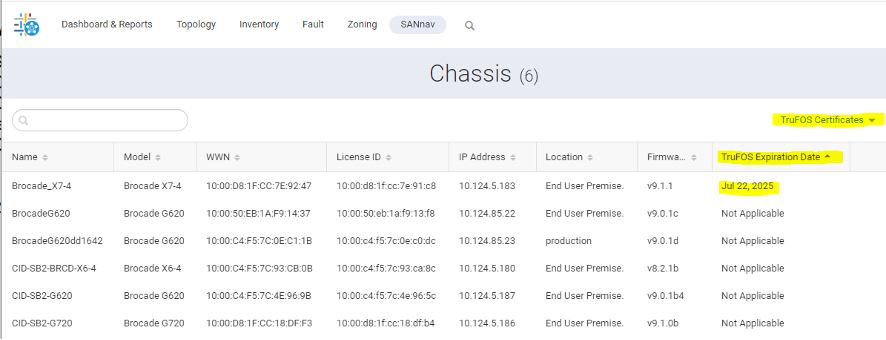
• Fabric Vision MAPS automatically monitors the status and expiration date of TruFOS certificates. There are three FV MAPS rules associated with a switch’s TruFOS certificate:
• TRUFOS_CERT_INSTALLED – monitors the installation status of the certificate
• TRUFOS_CERT_DAYS_TO_EXPIRE – gives weekly warnings about the pending expiration of TruFOS certificates starting 60 days prior to their expiration. After expiration, MAPS will send a reminder alert every 30 days
• TRUFOS_CERT_EXPIRED – indicates an expired TruFOS certificate status
• Important: TruFOS enforcement begins with FOS v9.1.0x, which essentially means you will not be able to upgrade to FOS v9.1x without first having a valid TruFOS certificate installed
• Expired TruFOS certificates will not restrict or negatively impact switch operation in any way other than to prevent FOS upgrades or downgrades
• SANnav will reflect expiring or expired TruFOS certificates in two ways:
• An alert will be displayed within the Notifications Panel
• The Health Summary dashboard score of the associated switch will be decreased by 10 points
Obtaining TruFOS Certificates
Note: If you have upgraded any applicable Gen 6 product from FOS v8.2x to FOS v9.0x, obtaining TruFOS certificates is optional. As previously mentioned, TruFOS certificates are required prior to upgrading to FOS v9.1x and above.
TruFOS Certificates can be obtained as follows:
1. Automated
• The process is entirely automated as of SANnav v2.2x and higher provided the SANnav server has direct or proxy access to the internet
• SANnav maintains TruFOS Certificate information for all managed switches
• When a TruFOS Certificate is nearing expiration (less than 60 days before expiration), has already expired, or does not exist on applicable switches, SANnav automatically connects to the Broadcom licensing portal on your behalf
• The portal will automatically generate, fetch, and install the new TruFOS Certificates across your entire switch inventory
• The newly generated TruFOS certificates will have expiration dates based upon the support entitlement dates of each individual product
2. Manual
• For customers with Brocade Direct Support
• Log into the CSP (Customer Support Portal) – just as you would to download FOS - see Access to Free Brocade Education for information on accessing the CSP
• Select Brocade Storage Networking from the top navigation menu and then select License and Certificate Management. When the following option listing appears, select TruFOS Certificate Request:
• Licensing Portal
• TruFOS Certificate Request
• Beware of Counterfeit Licenses
• For customers with OEM product support
• Log into the OEM’s Assist site just as you would to download FOS
• Navigate to the Assist Portal where you would normally download FOS. When prompted to enter in the Serial Number of an entitled product, the Request Trusted FOS (TruFOS) Certificate link will appear as shown below:

Note: When prompted above to enter in the Serial Number of a Brocade product, the Request Trusted FOS (TruFOS) Certificate link should appear as highlighted above. If the link does not appear, try a different web browser or clearing out your browser cache/cookies.
The Trusted FOS Certificate Request page should appear as shown below:
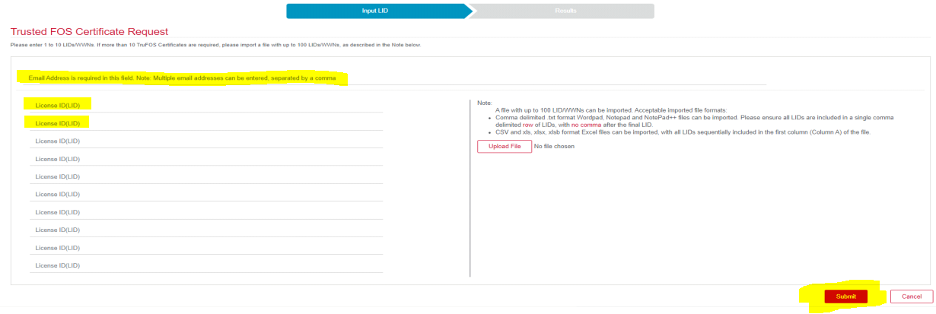
Follow the onscreen instructions above to request Brocade TruFOS Certificates. You must enter in one or more email addresses indicating where you want the TruFOS certificates sent – the certificates will be delivered in XML format.
When requesting certificates, you must supply the switch license ID (LID) for each switch. To obtain your switch LIDs:
• Within SANnav, navigate to Inventory->Switches and copy and paste from the WWN column
• From CLI, for FOS versions prior to FOS v9.0x, use the licenseidshow command
• From CLI, for FOS versions v9.0x and later, use the license --show command
You can manually request up to 10 TruFOS certificates at a time by manually entering up to 10 LIDs, or, you can request up to 100 TruFOS certificates at a time by uploading a file containing the entire listing the LIDs. Once the LID information has been entered, after selecting Submit, you should receive an email containing the requested certificates.
Installing TruFOS Certificates
Once your TruFOS certificate XML files have been obtained, you can install them utilizing SANnav or the CLI.
To install the certificates via SANnav, navigate to SANnav->Services->FOS Certificate Management and select TruFOS from the filter bar.
Note: SANnav does not support installing TruFOS certificates and other XML-based licenses on switches running FOS v9.0.1e, they must be running FOS v9.0.1c, v9.0.1d, or v9.0.1e1 - as a workaround you could use the CLI. Similarly, applying a TruFOS certificate from SANnav will fail for products running FOS v9.1.1. Please upgrade to FOS v9.1.1a or use CLI
To upload certificates to all chassis at once, select the more button (…) in the upper-right corner of the page, and select Apply TruFOS. Similarly, to apply to just one or more chassis certificates, select the more button (…) in the upper-right corner, select Bulk Select, and then select each chassis you want to apply a TruFOS Certificate to, then select Actions->Apply TruFOS.
You’ll be prompted to browse to the location of the XML TruFOS Certificate files. Once there, select all XML certificates you want to apply, and then select Open. The Apply TruFOS dialog displays and details the selected certificates to be mapped to the chassis. Select Next and the selected certificates are mapped to the chassis in the background. You can check the Events page to check the TruFOS Certificate installation status.
Note: The Chassis list page displays the updated TruFOS Expiration Date in 15 to 20 minutes.
Important: To install the certificates via CLI, please keep in mind a file transfer capability (SCP, SFTP, or FTP) will be required on the server hosting the XML-based TruFOS certificate files. Without an SCP, SFTP, or FTP hosting server, you will not be able to transfer the files over to your switches.
The below is an example of the syntax used to install the TruFOS certificate via CLI:
• Switch:admin> license --install -h 10.155.2.154 -t ftp -u FTPuser -p Password -f /20211013171159568_10_00_c4_f5_7c_64_5b_60xml
• In the above example:
• 10.155.2.154 is the IP address of the FTP server
• The protocol selected was FTP
• The FTP server username was FTPuser
• The FTP server password was Password
• The XML filename and location was given by:
/20211013171159568_10_00_c4_f5_7c_64_5b_60xml
• Notice the use of the forward slash above
• The directory location is given relative to the FTP root directory
• Upon successful installation, the CLI command will return something similar to:
• License Installed [FOS-87-0-04-11209683]