OKEx 101 Season 2
OKExSession 2 - Deposit and Buy Crypto

Exchanging fiat currency for cryptocurrency is typically the first step for most people to tap into the cryptocurrency world!
Therefore, OKEx have introduced OKEx Fiat gateway – a platform that allows users to choose their preferred cryptocurrencies, amount, and payment methods.
How convenient is that!
We currently support more than 39 fiat currencies which are USD, CNY, EUR, ARS, AUD, BGN, BRL, CAD, CHF, COP, CZK, GBP, DKK, HUF, HDK, IDR, INR, JPY, KRW, KZT, CPL, MXN, NGN, NOK, KES, NZD, PHP, PLN, MAD, RUB, AED, SGD, SEK, THB, TRY, TWD, UAH, VND & ZAR.
Buying and trading cryptocurrencies with fiat on OKEx is easy and flexible, you simply follow the following steps:
📕 Step 1:
If you already have crypto then you can proceed to the deposit page to deposit the assets into your OKEx account.
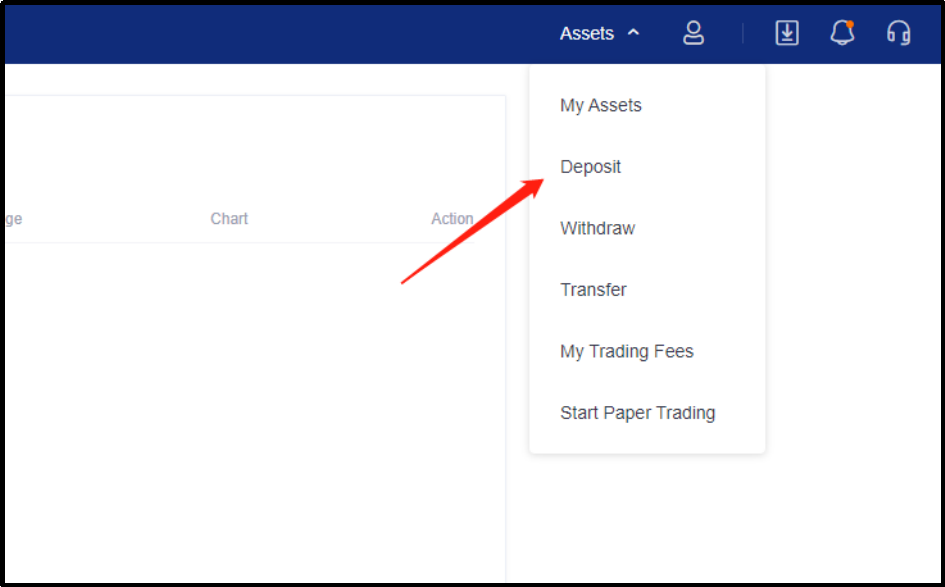
Click on asset and select deposit from the drop-down list.
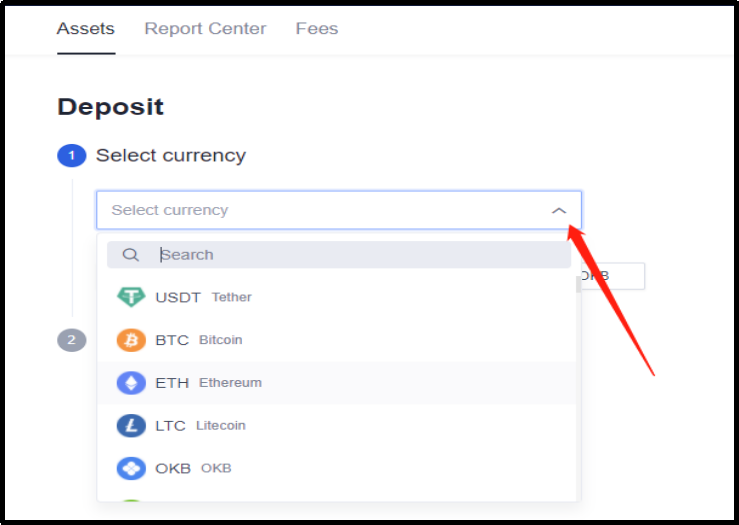
You can then proceed to select the currency which you would like to deposit.
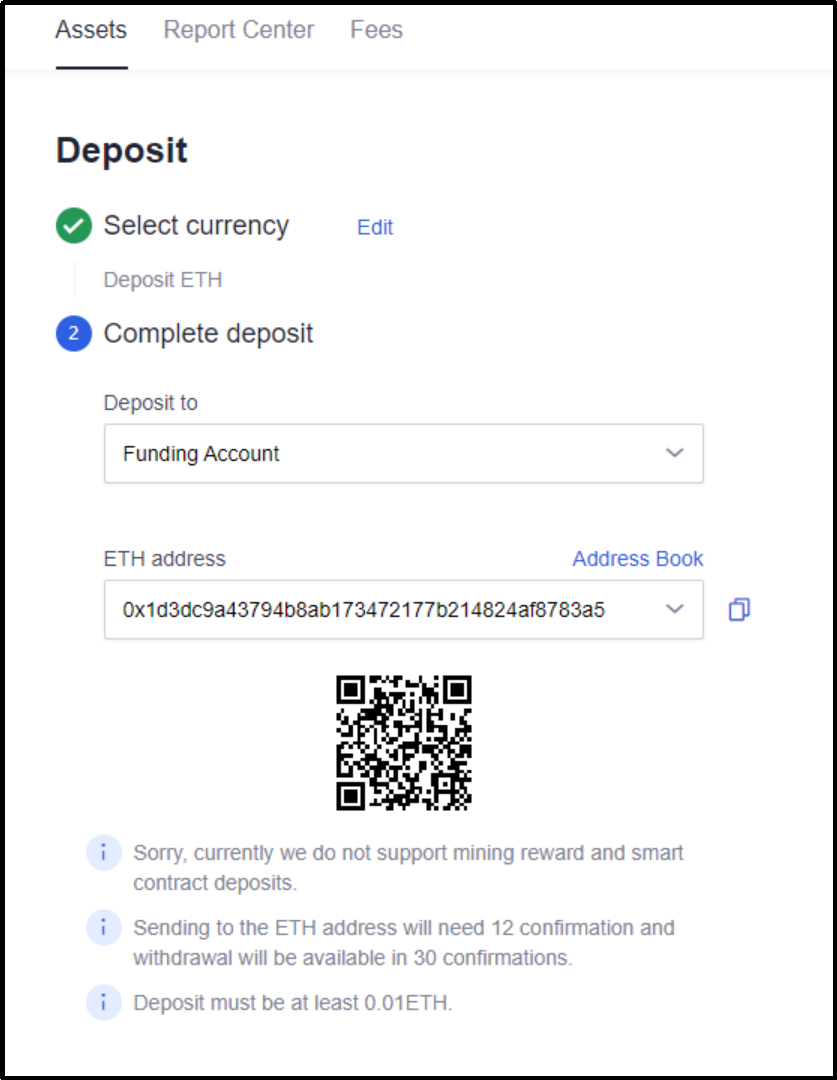
Then proceed to complete your deposit.
📕 Step 2:
If you do not have an asset, then you can proceed to buy crypto.
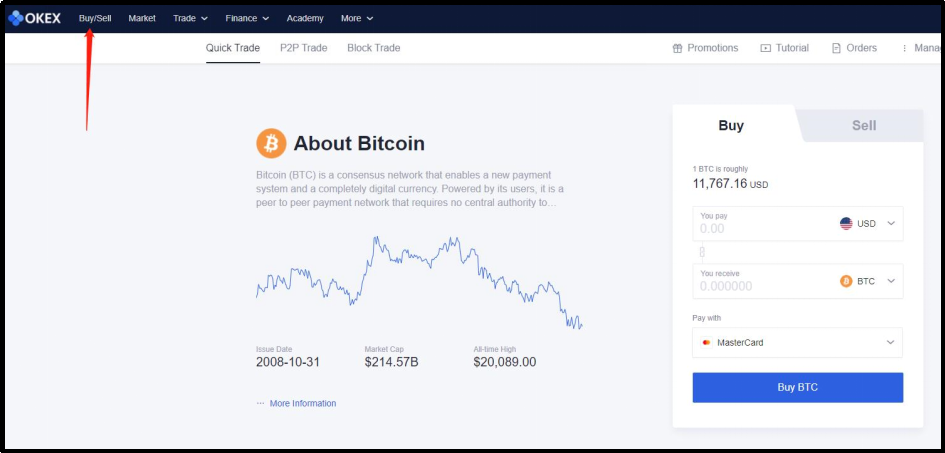
Click and log into “Buy Crypto” at the landing page.
📕Step 3:
Select the type of cryptocurrency that you wish to purchase.
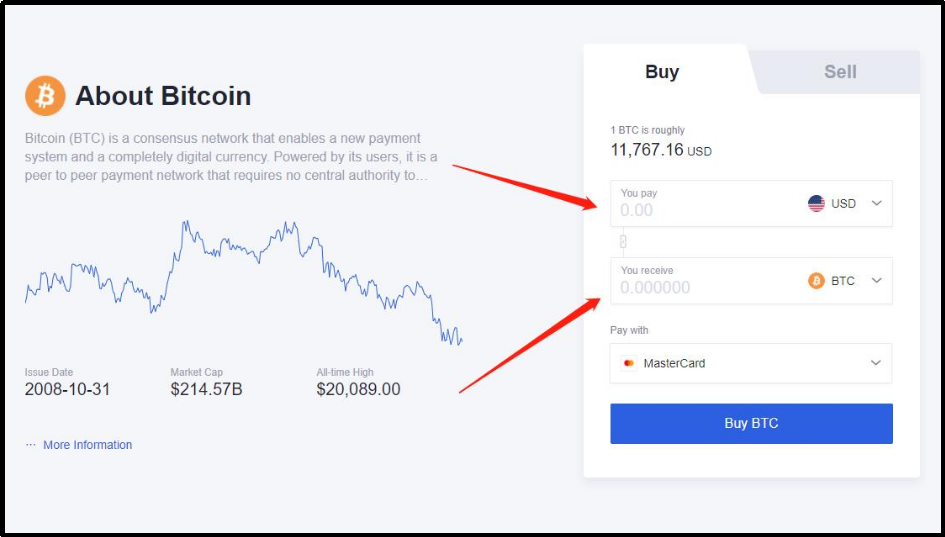
At the moment, you can purchase USDT, BTC, ETH, XRP, LTC, OKB, BCH, BSV & USDK.
📕 Step 4:
Let’s say if you want to buy Bitcoin with $USD, input the amount of $USD that you want to pay for Bitcoin, and choose the payment method.
Once you have entered the amount is USD you will see the amount of BTC will populate by it self.
For example: I would like to buy $100USD worth of BTC then I will be receiving 0.008498
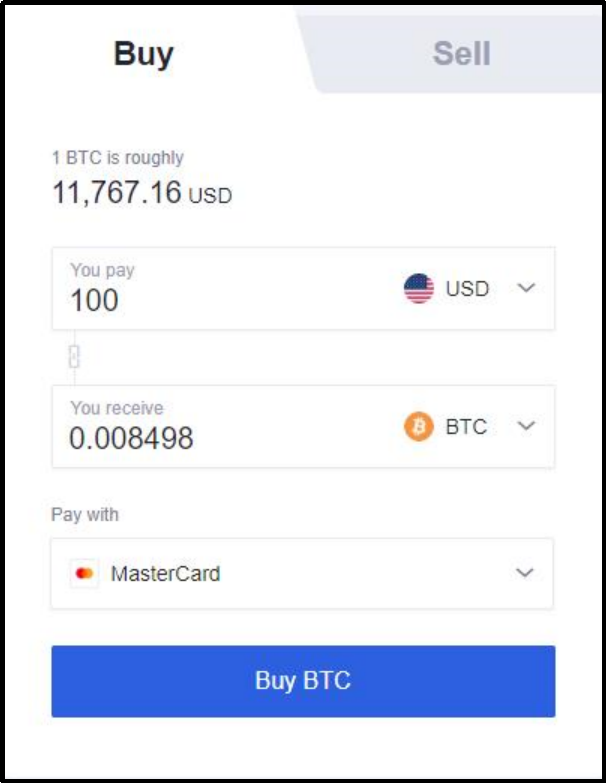
Depending on the fiat currency that you have selected – the payment method will vary as well.
You can play around the fiat currency to see what are the payment method / option available under the “Pay with” drop down list.
📕Step 5:
Click on “Buy Now” and get to the next page.
In this page you will see multiple service providers (Mercuryo, Banxa, Koinal, Simplex, MoonPay, Indacoin etc). The best offer at that point of time will appear at the top of the page.
The best offer is determined based on fee, transfer arrival time and price.
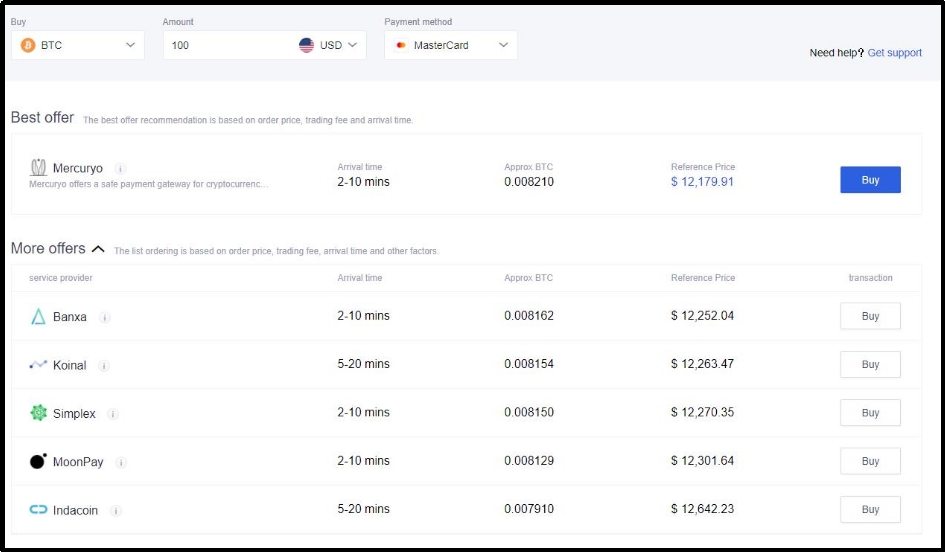
In this page, you will also see other information like token arrival time after a successful payment
Approximated token which you will receive minus the fees.
Please take not that OKEx does not charge any fees for this service however the fees are being charged by the service provider.
📕 Step 6:
You Bitcoin purchase will be completed via the third party. In this case, we will choose the best offer provided by Mercuryo. Let’s click on “Buy”.
Once you click buy, a pop up summary will appear on the page for you to confirm by clicking the check box that you understand that Mercuryo is a 3rd party service provider.
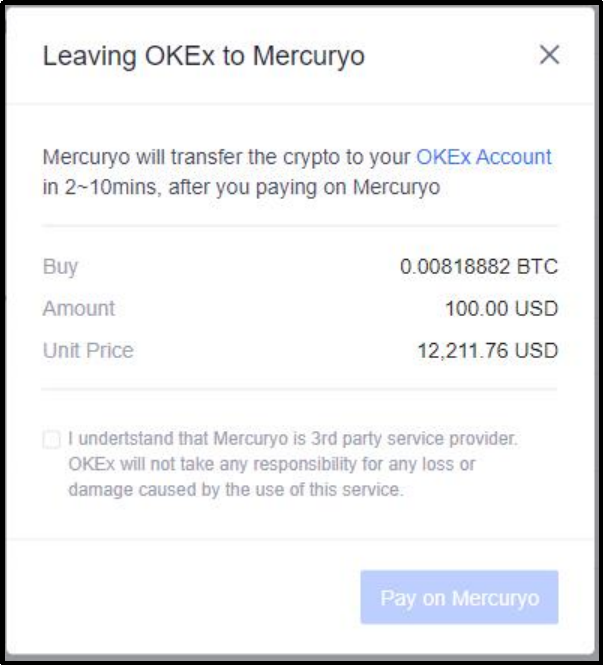
Once you check the box and click Pay on Mercuryo, you will be then taken to Mercuyo payment page to complete the payment.
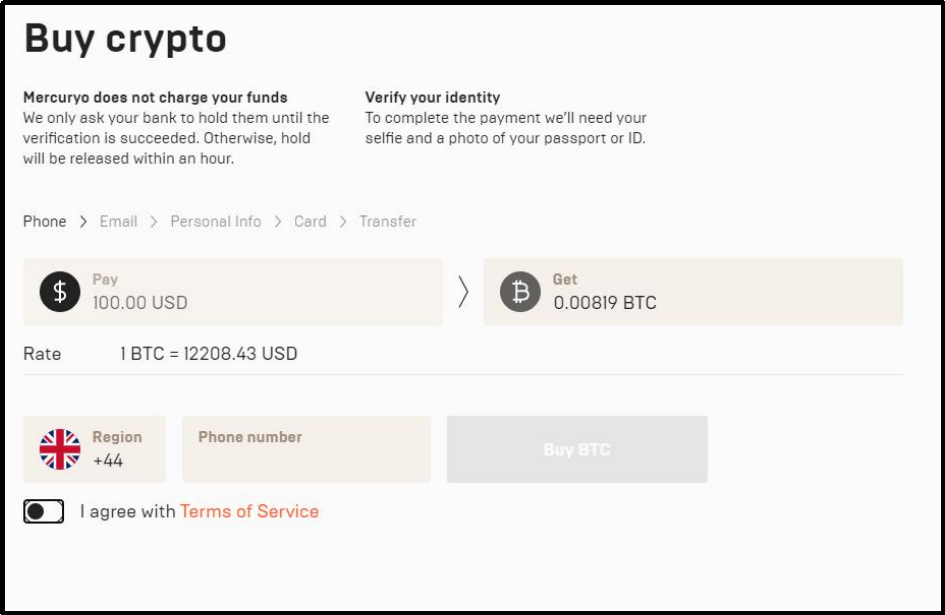
You will see that the service provider informs that they will only ask your bank to hold the transaction until verification is completed. To complete the payment you will need upload a selfie and a photo of your passport. You will then need to provide your phone number and check the box that you agree with the terms of service. Please click the orange Terms of Service to read it.
Please ensure that you provide a correct phone number and click Buy BTC.
📕 Step 7:
Then you will need to Enter SMS code received on your phone or via email.
📕 Step 8:
Confirm your credit card details and click on “Buy BTC”
📕 Step 9 :
Finally, enter the code sent by the issuing bank.
Now, you just have to wait for BTC to arrive in your OKEx account.
Once the transaction is complete, you will be receiving an email confirmation from the service provider.
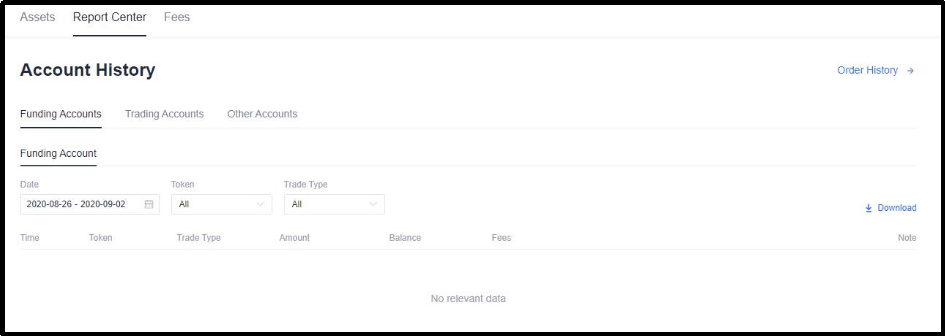
You can go to My Asset and click on Funding account history to see the transaction history.
Congratulations! You have completed “deposit and buy crypto” in today’s session. You can now deposit your crypto into your OKEx account or buy crypto.
🔍 Recommended articles: Session 1 - Registration and Verification