OKEx 101 Season 1
OKExSession 1 - Registration and Verification

📕 Step 1: Sign up / Account registration.
In order to start trading cryptocurrency on OKEx, you need to first sign up for an account. You can do this by visiting the homepage and clicking on the Sign Up button on the top right.
Important Note: Please check whether your country is supported by OKEx before you sign up.
Enter your email address and create a password for your account using the fields on the Sign Up page or use your phone number instead.
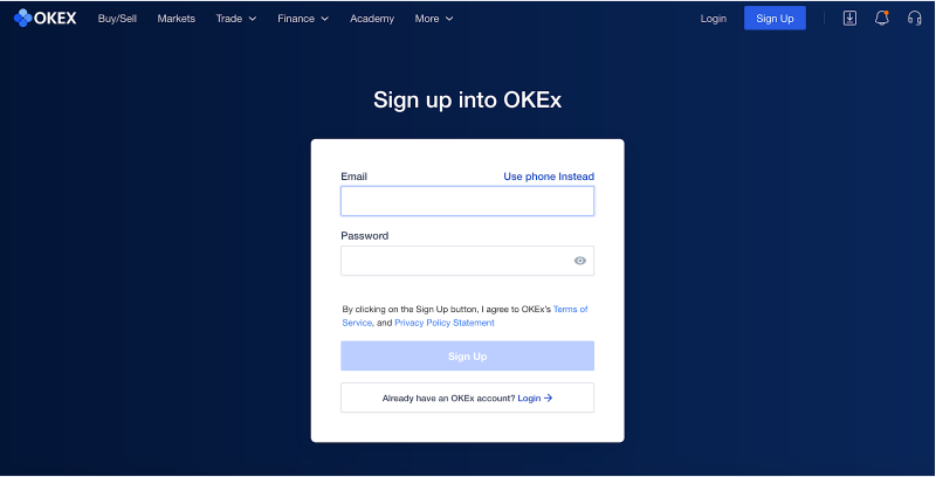
After entering the details, click on Sign Up and you will be prompted to verify your email address or phone number using a code sent by OKEx. This code is valid for 30 minutes and will expire after that, requiring you to repeat the process.
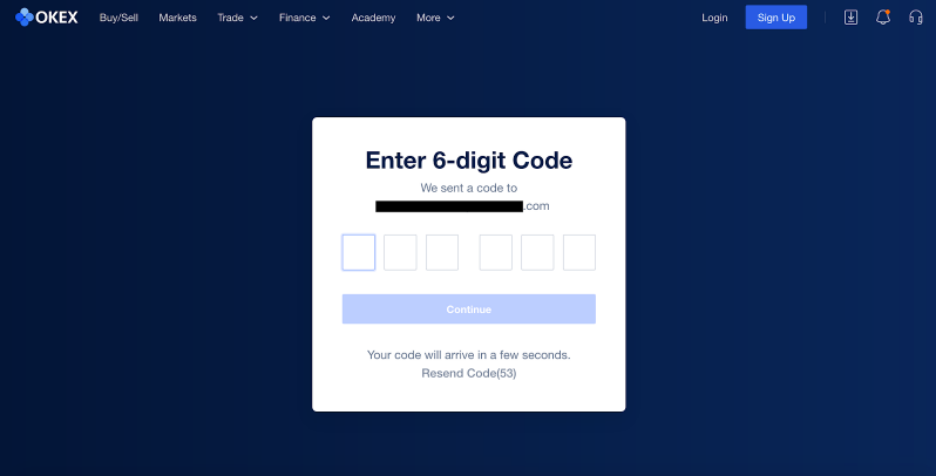
Once you enter the code and verify your email address or phone number, you will be logged into your new OKEx account and will be greeted with a welcome screen.
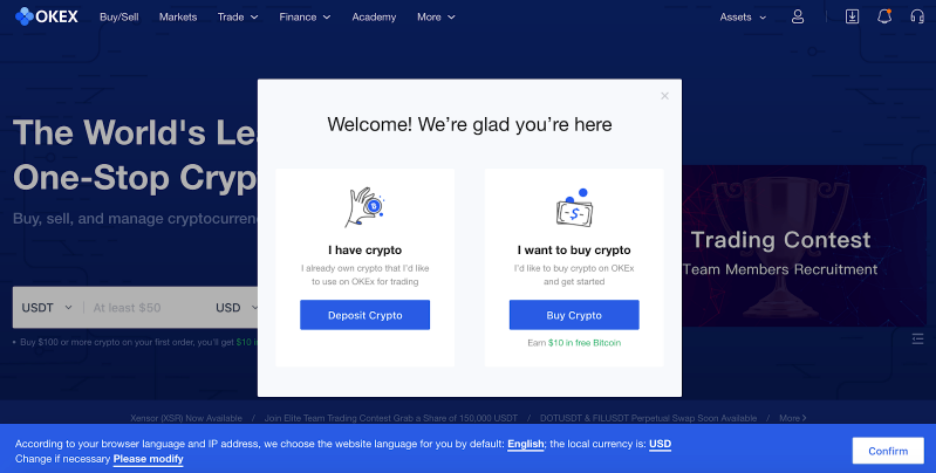
Your OKEx account is now created and you can proceed to buy crypto or deposit your existing assets via the choices on the welcome screen. However, we will be covering these sections in other sessions.
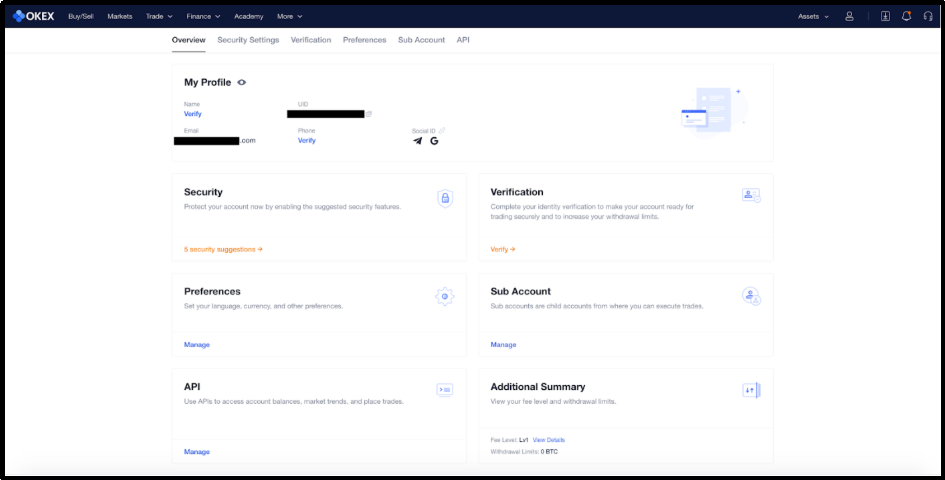
There are numerous account settings you should familiarize yourself with before you start trading on OKEx. You can access your settings by moving the mouse over the profile icon (next to the “Assets” menu) and click on Overview.
The Overview section displays your profile information as well as other account settings, such as Security, Verification, Preferences, Fee Level, Withdrawal Limits, etc.
📕 Step 2: Security Settings
Let’s look how you can secure your account as we strongly encourage you to secure your account.
All OKEx users are encouraged to take advantage of the various security measures and features provided by the exchange. You can start reviewing these options by either clicking on Security Settings on the top menu bar or the security suggestions prompt on the Overview section.
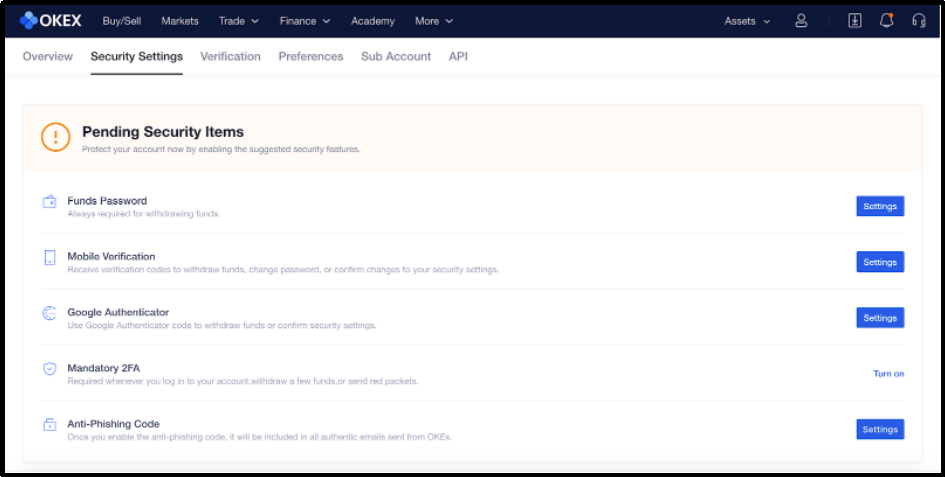
You can use the options “Password,” “Mobile Verification” and “Google Authenticator” to secure your account along with turning on “Mandatory 2FA” and requesting that an “Anti-Phishing Code” be included in all emails you receive from OKEx. Combined, these options offer robust, industry-leading security measures for your account.
In order to start the process, you can click on Verification from the submenu on the settings screen or from the drop-down list after navigating to the profile icon.
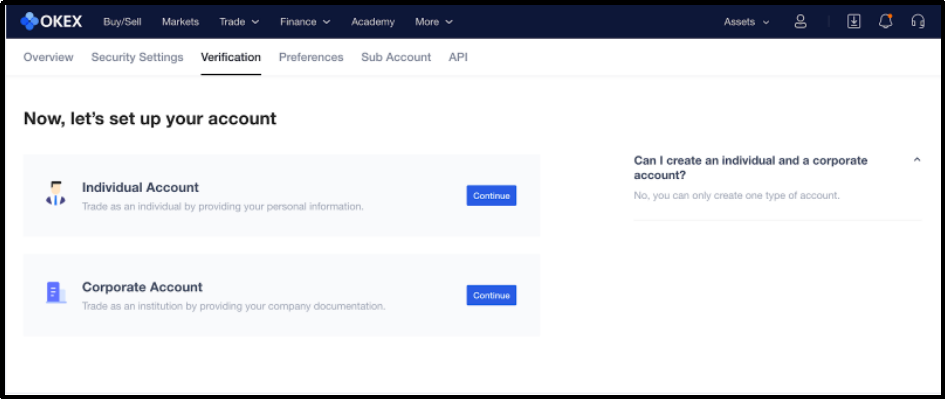
Depending on your account type, you can proceed either as an individual or a corporation and will be required to submit relevant information and follow all the steps. When verifying your account as an individual, you are typically required to have a government-issued identification document (usually your passport) on hand.
Follow the instructions and complete the process. You will need to have a device which has a camera example a mobile phone, laptop or tab.
📕 Step 3: Language and Currency Settings
And finally Setting language and local currency.
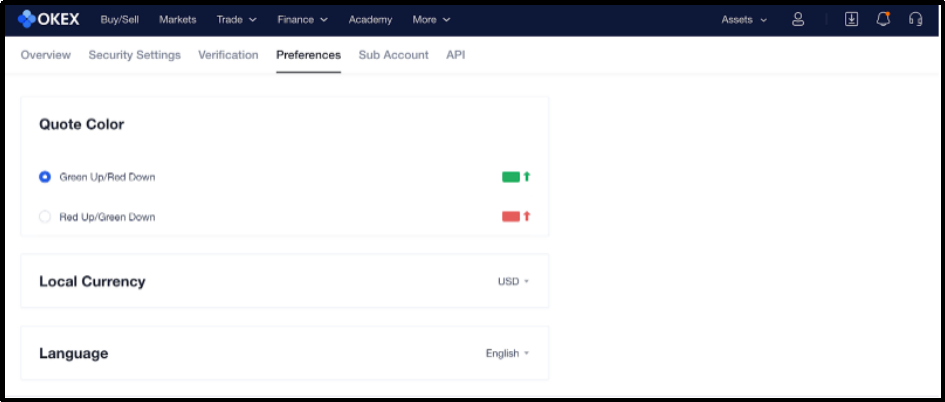
You can quickly change your language and local currency settings by opening Preferences, either from the profile icon drop-down list or by selecting the option from the settings submenu.
The Preferences screen also gives you the option to change the color scheme for the trading quotes you see on OKEx.
🎉 Congratulations! Your account is all set now.🎉
To proceed to the next step of your trading journey
🔍 Join session 2️⃣: https://telegra.ph/OKEx-101-09-04
🔍 Sign-in and Check Points: @OKExMarkets_bot