Migrate - Custom ROM Migration Tool
Sameer DhimanAs Said in the introduction, Migrate is an app which makes it easy to transfer your data from One Custom ROM to Another!
Here's how to use the app!
Pre-requisites
-- Rooted device
-- Migrate - Custom ROM migration tool
-- Custom Recovery (Orangefox/TWRP/PBRP/SHRP)
Instructions
Step 1
-- Open Migrate app and Grant All the Permissions and Give it Root Access

Step 2
-- All of the following can be backed up using Migrate App!
All apps | All app data | All app permissions | SMS messages | Call logs | Contacts | Screen DPI | Default keyboard option | ADB state | Font scale | App installer |

Now In my Case, I'll just be backing up some apps + App Data

Step 3
Select all of the things you want to backup, click on Next and Start the backup!
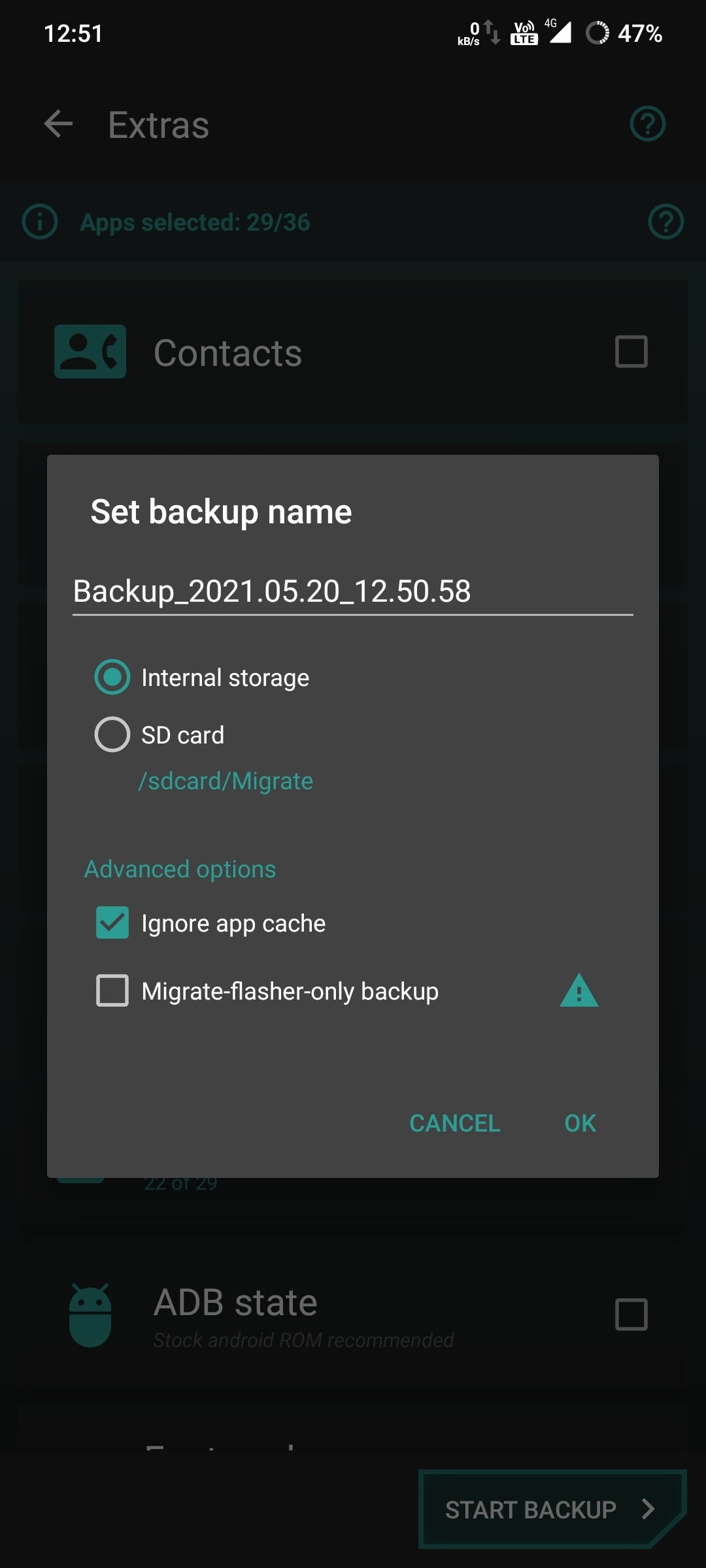
Backup Will be saved in Internal Storage/Migrate or SDCard/Migrate! (Depending on What you select while Starting backup) If you're gonna format your data, then copy the zip to a SD Card or a PC!
The backup will be created by the name Backup_Date_Time
Step 4
Give it a few minutes and you should see "Finished! No Errors" Notification

Once backup is created, there are two ways to restore that backup!
Method 1 - The Recovery Method
Instructions
-- Flash your New ROM Like Any Other ROM and Reboot to your new ROM! Also Root your device again! After that Reboot to Recovery Again and flash the backup file in your custom recovery! Once Backup is flashed, reboot to System!


Method 2 - Flasher App Method
Instructions
-- Reboot to Your New ROM & Place the backup file in Internal Storage/Migrate (Ignore if it is already there)
-- Download Migrate flasher app and Open it & Grant Root Access And Tap on Flash Zip
-- Now select the zip and flash it!
Once Flashing is done, open Migrate Helper and follow the the steps Shown below!
Step 1
-- Reboot to system and Install migrate Helper if isn't installed already. But in most cases, it get's installed once you flash your backup! (If you follow method 1) Then Inside the Migrate Helper App and tap on "Restore apps and data". Grant root access & select the apps/whatever you want to restore from backup and Start the Restore!

Step 2
-- Once backup is restored, Select the following options and tap on Finish!

Voila! You've Restored your backup successfully!
Notes
-- You might not receive any notifications from some apps, follow this guide to fix that Issue!
-- Do not switch to other app while restoring.
-- Do not backup data or permissions for all the apps. They might not work for all the apps while restoring for all apps works seamlessly.
-- While switching from AOSP ROMs to MIUI/OOS/Any other Port ROM, some apps might crash, re-install them from Google Play Store! But Switching from MIUI/OOS/Any other Port ROM to AOSP ROMs works completely fine!