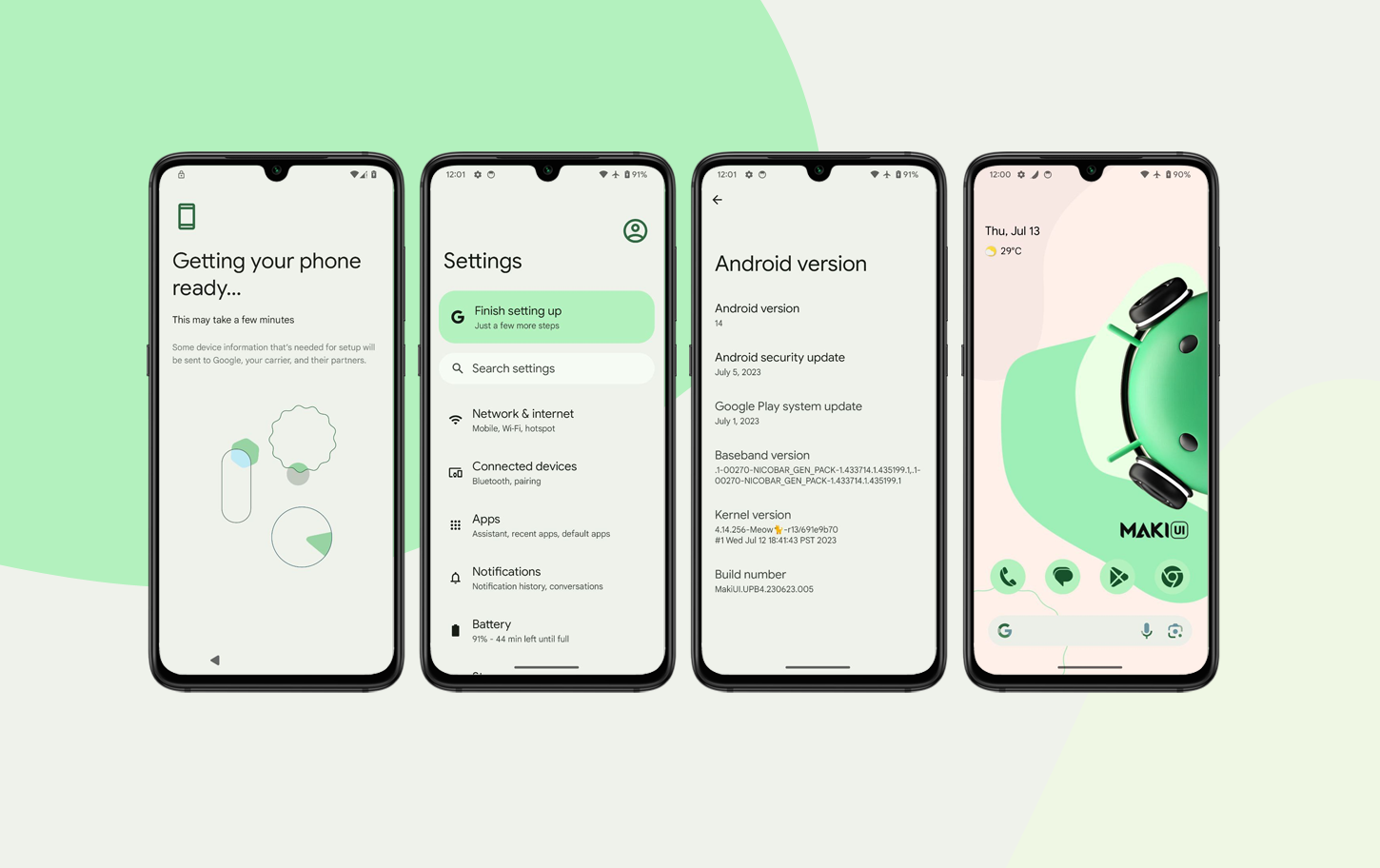
MakiUI Android 14 Beta 4 - Hotfix
@iamakima
Remember the read the notes below

Preview of this build » YouTube
Support:
- To provide feedback or report bugs, please go to the support group as it is the most effective way for me to understand and address any issues that may arise.

Changelog v2 ID1145 - 13/07:
▫️ Yep, GApps btw
▫️ Changed to Meow kernel - (@eunprjkts)
▫️ Added support for themed icons
▫️ Updated drivers (partially) - @romiim_o
▫️ Fixed the issue of stuck boot during reboot (please be patient while booting)
▫️ Pixel 7 Pro
▫️ SL L3 (Widevine) compatibility
▫️ Updated build script
▫️ Added Maki Overlays
▫️ Added StatusBar app option
▫️ Added missing system files
▫️ Added missing files and permissions
▫️ Minor fixes and improvements

NOTES
Personal recommendation: for now, I would recommend using Magisk (check "How to flash MakiUI notes below) instead of KSU (which I don't even use). The system will run perfectly in this way, that's the deal.
- Download Magisk Delta for MakiUI on this link.
Google Session:
- By default, if you have initially set the device to pass on CTS/SafetyNet, and then reboot and log in to your Google account, the device ID should be identified as Pixel 7 Pro.
To ensure that the Pixel 7 Pro appears in your Google security activity section on MakiUI, it is crucial to set up your CTS before logging into your Google Account. It is important to configure everything beforehand, including checking SafetyNet for compatibility. Once everything is in order, reboot your device and proceed with logging into your account as if it were your first time.
- If the (Pixel 7 Pro) isn't being displayed, there could be a couple of reasons. Firstly, when you utilize a backup or restoration app, Google may assign you a different device randomly, which is not a major issue, to be honest. Secondly, if your backup is from a cloud service, the device ID may still be associated with the previous device, causing it not to show up correctly.
- In that special case, do login w/0 restoring and wait some minutes to check what device is on your session
- Another tip is to create a new account during the initial setup process.

HOW TO FLASH MAKIUI
- How to Flash:
Download the MakiUI ROM
To ensure the integrity of the ROM file, please keep it in your internal storage without moving or copying it (you can always copy, but move, don't). It is important to verify that the file was downloaded completely, without any errors, before proceeding - Wipes on:
- Dalvik / ART Cache
- Cache
- System
- Vendor
- Flash MakiUI ROM and wait
- Flash Magisk Delta for MakiUI
- Flash DFE-DMV-FE
- Format Data/yes - Reboot system
- Enjoy
- Please check to the notes provided in the previous builds for more information. Make sure to read through the notes carefully.