How to run Telegram Desktop as portable app on macOS
t.me/sadal
On Windows,
Use portable version instead of setup version.
https://github.com/telegramdesktop/tdesktop/releases

On Linux,
you can use -many -workdir command line parameter or create the launcher.
https://github.com/telegramdesktop/tdesktop/issues/533#issuecomment-222131863
On macOS,
Since v1.4.1, TDesktop implemented new simple method, no need command/script.
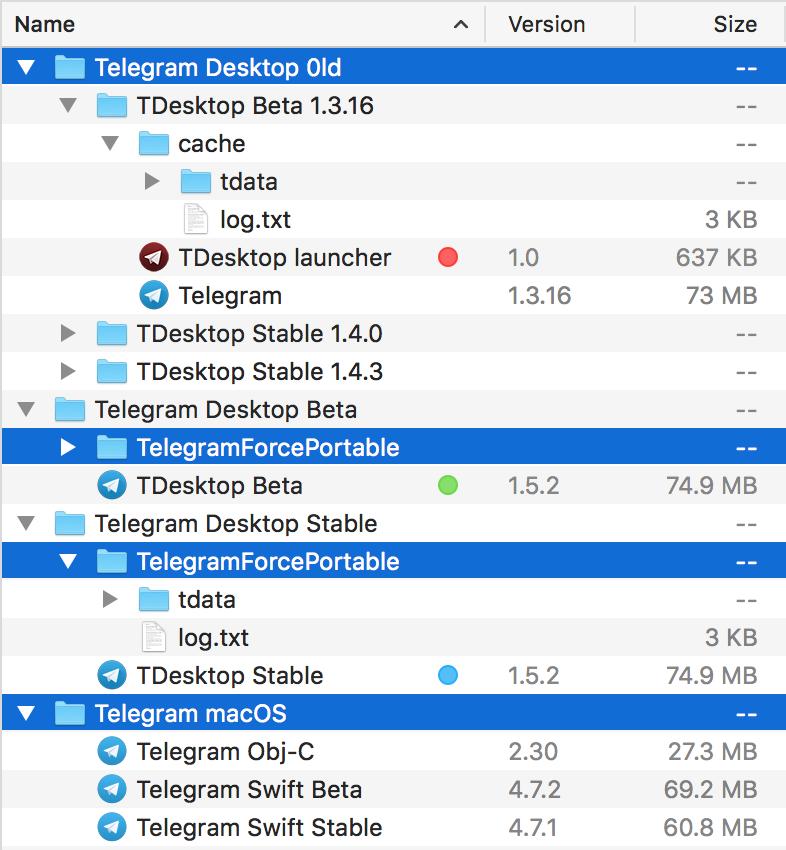
Just create a subfolder: TelegramForcePortable
Security Settings:
- Enable Cloud Password (Two-step Verification) to add an extra layer of security for your account.
- Enable Local Passcode to encrypt TDesktop working directory.
- Check Active Sessions regularly.
How to change icon of ANY apps:
Custom icon.icns for launcher/app. t.me/tgswift/148
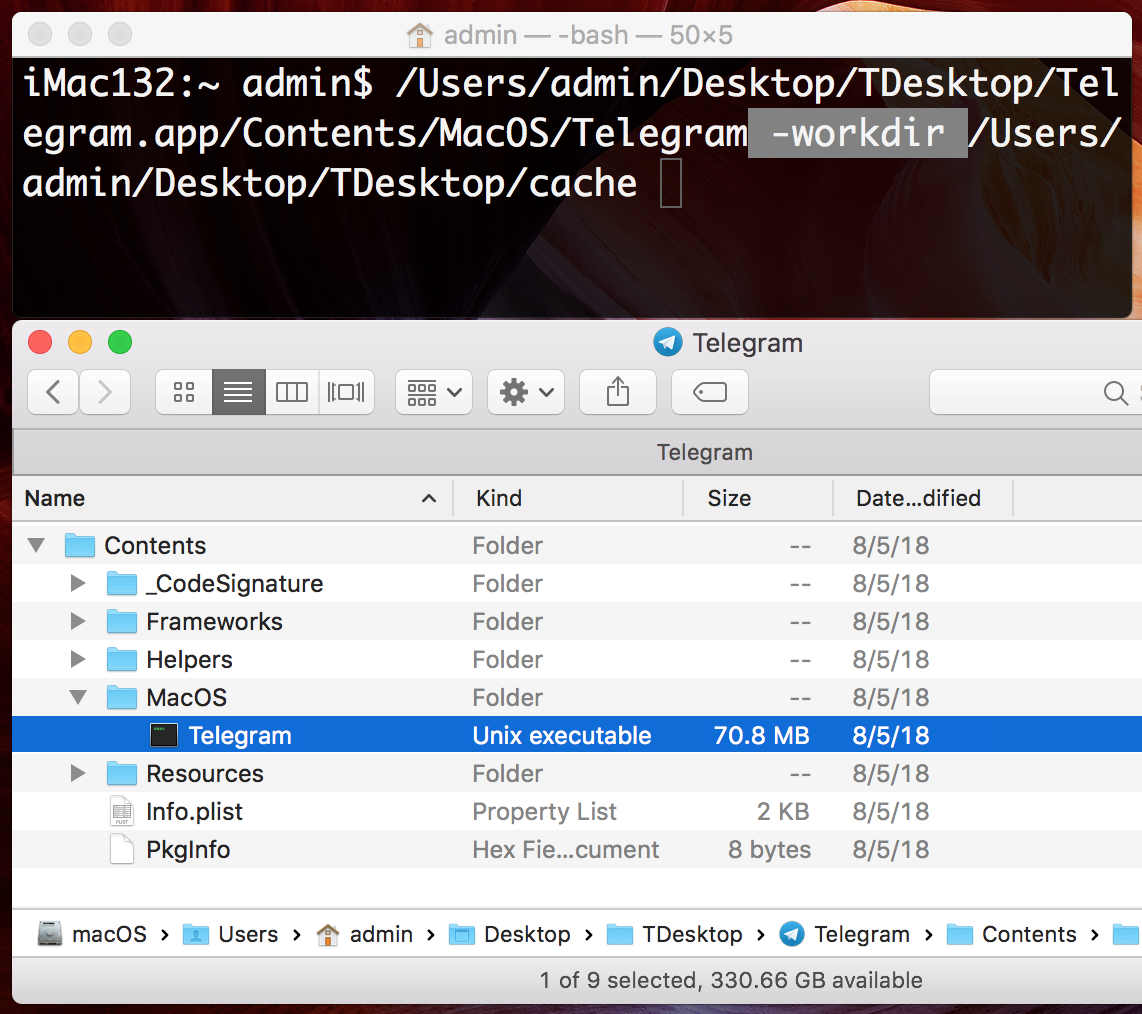
Use -workdir parameter, it won’t work if you add -many.
<path to Telegram binary> -workdir <path to folder>
How to create TDesktop launcher app with Apple Script Editor:
1. Open Script Editor on /Applications/Utilities.
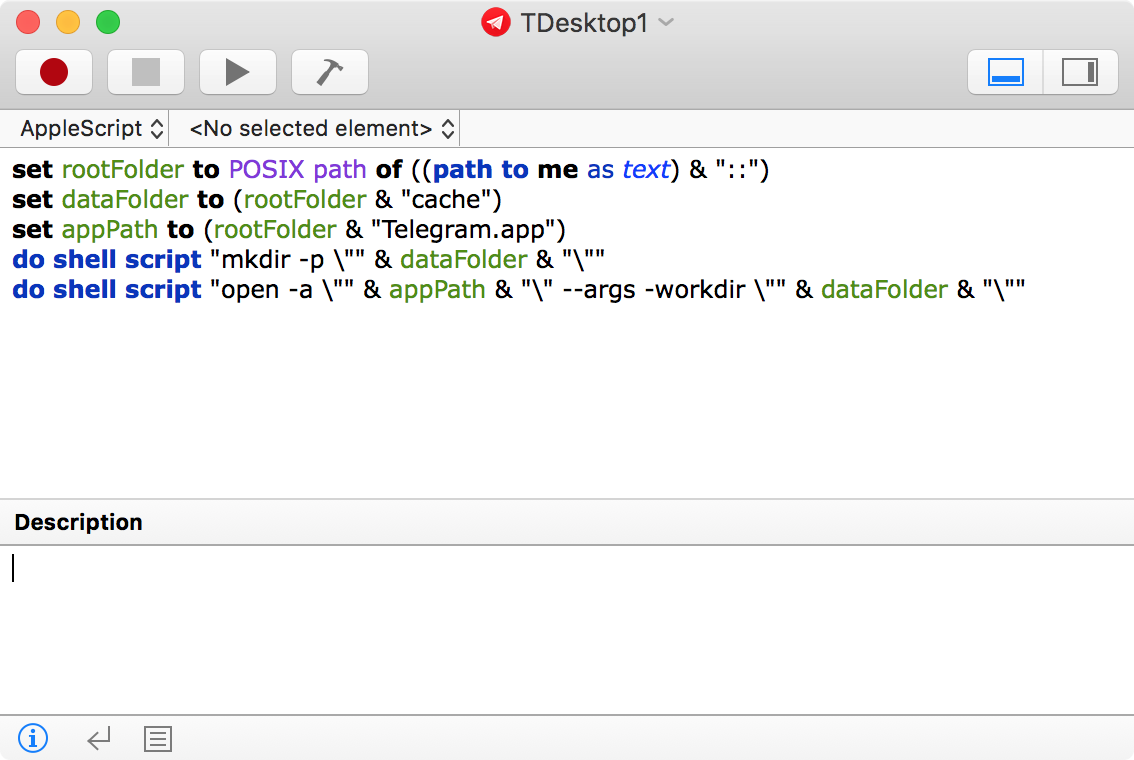
2. Copy following script:
set rootFolder to POSIX path of ((path to me as text) & "::")
set dataFolder to (rootFolder & "cache")
set appPath to (rootFolder & "Telegram.app")
do shell script "mkdir -p \"" & dataFolder & "\""
do shell script "open -a \"" & appPath & "\" --args -workdir \"" & dataFolder & "\""
3. Save as Application, let’s called “launcher”. Close Script Editor.

4. Put the launcher in the same folder with Telegram.app of TDesktop stable/beta. Download from desktop.telegram.org or GitHub, don’t use TDesktop from Mac AppStore.
5. Done. Run the launcher.
You can clone and create alias/shortcut for your launcher, also you can use it as portable app for removable USB disk.
App data are stored in “cache” workdir, same folder with the laucher & app. If you want to use different name, edit the launcher with Script Editor.
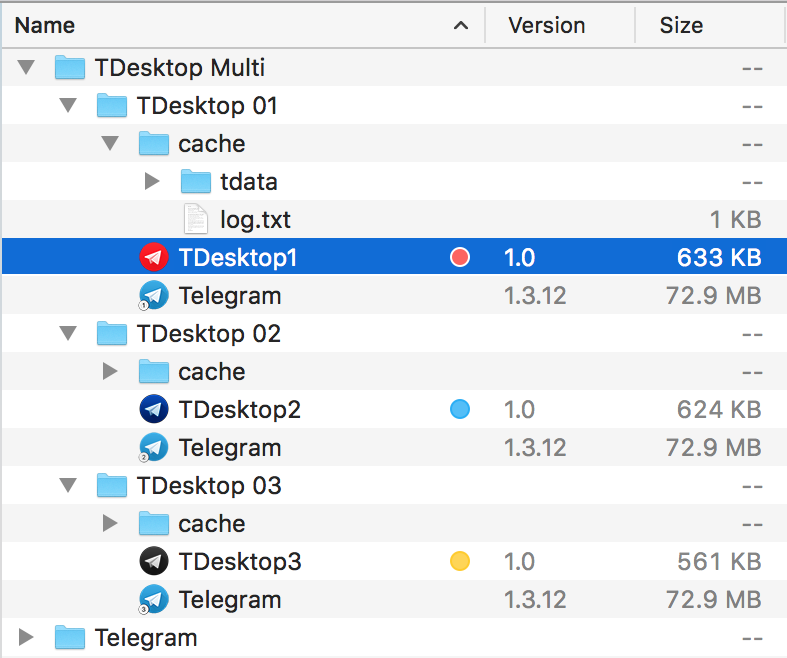
Files:
- TDesktop launcher.app created with Apple Script Editor. https://t.me/tgswift/149
- Custom icon.icns for launcher/app. https://t.me/tgswift/148