@iCloud.com
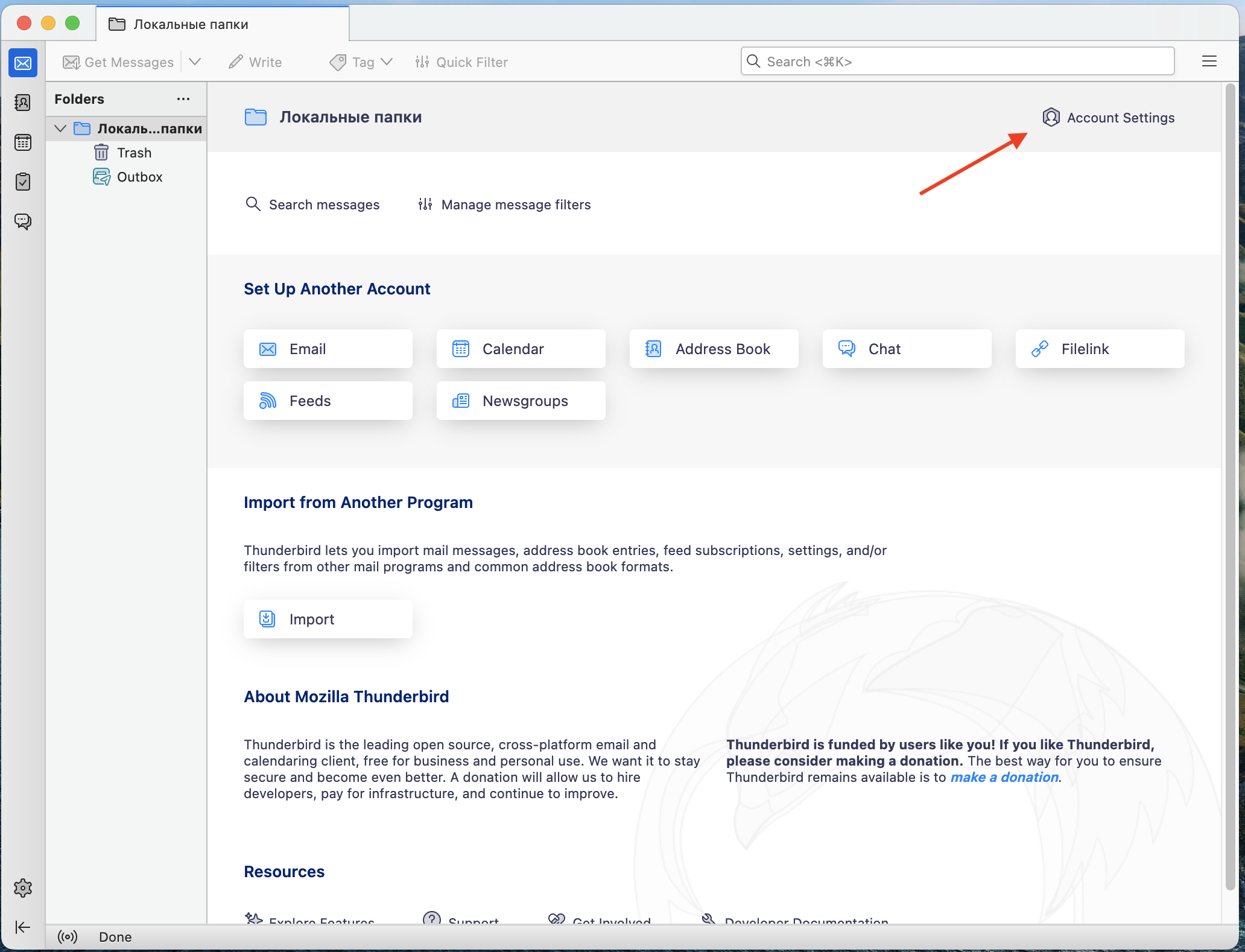
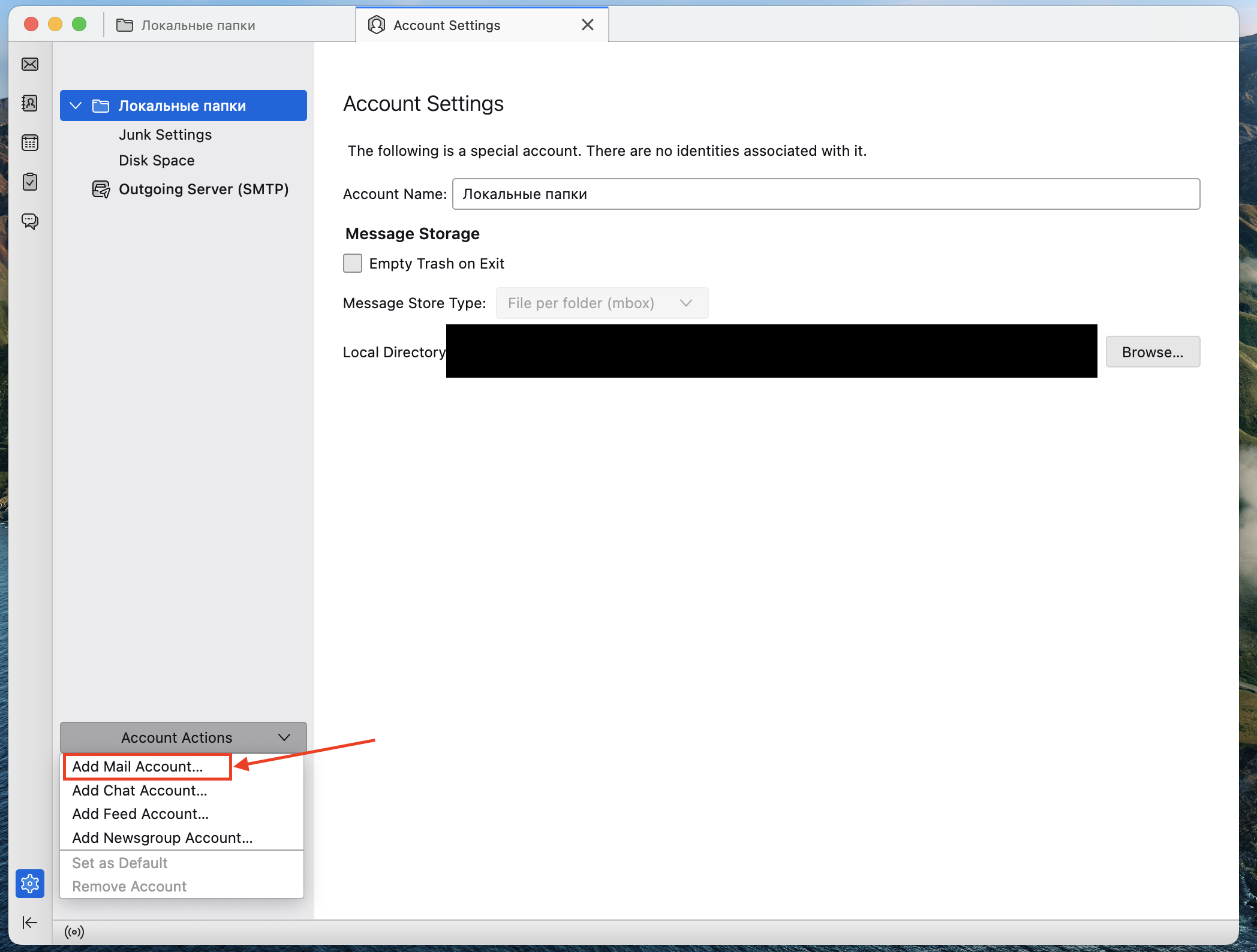
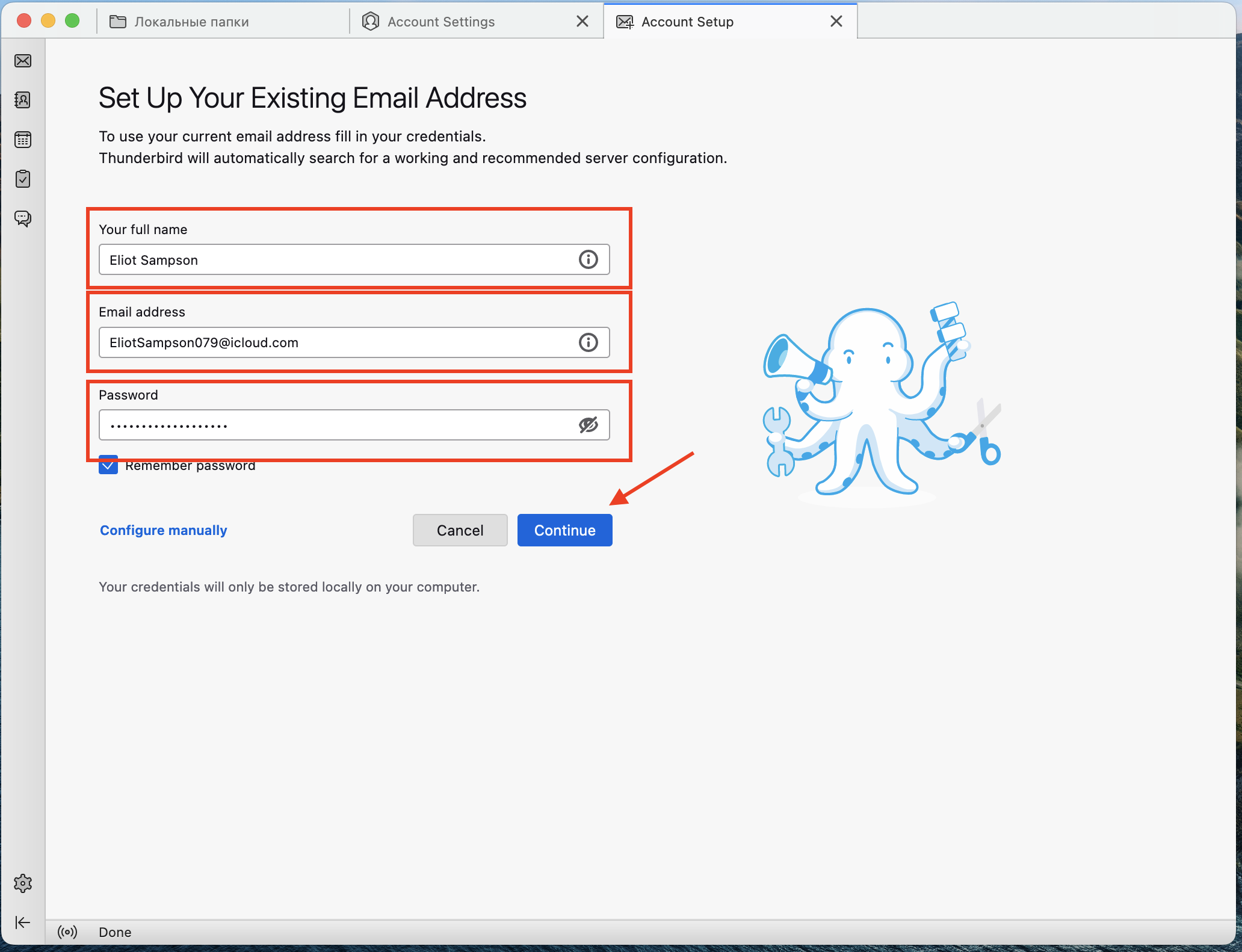
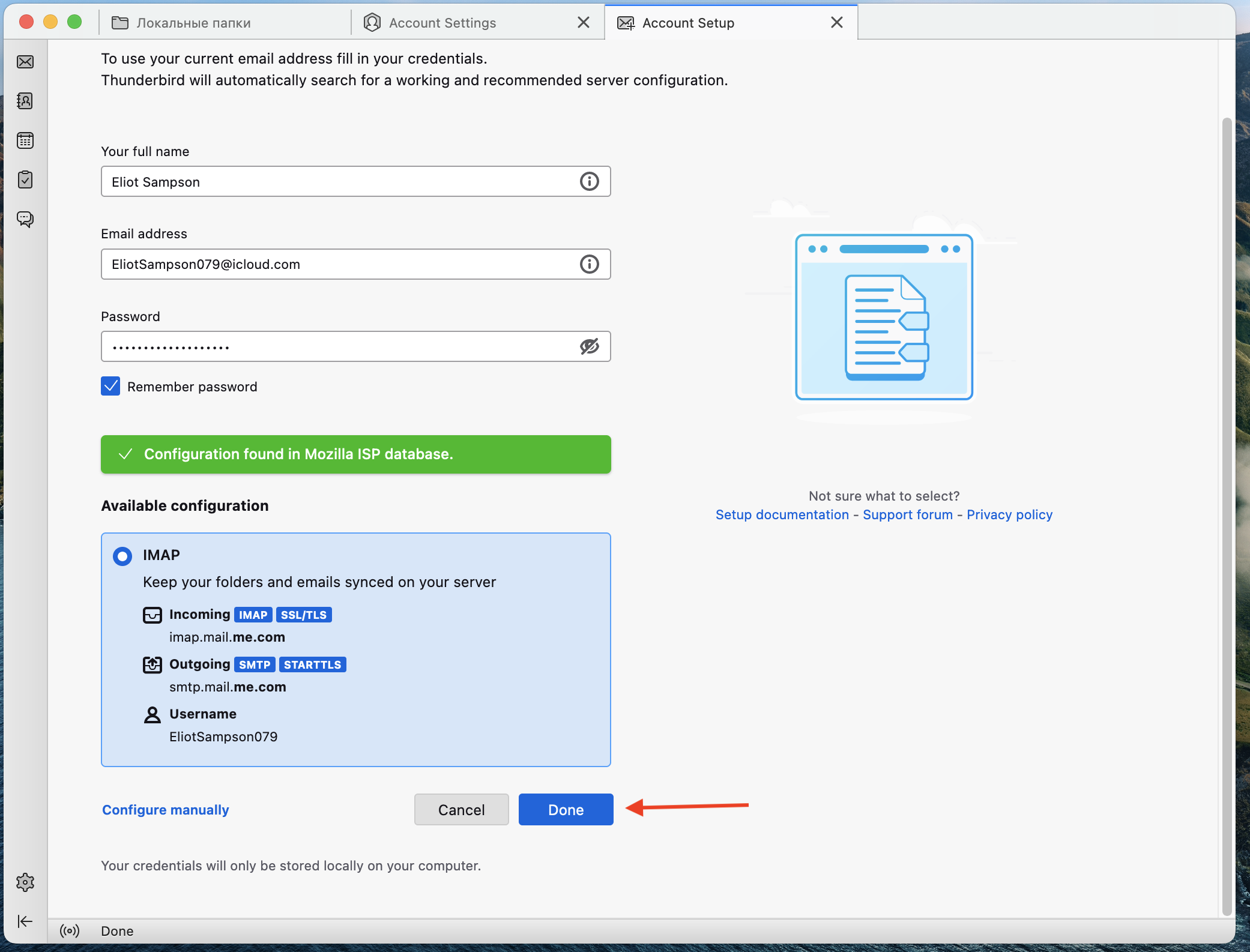
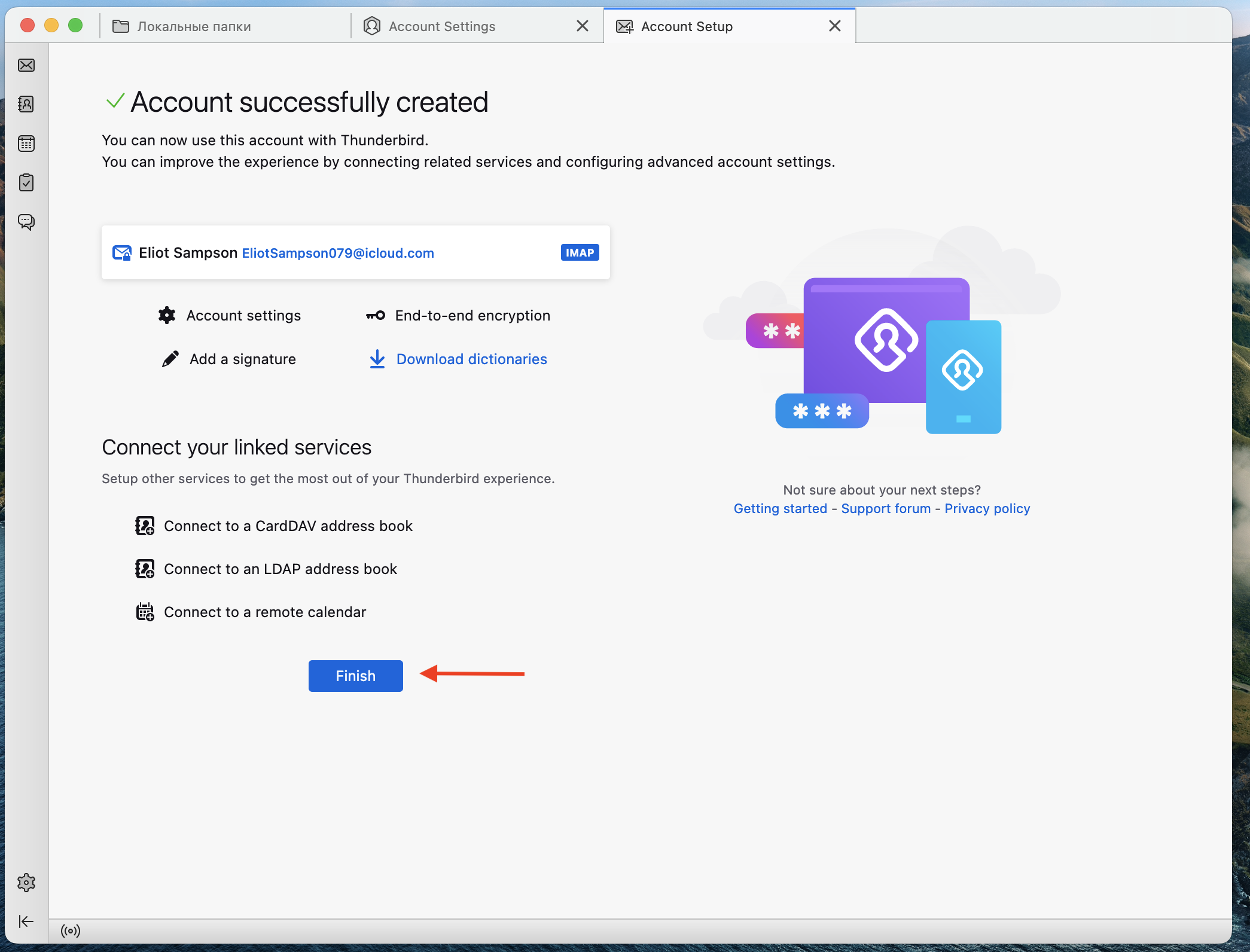
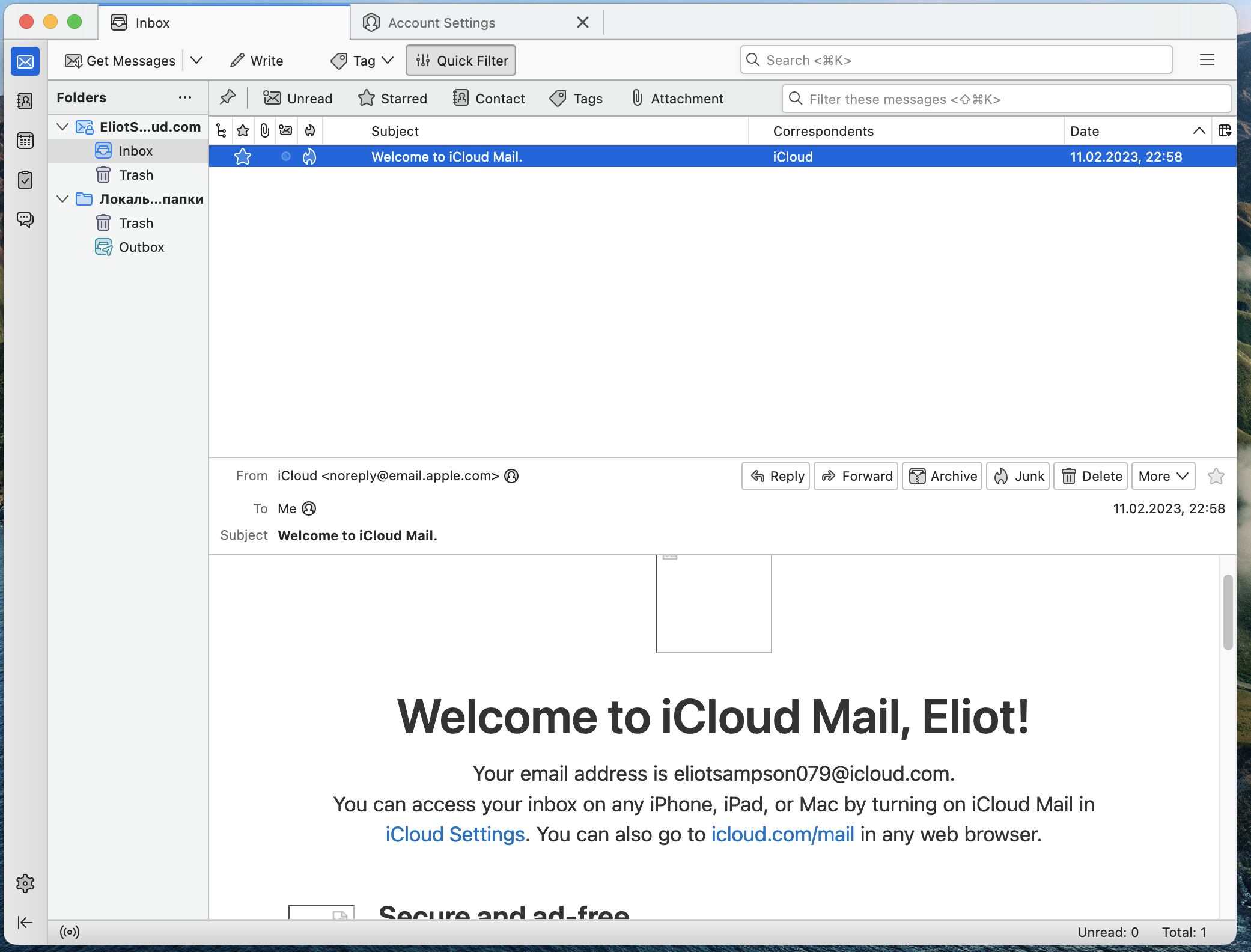
Инструкция по подключению почт @iCloud.com к почтовому клиенту Tanderberd. | Instructions for connecting the mail @iCloud.com to the Thunderbird email client.
Введение
После покупке вы получите данные следующего вида:
почта:код приложения
Полученные вами аккаунт принадлежит только вам, но в связи с тем что для входа в аккаунт на сайте icloud.com или appleid требуется 2fa (данный аккаунт зарегистрирован на одноразовый номер) мы предоставляем код приложения. С помощью него вы можете беспрепятственно попасть в вашу почту через любой почтовый клиент который поддерживает imap. В этой статье мы подробно опишем подключение к почтовому клиенту Tanderbird.
Introduction
After the purchase, you will receive the following data:
mail:application code
The account you received belongs only to you, but due to the fact that to log in to your account on the site icloud.com or appleid requires 2fa (this account is registered to a one-time number) we provide the application code. With it, you can easily get into your mail through any email client that supports imap. In this article, we will describe in detail the connection to the Thunderbird mail client.
Подключение | Connection
Скачайте клиент tanderber (https://www.thunderbird.net/) | Download the thunderbird client (https://www.thunderbird.net /)