Windows workstation for developers
https://medium.com/@kfirgollan/windows-workstation-for-developers-2c053494ad2fFor the last few years I have been using mac as my workstation for my day job. I got used to various utilities and workflows that worked very well for me. Recently I have switched to a windows based setup. I wanted to get good hardware and make sure that I run things locally. That’s why I eventually decided to go with a non-mac workstation which should result in better hardware for the same price.
In case you are interested I chose ASUS ROG Zephyrus G15 GA503QM. I took a model with 32GB of RAM, 8 physical cores (16 logical) and 1TB of SSD. So far the laptop held up pretty well for my workflow, which includes running multiple virtual machines.
After working with the laptop as a workstation for quite some while I have gathered some tools and tricks. These improve my workflow with the workstation significantly. Thus I decided to share my setup here. In hope that it might help other developers.
PowerToys
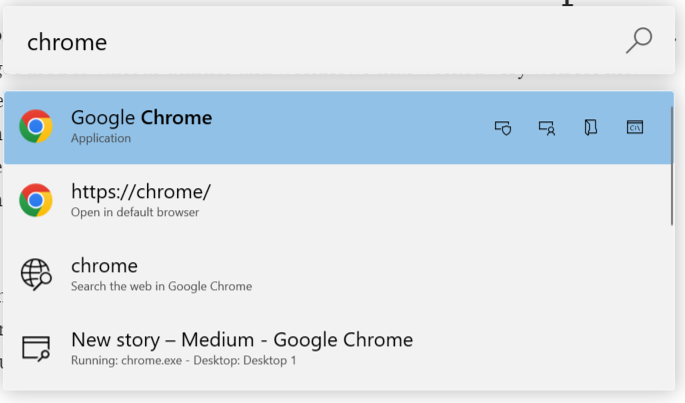
One of the things that I liked most on mac was the spotlight feature. It is a search box that you can bring up with a simple key binding. By using this search box you can quickly open applications without leaving your keyboard.
Luckily there is a good alternative for windows. It is called PowerToys Run, it is a part of the PowerToys package for windows. PowerToys brings a bunch of more features like easy renaming, image resizing etc.
For an installation guide and the documentation refer to the official PowerToys documentation.
Chocolatey

As a developer one of my main tools is the terminal. In many cases I find that I need to install some package. For example, lets say I want to install golang. I want to use something directly from my terminal, just like I would use apt on linux or brew on mac. Luckily there are solutions for this on windows as well.
There are many package managers for windows out there. I experimented with a few and ended up with chocolatey. It is very intuitive to use and contain most of the packages that you will most likely need.
Clink
As someone who is used to work with bash the windows cmd feels strange. Starting from the fact that it doesn’t support emacs key bindings (like Ctrl+E for end of line).
Clink is a utility that can be attached to cmd and make your life a lot better. From the familiar key bindings to custom lua scripts. There is an active community around clink. As one might expect people have made quite a few scripts for clink, some of them are rather useful. I highly encourage you to refer the the popular scripts list and check it out.
Aside from the built-in goodies that you get with Clink I highly recommend adding a custom init script. I have use my script to define doskey (the cmd version of alias) for commands that I prefer. The following snippet is taken from my init script for the sake of the example.
@echo offREM #####################################################REM AliasesREM #####################################################doskey ls=lsd $*doskey which=where $*doskey cat=type $*doskey clear=cls
Note that there are a few versions of clink. Make sure that you are using 1.* (or higher) version. To install clink you can either use choco or via their website https://chrisant996.github.io/clink/.
Tabby
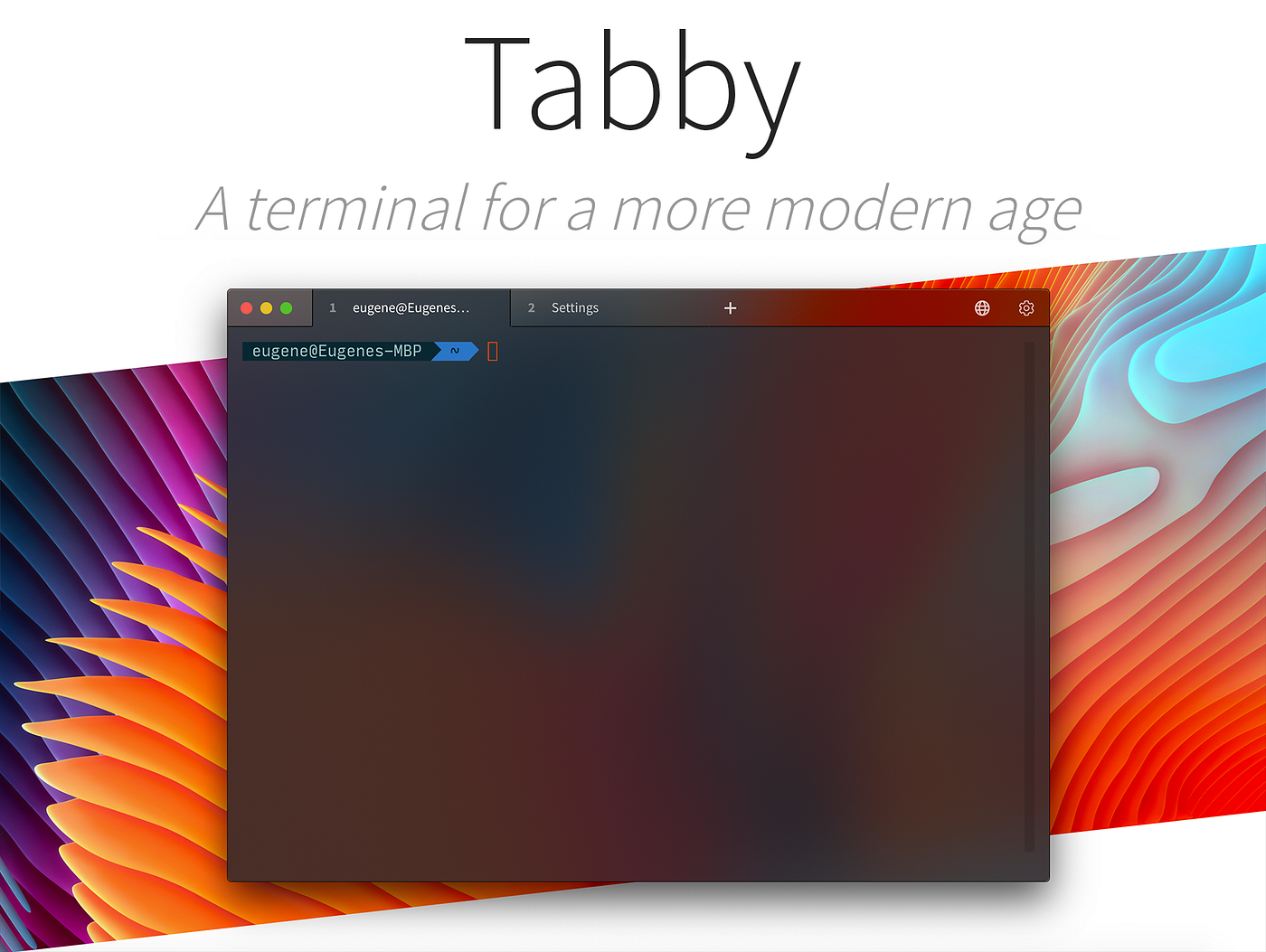
When I was working with a mac I used iTerm2 as my terminal emulator. iTerm2 is an excellent tool with many features. The problem is that it can’t run on windows. So what do we do? look for an alternative of course!
Tabby is an alternative to the built-in terminal that comes with windows. One of the most important features for me is the ability to split the terminal. I tend to use this workflow quite a bit. Tabby comes with with this feature as well as a pretty slick design.
Vagrant

When starting out with windows I tried out WSL 2. The WSL comes with a big promise for making it seamless to run linux applications on top of windows. While it sounds nice in theory very quick I ran into many issues. To name one issue that I ran — working with docker. The dockerd runs on the windows host and the utilities, like the docker command line tool, are running in the WSL context. Some things just didn’t work as I expected them to.
I than figured that I should try a different approach — spinning up a VM. I started out with hyperv. Since it is built into windows and maintained by Microsoft I figured that I should at least try it. After playing with it a bit I ran into an annoying issue — controlling the network parameters on a hyperv VM is pretty bad. You can’t really set a static IP for your machine in a convenient way. But other than that, hyperv seems to be working pretty well.
After playing a bit with hyperv and I got the feeling that it will serve my needs. I then set out to create a simple vagrantfile for managing the VM. I am a big fan of IaC and much prefer controlling the VMs via some scripted way that I can commit to git.
The last stage here was to use vagrant ssh-config command. This command generates ssh configuration for sshing into the relevant VM. Add the config to your %HOME%\.ssh\config and ssh away.
Note: Since the VM can change it’s ip address between boots you might need to update this config.
To setup vagrant & hyperv on your windows machine refer to this guide.
LSD(eluxe)
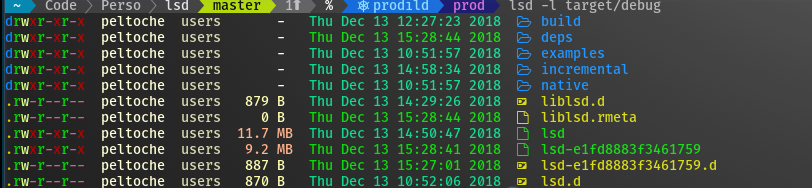
While working with cmd the output of dir just felt, well off. I really wanted something that will feel like the good old ls . After searching a bit I found lsd. It is an implementation of ls in rust with some additional features. The great thing here is that lsd also works on windows. Great success!
Just remember to add doskey ls=lsd $* (the $* part is for passing parameters like ls -l ) to your init file and you are good to go.
While I use a lot more tools (like VSCode, RipGrep, FZF, vim and more) I feel like the listed tools here are the most critical ones. They made a big difference for my day-to-day work on my windows workstation.
With that being said, please share your thoughts, I’m always open to learn about new tools that can help me in my flow. Happy coding everyone!