Why Does My Printer Installation Keep Failing? Complete Troubleshooting Guide
Introduction
Installing a printer should normally be a straightforward process, but sometimes Windows or macOS may display a “Printer Installation Failed” message. The problem can occur when you are installing a new printer, reconnecting an existing printer, or reinstalling printer software after changing your computer or network.
Printer installation failures are commonly associated with outdated or incompatible drivers, connection problems, system conflicts, insufficient permissions, security software, or previously installed printer software.
Fortunately, you can often resolve the problem without replacing the printer or making major changes to your computer. This guide explains the common causes of printer installation failures and provides practical steps to complete the installation successfully.
Common Reasons a Printer Installation Fails
Several different issues can prevent a printer from installing correctly.
Common causes include:
- Outdated or incompatible printer drivers
- Incorrect printer software
- Weak Wi-Fi connection
- Faulty USB cable
- Incorrect network configuration
- Corrupted system files
- Insufficient administrator permissions
- Conflicting printer drivers
- Previously installed printer software
- Firewall or antivirus interference
- Missing operating-system updates
- Print Spooler problems
Identifying the cause can help you choose the right troubleshooting method.
Restart the Printer and Computer
The first troubleshooting step is to restart both the printer and computer.
Follow these steps:
- Turn off the printer.
- Close any printer installation windows.
- Restart the computer.
- Wait for the operating system to load completely.
- Turn the printer back on.
- Try installing the printer again.
A restart can clear temporary system conflicts and communication problems that may have interrupted the original installation.
Check the Printer Connection
A stable connection is essential during installation.
For USB Printers
Check that the USB cable is firmly connected to both the printer and computer.
If possible, try another USB port. You can also test with another compatible cable if you suspect the existing cable is damaged.
For Wireless Printers
Make sure the printer is connected to the correct Wi-Fi network.
Your computer should also be connected to the appropriate network. If you recently changed your router, Wi-Fi password, or network name, reconnect the printer before attempting installation again.
Weak wireless signals can also interrupt the installation process.
Run the Windows Printer Troubleshooter
Windows includes troubleshooting features that can help identify common printer problems.
Open your printer settings and look for the available troubleshooting option.
The troubleshooter can check for problems involving:
- Printer configuration
- Driver issues
- Connection problems
- Printing services
- Device detection
Allow Windows to complete its diagnostic process and follow the recommended instructions.
After troubleshooting is complete, try adding the printer again.
Install the Correct Printer Driver
One of the most common causes of installation failure is an incorrect or outdated printer driver.
The driver allows the operating system to communicate with the printer. If the driver does not match your printer model or operating system, installation may fail.
Before installing a driver:
- Identify your exact printer model.
- Check your operating system version.
- Obtain the appropriate driver from the printer manufacturer's official website.
- Install the driver according to the provided instructions.
- Restart the computer if requested.
- Try adding the printer again.
Using the correct driver can significantly improve installation compatibility.
Update Your Operating System
An outdated operating system may not have the components required for newer printer software.
Check for available Windows or macOS updates and install appropriate updates before trying the printer installation again.
Keeping the operating system updated can improve compatibility with printer drivers and related software.
Remove Old Printer Software
Previously installed printer software can sometimes conflict with a new installation.
If you previously used the same printer or another printer from the same manufacturer, check your computer for old printer programs and drivers that are no longer required.
Remove unnecessary software carefully, restart the computer, and then install the current printer software.
This can provide a cleaner environment for the new installation.
Update the Printer Driver Through Device Manager
Windows Device Manager provides another way to manage printer drivers.
To check the driver:
- Press Windows + X.
- Select Device Manager.
- Locate the printer-related device.
- Right-click the device.
- Select Update Driver.
- Follow the instructions provided by Windows.
After updating the driver, restart your computer and attempt the installation again.
Reinstall the Printer Driver
If the current printer driver is damaged or incomplete, reinstalling it may resolve the installation failure.
First remove the existing printer software or driver when appropriate.
Then:
- Restart the computer.
- Download the correct driver.
- Run the installation program.
- Follow the setup instructions.
- Connect the printer when prompted.
- Complete the installation.
- Print a test page.
A fresh driver installation can resolve conflicts caused by incomplete or corrupted installations.
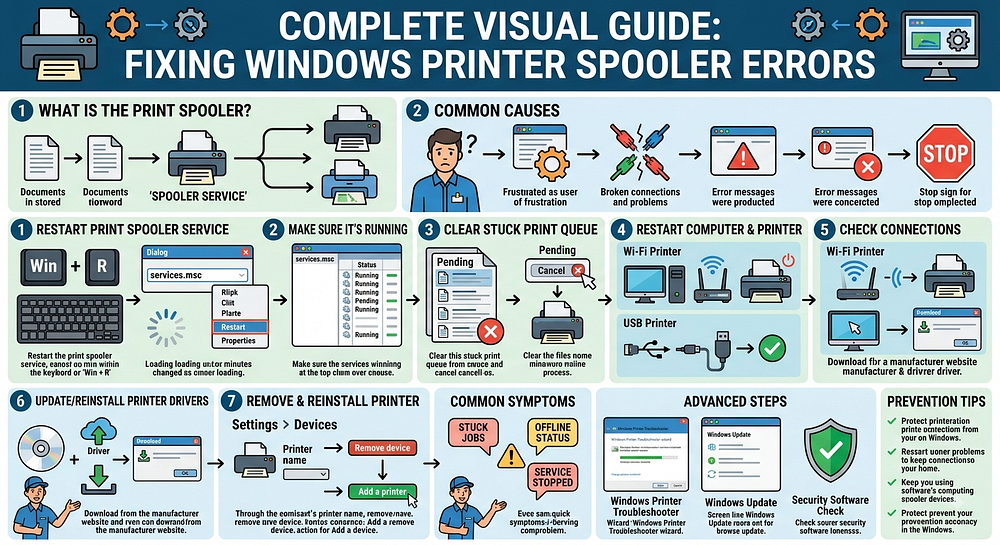
Restart the Print Spooler Service
The Windows Print Spooler manages print jobs and supports printer communication.
If the service is not running correctly, printer installation or printing may fail.
To restart it:
- Press Windows + R.
- Type services.msc.
- Press Enter.
- Find Print Spooler.
- Right-click it.
- Select Restart.
- Try installing the printer again.
Restarting the service can clear temporary printing-system problems.
Check Antivirus and Firewall Settings
Security software can sometimes interfere with printer installation.
Your antivirus or firewall may block communication between the printer software and operating system.
If you suspect security software is causing the problem, review its settings and ensure that trusted printer software is permitted.
If you temporarily disable security protection for troubleshooting, re-enable it immediately after testing and avoid leaving your computer unprotected.
Manually Add the Printer
If automatic printer detection does not work, try adding the printer manually.
On Windows, open the printer settings and select the option to add a printer.
Depending on your setup, you may be able to select a local printer, network printer, or manually specify the printer connection.
Follow the on-screen instructions and install the appropriate driver when prompted.
Try a Clean Boot
If another application or background service is interfering with printer installation, a clean boot can help identify the conflict.
A clean boot starts Windows with a limited set of startup programs and services.
This can be useful when:
- Printer installation repeatedly fails
- A third-party application is interfering
- Security software may be causing conflicts
- Multiple printer programs are installed
After testing the installation, restore your normal Windows startup configuration.
Check Administrator Permissions
Some printer software requires administrator permissions to install correctly.
If the installation fails because of insufficient permissions, make sure you are using an account with the appropriate privileges.
You can also try running the printer installation software with administrator permissions when appropriate.
This may allow the installer to access the system components it needs.
Common Signs of Printer Installation Problems
You may be experiencing an installation problem if:
- Windows cannot detect the printer.
- The printer installation stops before completion.
- A driver installation error appears.
- The printer is added but does not work.
- The printer disappears after installation.
- The installation repeatedly asks for the driver.
- The printer appears with an error status.
- Wireless printer setup cannot find the device.
These symptoms can result from either software or connection problems.
Tips for Preventing Future Installation Problems
A few simple practices can reduce the chance of future printer installation failures.
- Download drivers from the printer manufacturer's official website.
- Keep Windows or macOS updated.
- Use a reliable USB cable for wired installations.
- Maintain a stable Wi-Fi connection.
- Remove unnecessary old printer software.
- Keep printer firmware updated when applicable.
- Restart the computer before repeating a failed installation.
- Avoid installing multiple incompatible printer drivers.
- Keep security software properly configured.
- Follow the installation instructions for your exact printer model.
These practices can make future printer installations smoother and more reliable.
Frequently Asked Questions
Why does my printer installation keep failing?
Printer installation can fail because of outdated drivers, incompatible software, connection problems, system conflicts, insufficient permissions, or previously installed printer software.
How do I fix a printer installation error?
Restart the printer and computer, check the USB or Wi-Fi connection, run the printer troubleshooter, install the correct driver, and check the Print Spooler service.
Can antivirus software prevent printer installation?
Yes. Security software can sometimes interfere with printer installation or communication. Review the security settings and make sure trusted printer software is allowed.
Should I reinstall the printer driver?
Yes. If the existing driver is outdated, corrupted, or incompatible, removing it and installing the correct current driver can resolve the problem.
Can I manually add my printer?
Yes. If automatic detection fails, you can often use the printer settings to manually add a local or network printer and then install the appropriate driver.
What should I do if nothing works?
If basic troubleshooting does not resolve the installation problem, check the printer manufacturer's model-specific instructions and consider professional technical assistance for persistent hardware, driver, or operating-system problems.
Conclusion
A failed printer installation can be caused by several factors, but most problems can be addressed through systematic troubleshooting. Start by restarting the printer and computer, checking the connection, and making sure the correct printer driver is being used.
If the problem continues, update the operating system, remove conflicting printer software, reinstall the driver, restart the Print Spooler service, and check firewall or antivirus settings. You can also manually add the printer or use a clean boot when standard installation methods continue to fail.
Keeping your operating system and printer software updated, using the correct drivers, and maintaining a stable USB or Wi-Fi connection can help prevent installation problems in the future.