What communication modes are supported?
The Livegram Bot TeamWhat are communication modes?
Communication modes change the way incoming messages are displayed in the groups (chats) connected to your bot. For the users of your bot, however, the difference between modes is minimal and mostly unnoticeable.
For example, in the standard mode, all inquiries appear in the group’s main message stream. In more advanced modes, incoming messages are organized into separate topics, making it easier to manage high volumes of inquiries.
Advanced modes also differ in terms of privacy: some provide moderators with full access to the sender’s profile and public username, while others restrict this access either partially or entirely.
What communication modes are available?
At the moment, @LivegramBot supports four communication modes with users:
- Standard
- Personal
- Private
- Anonymous
Standard
Messages from all users appear in the group as a single, continuous stream.
This mode is selected by default and is suitable for bots with a low volume of incoming requests (up to ten per day). Adding the bot to a group is not required for this mode to function.
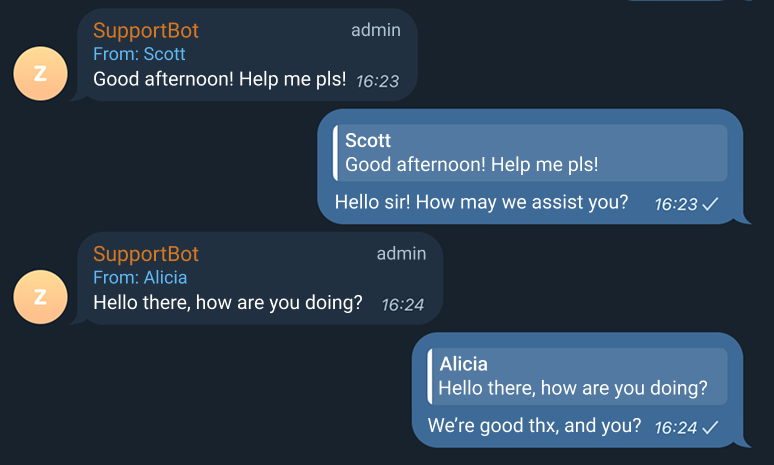
Each message displays the sender’s public name, which can be clicked to open their profile (unless restricted by the user’s privacy settings). To respond to a specific message, use the native "Reply" option.
Personal
A separate "subgroup" (topic) is created for each user, and only their messages appear within it.
This mode — like all those that follow — is suitable for bots with a high volume of incoming messages (10 or more per day).
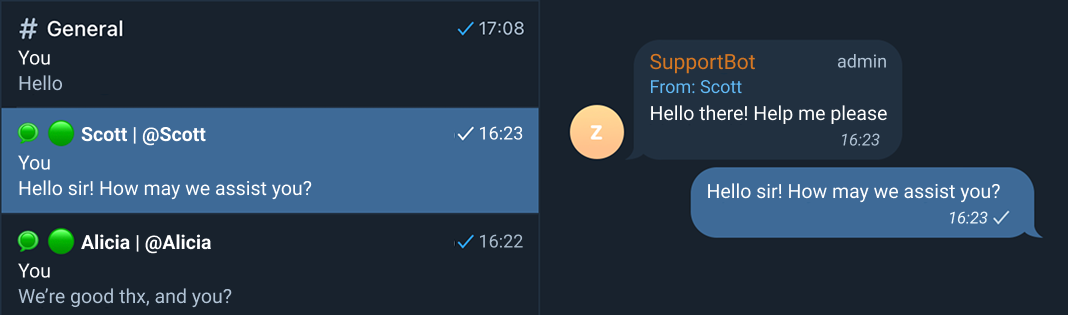
The topic title displays the sender’s public name and @username, both of which can be clicked to open their profile (unless restricted by their privacy settings). You can respond to messages within the topic directly, without using the native "Reply" option.
This mode closely resembles the Standard mode, with the key difference being that messages from different users are separated into individual threads.
Private
A separate "subgroup" (topic) is created for each user, and only their messages appear within it. The topic title includes only the sender’s public name, without the @username.
This mode is useful when you want bot moderators (including yourself) to be unable to access user profiles, while still being able to address users by their public name. This is the mode most commonly used for feedback and support channels in various companies.
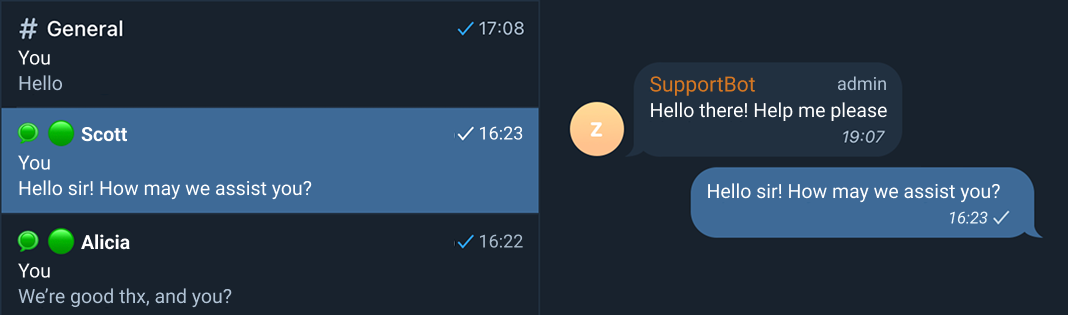
The topic title displays the sender’s public name, but clicking on it will not open their profile — even if their privacy settings would normally allow it. You can respond to messages within the topic directly, without using the native "Reply" option.
Anonymous
A separate "subgroup" (topic) is created for each user, and only their messages appear within it. The topic title and the messages themselves contain no information that could reveal the sender’s profile or identity.
This mode is ideal if you want to ensure that bot moderators (including yourself) are unable to identify the sender in any way. It is intended for situations where maintaining the user's anonymity is essential. To provide peace of mind, users will see that the bot is operating in Anonymous mode when they send a message.
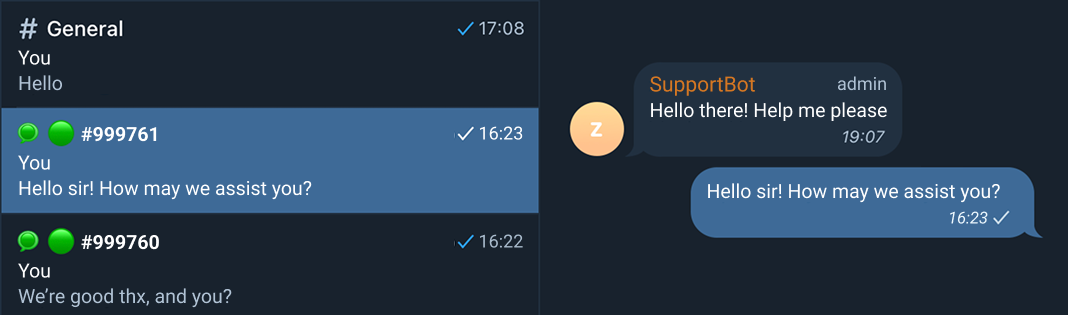
The topic title does not display the sender’s name or @username — only a request number is shown. You can respond to messages within the topic directly, without using the native "Reply" option.
Important: Once you activate the Anonymous mode, you will no longer be able to switch to any other mode. This is a technical limitation that cannot be overridden, even by support. Before enabling this mode on your main bot, we strongly recommend creating a test bot to ensure it fully meets your needs.
How to Unlock Communication Modes
To enable the option to change the communication mode, the following conditions must be met:
- The bot must be connected to a group (chat).
- Go to the group’s profile
- Tap "Add Member"
- Search for your bot by its @username
- Select the bot and add it as a member (for Standard mode) or as an administrator (for all other modes)
2. The group must be private and topics must be enabled for all modes other than Standard.
- Go to the group’s profile
- Tap "Edit"
- Find the "Group Type" section
- Set it to Private
- Then locate the "Topics" section
- Enable the toggle switch
3. The bot must be an administrator in the group and must have the permission to manage topics for all modes other than Standard.
- Go to the group’s profile
- Tap "Edit"
- Find and select the "Administrators" section
- Tap "Add Admin"
- In the list that appears, find your bot by its @username
- After selecting the bot, you’ll see a list of admin permissions — enable the toggle for Manage Topics
The rest of the settings in the list are not required — simply tap Done to confirm.
How to Change the Communication Mode
To do this, simply:
• Go to @LivegramBot
• Send the command /mybots
• Select the desired bot
• Tap the "Chats" button
• Choose the relevant chat
• Tap "Communication Mode"
• Select your preferred mode
What if I didn’t find the answer to my question in this article?
If you didn’t find the information you were looking for, feel free to contact us via @LivegramSupportBot.