What Gaming Pc Bottleneck Checker Tool Shows For Builds?
If you’ve ever tried pairing a CPU and GPU and wondered, “Is this a good combo or am I wasting money?”,
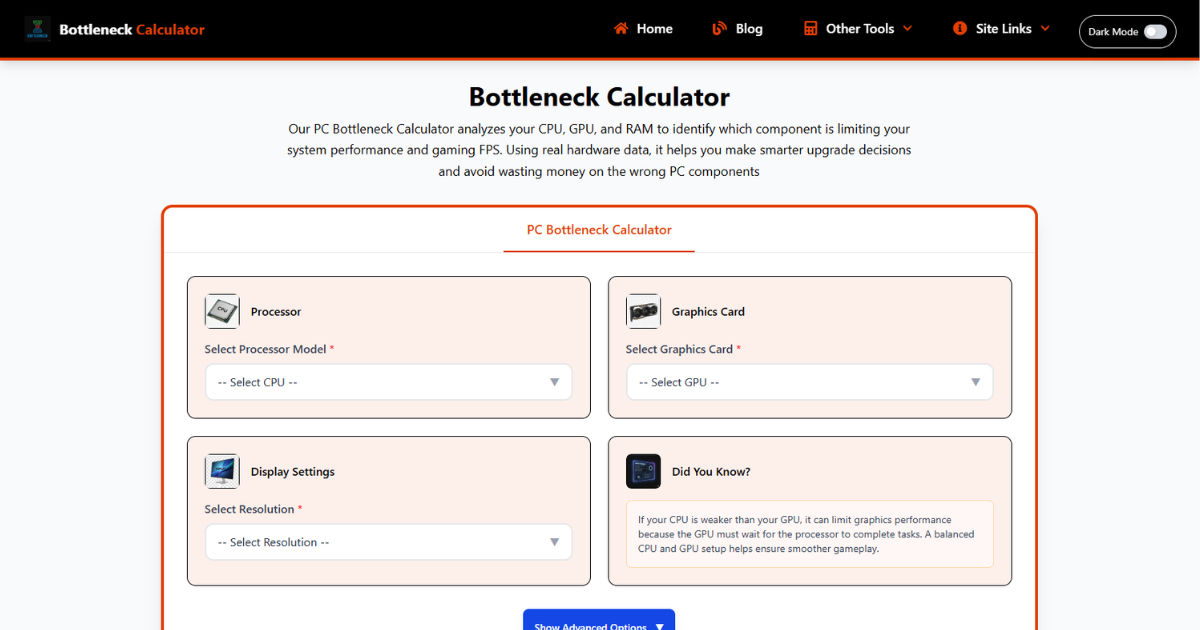
You’ve probably run into a bottleneck checker tool, or even a pc bottleneck calculator. These tools look simple, but the results confuse a lot of people. I’ve seen countless builds where people blindly trusted a percentage and ended up with the wrong upgrades.
The tool itself isn’t the problem, even when using a cpu gpu bottleneck calculator. The way people interpret it is. Let’s break down what these tools actually show and how to use that information in real-world builds.
What Is a Gaming PC Bottleneck Checker Tool?
A gaming PC bottleneck checker tool is basically a quick estimation tool. You enter your CPU, GPU, RAM, and sometimes resolution, and it gives you a rough idea of whether one component is holding the system back.
That’s all it is. A rough estimate.
In real-world terms, a bottleneck happens when one part of your PC is working harder than the rest and limiting overall performance. Think of it like traffic. If your GPU is a sports car but your CPU is a narrow road, you’re not going anywhere fast.
Most bottleneck tools use general performance data, averages, and assumptions. They don’t know your actual games, your settings, or your real usage patterns.
So while the tool can point you in the right direction, it should never be the final decision maker. It’s more like a warning sign, not a diagnosis.
What Does a Bottleneck Checker Tool Actually Show?
This is where most people misunderstand things. The tool shows numbers, but what those numbers mean in real gaming is very different.
Bottleneck Percentage Explained
The first thing you’ll notice is a percentage. Something like 10 percent bottleneck or 25 percent bottleneck.
Here’s the reality. This number is not a precise measurement. It’s not telling you that you are losing exactly 25 percent performance.
It’s basically saying how mismatched your components are according to the tool’s database.
In my experience, anything under 10 percent is usually fine. Even 15 to 20 percent is often acceptable depending on your goals. People panic when they see 20 percent, but in real gameplay, you might not even notice it.
The mistake people make is treating that percentage like a benchmark score. It’s not. It’s just a rough indicator of imbalance.
Which Component Is Limiting Performance
Most tools will tell you whether your CPU or GPU is the bottleneck.
This part is actually useful if you understand context.
If it says CPU bottleneck, it means your processor cannot keep up with your graphics card. This usually shows up as lower frame rates in CPU-heavy games like open-world titles, simulation games, or esports games with high frame rates.
If it says GPU bottleneck, that’s actually normal for gaming. You usually want your GPU to be the limiting factor because it means your system is using the graphics card fully.
A lot of beginners think any bottleneck is bad. That’s wrong. A GPU bottleneck is expected in most gaming scenarios.
System Balance
Some tools label builds as “balanced” or “unbalanced.”
What does that actually mean in real life?
A balanced system doesn’t mean both parts are equally powerful on paper. It means neither part is significantly holding the other back in your target use case.
For example, pairing a mid-range CPU with a mid-range GPU for 1080p gaming is balanced. Pairing a low-end CPU with a high-end GPU usually isn’t.
But balance depends on what you’re doing. A system that is “unbalanced” for 1080p might be perfectly fine for 4K gaming.
Resolution Impact
Good bottleneck tools let you select resolution. This part is often ignored, but it’s critical.
At 1080p, your CPU matters more. At 1440p, things start to even out. At 4K, your GPU does most of the work.
So the same CPU and GPU combo can show different bottleneck results depending on resolution.
I’ve seen people upgrade their CPU unnecessarily because of a bottleneck warning at 1080p, even though they were planning to play at 1440p where the issue disappears.
This is one of the biggest mistakes people make.
Utilization Insights
Some advanced tools try to show CPU and GPU usage percentages.
This is actually closer to real-world behavior.
If your GPU is sitting at 99 percent usage and your CPU is lower, that’s a GPU-limited scenario. That’s good for gaming.
If your CPU is maxed out and your GPU is underutilized, then your CPU is the bottleneck.
But again, these are simulated values. Real usage depends on the game, settings, background apps, and even drivers.
How Bottleneck Results Affect Gaming PC Builds
Let’s talk about how these results actually impact your build decisions.
Budget Builds
This is where bottlenecks matter the most.
In budget builds, every dollar counts. If you overspend on a GPU and pair it with a weak CPU, you’re wasting performance you paid for.
I’ve seen people buy a powerful GPU like an RTX 4060 and pair it with an old quad-core CPU. The tool will scream CPU bottleneck, and in this case, it’s right.
Budget builds need careful balance. You want both CPU and GPU to be in the same performance tier.
Mid-Range Builds
This is where things get interesting.
Mid-range builds are more forgiving. A slight bottleneck doesn’t really hurt you much. You can pair something like a Ryzen 5 with a strong GPU and still get excellent performance.
Here, you can intentionally allow a small bottleneck if it saves money or allows future upgrades.
In my experience, mid-range users worry too much about perfect balance when they don’t need to.
High-End Builds
This is where bottleneck tools become less useful.
At high-end levels, everything is already powerful. The differences come down to specific workloads.
People often chase zero bottleneck builds at this level, which leads to overspending.
For example, upgrading from a high-end CPU to an even higher-end one just to reduce a small bottleneck percentage rarely gives noticeable gains in gaming.
You end up paying a lot for very little real-world improvement.
Common Types of Bottlenecks in Gaming PCs
Not all bottlenecks come from CPU and GPU mismatches.
CPU bottlenecks usually show up as stuttering, low minimum FPS, or inconsistent performance in complex scenes. These are common in games with lots of AI or physics.
GPU bottlenecks show up when you crank up graphics settings. Your FPS drops, but it’s usually smooth. This is normal and expected.
RAM bottlenecks are often ignored. If you don’t have enough memory, your system starts swapping data, which causes stutters and long loading times.
Storage bottlenecks affect loading, not FPS. Slow drives won’t reduce your frame rate much, but they can make your system feel sluggish.
Thermal bottlenecks are another real issue. If your CPU or GPU overheats, it slows itself down. No calculator will warn you about this, but it’s very common in poorly cooled builds.
Real Example of Bottleneck Tool Results
Let’s say you pair a Ryzen 5 3600 with an RTX 4070.
A typical bottleneck tool might show around 20 percent CPU bottleneck at 1080p.
Now here’s what that means in real life.
At 1080p, you might not fully utilize the RTX 4070 in CPU-heavy games. You could see lower FPS than expected.
At 1440p, the bottleneck becomes much smaller because the GPU takes more load. Performance becomes more balanced.
At 4K, the GPU is the main limit, and the CPU bottleneck practically disappears.
So is this a bad combo?
Not really. It depends on your resolution and expectations. For 1440p gaming, it’s actually a solid pairing.
This is exactly why blindly trusting the percentage can mislead you.
How to Read Bottleneck Checker Results Correctly
The biggest mistake people make is taking the results literally.
These tools don’t know your specific games. They don’t know if you play competitive shooters or cinematic single-player games.
You need to ask yourself what you care about. High FPS, visual quality, or future upgrades.
Use the tool as a guideline, not a rule.
If the tool shows a bottleneck, don’t panic. Check your resolution, your target FPS, and your actual usage.
Sometimes the “problem” doesn’t affect your experience at all.
Are Bottleneck Calculators Accurate?
Short answer. Not really.
They are directionally useful, but not precise.
They rely on generalized data and assumptions. Real-world performance varies based on game optimization, drivers, background tasks, and even system configuration.
I’ve tested systems that tools flagged as heavily bottlenecked, and they performed perfectly fine in real gameplay.
So treat these tools as a starting point, not a final answer.
How to Fix Bottlenecks in Your Gaming PC
Fixing a bottleneck isn’t always about upgrading.
First, identify where the issue actually is. Use real monitoring tools in games to check CPU and GPU usage.
If your CPU is maxed out, consider upgrading it or lowering CPU-heavy settings like draw distance.
If your GPU is the limit, you can lower graphics settings or upgrade the GPU.
Sometimes the fix is simpler. Closing background apps, improving cooling, or upgrading RAM can make a noticeable difference.
Upgrading blindly based on a calculator is one of the most expensive mistakes you can make.
Best Practices for Balanced Gaming PC Builds
The best builds are not perfectly balanced on paper. They are balanced for your actual use.
Match your CPU and GPU based on your target resolution and games.
Don’t overspend chasing zero bottleneck numbers.
Plan for future upgrades. It’s okay if one part is slightly stronger if you plan to upgrade the other later.
And most importantly, focus on real performance, not percentages.
Conclusion
Bottleneck checker tools are helpful, but only if you understand what they’re actually telling you. They don’t measure exact performance, and they don’t know your real-world usage. They simply highlight potential imbalance based on general data.
In real builds, context matters far more than a percentage. Resolution, game type, and expectations all change how a bottleneck affects you. What looks bad on a calculator can perform perfectly fine in actual gameplay.
If you treat these tools as guidance instead of truth, you’ll make much better decisions. Build for your needs, not for a number on a screen.
FAQs
What does a bottleneck checker tool show?
A bottleneck checker tool shows an estimated imbalance between your main components, usually the CPU and GPU, based on general performance data. It tries to predict which part of your system might limit performance and gives you a percentage along with a label like CPU bottleneck or GPU bottleneck. This is not based on your exact setup but on averaged benchmarks and assumptions.
In real-world use, what it’s really showing is a warning about potential mismatch, not a guaranteed problem. It does not account for your specific games, settings, or resolution in a precise way. So instead of treating it like a performance report, it’s better to see it as a rough guideline that helps you avoid obvious mistakes when choosing parts.
What is a good bottleneck percentage?
A good bottleneck percentage is generally considered anything under 10 percent, but this number is not as strict as people think. Even values around 15 to 20 percent can be completely fine depending on how you use your system. For example, at higher resolutions like 1440p or 4K, a slightly higher percentage often has little to no noticeable impact on actual gameplay.
The important thing to understand is that this percentage is not a direct measure of lost performance. It’s just an estimate of how balanced your components are. Many people chase the lowest possible number, but in practice, a slightly higher percentage does not automatically mean a bad gaming experience.
Is CPU or GPU bottleneck worse?
A CPU bottleneck is generally worse for gaming because it can cause inconsistent performance. You might see stuttering, frame drops, or lower minimum FPS, especially in CPU-heavy games like open-world titles or competitive shooters where high frame rates matter.
A GPU bottleneck, on the other hand, is actually normal and expected in most gaming scenarios. It usually just means your graphics card is fully utilized, which is what you want. Your FPS might be limited, but the experience is typically smoother compared to a CPU bottleneck. So not all bottlenecks are bad, and understanding which one you have makes a big difference.
Are bottleneck calculators accurate?
Bottleneck calculators are not fully accurate because they rely on generalized data and simplified assumptions. They don’t know your exact system conditions, the games you play, background processes, or even how well a specific game is optimized for your hardware.
In real-world testing, you can often see systems perform better or worse than what the calculator suggests. That’s why these tools should only be used as a starting point. For accurate insight, actual in-game monitoring tools and benchmarks will always give you a clearer picture of how your system behaves.
How do I fix a bottleneck?
Fixing a bottleneck starts with identifying the real cause using monitoring tools while you’re actually gaming. If your CPU is constantly maxed out while your GPU is underused, then upgrading the CPU or lowering CPU-heavy settings can help. If your GPU is the limit, you can either lower graphics settings or consider a GPU upgrade.
Not every bottleneck needs fixing though. Sometimes the best solution is simply optimizing your system by closing background apps, improving cooling, or upgrading RAM. The key is to focus on actual performance issues rather than chasing perfect numbers from a calculator.