What Are Raster and Vector Images?
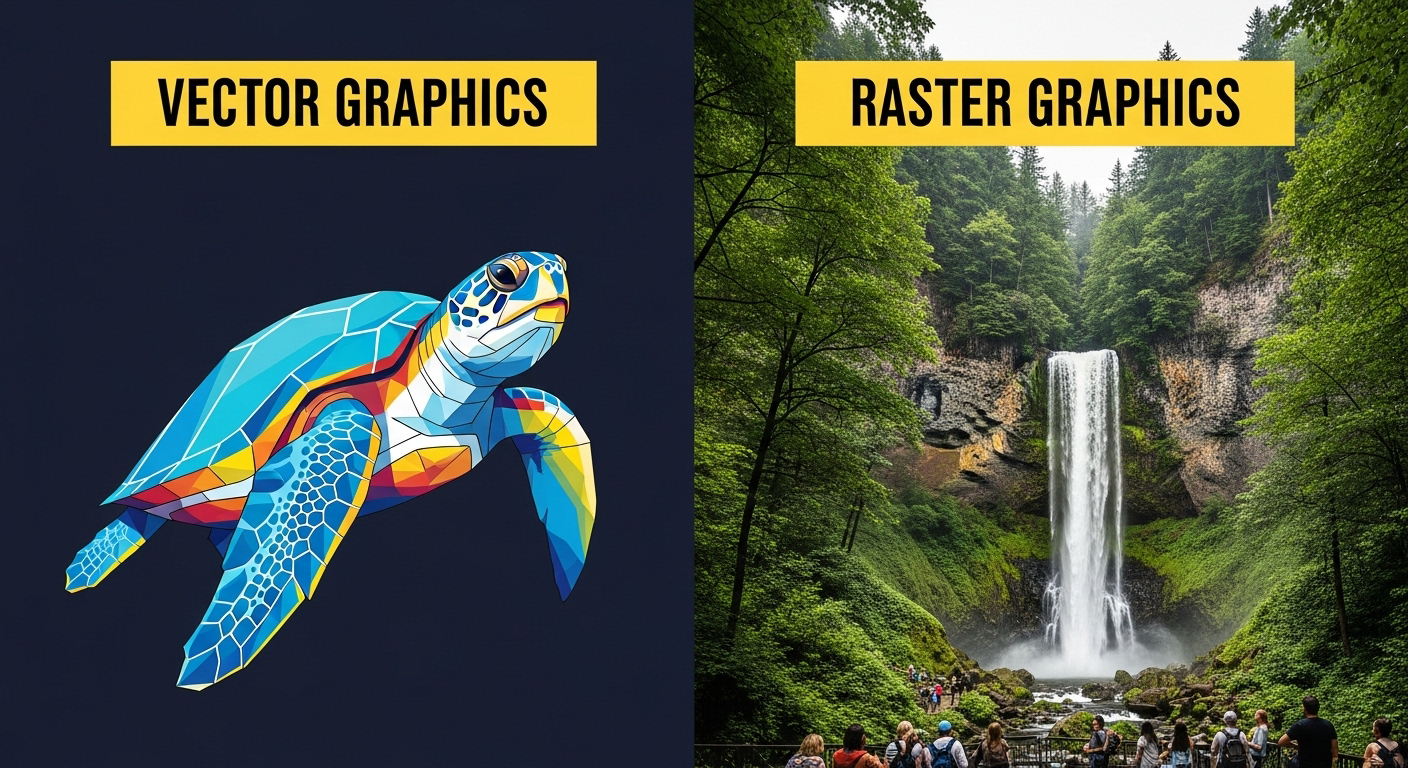
I still remember the first time a client asked me for a “vector version” of their logo. At the time, I had just launched my online shop and was designing everything myself—product labels, social media posts, even t-shirt prints. I’d used a high-resolution PNG file, thinking it was more than enough. But when they zoomed in to check the details, it looked… blurry.
That moment taught me a crucial lesson: not all image files are created equal.
Whether you're designing for print-on-demand, running ads on Instagram, or listing products on Shopify, understanding what raster and vector images can save you time, money, and headaches. Let’s break it down—simply and clearly.
What Are Raster and Vector Images?
Raster images are made of tiny squares called pixels. Think of a mosaic—each little tile (pixel) makes up a part of the full image. The most common raster formats include JPEG, PNG, GIF, BMP, and TIFF.
Vector images, on the other hand, are created using mathematical formulas. Instead of being pixel-based, they use lines, curves, shapes, and points. That means they can scale to any size without losing quality. The most common vector formats are SVG, EPS, PDF, and AI.
Short answer for snippets:
- Raster images are pixel-based and best for rich, detailed images like photos.
- Vector images are math-based and perfect for scalable designs like logos and icons.
Why This Matters in Real Life
When I started uploading product mockups for my Shopify store, I used high-res raster images (JPEGs) for product photos, which worked great. But for my brand logo on packaging and t-shirts, I ran into issues. Every time I resized the logo, it became pixelated or blurry.
If you’re in print-on-demand or e-commerce, you’ve likely faced the same problem.
Tip:
- Use raster images for detailed photos (like product shots or lifestyle images).
- Use vector images for anything that needs to scale, like logos, infographics, or print files.
Practical Steps: How to Know Which You Need
Step 1: Know the purpose
Are you printing a flyer? Uploading a social media post? Designing a t-shirt? Your use case determines which file type is right.
Step 2: Check the file format
Look at the file extension.
- If it ends in .jpg, .png, .bmp, or .tiff, it’s raster.
- If it ends in .svg, .eps, .ai, or .pdf, it’s likely vector (though PDFs can hold both types).
Step 3: Zoom in
Open the file and zoom in.
- If it gets blurry or pixelated = raster.
- If it stays crisp and clean = vector.
Step 4: Use the right software
- Raster: Photoshop, GIMP
- Vector: Illustrator, CorelDRAW, Inkscape
Short answer for snippets:
- Raster files show pixels when zoomed in; vector files stay sharp no matter the size.
My Personal Tips for Getting the Perfect Handmade Files
After years of working with logos, mockups, and product packaging, here are my tried-and-true tips:
- Always design your logo in vector format.
- It gives you total flexibility—for web, print, embroidery, you name it.
- When outsourcing design, request final files in both formats.
- Ask for the AI or SVG (vector) and PNG or JPEG (raster) files.
- Convert raster to vector only when needed—and use pros.
- If you only have a JPEG logo, don’t try to auto-trace it in software. Trust me—it usually ends up looking weird. Instead, use a service like ClippingPathZone.com for manual vector conversion. Their expert team does an amazing job hand-tracing every curve.
- Use transparent PNGs for online use.
- Especially for Shopify or Etsy thumbnails, PNGs with no background look clean and professional.
- Save your vector files safely.
- You’ll thank yourself later when you need them for large banners, screen prints, or embroidery.
Snippet-ready tip:
- For logos, always start with a vector file—you can export raster versions later as needed.
When to Use Raster vs Vector (with help from Adobe)
Adobe has a super helpful breakdown on this topic:
Let’s summarize the key points in everyday terms:
✅ Use Raster When:
- You’re working with photos or detailed images
- You need rich color gradients (like in portraits or product shots)
- You’re uploading to web platforms like Instagram, Facebook, or Pinterest
- You’re creating complex textures or effects
✅ Use Vector When:
- You need to scale an image (like a logo on a billboard)
- You’re creating icons, logos, or line drawings
- You want editable layers and perfect curves
- You’re printing on merchandise like t-shirts or mugs
Real-World Example:
Let’s say you’re a beauty brand creating product labels for glass jars.
- The product photo = raster image (JPEG or PNG).
- The brand logo and label text = vector image (AI or SVG).
- That way, the photo shows off your product beautifully, and your logo stays sharp on every size of packaging.
Snippet-worthy advice:
- Use raster for detail-rich photos and vector for designs you need to scale.
Final Thoughts: Why This Matters for Your Brand
Understanding the difference between raster and vector images isn’t just technical jargon—it’s a smart business move. Whether you're a small Etsy seller or managing dozens of products on Amazon, the right image type ensures your visuals look polished and professional.
And trust me, when you hand off the correct file to your printer or designer, they’ll love you for it.
Need help turning a pixelated logo into a clean, sharp vector file? That’s exactly what services like ClippingPathZone.com specialize in. Their handmade vector conversions can make your brand shine, whether you’re designing custom t-shirts, product packaging, or signage.