VS Code Custom Api Setup EN
CodexMain article:
https://telegra.ph/Api-Vibecode-Claude-EN-04-14
Setup
VS Code is a development environment. To integrate AI into it, you need to install any plugin. Most likely, you have already used some of them and know how it works.
There are various AI plugins, the most popular ones are: Kilo Code, Roo Code, Cline. The setup is the same everywhere.
You need to find Providers in the settings or something similar to that name (usually the window pops up after installation). It may offer you OpenAI, Anthropic, Google, OpenRouter — NONE OF THESE ARE SUITABLE.
You should always choose Custom Provider OR OpenAI Compatible (not just OpenAI, but specifically Compatible!).
As a reference point: it MUST ask you to specify a URL — that is where you enter our URL (see below).
This is what it looks like, using Kilo Code as an example:

Kilo Code setup
Base URL: https://api.vibecode-claude.online/v1
In Kilo Code or Roo Code, after you enter the URL and the key, the models will be pulled automatically from our list, and you will be able to choose any available one.
IMPORTANT: if it shows gpt-4O, that means the models were NOT pulled correctly. We do not have such a model. Check whether you entered the URL and key correctly. Also check your VPN — it must always be enabled!
Here is also an example of how it looks in Cline.
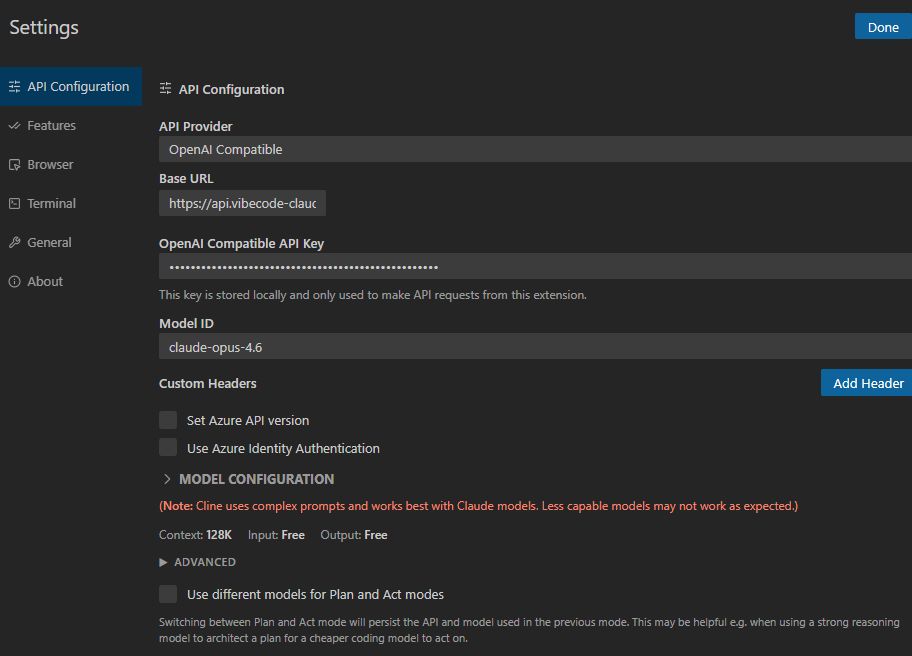
Cline setup
Here, the model is not pulled automatically. You need to specify the model name manually. Check the names of your provider’s models in the main article. Usually, it is claude-opus-4.6 if you bought Claude, gpt-5.4-xhigh if you bought GPT, and gemini-3.1-pro-high.