Trader Management – NEBORTRADE PRO
https://nebortrade.comTrader Management
The Trader Management section allows you to connect, configure, and manage all signal providers used for automated trading.
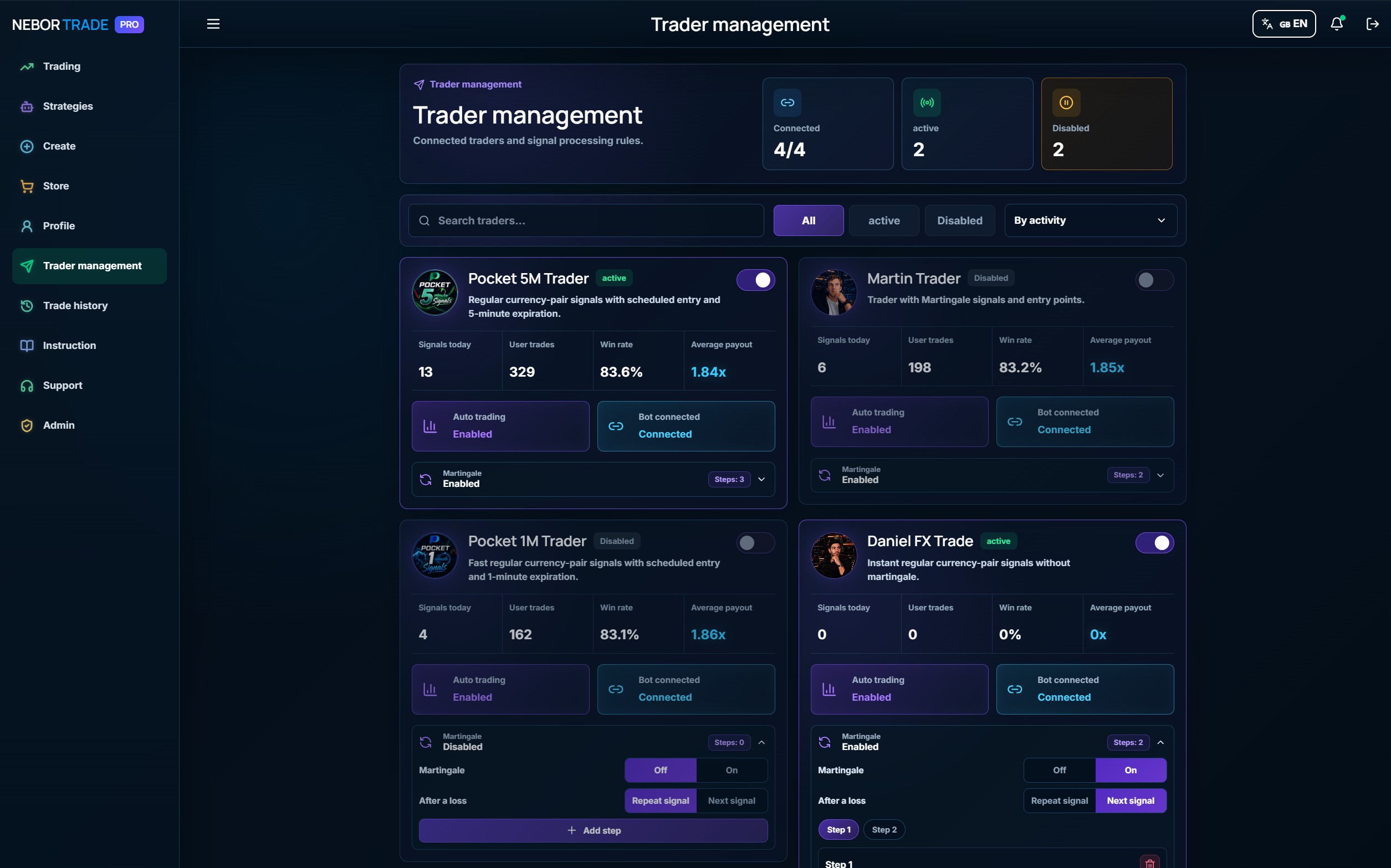
Each trader operates independently and can be enabled or disabled at any time with a single switch.
The following information is displayed for every trader:
- 📈 Signals Today — the number of signals generated by the trader during the current day.
- 👥 User Trades — the total number of trades executed by users based on this trader's signals.
- 🎯 Win Rate — the current success rate of the trader's signals.
- 💰 Average Payout — the average payout percentage of completed trades.
- 🤖 Auto Trading — indicates whether automatic trading is enabled.
- 🔗 Bot Connected — shows the connection status between your trading bot and the selected trader.
- 📊 Martingale — displays whether Martingale is enabled and how many recovery steps are configured.
- 🔘 Enable / Disable — instantly activate or deactivate any trader.
💡 Tip: You can enable multiple traders simultaneously. Each trader analyzes the market independently and generates its own signals, providing more trading opportunities throughout the day.
Trader Martingale Settings
Each trader has an independent Martingale configuration, allowing you to customize your recovery strategy individually for every signal provider.
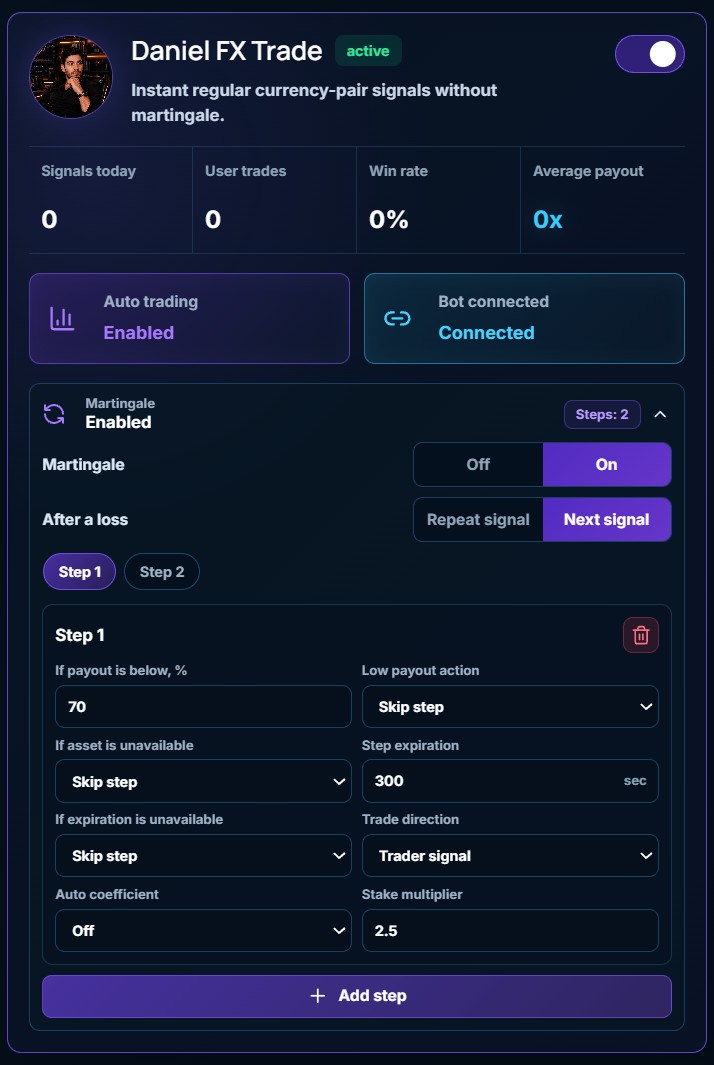
🔄 Martingale
Enable or disable the Martingale system for the selected trader.
📉 After a Loss
Choose when the next Martingale step should be executed after a losing trade.
Available options:
- Repeat Signal — the next Martingale trade is opened using the same signal that resulted in the loss.
- Next Signal — the system waits for a new signal from the trader before executing the next Martingale step.
💡 Tip: In most cases, Next Signal is recommended because it allows the market to be analyzed again before placing another trade.
🔢 Martingale Steps
The number of Martingale steps is unlimited. You can add as many recovery levels as needed, and each step is configured independently.
Each step includes the following settings:
📈 Minimum Asset Payout
Specify the minimum payout percentage required to execute the trade.
If the current payout is below this value, the system will perform the action selected in the next setting.
⚙️ Action for Low Payout
Choose how the system should behave when the asset payout is below the required value.
Examples include:
- Skip the step.
- Wait for a higher payout.
- Use another available action depending on your configuration.
🚫 If the Asset Is Unavailable
Choose what the system should do if the selected trading asset is temporarily unavailable.
Examples include:
- Skip the step.
- Wait until the asset becomes available.
- Perform an alternative action.
⏱ If the Expiration Is Unavailable
Defines the system's behavior when the selected expiration time is not available for the asset.
⌛ Step Expiration
Set the expiration time specifically for this Martingale step.
Each recovery level can have its own independent expiration time.
↔️ Trade Direction
Choose how the trade should be opened:
- Follow Trader Signal — opens the trade in the same direction as the trader's signal.
- Reverse Trader Signal — opens the trade in the opposite direction.
🤖 Auto Multiplier
When enabled, the system automatically calculates the required stake multiplier to recover previous losses.
When disabled, the multiplier is entered manually.
💰 Stake Multiplier
Used when Auto Multiplier is disabled.
Determines how much the next trade amount will increase compared to the previous trade.
➕ Add Step
Creates a new Martingale level.
Each new step has its own payout requirements, expiration time, trade direction, multiplier, and recovery rules, allowing you to build anything from a simple two-step recovery system to advanced professional strategies with an unlimited number of Martingale levels.
💡 Tip: Because every Martingale step is configured independently, you can adapt your recovery strategy to different market conditions and apply unique rules at each level.
Signal Processing Rules
The Signal Processing Rules section contains global settings that apply to all active traders and determine how NEBORTRADE PRO processes incoming signals.
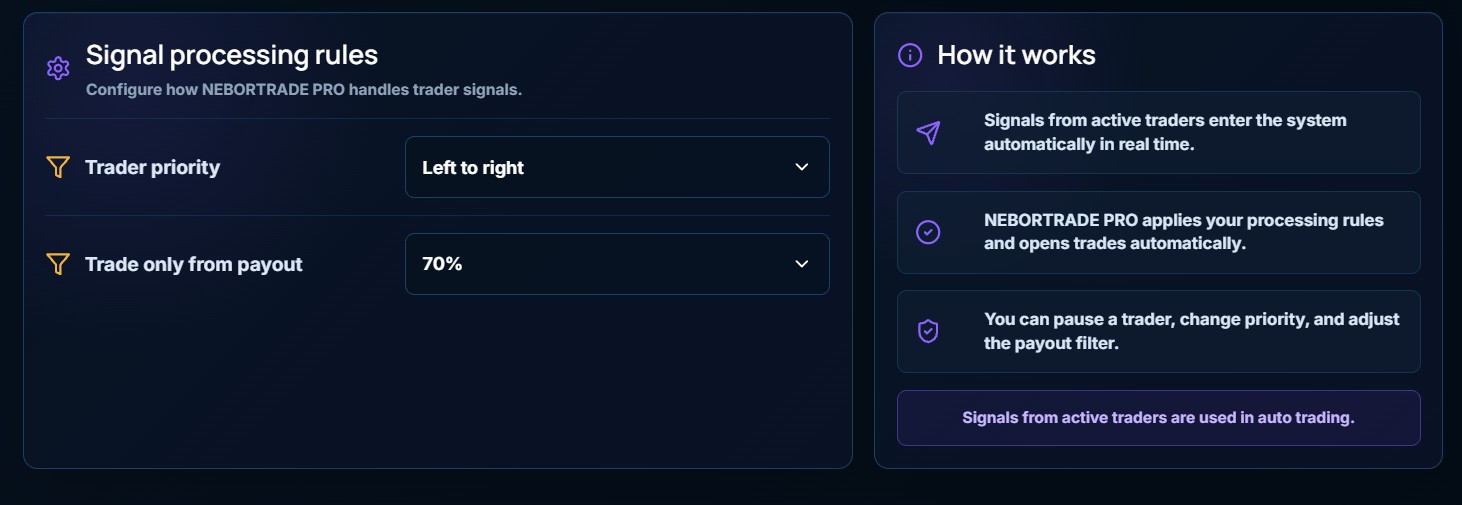
🔀 Trader Priority
If multiple traders generate signals for the same asset at the same time, the system processes them according to the selected priority.
Available options include:
- Left to Right Order — signals are processed in the same order that traders appear on the page.
- Additional processing modes may also be available from the drop-down menu.
💡 This setting determines which trader's signals take priority whenever multiple signals are received simultaneously.
📈 Trade Only When Payout Is At Least
Set the minimum payout percentage required before the system opens a trade.
For example, if the value is set to 70%, trades will only be executed when the current asset payout is 70% or higher.
If the payout falls below the specified value, the signal will be skipped automatically.
💡 This filter helps eliminate low-profit opportunities and improves the overall quality of automated trading.
How It Works
Once your settings have been configured, everything runs automatically:
- 📡 Signals from all active traders are received in real time.
- ⚙️ NEBORTRADE PRO analyzes every incoming signal and checks it against your settings.
- 🛡️ The system applies the configured trader priority, minimum payout filter, and all other processing rules.
- 🤖 If all conditions are met, the trade is opened automatically on your trading account.
💡 Tip: If you no longer want to receive signals from a specific trader, simply disable that trader. All other settings will continue to work automatically without any additional configuration.
Starting Automated Trading
To begin automatically copying signals from your selected Strategies or connected Traders, open the Trading tab.
This is where you configure the trade amount that will be used for every automatically executed trade.
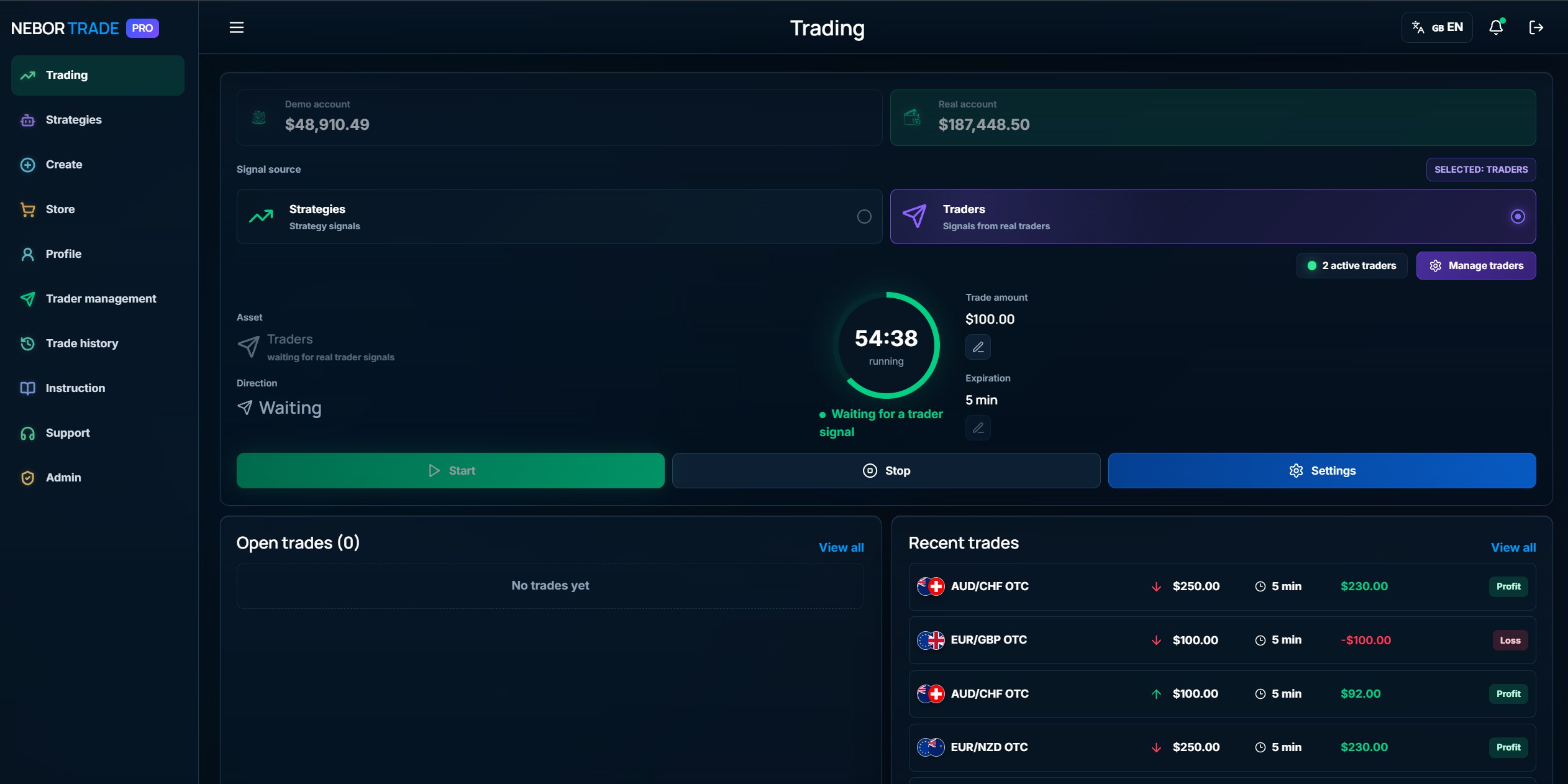
Then:
- Select your signal source — Strategies or Traders.
- Verify your trade amount, expiration time, and other settings.
- Click the Start button.
Once started, NEBORTRADE PRO will automatically receive signals and execute trades on your trading account according to your selected settings.
💡 Recommendation: We recommend setting your trade amount to 1–3% of your total account balance to help manage risk effectively.
💡 Important: Until you click Start, signals may still be received by the system, but no trades will be executed on your trading account.