Tips for using shortcut keys on your computer
秋风のとおり道In our daily life, keyboard is the second most commonly used device (first is mouse) and shortcut keys when we use computer, and some people who are proficient in computer operation often use them. Here, I will teach you 🍁 how to use shortcut keys quickly and effectively.
The common shortcuts are these (here are the Windows shortcuts, which also apply to Android (please use a supported file manager for file manipulation; since I don't have a Mac computer or iOS device, I can't give examples of common shortcuts for either device).
Ctrl+A Select All: Select all text in this document or all files in this window in the file manager.
Press Ctrl+Z to Undo. Undo what you have typed, or copy, cut, paste or delete files (Note: completely deleted files cannot be undone! Data is priceless! Beware of Shift + Delete!)
Ctrl + X Cut: Move the selected text or paragraph to one or more selected files; delete text by following this shortcut and the file will become transparent and wait for the paste operation
Ctrl+C Copy. Creates a split for one or more selected texts, one or more selected files; when this shortcut is pressed, both remain unchanged and await the paste operation
Ctrl+V Paste: When this shortcut is pressed, the text you cut or copied will appear at the cursor (vertical line, blinking); the file you cut or copied will appear in the foreground window (this window needs to support file operations)
The front of the shortcut keys do not know what it means? No problem, I'll teach you
There are two types of keys, master and slave. A key that can be triggered immediately after being pressed (e.g. pressing S on the text content will bring up an S, pressing Backspace will delete a character to the left) is a master key. The keys that cannot be triggered after being pressed and need to be used together with the master key to trigger the corresponding operation are the slave keys (the exception is the Windows key, which is the master key and the slave key, while the F1 ~ F12 keys have to be set in the supported programs to have the triggering effect)
From the keys are these: Shift (upshift), Ctrl (control), Alt (alternate)
In addition to the above keys, the other keys are the primary keys all.
First, Ctrl is the slave key and C is the master key. Then you need to hold Ctrl with one hand and press C with the other hand, which will trigger the copy operation perfectly! (If you can do it with one hand, then it is also a viable option)
What if it is Shift+Win+S (Windows system area screenshot shortcut)?
As I said earlier, the Win key (Win for short Windows) is both the primary and slave key, so it is used here as a slave key. Simply hold down the Shift and Win keys with one hand, and then press the S key with the other hand.
The same is true for similar situations
Also, there are many double character keys on the keyboard, they all need Shift key, for example 6, the character above is ^, if you want to type 6, just press 6, if you want to type ^, then hold Shift and press 6, same for other keys.
Finally, many programs can support shortcuts well, and the supported programs can also customize shortcuts, which means that shortcuts have a very wide audience and are a skill that every PC enthusiast must learn
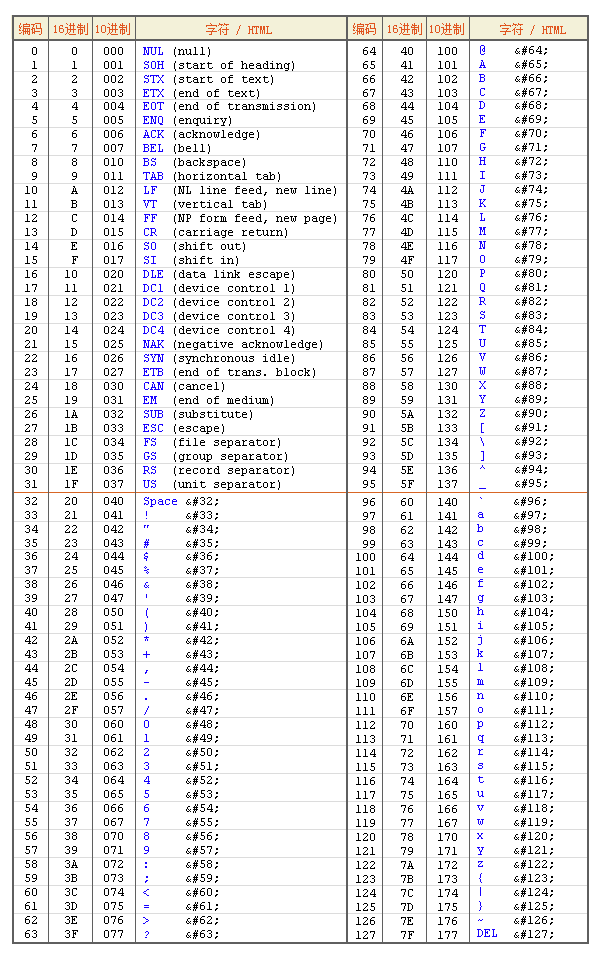
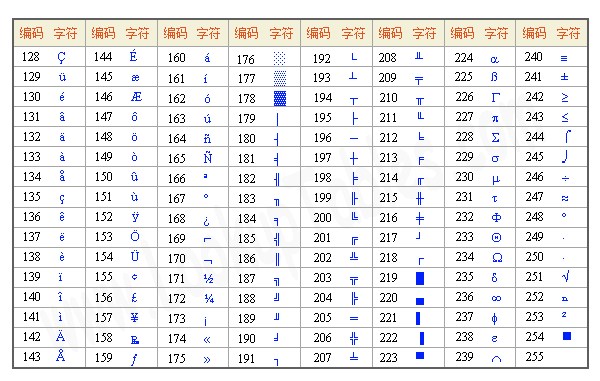
Tips: If you hold down the Alt key and use the keyboard (required) to enter 0191, a "¿" will appear, 0191 is the international ASCII code (American Standard Code for Information Interchange), if you enter other numbers according to the ASCII table, the corresponding characters will appear
Using the Shift + Arrow keys, you can select characters character by character
I wrote this tutorial is to allow many computer rookies can also be very good use of the computer, I believe that you read this tutorial through the accumulation of time, you can also master, make a good effort!