Three flutter widgets you may have never used before
FlutterPulseThis article was translated specially for the channel FlutterPulseYou'll find lots of interesting things related to Flutter on this channel. Don't hesitate to subscribe!🚀

Optimize your development workflow and your app's performance
Many Flutter developers stick to a familiar set of widgets and miss out on lesser-known tools that solve specific problems. This article highlights three underused Flutter widgets that can help with layout, rendering, performance, and handling sensitive content.
We will outline when each widget makes sense and how it can fit into real-world apps. Whether you're optimizing rendering, debugging layouts, or protecting user data, these components can broaden your toolkit. Read on to explore GridPaper, TickerMode and RepaintBoundary and see what they can do for your projects.
GridPaper
GridPaper is a lightweight Flutter widget that draws a customizable grid overlay, making it easy to check alignment, spacing, and proportions while designing UIs. You can control the main interval, number of subdivisions, line color, and whether the grid is dashed, then wrap it around any child to visualize its layout. It's especially handy for debugging responsive layouts and ensuring consistent spacing across screens, and you can conditionally enable it only in debug builds so it never appears in production.
GridPaper classAPI docs for the GridPaper class from the widgets library, for the Dart programming language.
flutter.dev
In this example, the view shows three items in a row with titles that look centered. Tidy at first glance, right?
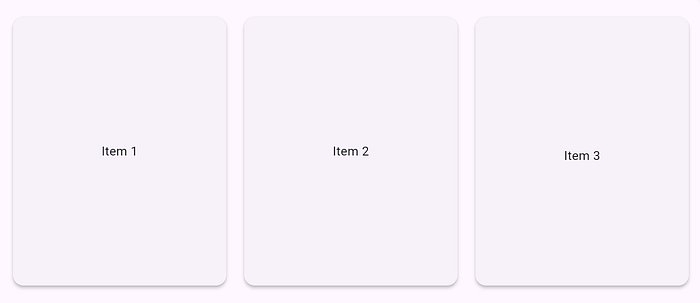
But hold on: look closer and you'll spot a sneaky misalignment. One card's title isn't perfectly vertically centered!
Tiny glitches like this can ruin the polish of your UI, which is exactly why visual debugging tools are so valuable.
Here the GridPaper Widget comes in to help you find those misalignments. As shown in the example, it's now easy to spot that the title "Item 3" is misaligned and not positioned on the same horizontal line as the other titles.
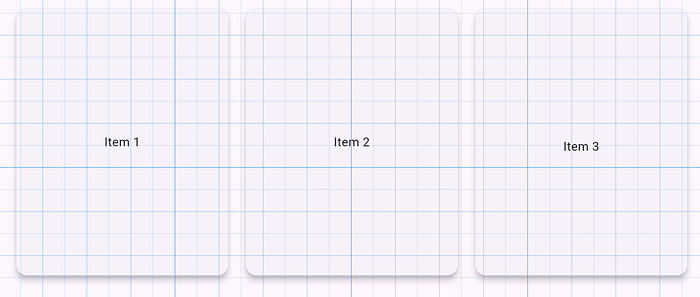
To achieve this just wrap your widget tree with the GridPaper Widget; like this:
GridPaper(
    color: Colors.blue.withValues( alpha: 0.5), // line color & opacity
    interval: 200.0, // Spacing to main lines
    subdivisions: 4, // division for interval
    // optional: child: Container(), -- GridPaper can have a child
 )
TickerMode
TickerMode is a widget that gives you a simple on/off switch for all tickers (AnimationControllers, animated widgets, etc.) inside a widget subtree. It's perfect for muting animations when a screen is offstage.
TickerMode classAPI docs for the TickerMode class from the widgets library, for the Dart programming language.
flutter.dev
Using it grants a performance boost. Here's a code snippet to demonstrate the effect side-by-side.
In the following example we use an AnimatedSpinner widget. All AnimatedSpinner widgets contain the mixin SingleTickerProviderStateMixin:
class AnimatedSpinner extends StatefulWidget {
  const AnimatedSpinner({super.key});
  @override
  State<AnimatedSpinner> createState() => _AnimatedSpinnerState();
}

class _AnimatedSpinnerState extends State<AnimatedSpinner>
    with SingleTickerProviderStateMixin {
  late final AnimationController _controller;
  @override
  void initState() {
    super.initState();
    _controller = AnimationController(
      vsync: this,
      duration: const Duration(seconds: 2),
    )..repeat();
  }

  @override
  void dispose() {
    _controller.dispose();
    super.dispose();
  }

  @override
  Widget build(BuildContext context) {
    return RotationTransition(
      turns: _controller,
      child: const Icon(Icons.sync, size: 56, color: Colors.green),
    );
  }
}
One Columns is wrapped and controlled by the TickerMode Widget and the other column is not:
Row(children: [
        TickerMode(
            enabled: _tickersEnabled,
            child: Column(
                children: [
                    const Text('Wrapped with TickerMode'),
                    const SizedBox(height: 12),
                    AnimatedSpinner(),
                    AnimatedSpinner(),
                ],
            ),
        ),
        Column(
            children: [
                const Text('Not Wrapped with TickerMode'),
                const SizedBox(height: 12),
                AnimatedSpinner(),
                AnimatedSpinner(),
            ],
        ),
    ],
),
As you can see in the result the wrapped tree with the TickerMode can control and start/stop all animations:
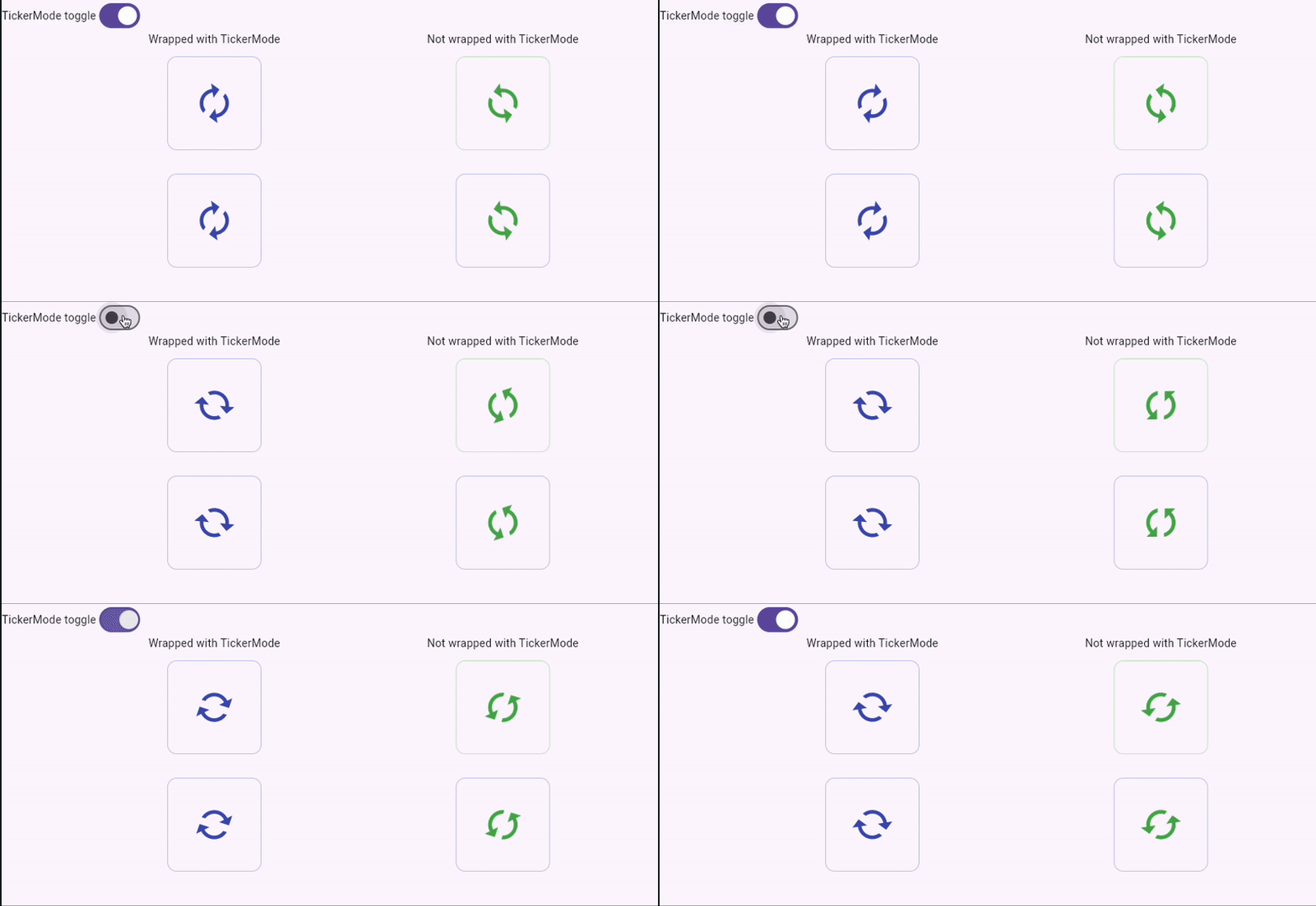
TickerMode lets you pause or resume all tickers in a widget subtree, making it easy to silence animations for performance reasons, e.g., when a screen is offstage. Use it whenever you need to conserve resources, reduce visual noise, or compare animated and static states side by side.
RepaintBoundry
Every repaint uses CPU and GPU time, and at 60 FPS you only have about 16 ms to produce each frame. So unnecessary redraws quickly miss that deadline and cause visible jank. That wasted work drains battery, increases thermal load, and wastes processing cycles.
Modern UIs with animations, dynamic lists, and custom painting make this problem worse: a small change in one place can cascade repaints across large, visually unchanged areas unless rendering is managed carefully.
RepaintBoundary isolates a widget subtree into its own compositing layer so that the engine can repaint just that area instead of re-rasterizing its entire ancestor.
RepaintBoundary classAPI docs for the RepaintBoundary class from the widgets library, for the Dart programming language.
flutter.dev
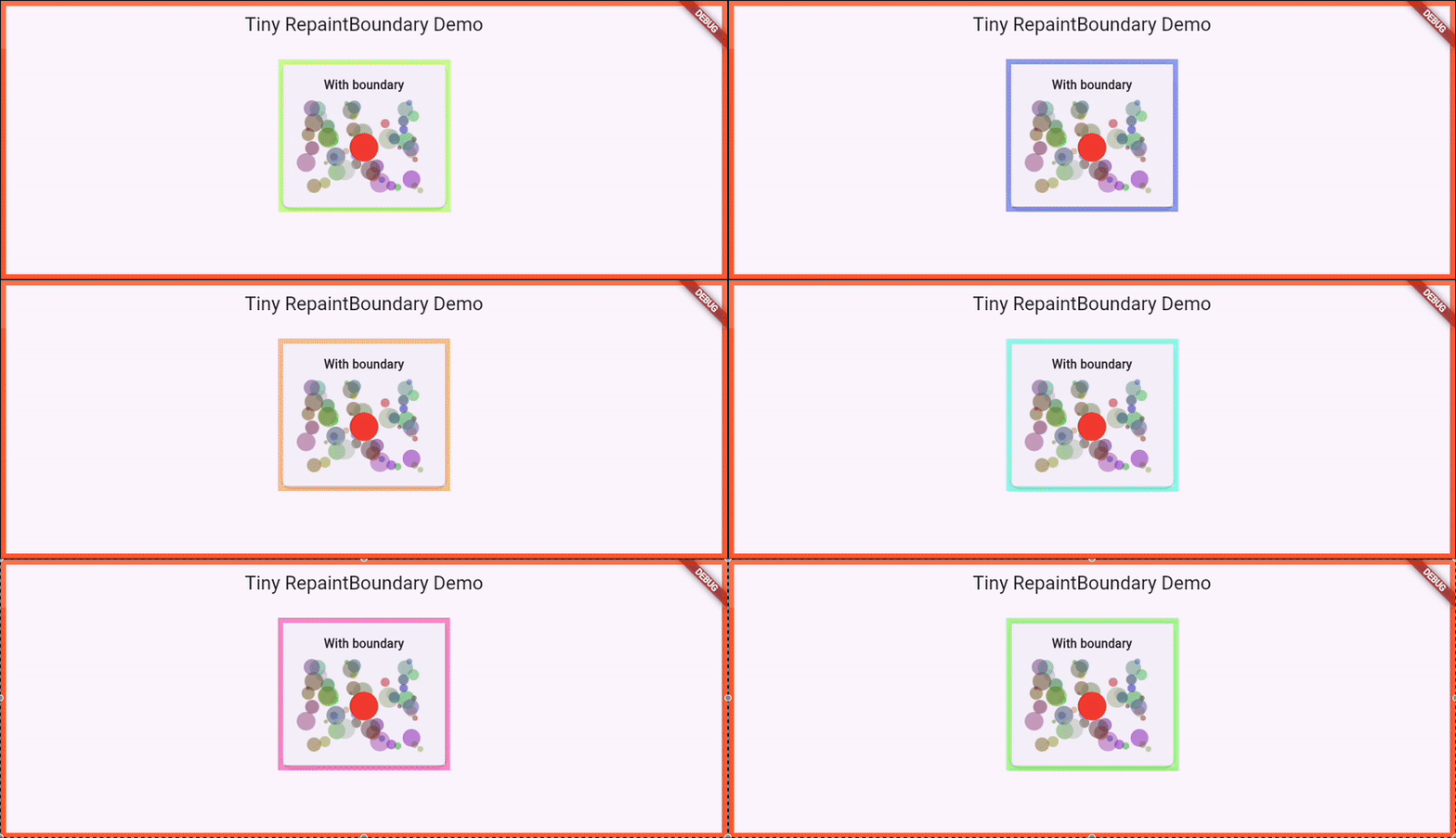
In the example, we create a widget that visualizes data, updating it on every tick to display incoming changes in real time.
Enable Flutter's repaint rainbow to visually see where repaints happen with enabling debugRepaintRainbowEnabled before executing runApp(...).
When active, repainted layers briefly flash a colored outline and cycle through hues; the border and color changes correspond to repaint activity and frequency.
In the mini demo you can clearly see the difference: without a RepaintBoundary the entire card/screen flashes on each tick (showing a full-screen repaint), …
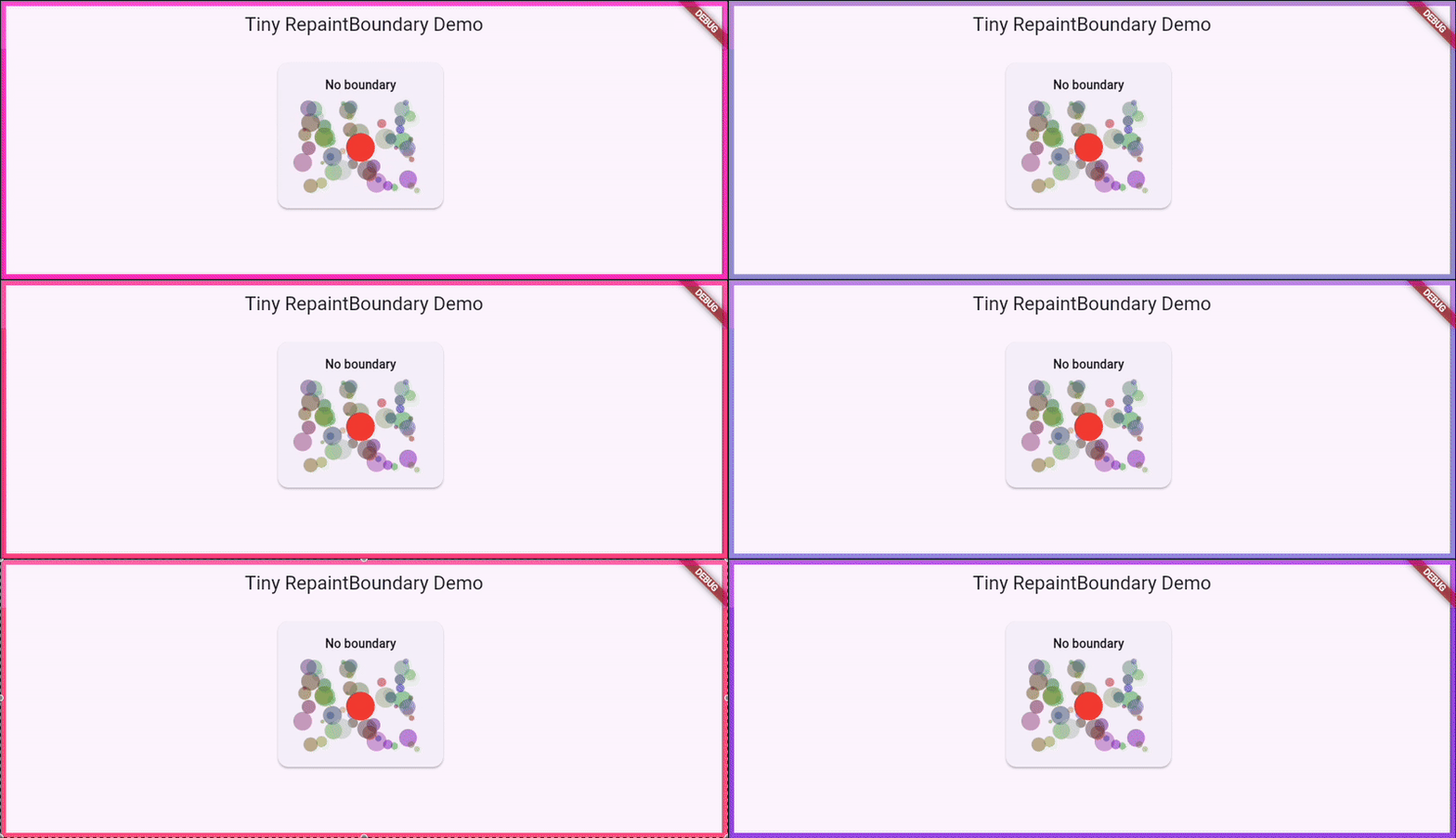
whereas with RepaintBoundary only the isolated widget's area flashes (showing that only that inner layer is being repainted). Turn the flag off when you're done to restore normal rendering.
Be careful: each extra layer costs memory and rasterization time, so profile first and only add RepaintBoundary where repaint savings outweigh the layer overhead.
→ Always measure with DevTools and the performance overlay and overusing layers can backfire, so apply it where repaint reduction justifies the extra compositing cost.
Conclusion
Together, GridPaper, TickerMode, and RepaintBoundary give you a small but powerful toolkit for building Flutter UIs. Use GridPaper as a quick visual ruler to catch alignment and spacing issues during design reviews. Reach for TickerMode when you need to silence or pause animations. It's perfect for conserving resources and comparing static vs. animated states. And apply RepaintBoundary to isolate expensive subtrees or capture widgets as images but always measure first so you don't trade one performance problem for another.
Try them in your next bug hunt or UI polish pass and a few well-placed helpers can make your apps look sharper and run smoother. What are your favorite unknown Flutter widgets? (by Tobias Rump)