Telegra.ph Tips & Tricks
Oliver Morozov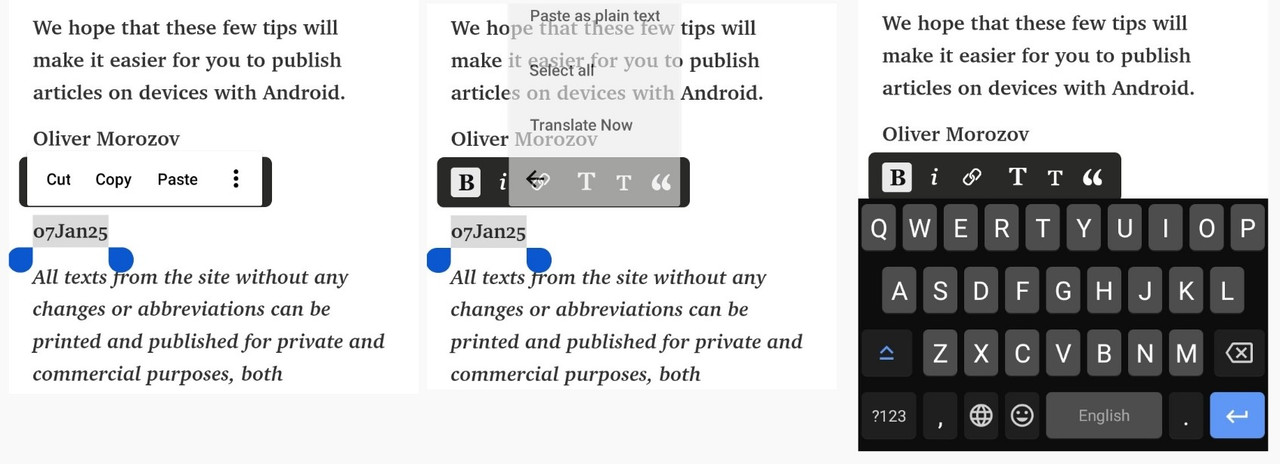
The Telegra.ph publishing platform has the quality of simple and fast editing and publishing, which is also a feature of Telegram. Those who use a computer or laptop can publish a specific article very quickly, since Telegra.ph does not require logging in. But, although there is no logging in, the published article can be subsequently edited only from the browser and from the device you used during its creation and publication.
Unlike users of computers and laptops, users of devices with Android programs will encounter at least one type of non-functionality, which will hinder them from quickly editing and publishing articles. In the next part of this article, we will provide explanations for three observations (and one suggestion) that we noticed while using the Telegra.ph publishing platform.
The first tip is certainly the article address, which is formed automatically, based on the text from the title. The essence of what has been said is that the program generates a readable article address based only on the 26 letters of the Latin alphabet, while the title text, written in other scripts (Cyrillic, Hindi, Asian ideograms, Arabic script...), is also published in local languages, however, if you post such an address in a text editor, forum or send it by email, it will be illegible, like the example below:
Title: A,B.C'D"E!F?G:H;I/J-K_L(M)NàOéPíQóRü欢迎مرحبًا
Address of Page: https://telegra.ph/ABCDEFGHIJ-K-LMN%C3%A0O%C3%A9P%C3%ADQ%C3%B3R%C3%BC%E6%AC%A2%E8%BF%8E-%D9%85%D8%B1%D8%AD%D8%A8%D8%A7-01-07
In addition to the letters of the Latin alphabet, platform in title accepts only hyphens (-) and underscores (_), therefore, the solution is as follows: you should form the title exclusively in the Latin alphabet, phonetically on local language or in English, without special characters or letters with an apostrophe and publish the article, which will form an acceptable and readable form of the address. After that, activate editing, replace the Latin letters in the title with the local script, letters with an apostrophe or special characters and publish again. On this way the article address will remain unchanged, and you will get a readable title in the local language.
The second trick concerns editing an article on Android devices, which can be an impossible mission (personal experience, maybe not in your case).
Namely, as soon as you select a piece of text to edit with one of the six functions, the Telegra.ph placeholder with the mentioned functions, is automatically covered by the browser placeholder with similar functions (copy, paste...), which makes it impossible to edit the text.
This can be partially avoided by clicking on the three vertical dots in the browser placeholder, which will change its shape and reveal access to the first function of the Telegra.ph placeholder: bolding, sometimes will reveal quoting function, while the others will still be covered.
The solution to the problem is as follows: after both placeholders appear, one above the other, scroll the page with them down until the placeholders touch the top edge of the keyboard, then the browser placeholder will permanently disappear, and you will have unhindered access to all functions of the Telegram.ph placeholder.
The third problem is the inability to delete or replace an image from an already published article, which can be achieved in the following way: select and copy the text from the article, then click "select all", which will select the entire content of the article, including the image, after that press "delete" and all the content of the article, including the image, will be deleted. Then insert the copied content of the article, add the title and upload a new image.
Since direct uploading of images to Telegra.ph editor is suspended until further notice, upload the image to a free image hosting (permanent option), copy the image link with the .jpg extension and click "Enter".
The fourth is suggestion, related to the font of the Telegram.ph publishing platform.
Namely, unlike Telegram's Roboto font, the font used in Telegraf does not match its modern look, in addition, the font color is too light, and given that the lines of individual letters of the font are very thin, reading causes considerable eye strain. This can be avoided by bolding the entire text (as in this article), although the preferred solution is the Roboto font, but not in black, already in a dark blue color, close to black.
We hope that these few tips will make it easier for you to publish articles easily and quickly, regardless of the device you use.
Oliver Morozov
07Jan25
All texts from the site without any changes or abbreviations can be printed and published for private and commercial purposes, both domestically and abroad, by anyone who wants it. The rights to publish are provided free of charge, with a preliminary agreement regarding the choice, design and authorization of texts
https://lnk.bio/olivermorozov/