Telegraph Platform Guide
Equipe Dicas Telegram • Translated by Markus Vihtla
So you are interested in learning more about the Telegraph platform? Very well, you are in the right place!
Launched in late 2016, the Telegraph platform gives us an interesting option for publishing and reading content in groups and channels (making it even more practical with the Instant View feature).
Some important tips before you get started:
- Use the @telegraph bot to authenticate to your default browser BEFORE you start writing your articles. If you post something without authenticating, you won't be able to edit it later.
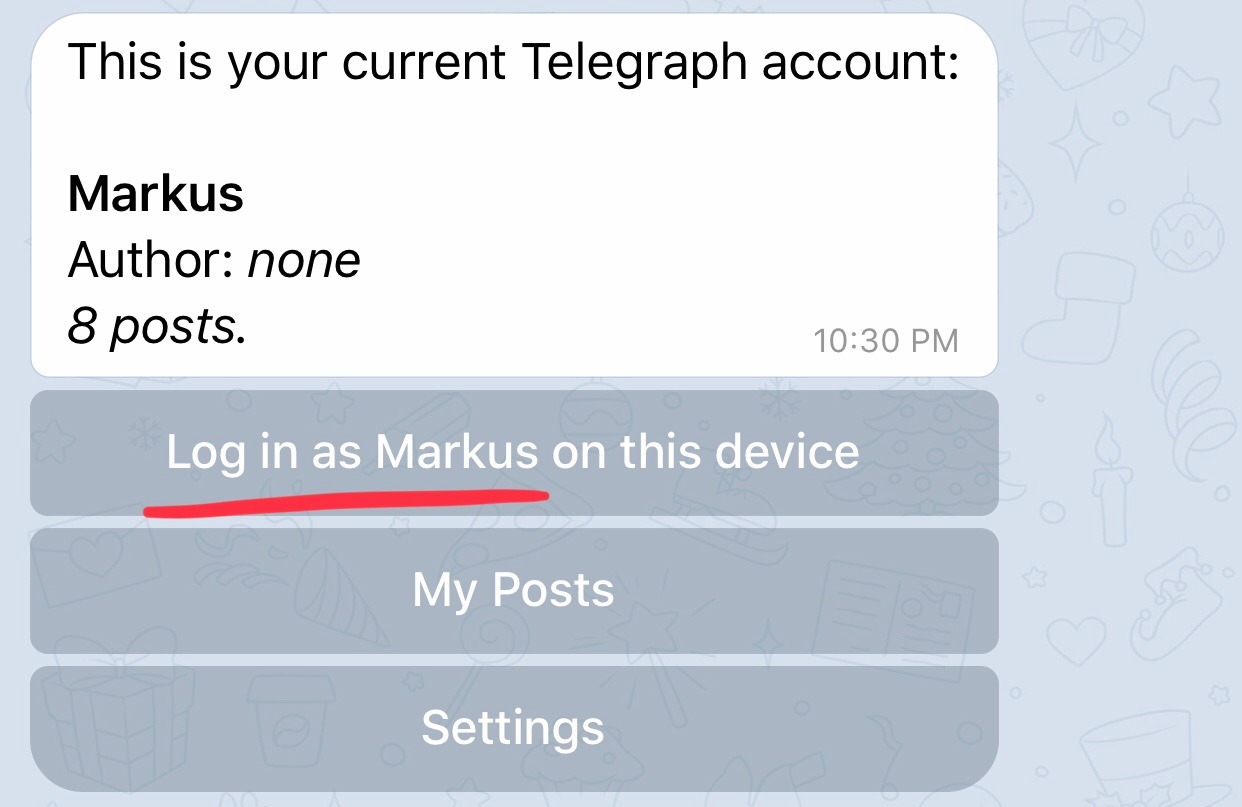
- The first image in the article will be used in the preview.
- When writing the title, put keywords, not accented. After the first publication, click the
Editbutton and adjust the title to the desired one. This action prevents the article link from being full of strange characters due to accents.
- Have you made substantial changes to your article? Use @WebpageBot to update the preview. Just submit the link to be updated.
- The Telegraph platform has a mirror domain called graph.org, which can be used in case of blocking or problems in the main domain. In this mirror domain all the articles you write on Telegraph will be available.
Author Profiles
You can have up to 5 "author profiles" (different author names + link).
You can change the author's name (Edit Author Name) and the link to the author's profile (Edit Profile Link).
If you, for example, place your channel or group link, the viewer of the article can easily subscribe to it (see below).
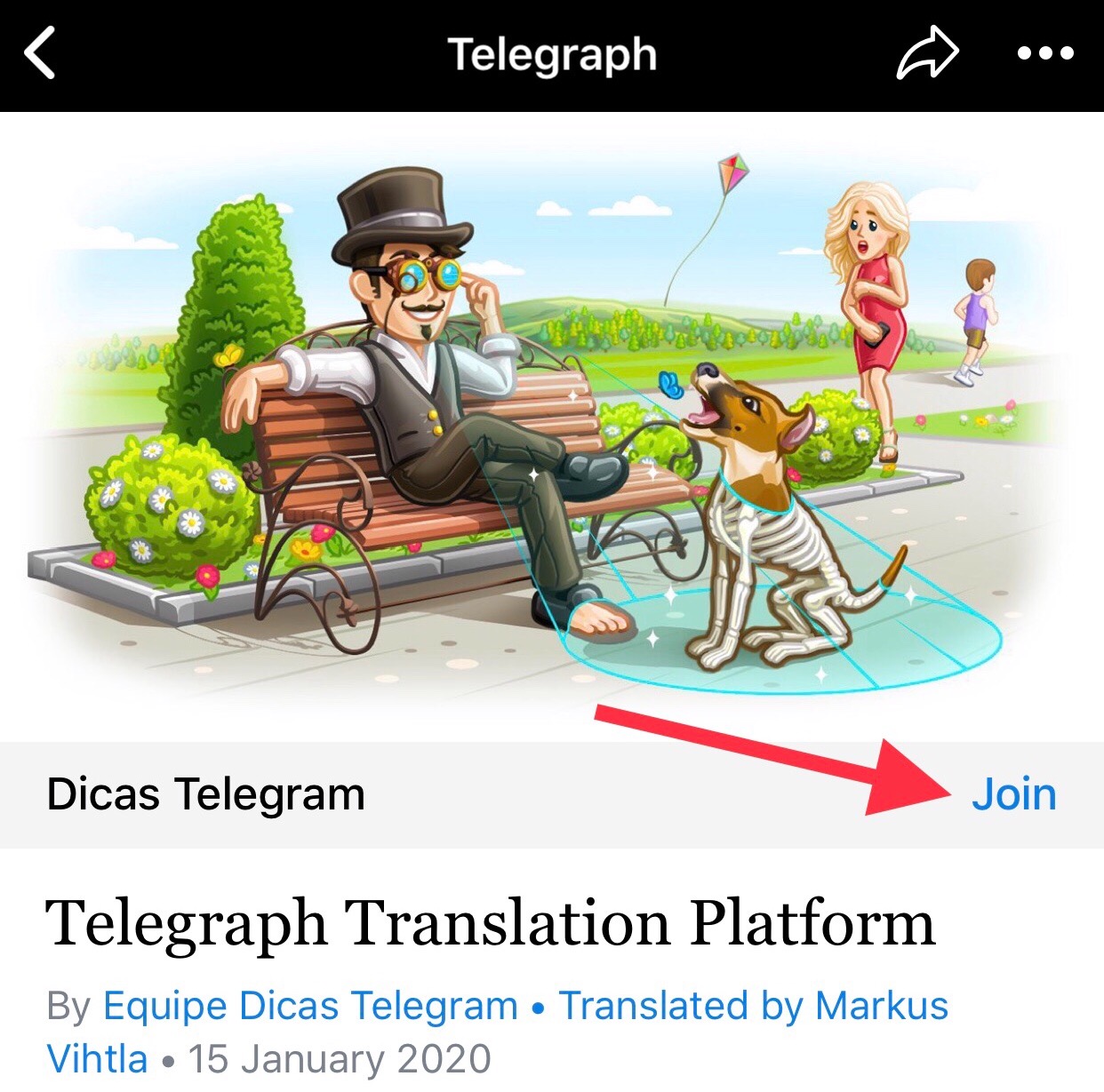
If you put the link to your site / blog, you have another shortcut easily accessible. To configure, go to My account > Settings.
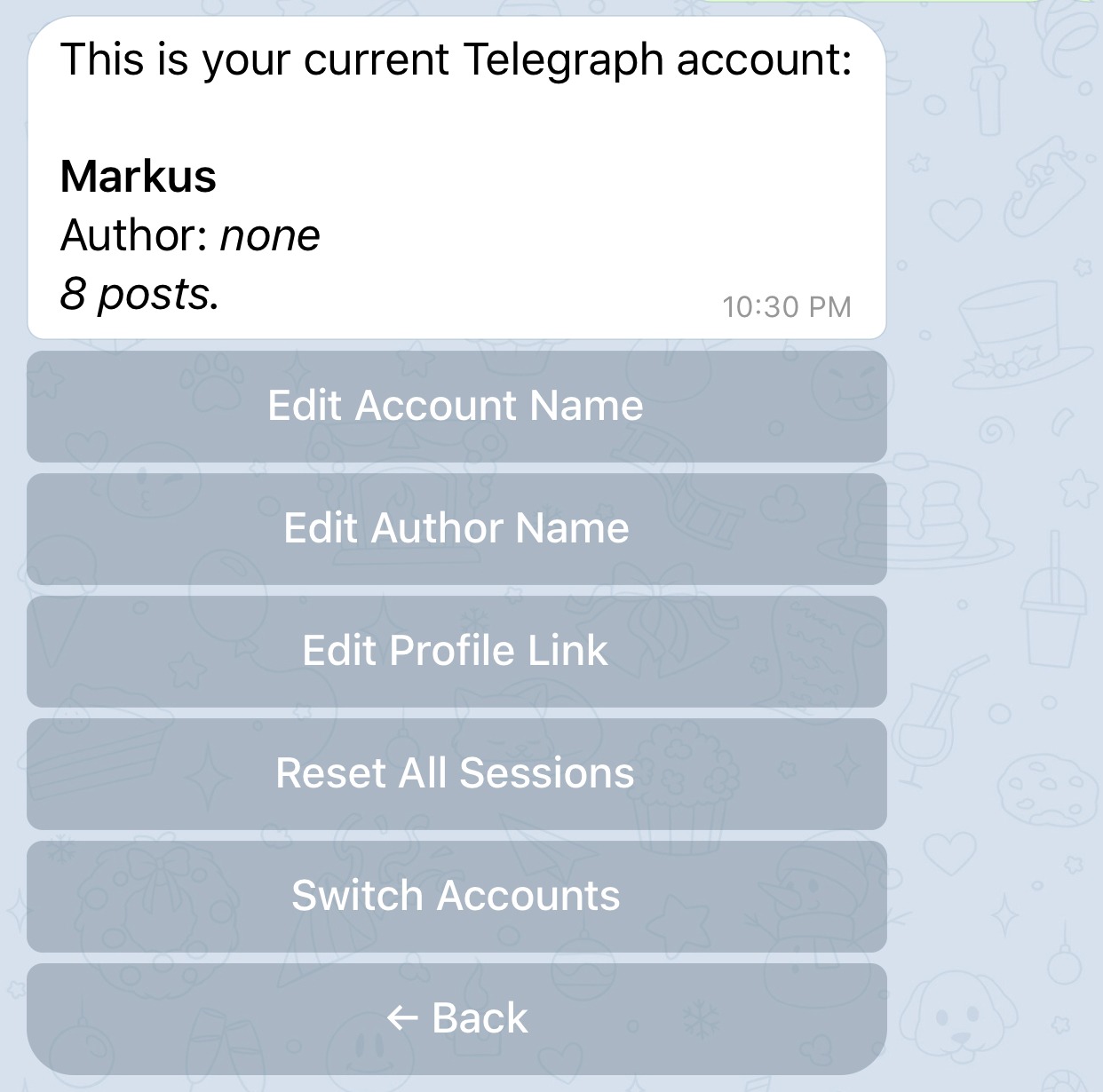
To switch between accounts, go to Settings> Switch Accounts.
Content
In addition to plain and formatted text, the Telegraph platform supports the insertion of various types of content such as images, GIFs, videos, as well as content from some popular services.
Here are some examples of supported content types:


Embedded content
In addition to the direct insertion of content, it is possible to place content from other sources into your articles. To do this, just paste the post link of the platform and press enter. Look at the following examples:
Formatting

In addition to plain text, it is also possible to publish formatted text at:
Superscript: Valid only for numbers. Type the first term, followed by the caret and the second term (a number). For example:
Chapter ^5 = Chapter⁵
Italics: With the selected text, press CTRL + I (or choose i from the drop-down menu).
Bold: With the text selected, press CTRL + B (or choose B from the drop-down menu).
Underline: With the text selected, press CTRL +U.
Monospace: With the text selected, press the grave accent key – `.
Hyperlinks: With the selected text, click on the chain link icon in the drop-down menu and enter the desired address into the hyperlink insertion box.

Hyperlinks can also create links to the titles present in the text. In this case, just put the title as a link, as follows:
#Title-example (replacing spaces with hyphens).

Quote: With the selected text, select the double quote button (note that there are two different formatting for the quotes, chosen by pressing the same button again). Note the differences below:
Be happy for no reason is the most authentic form of happiness. —Carlos Drummond de Andrade
Lists
The lists can be:
Numbered: Type the first number, followed by a period, a space and the term.
- Milk
- Bread
- Coffee
Not numbered: Type a hyphen, followed by a space and the term.
- Milk
- Bread
- Coffee
Code blocks
Formatting blocks of code is quite simple. To do this, just write your code, select all of it and press the grave accent key – `. Look at the example below:
{% if message.document.file_name ends with '.apk'%}
  {{true}}
{% endif %}
Separator: To create a separator line, type three hyphens (---) and hit enter. See an example below:
We hope you enjoyed learning a little more about the Telegraph platform.
Comment on this post (on the @DicasTelegram channel) and share your impressions and experiences with us!
Do you know of a feature not listed above? Share with us so we can all learn more and more! 😁
Subscribe @DicasTelegram!
Share this article on Telegram and Twitter!
Translated by Markus Vihtla.