Telegram Bot User Manual PlugValley
- @PlugValley - @OTPValley - @OTPValleyBot -
=- OTP Bot Telegram User Manual -=
1 - Registration in 3 steps
2 - How to purchase a subscription easily
3 - How to create a call
4 - Call settings explained
5 - How to create custom scripts
6 - How to create custom actions

1 - Registration in 3 Steps
Step 1 : Go to @OTPValleyBot at Telegram , Start the bot and press the Register Button.

Step 2 : After you pressed the Register button at part 1 you will need to subscribe to all our channels , after you done that you will be eligible to Register.
Once you will be eligible to register you will get to that page , Press Register again.

Step 3 : When you get that to that page it means you finished the registration , you can press the Login button now and enter your account.

2 - How To Purchase a Subscription Easily
After you finished the registration you can press Enter Bot button.
After you press the Enter Bot button you will get to that page that will detect whether you have a License (Subscription) or you do not have.
If you reading this guide then the chances are that you do not have.
Press purchase Subscription Button.

Here you can choose your specific plan depends on your needs.
Bundles are complete peckages that include License and different upgrades.
If you wish to buy License and choose the upgrade yourself you can do it too but bundles are known as the most profitable for users to choose.
In this case i will choose bundles as an example.

After i pressed bundles button i got to that page , here i need to choose the number of days i want to have my subscription for.

Since i chose the bundles option here i will have to choose the specific bundle i wish to purchase.

After that you will need to choose the crypto you would like to pay with.

After you choose the crypto you will get to that page .
Follow the instructions here and everything will go smooth, You will get a QR Code too that you can pay with if you having hard time writing the address.

That is it! You successfully paid for a subscription now you can wait till it get confirmed and your subscription will be added automatically , if there any issues you can contact our support team.
3 - How To Create a Call
Once you finished purchasing a subscription you will be able to create a call , how you would do that ? with our bot its very easy , You go to @OTPValleyBot with your account , do the command : /start : again if your subscription isn't shown yet .
Press the Enter Bot button and enter the bot.

After you enter the bot you can press Create Call button.

After you press the Create Call button you can choose the call mode you wish to use , for this example i will choose banks.

After you chose your call mode you can write the service name you want ,because i chose banks as an example earlier i will choose chase here.

Next step is writing your victim name , depends on your victim you should write his name down.
For an example here i wrote the name "joey".

Now the most important part the victim phone number you wish to call.
Write it down and do not miss any number or else the call will fail.
For an example here i wrote random USA number.

Here you can write the last 4 digits of the victim's cc , on the other hand if you do not have them just skip it.
its an optional part and you do not have to fill it.
For an example i skipped it.

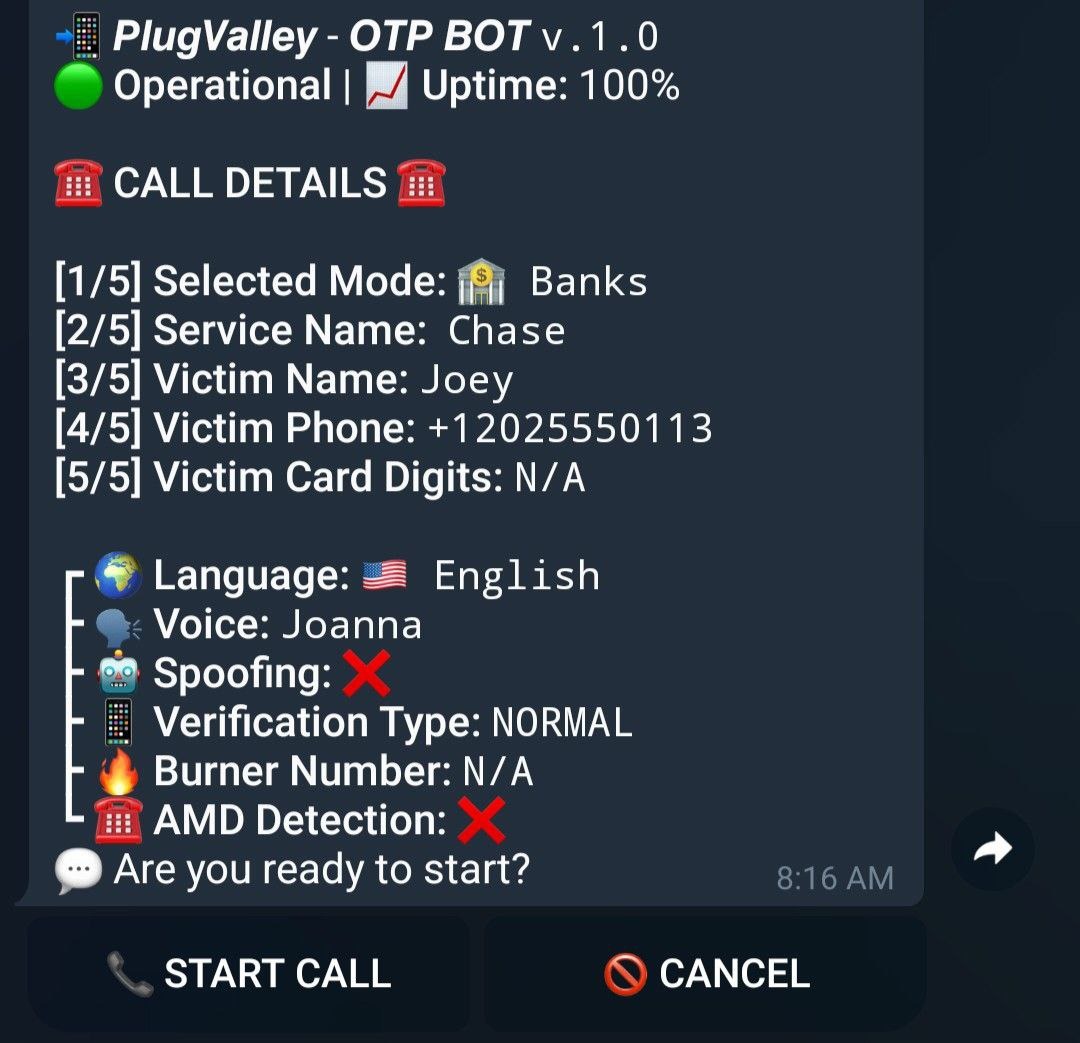
That is it you successfully created a call , at this page you can review all the call details before starting the call.
You can see your call settings here too , we will be talking about that at the next topic so keep scrolling.
4 - Call Settings Explained
After you press Enter Bot button you can press Call Settings button to change call settings like Spoofing ,Language ,Verification Type etc...

This is how call settings page look like.

Spoofing - the ability to Impersonate as any service or any number you choose.
Activate spoofing to be able to use it.

When you activate the spoofing at call settings you will get another page at creating a call and its the caller ID page where you can write down your caller ID .
Caller ID is the number you wish to impersonate as , the number that will be shown at victim phone.
Write down your caller ID , for this example i wrote the chase customer service number.

Language - select the language you want the bot to speak at from this list.

Voice - click the Voice button and write down the tone you want the bot to speak at from this list.

Verification Type - Select the verification type you wish to use.
- Normal - Ask the victim to press a number on their keypad ,The bot will say the welcome script and after finishing he will instantly start say the verification.
- No Action - Read the verification script to the victim ,without asking them to press a number on their keypad , The bot will not say the welcome script and will not ask victim for verification.
- Disabled - Skip the verification process and waiting for actions immediately , the bot will skip the verification and you will be able to choose action immdiately.

Burner number - Burner number is your own number you can test calls and scripts on.
Its the number you also use during PGP call.
Write down your burner number.
AMD Detection - AMD Detection is the feature that detect automatically if the victim answered or its his voicemail.
When activated it will hang up the call once the call went to voicemail.

5 - How To Create Custom Scripts
After you press Enter Bot button you will have the button Custom Scripts available to press.

After you press Custom Scripts button you will get to your Custom Script list where you can view your available custom scripts , At this example i will press Create New Script button because i have none.

First lets learn about custom scripts .
What are Custom Scripts? Custom scripts are essentially for users that want to create and perform specific tasks or functions.
Instead of using pre-made Scripts, custom scripts allow you to tailor functionality to your specific needs.
- Welcome Script: Welcome script is the first script that will be played when a call is answered . (The bot will start saying the script Automatically when a call is started)
- Wait Script: The wait script is played after a successful capture which means it will grant you time to select your next action . After the bot will finish to say the wait script there will be "Hold Music" that can grant you even more time to think about your next action.
- End Script: The end script is played when you hang up the call .
At this page you will be able to edit your script and even rename it .

6 - How To Create Custom Actions
After pressing Enter Bot button you will have the button Custom Actions available.

After pressing on Custom Actions button you will see the list of our Pre made actions you can use , and by pressing the button Create New Action you can create a new one specific for you.

Here you can rename the action and even make your own script for the action , depends on which service you hitting.
Custom Actions are designed to give the user full access and creativity to grab anything he wish to from the number he's calling.
You can choose the digits limit for the action , for example OTP Code will be limit 6 , CVV will be limit 4 , CC will be limit 16 and so on.
!DONT FORGET TO PRESS SAVE ACTION BUTTON WHEN YO FINISH!

That was the user guide for our telegram bot , we still recommend reading our website bot guide too to fully understand our bot , if there is any other question you can always contact our support we would love to help at anything.
