TUTORIAL - How to Search for files on Telegram or its alternate versions
Roshan- The BookmanTutorial Prepared for use in the group @Ebooks254Forum & the channel/library @Ebooks254
Suppose you want to search for a particular book by a particular author.
You have two options
Search by the title of the book OR Search by the Name of the Author.
But the question arises - WHERE TO SEARCH & HOW TO SEARCH.
WHERE TO SEARCH
There are two places you can search for books.
- In the Group Chat itself
- In the Shared Files.
SEARCHING IN THE GROUP CHAT ITSELF
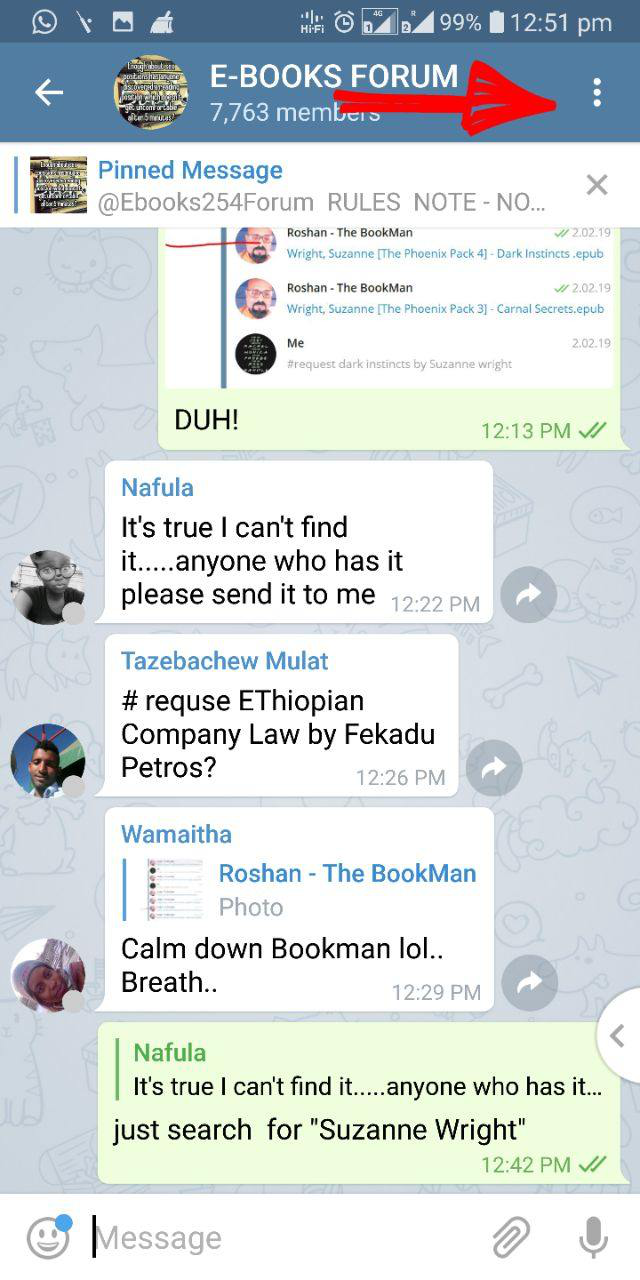
See the 3 dots at the top right corner of the screen? Click it. A drop down menu appears which will look like in the below image
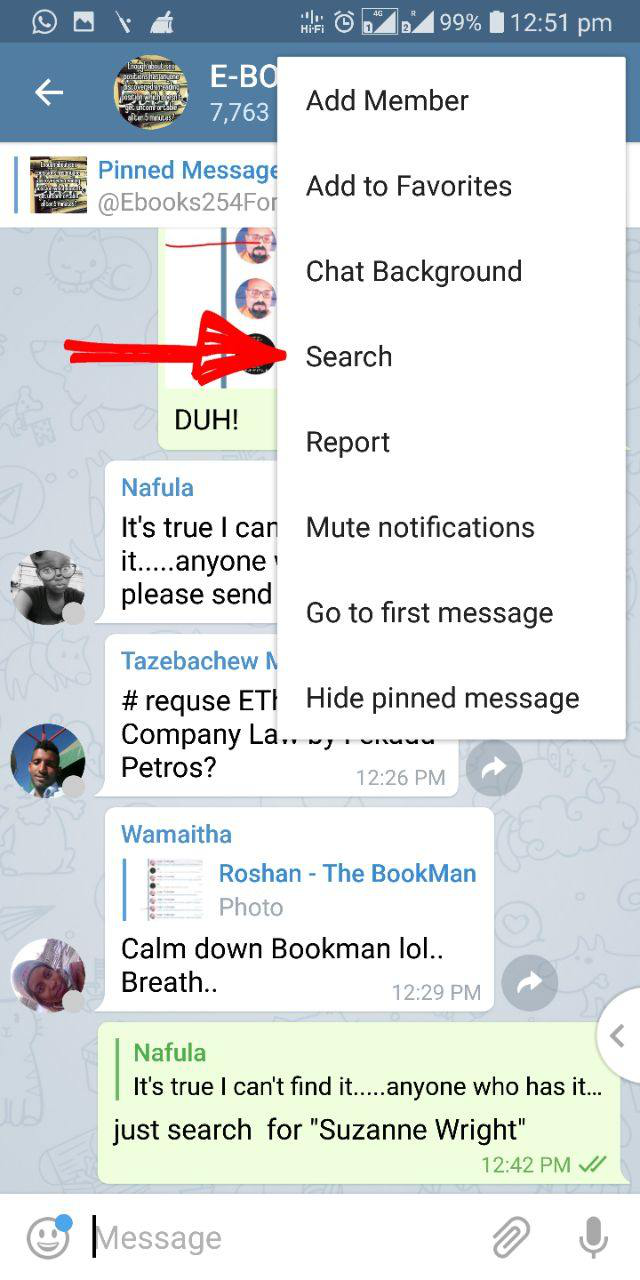
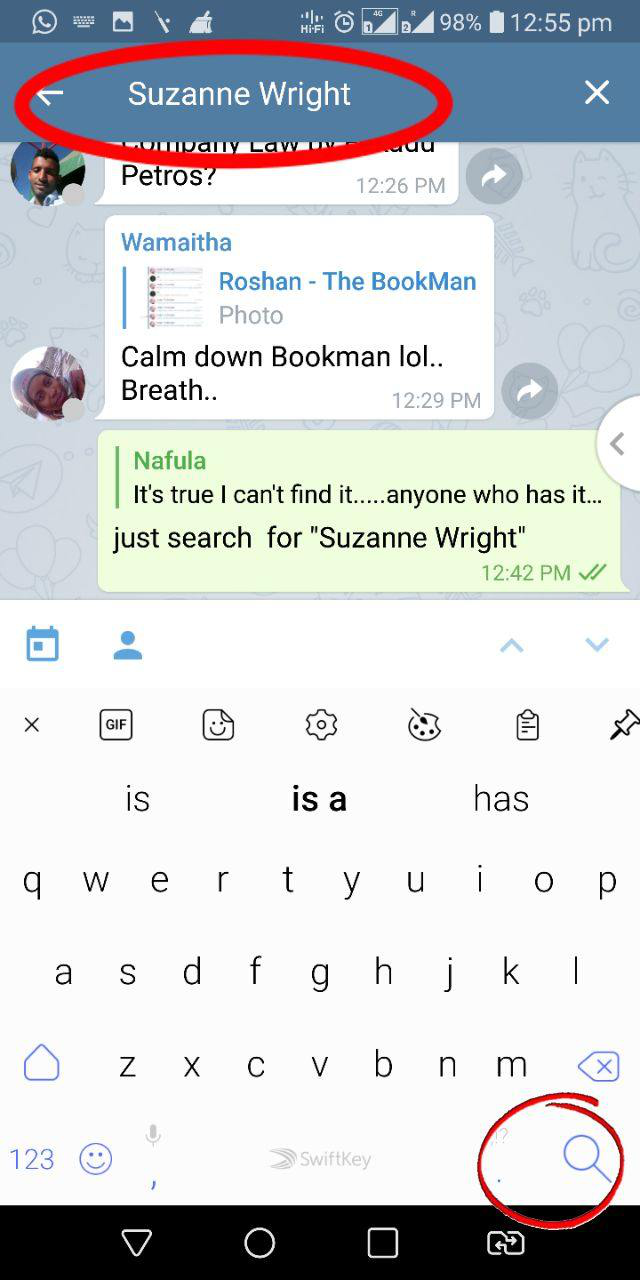
Once you click the search function, a search tab appears where you can enter the text you want to search by. It can be the title of a book or the name of the author. Suppose we are searching for books by the author "Suzanne Wright". Type the text "Suzanne Wright" in the Search Tab and click the Magnifying glass icon 🔍 at the bottom right.
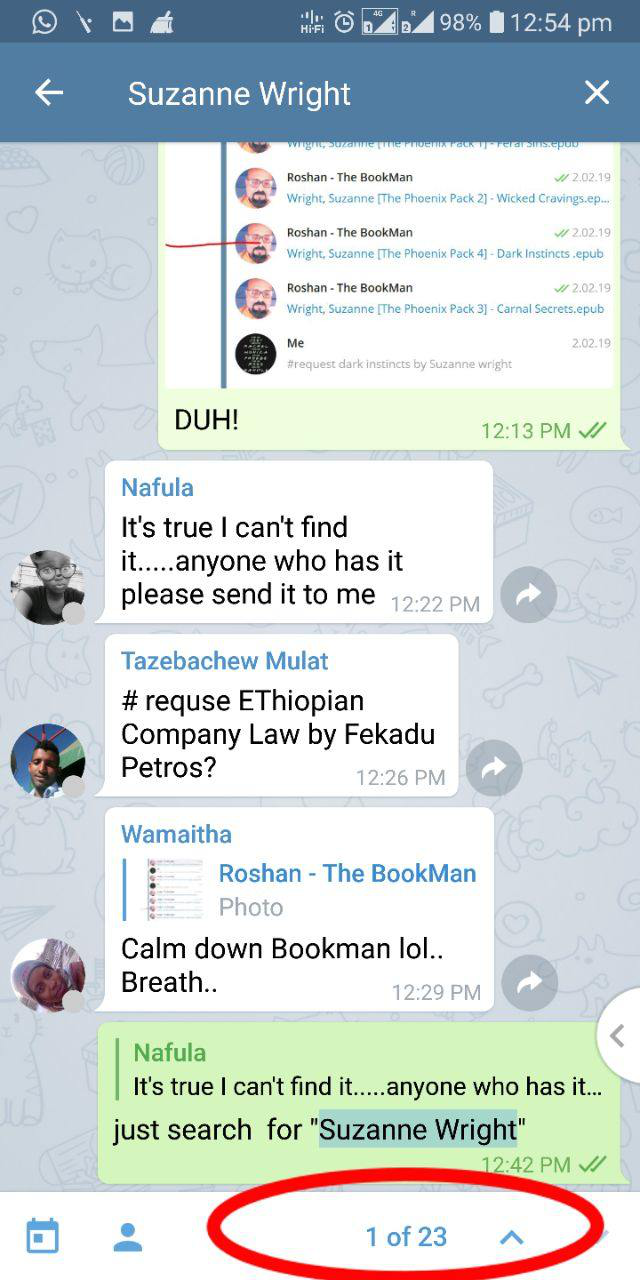
You get the search results with the result being displayed as the number of times the text "Suzanne Wright" has been posted in the group. Browse betwen such posts using the up and down arrow keys. Some messages will be just texts, like requests and other messages will have files. Ebook files to be precise.
SEARCHING IN THE SHARED FILES.
Click on the Group Name at the top.
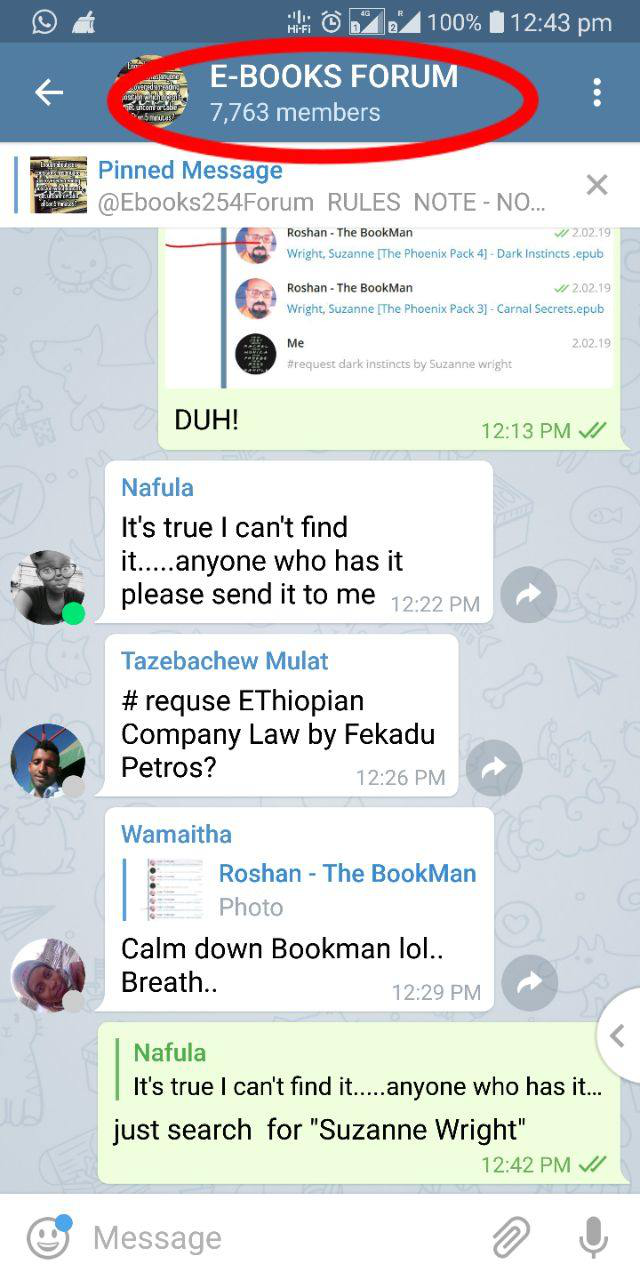
The info page of the group opens. In the info list, there is a text indicating "shared files"
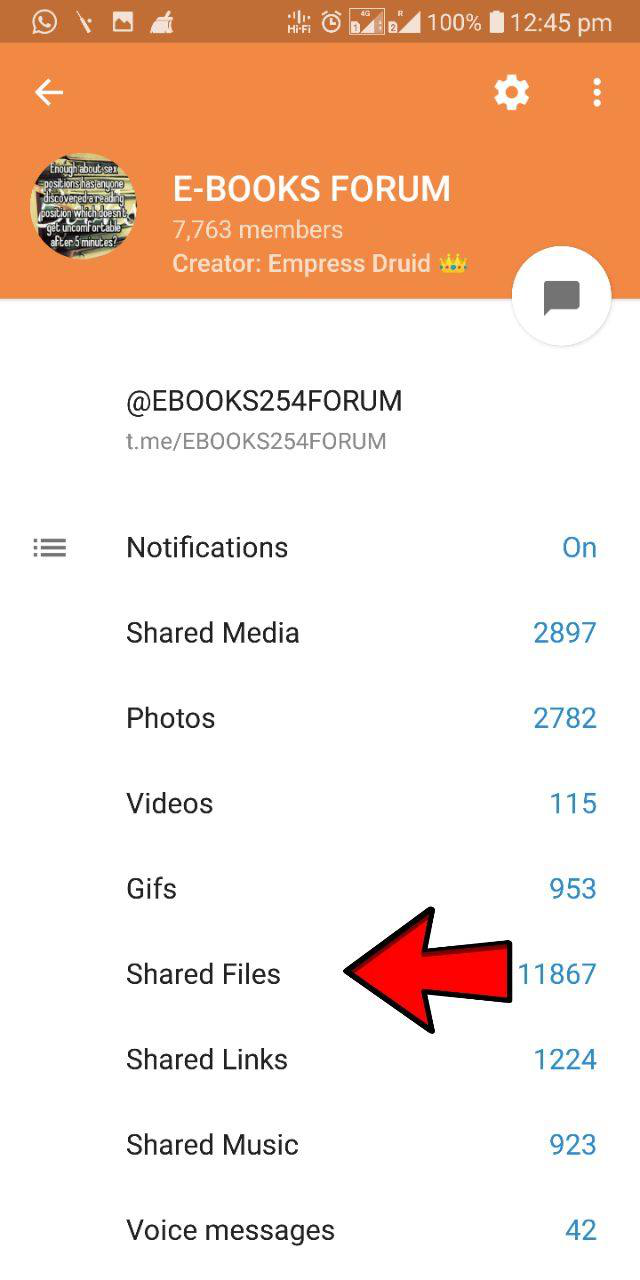
Click on the Shared files and a new screen appears. Note the Magnifying Glass icon 🔍 at the top right .
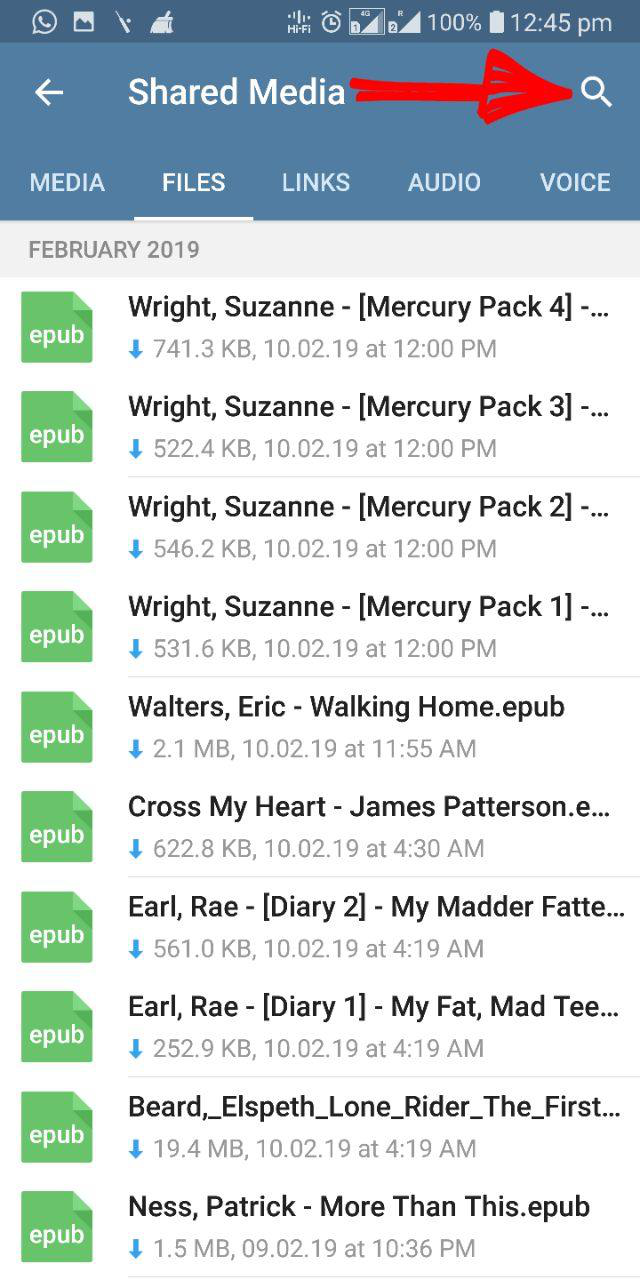
Click the Magnifying glass icon 🔍 at the top right and a search tab appears.
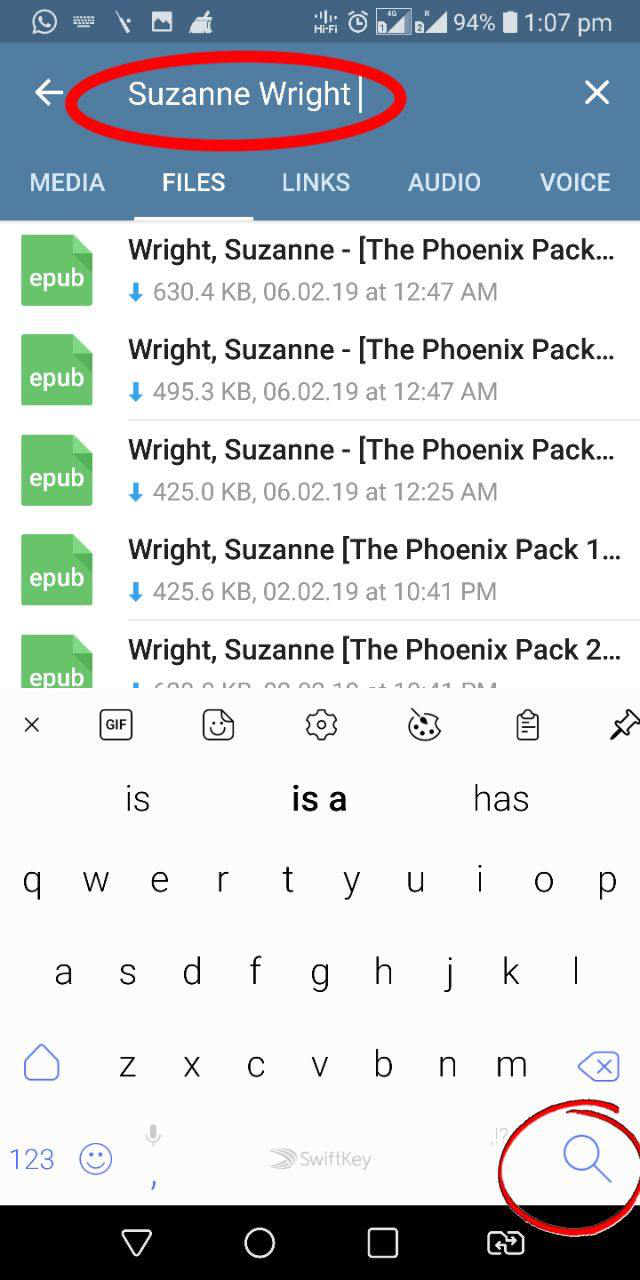
Enter the text you want to search for. In this case, we are going to search for the ahuthor's name "Suzanne Wright". Click the Magnifying Glass Icon 🔍 at the bottom right. A New screen appears with the search results.
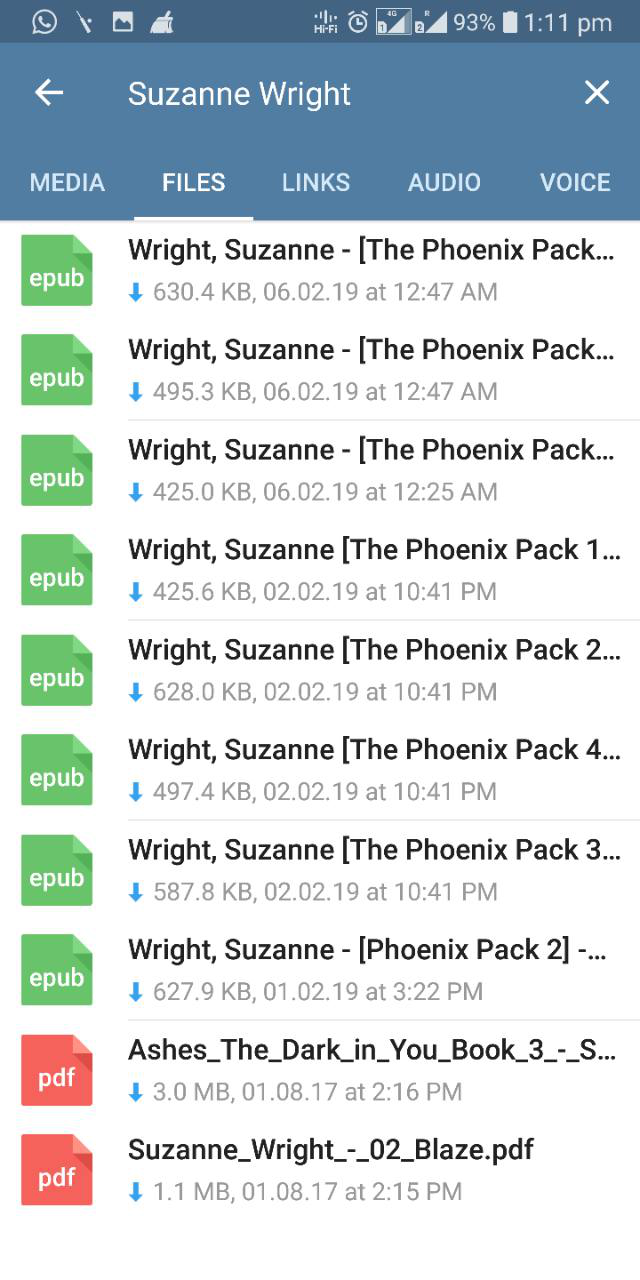
You get all files having the text "Suzanne Wright" or "Suzanne" or "Wright". You can search the similar way withy the name of the book as the search text.
We hope that after reading the tutorial, you can search for books or files with ease.
Thank you for your time.