Neptun TOTP
NEPTUN TOTP ExtensionManual: how to setup the extension?
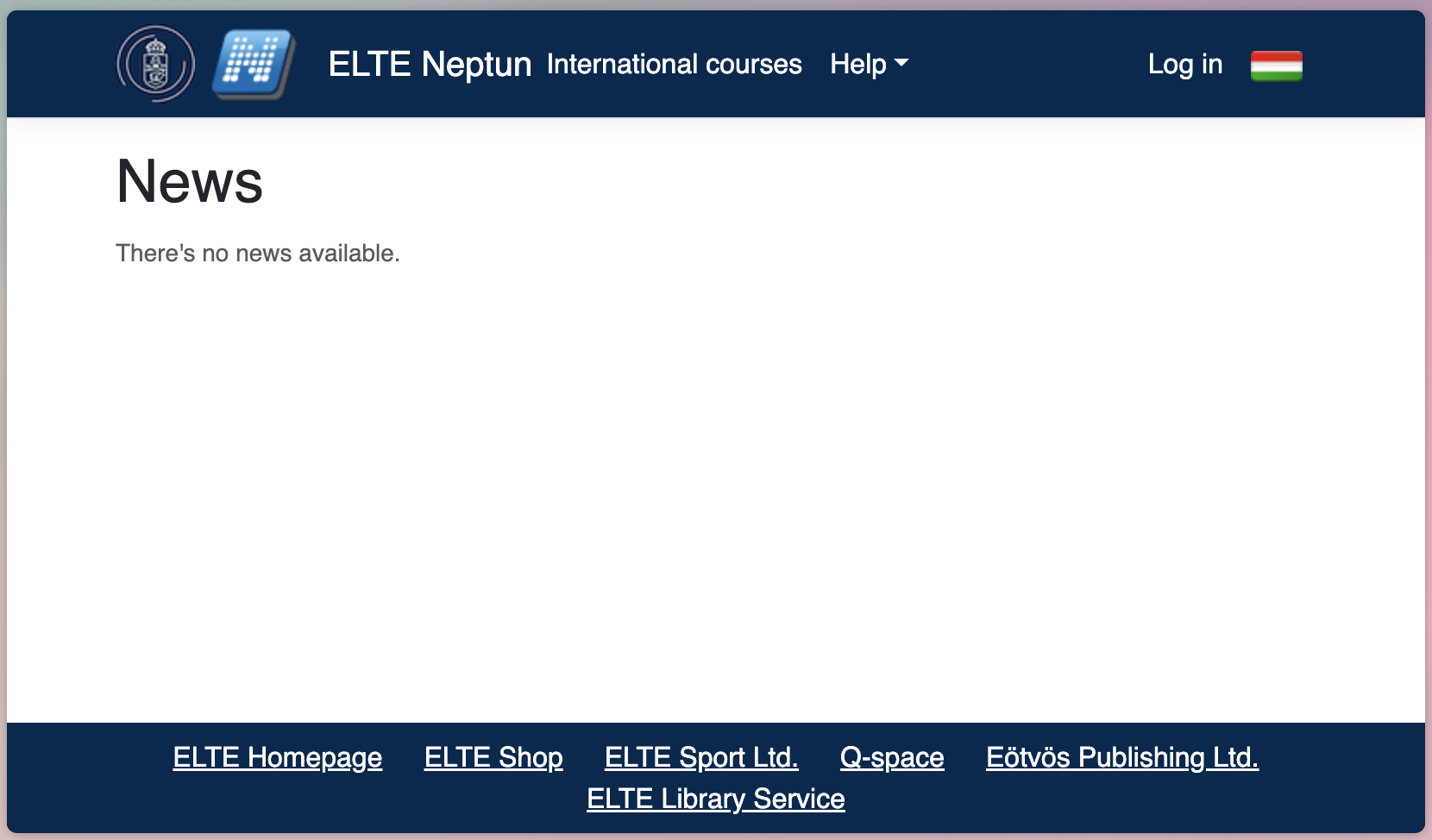
1. Navigate to ELTE Neptun (https://neptun.elte.hu/).
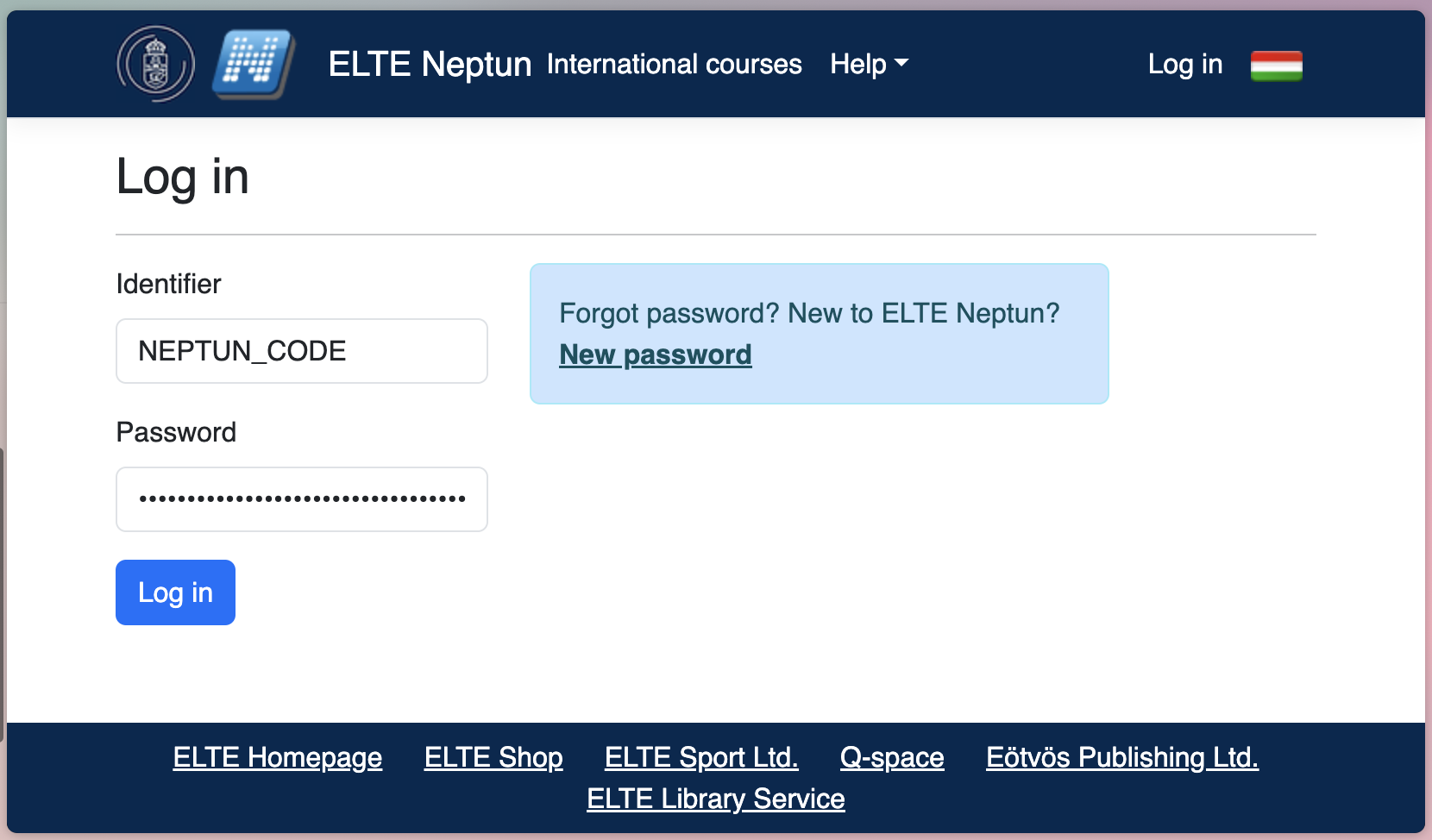
2. Log in using your credentials.
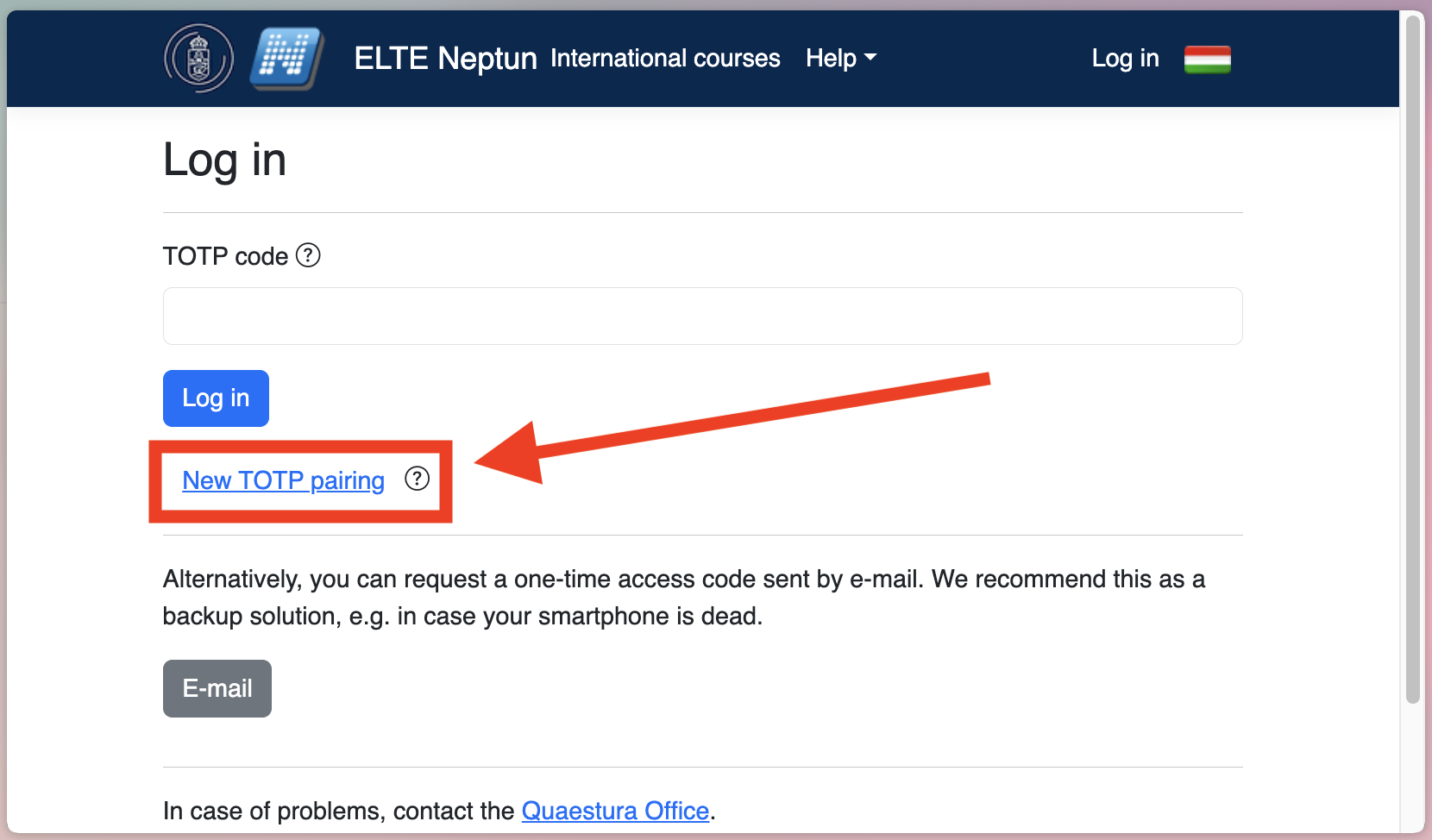
3. Click on 'New TOTP pairing' if you have already configured code generation on 'Microsoft Authenticator' mobile app.
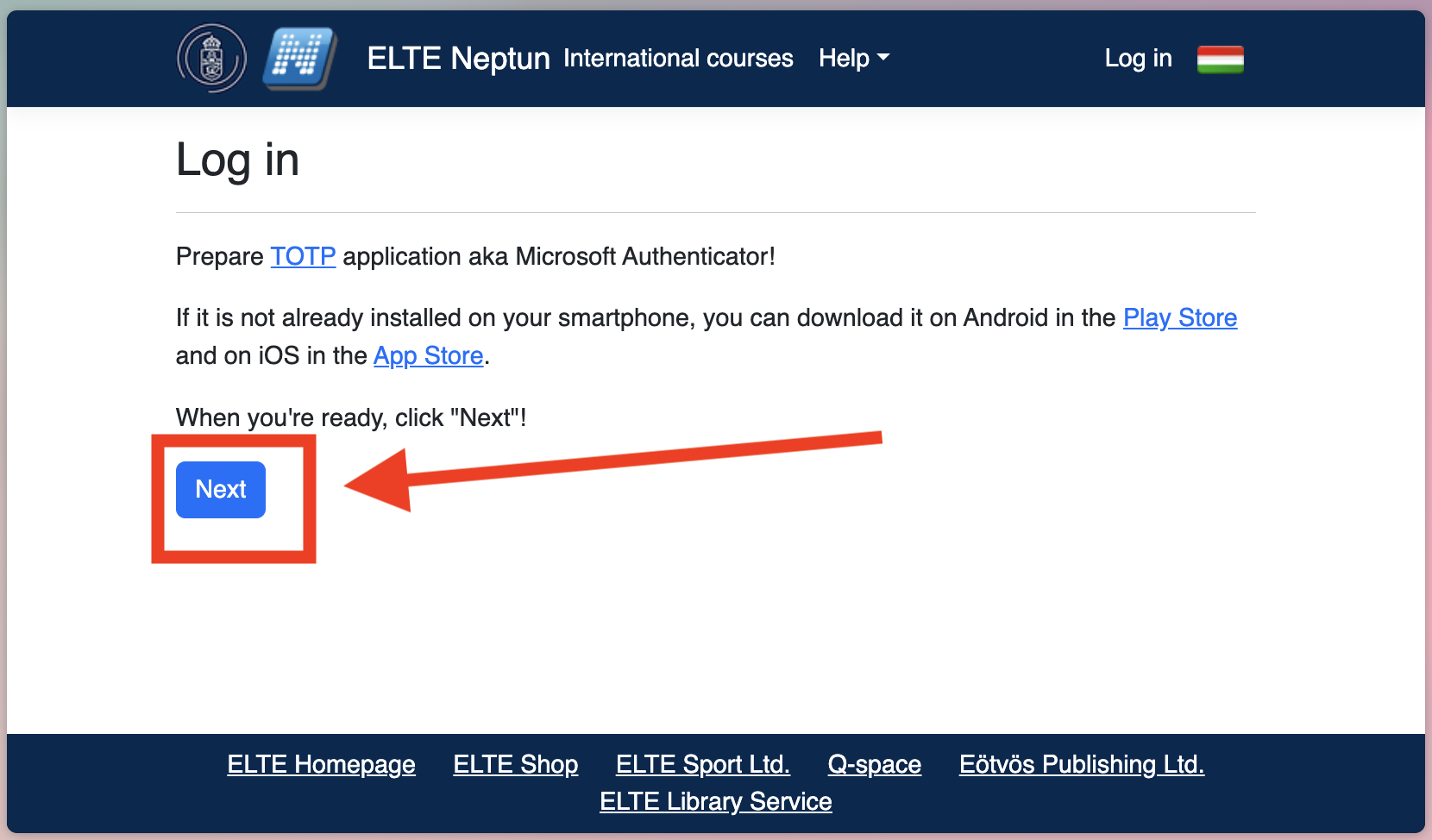
4. Optional: Install Microsoft Authenticator mobile app if you don't have one yet. Then click 'Next' in order to proceed to the next step.
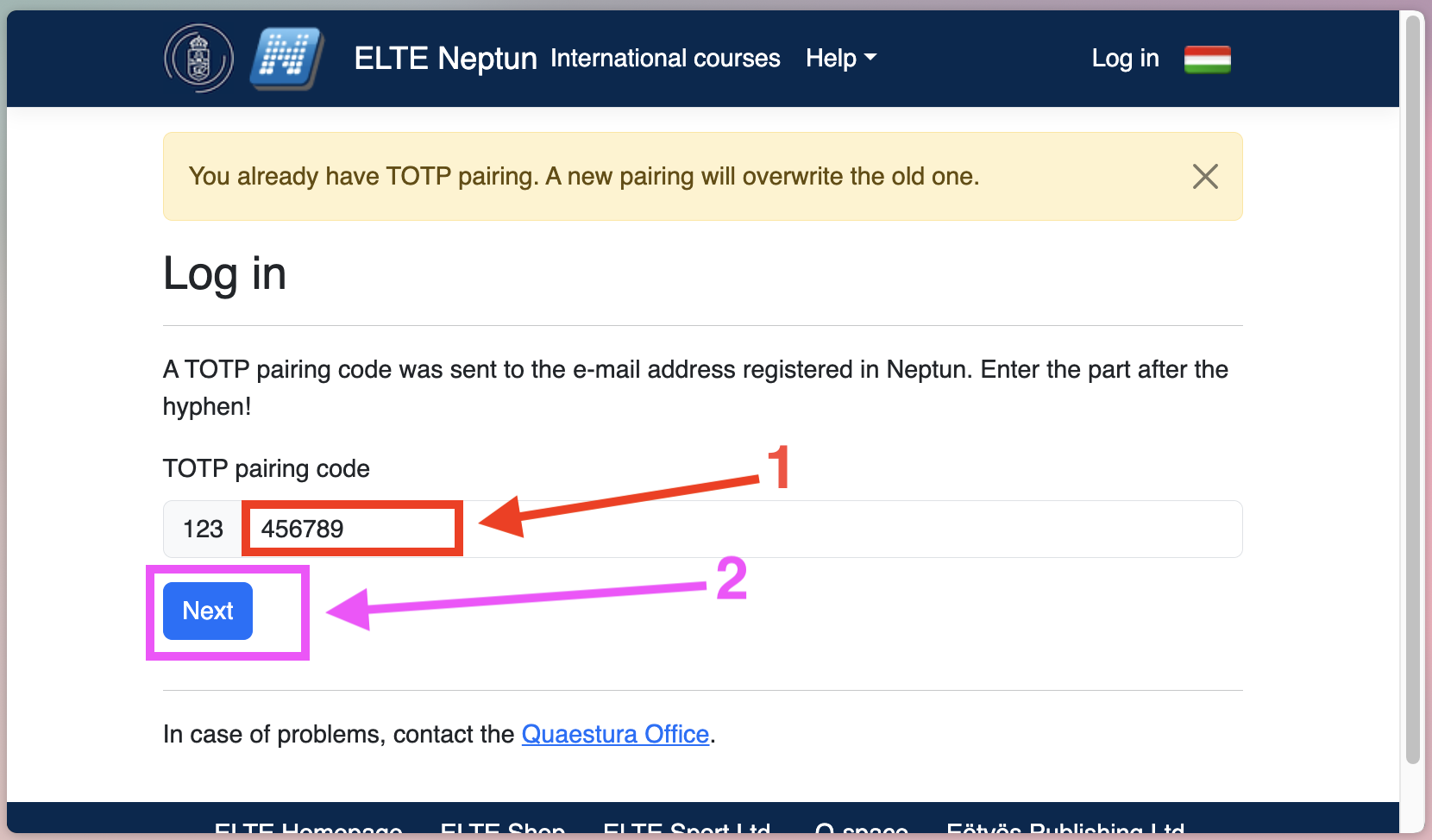
5. Enter 'TOTP pairing code' which was sent to an email address (1). Then proceed to the next step (2).
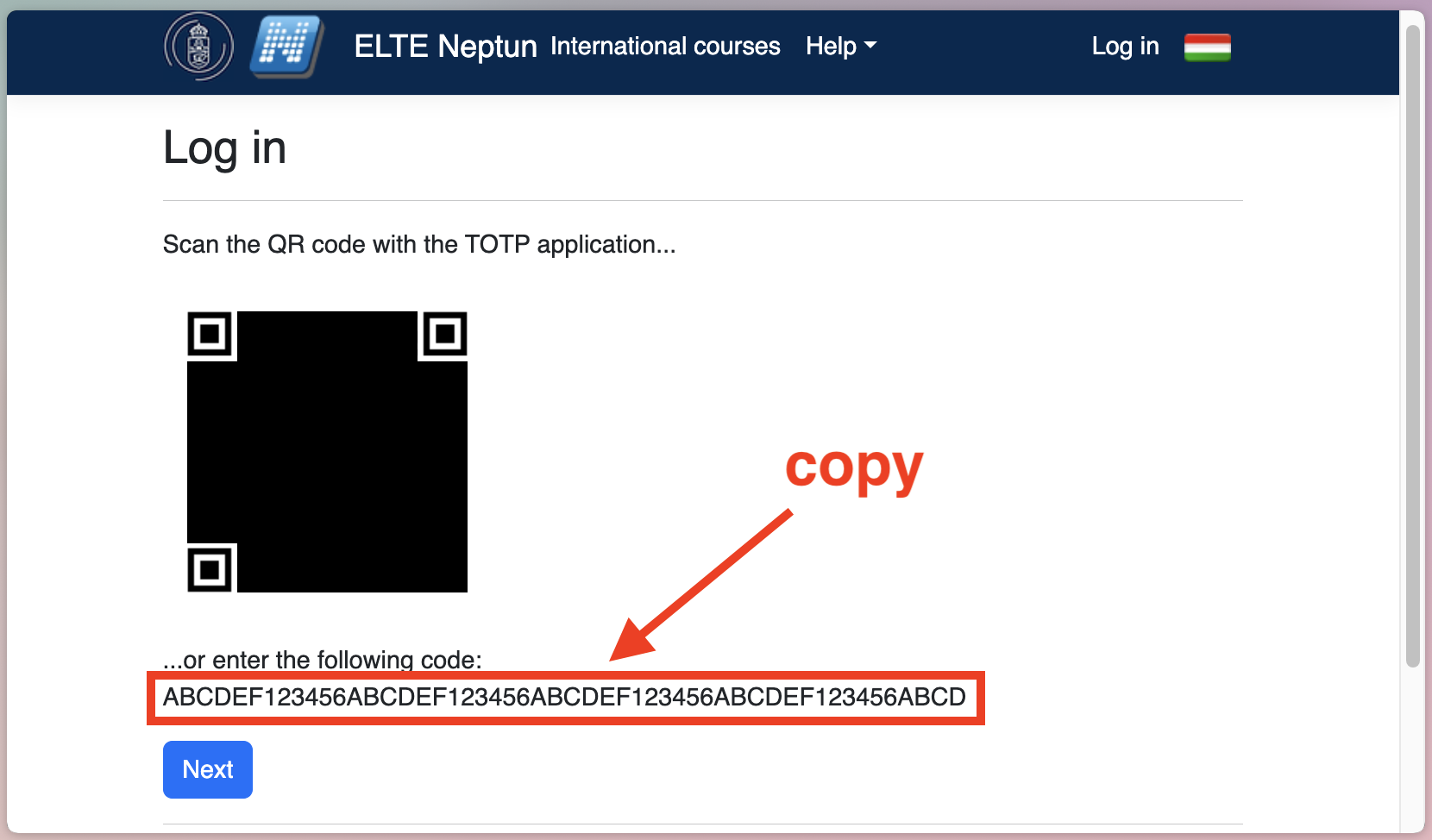
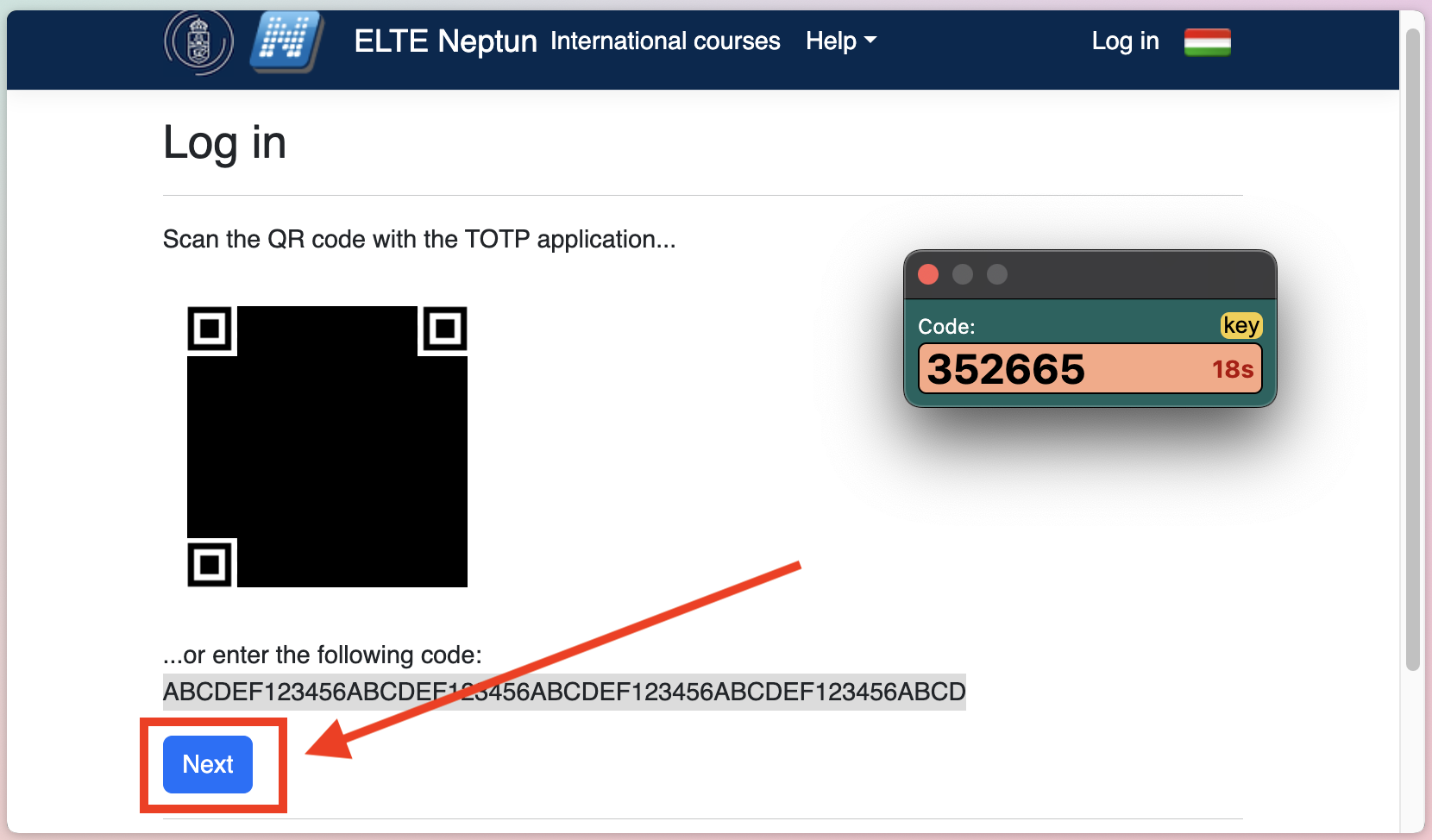
6. Copy the resulting code, it will be required in the next step. Optional: scan the QR-code using Microsoft Authenticator in order to see your codes in mobile application too.
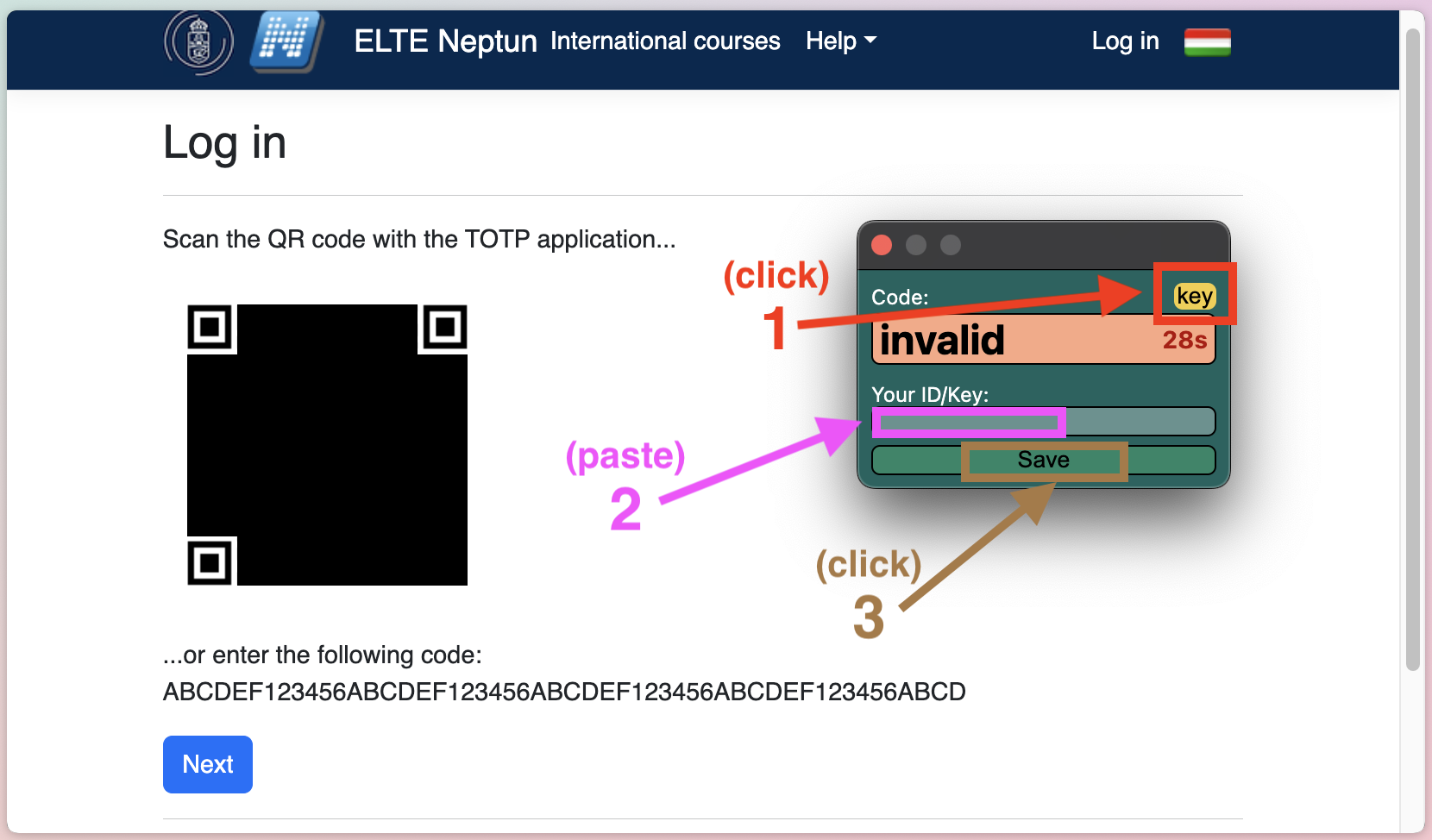
7. Open 'Neptun TOTP' extension, then click the 'key' button (1) and paste the code from step 6 into the 'Your ID/Key' input field (2). Press 'save' button (3) and proceed to the next step.
8. Now correct keys should be displayed instead of word 'invalid' in the 'code' section. Finish the setup by clicking 'Next' button.
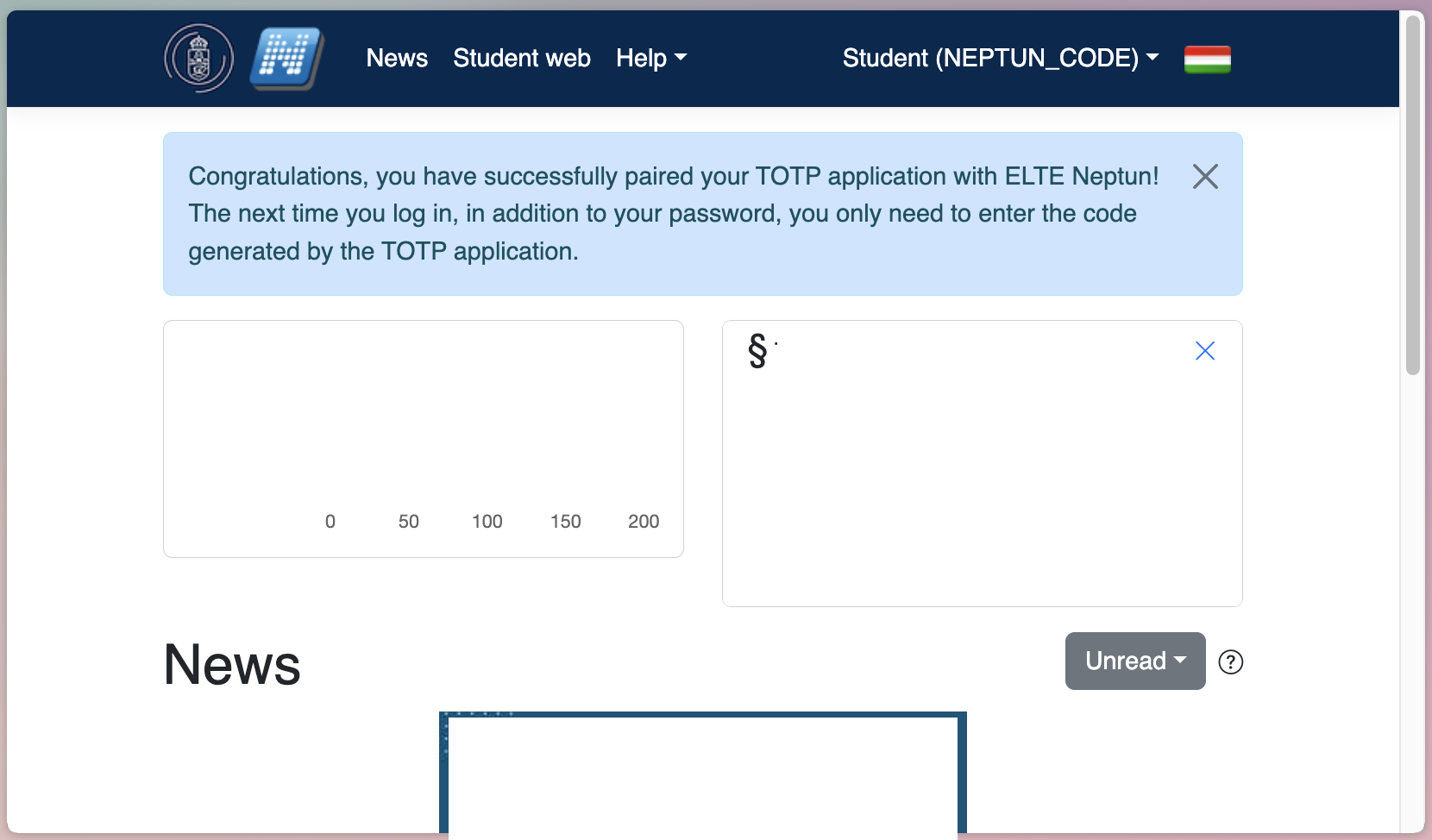
9. Done! You will be automatically redirected to the 'Welcome page' if steps were completed correctly. Now after successful login, TOTP code will be filled-in automatically.