MIUI System Apps Installation [Full Guide]
@MiuiSystemUpdates Channel1.Using Pc in ADB mode.
2.Using Split Apks installer (Sai) (non rooted method) (PC and Shizuku app needed only one time)
3.Using Sai Apk installer (rooted method for rooted devices)
To Read CLICK HERE!!!
2.1 Download SAI from Google Play! CLICK HERE
2.2 Now Download Shizuku app! CLICK HERE
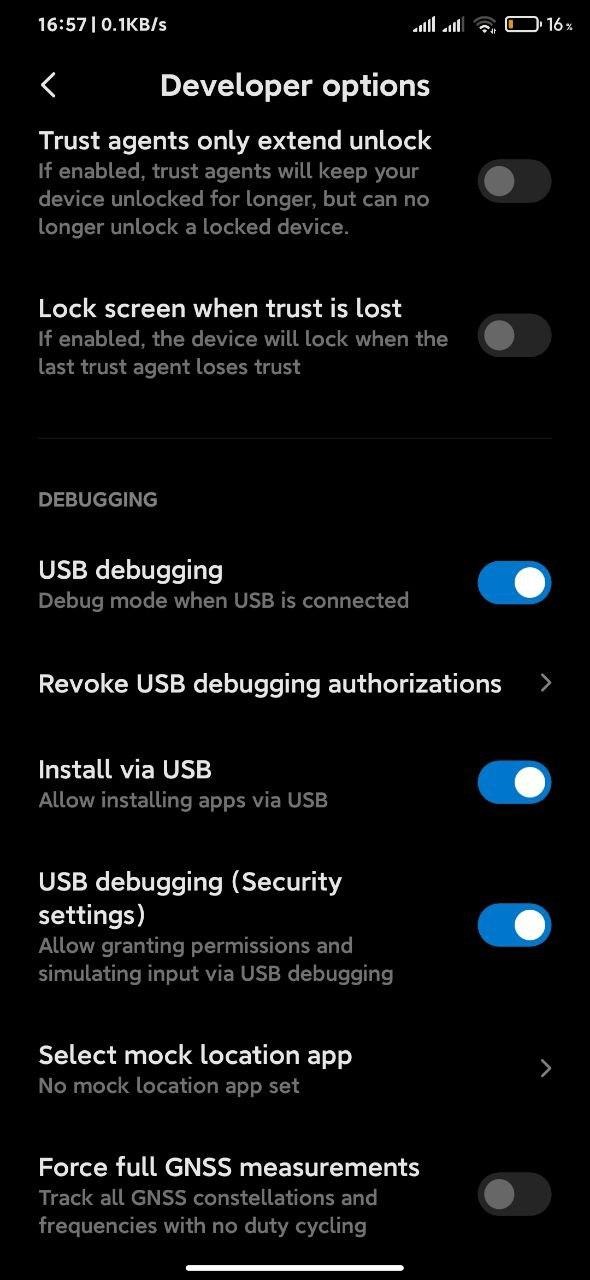
2.3 Now you should enable (allow) USB debugging , Install via USB and USB debugging (Security settings) options in developer options.
2.4 To acces Developer options , open settings of your devices
enter to my device and click about 7-10 times MIUI version

2.5 Then go to "Additional Settings"

2.6 Then "Developer options"

2.7 Then :
Enable "USB debugging"
Allow "Install via USB"
Allow "USB debugging (Security settings)"

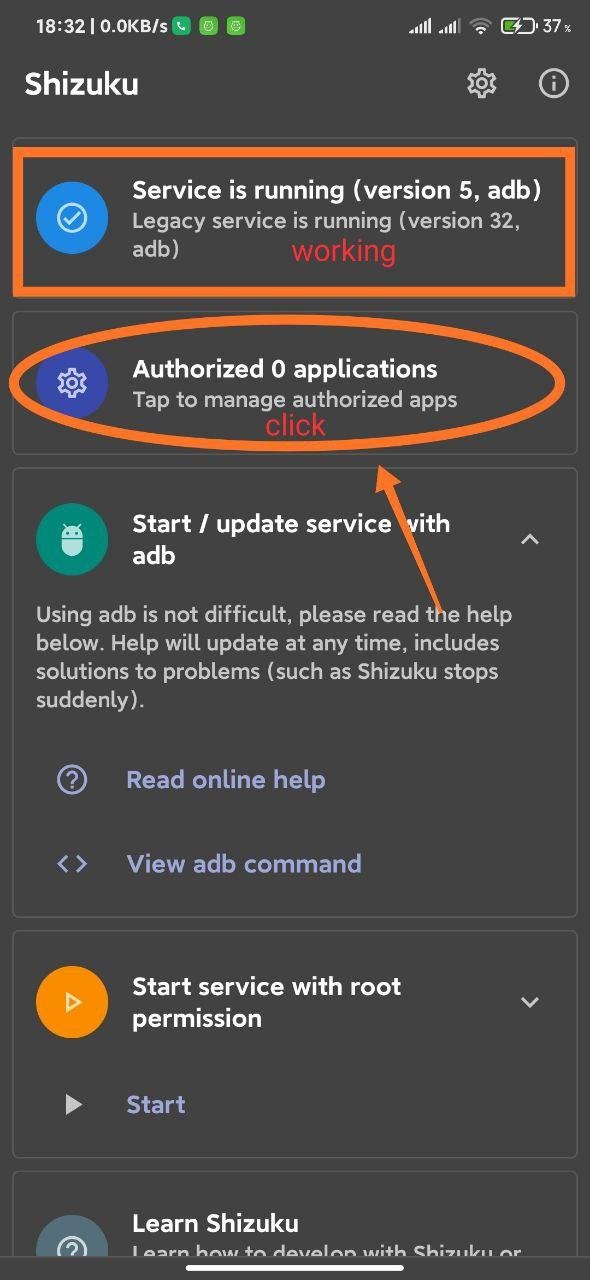
2.8 Now Open Shizuku app :

Now we need PC!!!
2.9 Please read This if your PC doesn't have SDK Platform tools (adb tools) .
2.10 Skip 2.9 step if on your PC installed adb tools and type
adb devices
adb shell sh /sdcard/Android/data/moe.shizuku.privileged.api/files/start.sh
process should be like below image:


Exit code is '0' means that success!
2.11 Now Click "Authorized 0 applications"
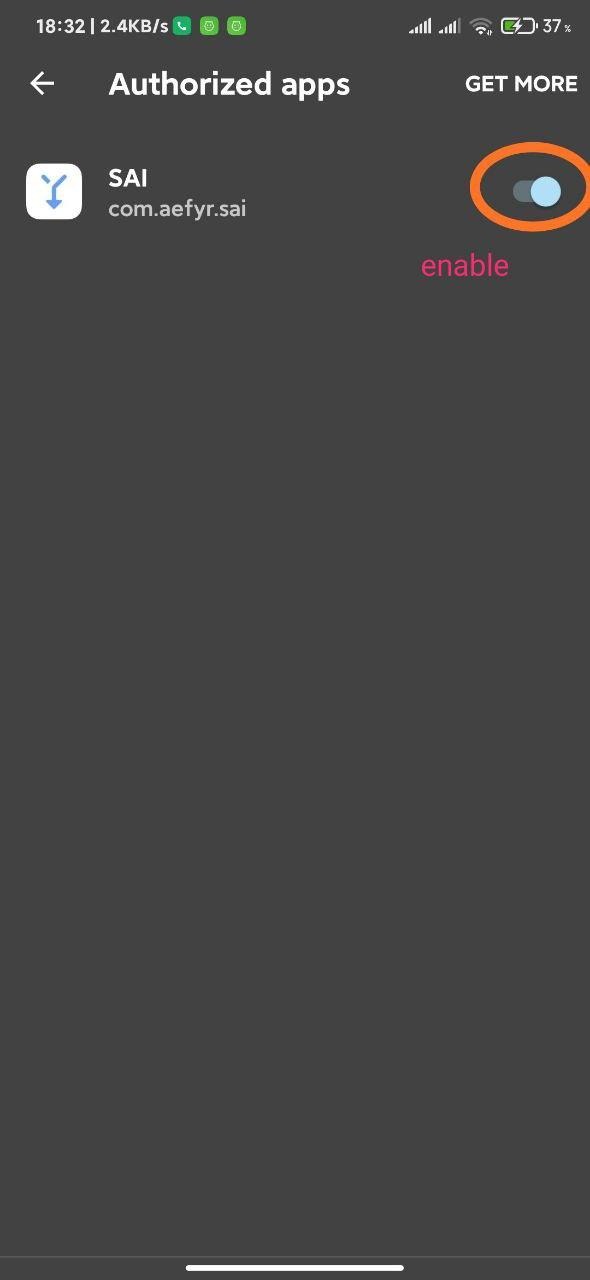
2.12 Enable SAI :
2.13 Now open Sai and enter settings section:

2.14 Now click Installer :
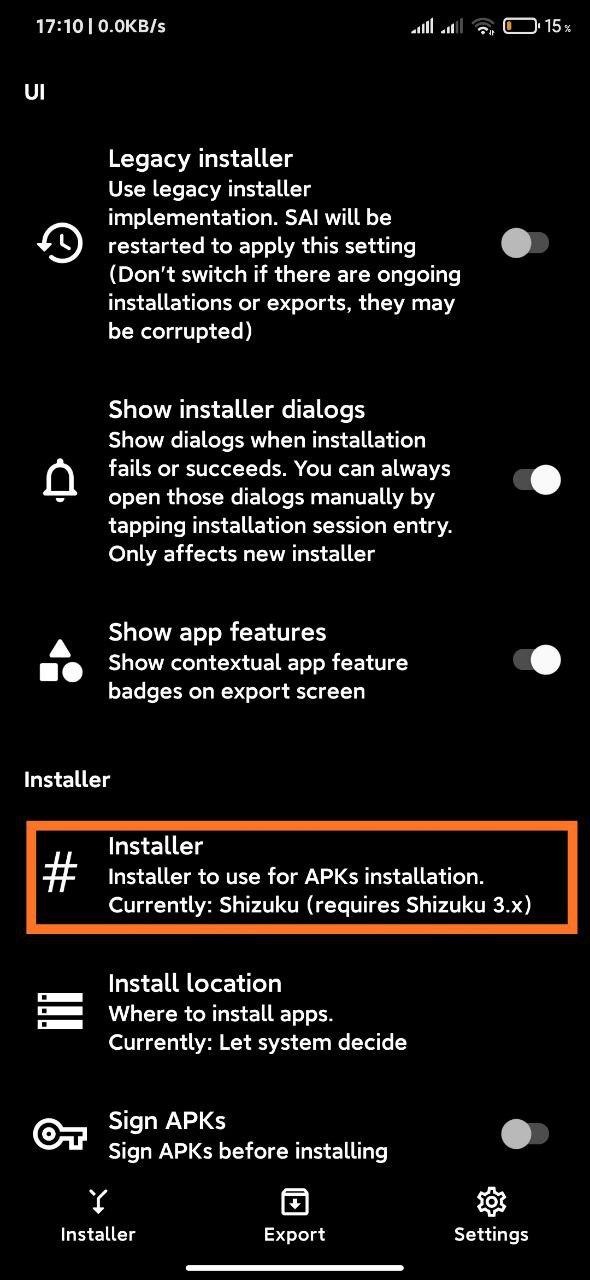
2.15 Now choose "Shizuku" option

Everything is done !
Please Note!!! If you disable USB debugging , Optimize device in Security app or reboot your devices you should repeat 2.10 - 2.14 steps again !
3. Installing System apps using Sai (rooted method for rooted devices) (Shizuku not needed)
3.1 Do 2.13 and 2.14 steps then choose "Rooted" option and grant permission to the Sai:


Everthing is done!
If you face any issue please feel free to enter our GROUP and ask
Also don't forget to Subscribe our Channel where you can get latest MIUI SYSTEM UPDATES !
Please indicate source to @MiuiSystemUpdates Channel while sharing!
Subscribe: @MiuiSystemUpdates