Surface Go firmware bug bricks the device
Danylo LykovOn May 4, Microsoft started pushing a firmware update to its Surface Go products. Multiple users found their device to fail with "No bootable device" error afterwards.
References
- May 4 update of EFI firmware 1.0.34: Surface Go update history (microsoft.com)
- Microsoft support thread: Surface Go uefi version is 1.0.34 and No Bootable Device error - Microsoft Community
- Discord server to discuss: https://discord.gg/M9pHR29y
Other people having this issue:
3. (2) Surface Go 1 No bootable device error : Surface (reddit.com)
6. Surface Go Will Not Boot Into Anything But USB : Surface (reddit.com)
7. No Bootable Device - **** do I do now?: SurfaceGo (reddit.com)
How to get to a human Microsoft support agent
Call 1-800-MICROSOFT (1-800-642-7676)
Select 1, 2, then serial number, then 3.
This will get you to an agent
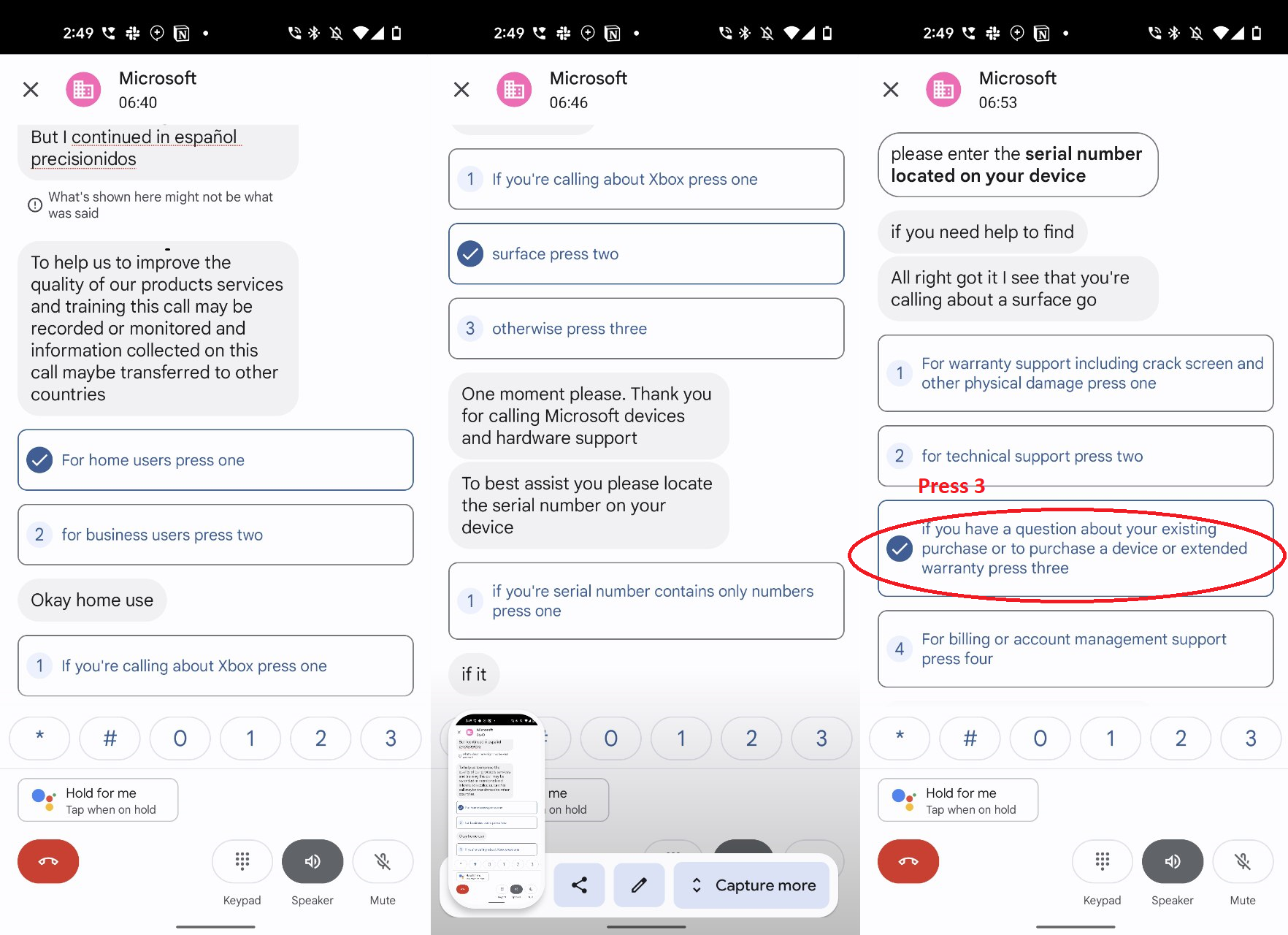
Trying to fix the problem with Microsoft support
Their response:
Hello Danylo,
On behalf of Surface support, I would like to thank you for taking the time to contact us regarding the error you have been experiencing with your Surface. I would highly recommend that you reset the Surface using a USB Recovery Image. You must have at least 16GB of USB Flash drive and it must be formatted to FAT32 prior to downloading the Recovery Image. As we discussed earlier, I am providing you with the instructions on how to create a USB recovery drive for your Surface.
How to Download, Create and Use a USB recovery drive
To download the Recovery Image:
- You'll need a PC running Windows 7 or later.
- Visit the page at http://www.surface.com/support/warranty-service-and-recovery/downloadablerecoveryimage or visit this link for a VIDEO tutorials on how to perform a Recovery Image to the device : https://support.microsoft.com/en-us/help/4023512/surface-creating-and-using-a-usb-recovery-drive
- Sign in with your Microsoft Account (this is the email address we asked you for at the start of the call)
- From the list of Surface devices available, select the device that you need a recovery image for
- Please note that while you will only be presented with devices that are currently registered on your account, you will also be presented with the option to get an image for a different type of device. If you try to use this option, you will be prompted to enter the serial number for that device
- Download the recovery image using the button on the page
- When the download bar pops up at the bottom of your screen, save the file in a location you will be able to find it.
Format USB Drive:
·
- A USB drive with a storage capacity of 8 GB or larger (16 GB or larger for Surface Pro series) Important Creating a recovery drive will erase anything that is already stored on your USB drive. Make sure to transfer any important data from your USB drive to another storage device before using it to create a Surface USB recovery drive.
- Insert your USB drive into the USB port of your PC.
- From the desktop, open File Explorer
- Tap and hold or right-click on the USB drive and choose Format
- Select FAT32 as the file system and enter a Volume label to name the USB drive, such as RECOVERY, and then tap or click Start
- Tap or click OK to erase the contents of the USB drive
- Tap or click OK when the format is complete
Create a recovery drive:
- On your Surface or PC, open recovery image that you downloaded by double-clicking it
- At the top of the window tap on Extract and then Extract all. Select the USB drive you formatted earlier for the location and click Extract.
Use a USB recovery drive to reset your Surface (Cannot load Windows):
- Turn the Surface off by pressing the power button
- Insert the USB recovery drive into the USB port
- Press and hold the volume-down (-) rocker
- Press and release the power button
- When the Surface logo appears, release the volume-down (-) rocker
- Surface will start the recovery software on the USB recovery drive
- When prompted, choose your language options and keyboard layout
- Select Troubleshoot
- Select Reset
- If prompted, select Repartition the drives
What I did
Unfortunately it didn't work.
1. I tried formatting the drive with a right click > format menu, but didn't see the fat32 option. I therefore used the way described on the recovery image download page, using "recovery tool"
2. After I created the recovery USB and copied the files, I inserted the USB stick into the device
3. I turned it it on with the volume down depressed. Surface logo appeared, and nothing changed for 1.5 hours.
4. I turned it off and restarted from USB. I then selected troubleshoot > "Recover from a drive" option. Then I selected "just remove my files" and proceeded.
5. The device rebooted back into recovery USB.
6. I turned it off and removed the USB, then turned it back on. Still "no bootable device" error message.
7. I inserted the USB back in and tried Troubleshoot> advanced options> system image recovery. I had a pop-up saying "windows cannot find an image on this computer". If I close the window there's no image available to select afterwards
Please advise how to proceed
Danylo
Offered a paid replacement
Ms offered a 250$ replacement. Me no give up:
The price of the tablet was ~300$. Microsoft rolled in an update and bricked my device. Now you suggest me to pay 250$ for a fix? I can't see how this is a fair deal. I think a fair deal would be a replacement for free or for 50$ (since a replacement is a new device).
I can consider the trade in for a newer device, but what would be the trade in value?
I have two surface devices (a surface book 3 and the surface go). Unfortunately, so far my experience was disappointing with both devices. I like the general concept of the surface, the versatility and aesthetic. I could be a very loyal customer, and in fact I was considering buying a surface pro, but I have very serious doubts about it now. My friends will just make fun of me if after this situation I buy another surface devic
I understand that the 250$ replacement is a standard procedure. However, this procedure applies to a general case including the damage induced by the user. In this case the damage is induced by the company. Therefore, the resolution should be different. If you can't decide on such resolution, please escalate my case to the higher tier of customer support or your supervisor
Best,
Danylo
Signs of hope
Microsoft called requesting a photo of the device UEFI to verify the firmware version.
Replacement offered
The same day MS said that they "offer a courtesy exemption" for my case and offer a free replacement. The support agent called and explained that I need to ship the tablet to them. I received the shipping label which I will use to send the device.
Sent the broken device
June 29
UPD August 1: Received the replacement.
on July 10-ish.
The device works fine and already asks to update to the buggy firmware version 1.32.0. I asked if it's safe to update and MS customer support agent Lemwel Cantila from Surface team said that I should "refrain from updating your device". There is no option to disable updates in Windows, only to defer them. I deferred the updates till the latest available date of August 24.
Michael from Windows team said that they are "working to resolve this issue by releasing a fixed version". He estimated the work to be done my mid-August