Stop Breaking Your UI: Learn LayoutBuilder Like a Real Flutter Pro
FlutterPulseThis article was translated specially for the channel FlutterPulseYou'll find lots of interesting things related to Flutter on this channel. Don't hesitate to subscribe!🚀
If you've ever designed a pixel-perfect UI…
…only to see it completely collapse on a smaller phone, wider tablet, or your friend's "phone…
If you've ever designed a pixel-perfect UI…
…only to see it completely collapse on a smaller phone, wider tablet, or your friend's "phone from 2010 that refuses to die," then welcome to Flutter reality.
Most UIs break because the widget has no idea how much space it actually has.It's like trying to decorate a room without knowing its size — of course the furniture won't fit.
Flutter has a solution for this, and it's powerful:
What Is LayoutBuilder?
You may have already encountered these frustrating errors:
1.RenderBox was not laid out
This happens when a widget tries to lay itself out without knowing its exact constraints.
It's like arranging furniture in a dark room — you don't know where the walls are.
2. BoxConstraints forces an infinite width/height
This one appears when a widget is expected to size itself inside "infinite" space — something that's impossible in Flutter.
Both errors are basically Flutter shouting:
"Your widget does NOT know the space it gets!"
How LayoutBuilder Solves This
When you wrap a widget with LayoutBuilder, Flutter passes you the exact constraints during layout:
LayoutBuilder(
  builder: (context, constraints) {
    // constraints.maxWidth
    // constraints.maxHeight
    // constraints.minHeight
    // constraints.minWidth

  },
)
I understand maxWidth and maxHeight…
but what's the point of minWidth and minHeight if they are almost always zero?
It feels like they don't matter.
But they actually tell you something very important about how strict or flexible your parent widget is.
Let's break it down.
Why minWidth/minHeight seem to always be zero
In many common layouts — like Row, Column, Stack, and ListView—the parent does NOT force its children to take a minimum size.
So the constraints often look like:
minWidth = 0
maxWidth = availableWidth
What minWidth/minHeight Actually Tell You
They represent the minimum space your widget is guaranteed.
So:
- If
minWidth = 0→ the parent is flexible - If
minWidth > 0→ the parent is imposing a minimum boundary - If
minWidth = maxWidth→ the parent is forcing a tight constraint
This is how you understand how strict your parent is about sizing.
Where should I even wrap LayoutBuilder in the first place?
Now that you understand what LayoutBuilder gives you — the exact constraints your widget receives — the next big question becomes:
This matters because LayoutBuilder only makes sense when you wrap it at the correct level in the widget tree.
Wrap it too high → you get device-wide constraints.
Wrap it too low → you get the same constraints you already know.
Wrap it correctly → you unlock powerful, responsive layouts.
Let's break it down.
When the parent gives flexible or unclear constraints
Widgets like Row, Column, Expanded, and Flexible often create situations where your child has:
- unpredictable width/height
- zero minimum sizes
- tight or loose constraints
- possibility of collapsing
LayoutBuilder helps you see and respond to this.
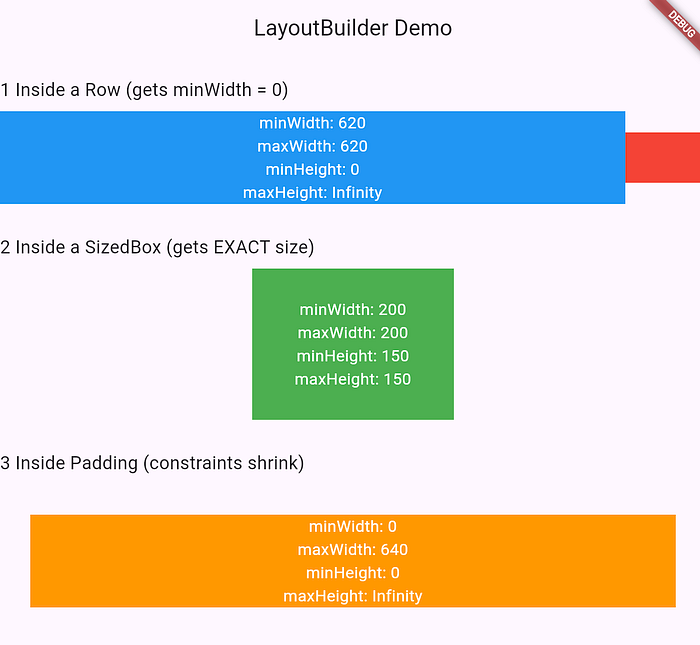
import 'package:flutter/material.dart';

void main() {
  runApp(MaterialApp(home: Demo()));
}

class Demo extends StatelessWidget {
  @override
  Widget build(BuildContext context) {
    return Scaffold(
      appBar: AppBar(title: Text("LayoutBuilder Demo")),
      body: Column(
        crossAxisAlignment: CrossAxisAlignment.start,
        children: [
          SizedBox(height: 20),

          Text(
            "1️ Inside a Row (gets minWidth = 0)",
            style: TextStyle(fontSize: 18),
          ),
          SizedBox(height: 8),
          Row(
            children: [
              Expanded(child: LayoutBuilderBox(color: Colors.blue)),
              Container(width: 80, height: 50, color: Colors.red),
            ],
          ),

          SizedBox(height: 30),

          Text(
            "2️ Inside a SizedBox (gets EXACT size)",
            style: TextStyle(fontSize: 18),
          ),
          SizedBox(height: 8),
          Center(
            child: SizedBox(
              width: 200,
              height: 150,
              child: LayoutBuilderBox(color: Colors.green),
            ),
          ),

          SizedBox(height: 30),

          Text(
            "3️ Inside Padding (constraints shrink)",
            style: TextStyle(fontSize: 18),
          ),
          SizedBox(height: 8),
          Padding(
            padding: const EdgeInsets.all(30),
            child: LayoutBuilderBox(color: Colors.orange),
          ),
        ],
      ),
    );
  }
}

class LayoutBuilderBox extends StatelessWidget {
  final Color color;
  const LayoutBuilderBox({required this.color});

  @override
  Widget build(BuildContext context) {
    return LayoutBuilder(
      builder: (context, c) {
        return Container(
          color: color,
          alignment: Alignment.center,
          child: Text(
            """minWidth: ${c.minWidth.toStringAsFixed(0)}
maxWidth: ${c.maxWidth.toStringAsFixed(0)}
minHeight: ${c.minHeight.toStringAsFixed(0)}
maxHeight: ${c.maxHeight.toStringAsFixed(0)}""",
            style: TextStyle(color: Colors.white, fontSize: 16),
            textAlign: TextAlign.center,
          ),
        );
      },
    );
  }
}
How Not to Use LayoutBuilder (I Learned These the Hard Way 😭)
By now, you probably feel powerful with LayoutBuilder.
You see constraints. You understand them.
You whisper to them like some UI whisperer.
But hold up — LayoutBuilder is like electricity:
super useful, super cool… and super easy to burn yourself with.
1. Don't Change State Inside LayoutBuilder (Please 😅)
I've seen this.
I've done this.
I regret this.
LayoutBuilder(
  builder: (_, c) {
    setState(() {}); // congratulations, infinite loop activated
    return Container();
  },
);
Flutter will rebuild.
Then it calls setState().
Then it rebuilds.
Then setState again—you've invented a black hole.
2. Don't Expect LayoutBuilder to Fix Bad Parents.
LayoutBuilder cannot fix a widget stuck in an unbounded container.
SingleChildScrollView(
  child: LayoutBuilder(
    builder: (_, c) => Container(
      height: c.maxHeight, // 💀 maxHeight is infinite here
    ),
  ),
);
his throws the classic: BoxConstraints forces an infinite height
LayoutBuilder doesn't magically give bounded constraints
when the parent is intentionally unbounded (like scroll views).
3. Don't Do Heavy Computation in LayoutBuilder
LayoutBuilder rebuilds whenever its constraints change.
So if you're doing something expensive inside it:
LayoutBuilder(
  builder: (_, c) {
    final result = heavyTask(); // CPU just died
    return Text(result.toString());
  },
);
Move expensive work out. LayoutBuilder is for layout decisions, not rocket science.
I shared my mistakes — now it's your turn.
What's the funniest or weirdest way you've misused LayoutBuilder?
Tell me in the comments; I'm collecting stories for a follow-up article.
If this helped you or saved your UI from chaos,
follow me on Medium and share it with your Flutter friends
before they go on a LayoutBuilder rampage too.
I was reading a thread on Reddit (here) where a student accidentally committed their API key to GitHub. They believed…
medium.com
I Saw a Slick Animated Border on the Internet — So I Made It in FlutterBorders in Flutter are functional — but let’s face it, they’re often flat and forgettable. One evening, I saw a…
medium.com
Gradle Made Simple (Part 1): Gradle Basics Every Flutter Dev Must KnowIn this series, we’re going to finally make sense of Gradle — that mysterious piece of Android machinery that has…
medium.com