Steps to Setup Dualboot on OnePlus6/6T (64GB model but should work fine on others too)
By JokerThis my guide that i forked from here :
https://github.com/Wishmasterflo/TWRP-DualBoot-Guac-Unified/blob/master/Text.md
If you don't understand from this guide check the link above for original guide.
-----------------------------------------------------------
During the Dualboot-mod flashing you get a lot of options to choose from.
You can select between A/B/(C) partition layout or stock partition layout
You can have a Common Data partition (C) on A/B/(C) Layout or not. If not the whole storage will be splitted to Data_A and Data_B partitions and you will have a A/B layout for dualboot.
The size of each data partition A and B:
1. 16 GB or 24 GB for the 64 GB devices,
2. 16 GB, 32 GB, 40 GB, or 45 GB for the 128 GB devices and
3. 16 GB , 32 GB , 64 GB , or 96 GB for the 256 GB devices
(the Common Data partition will get the rest of the space left)
Dualboot Companion App
There is a Dualboot Companion app (made by User Invernomut0) added which can be used to reboot to other slots System or Recovery and it even will integrate in the reboot options from Android 11 The Dualboot Companion app has also the ability to share apps Data between both ROMs (this is still in beta/test!) and to mount the other slots Data or System partition It will create a folder called "DualBoot" inside the SDCARD with folders for "SDcard_a" / "SDcard_b" and "System_a" / "System_b".
If you can't see the DualBoot Companion app installed after a ROM reflash please reboot to recovery and reflash the Dualboot-zip!!
This guide is for OnePlus 6 64GB (enchilada) but should work on 6T too!
I'm using OrangeFox for this guide you can follow the steps for TWRP but only few steps may change so look for appropriate way wherever applicable
Now to setup Dualboot (A/B Layout) follow these steps carefully :
1. Download Dualboot-XXXX.zip of your choice (TWRP/OrangeFox) from here :
https://github.com/Wishmasterflo/TWRP-DualBoot-Guac-Unified/releases/
2. Backup All and Important Data off Phone(i.e To PC/Laptop/Storage Device like USB,Portable HDD etc)
3. Copy Dualboot.zip to Internal Storage
4. Reboot to recovery
5. Flash Dualboot.zip and follow instructions
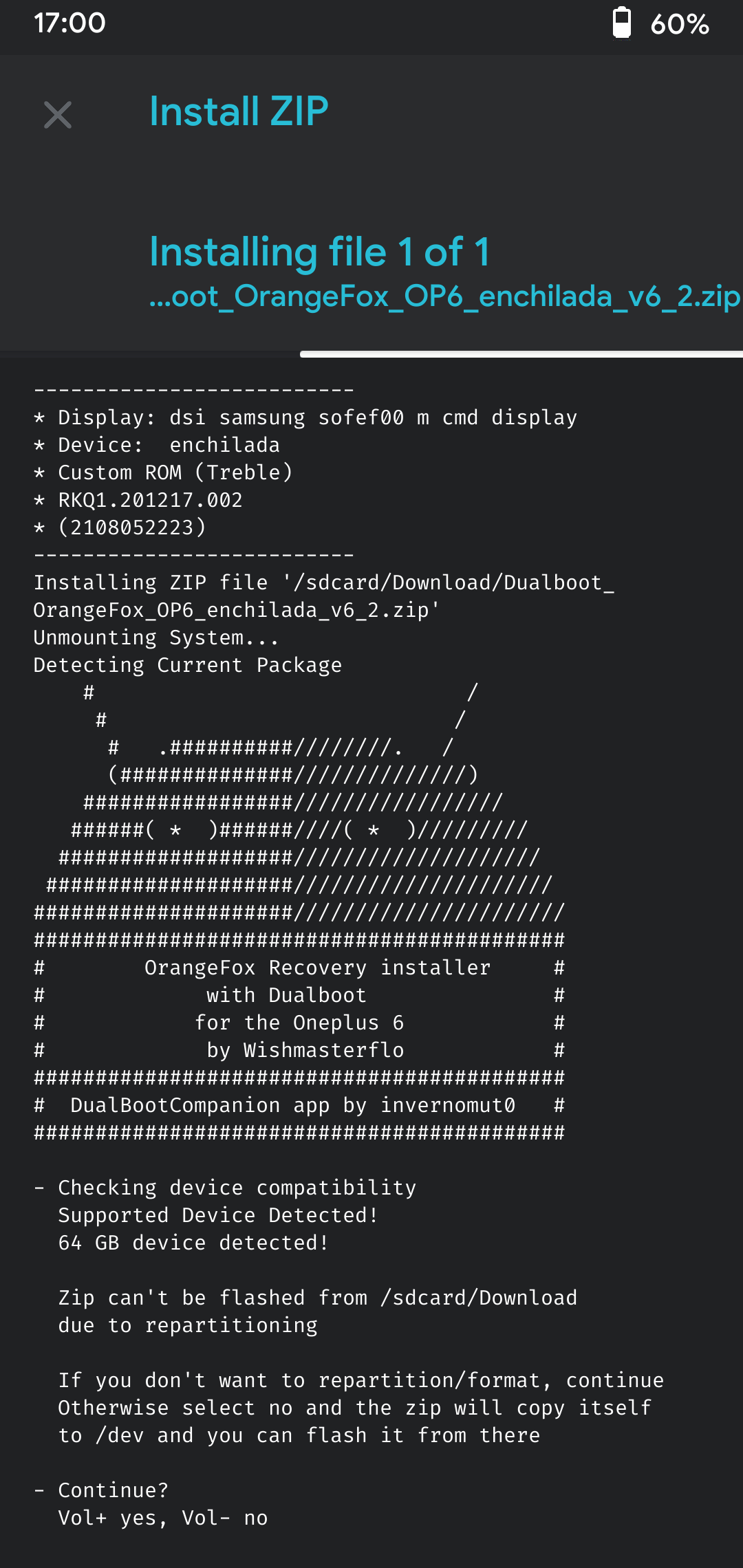
7. After that go to /dev from home page (In TWRP it's the "Install" button page/In OrangeFox it's the default home page) and flash the Dualboot.zip which is found there and follow below steps :
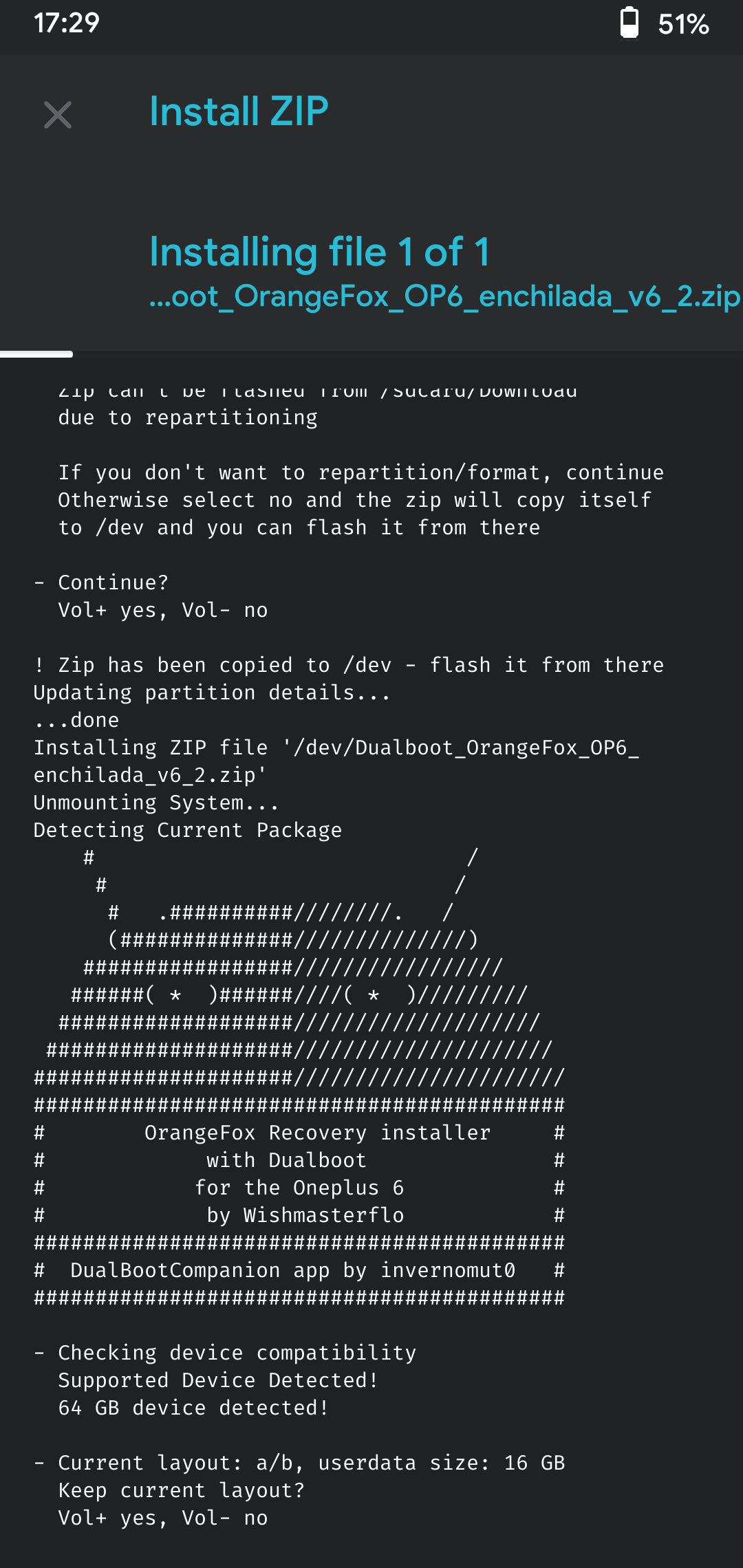
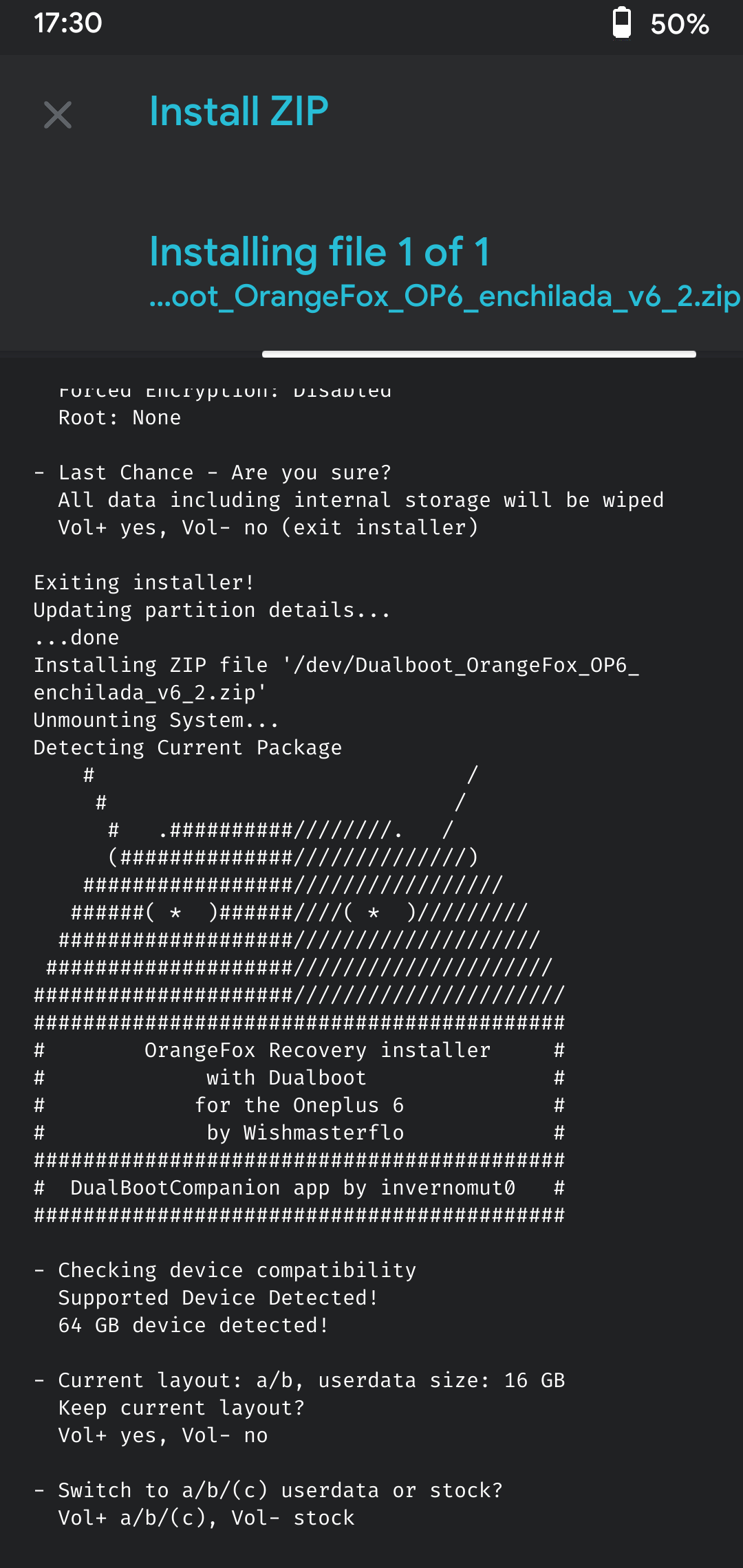
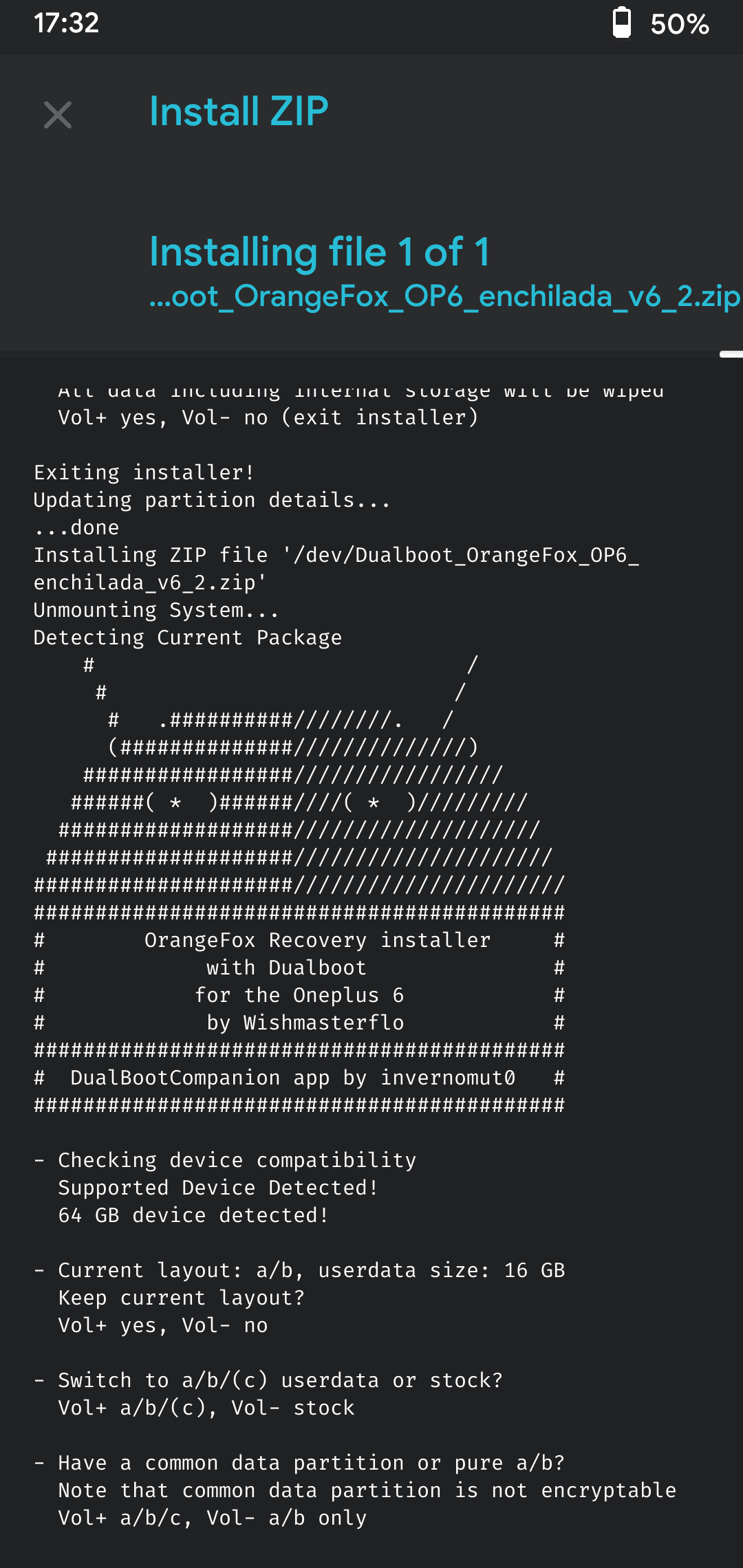
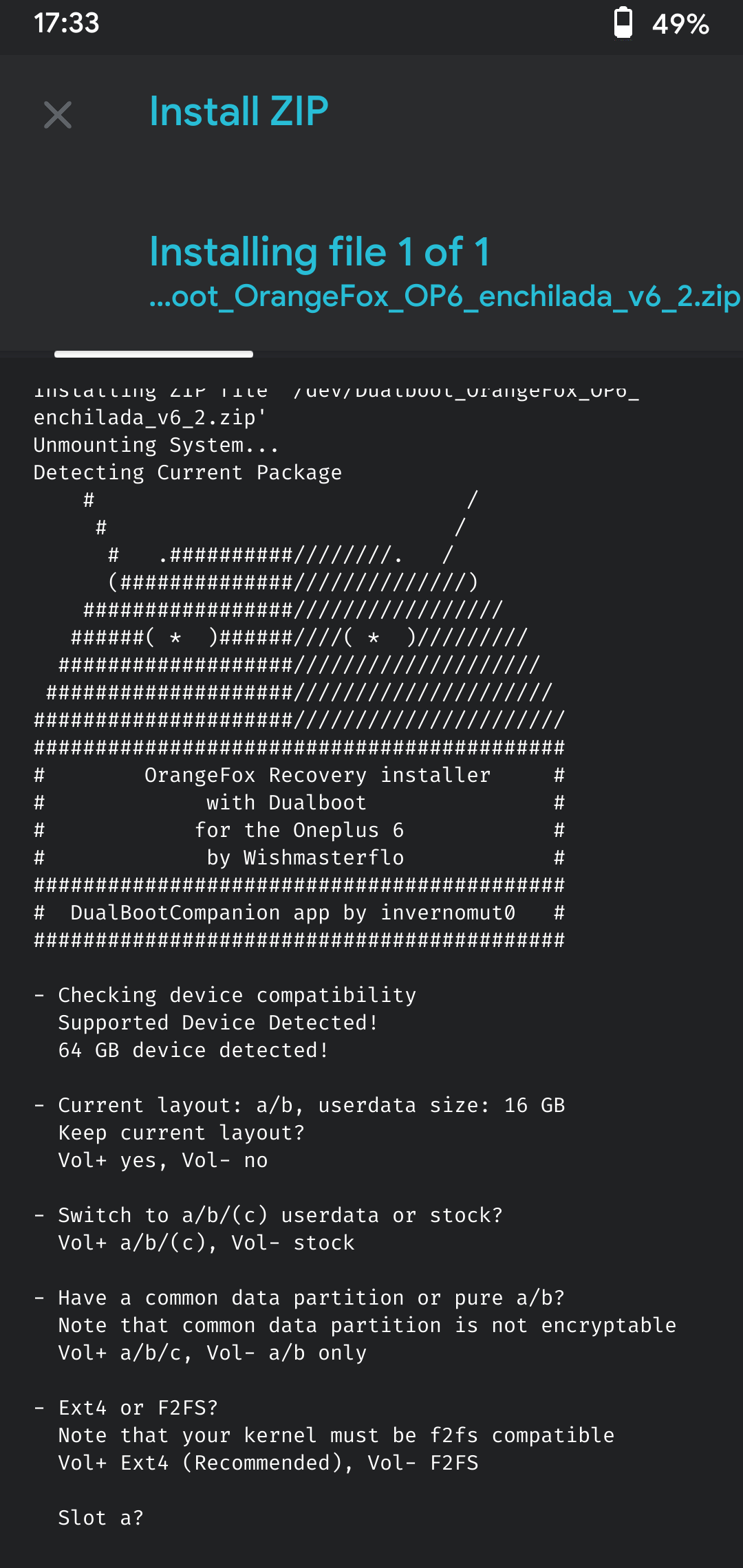
! Warning !
You can try F2FS but cannot guarantee that it'll work with all roms
This step decides whether you want encrypted or decrypted storage. It's not mandatory to disable encryption but do so at your own discretion!
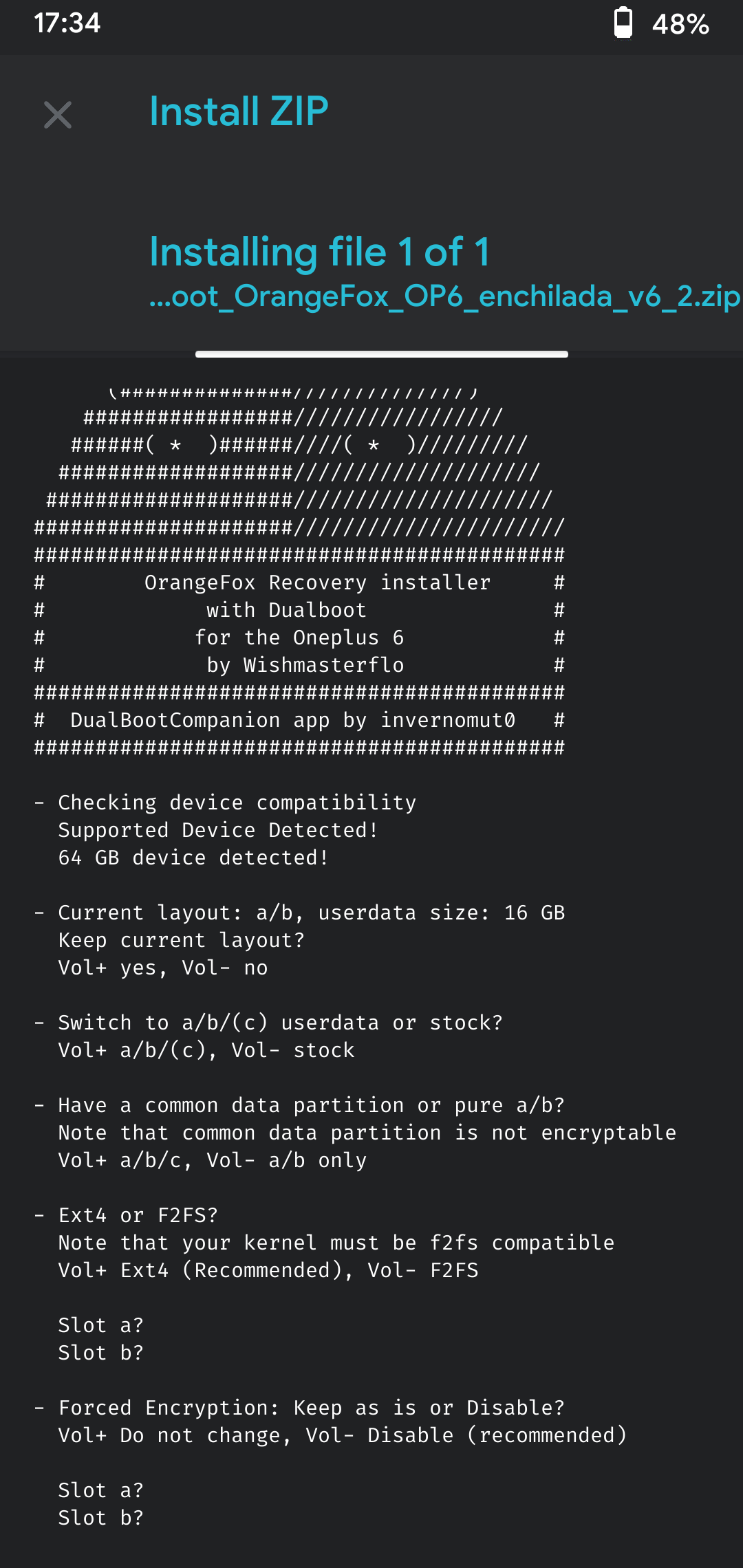
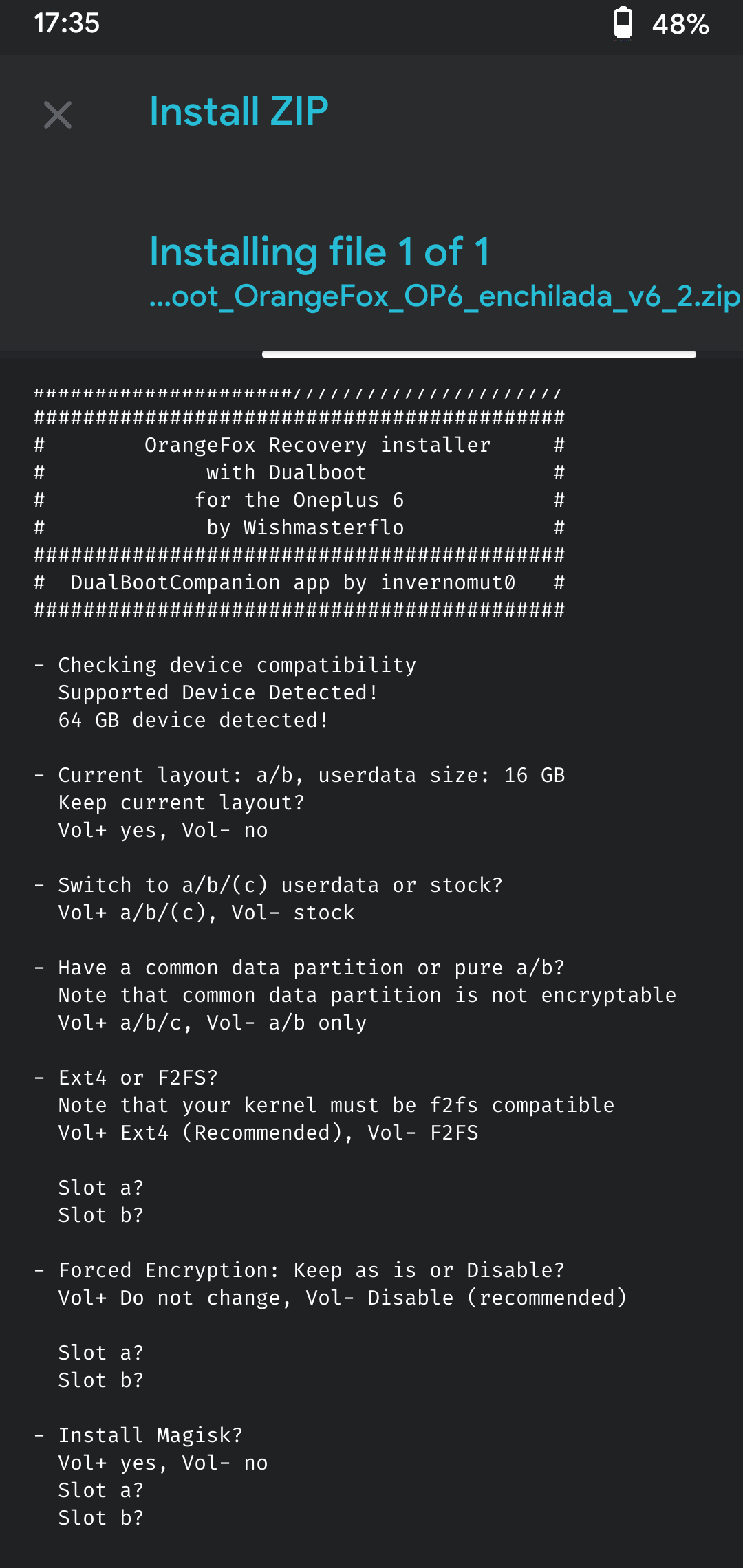
Don't press volume button more than 2 times otherwise you'll have to restart from beginning 😅
This step is for Magisk you can skip it if you don't want Magisk
This is the last step before it starts partitioning your phone. Please check what you have selected carefully!!! I'm not responsible if you mess up!!
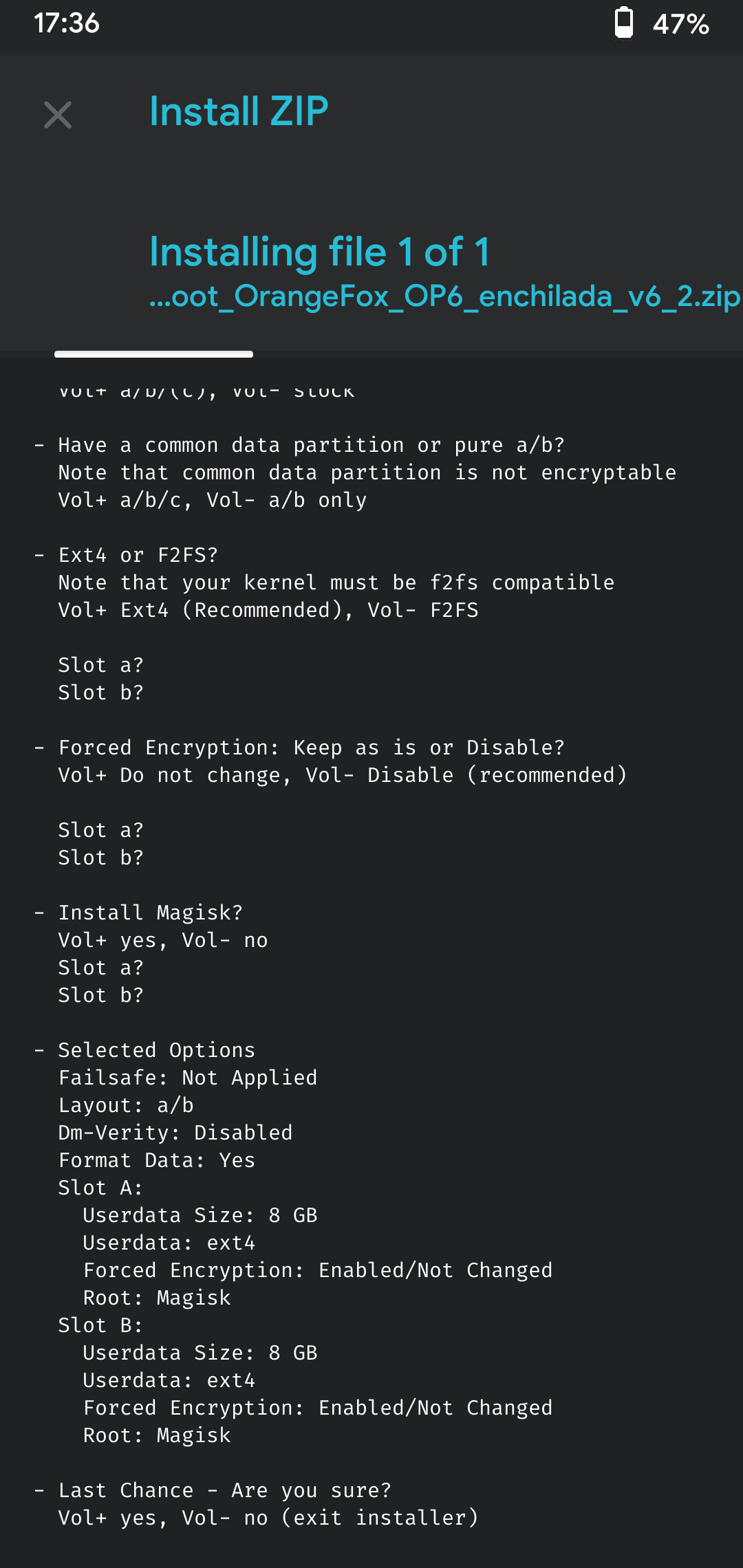
Press Vol Up to proceed with partitioning.
The process will begin. Don't force reboot phone or you will have to use msm tool to restore your phone!! Let it complete and then reboot to recovery to complete the process and you will have dualboot setup!!! Congrats 🎉
Make sure you have atleast a custom rom or stock rom to check if it boots.
That's it.
From now onwards you have to rename the zip file to flash after each rom, for internal storage and proper mounting of partitions and also to make your flashing of this zip process easier :
For TWRP -
Dualboot_TWRP_OP6_enchilada_v6_2-failsafe-warp-fec.Ab-su.aB.zip
For OrangeFox -
Dualboot_OrangeFox_OP6_enchilada_v6_2-failsafe-warp-fec.Ab-su.aB.zip
More info and detailed understanding of naming convention read below :
Dualboot-mod quickmode/fastmode options which can be provided directly through the Filename:
Dualboot_TWRP_fajita_v6-fast-fec.ab-su.ab.zip
This can be used when you need to re-flash TWRP/OrangeFox recovery after a ROM install so that you dont need to go through all the options again.
For the first install or you want to re-partition you need to flash it without changes to the filename!
So the additional part "fast-fec.ab-su.ab" which is added to the filename is concluded like this:
"warp" = Quickmode/fastmode without any confirmation
"fast" or "quick" = Quickmode/fastmode which will just have one confirmation to flash the ZIP
"fec" = Force encryption
"su" = Magisk
The "ab" are the slots and these in small letters like a b means that, that option is not getting installed/activated
When having "AB" in big letters means it will get installed/activated on that slot.
Examples like this:
- "Dualboot_TWRP_OP6t_fajita_v6-warp-fec.ab-su.ab.zip" - Fastmode enabled, Force encryption disabled on both slots, Magisk will not be installed on both slots
- "Dualboot_TWRP_OP6t_fajita_v6-warp-fec.Ab-su.ab.zip" - Fastmode enabled, Force encryption enabled on slot A and disabled on slot B, Magisk will not be installed on both slots
- "Dualboot_TWRP_OP6t_fajita_v6-warp-fec.AB-su.ab.zip" - Fastmode enabled, Force encryption enabled on both slots, Magisk will not be installed on both slots
- "Dualboot_TWRP_OP6t_fajita_v6-warp-fec.ab-su.Ab.zip" - Fastmode enabled, Force encryption disabled on both slots, Magisk will be installed on slot A but not on slot B
- "Dualboot_TWRP_OP6t_fajita_v6-warp-fec.ab-su.aB.zip" - Fastmode enabled, Force encryption disabled on both slots, Magisk will not be installed on slot A but will be installed on slot B
- "Dualboot_TWRP_OP6t_fajita_v6-warp-fec.ab-su.AB.zip" - Fastmode enabled, Force encryption disabled on both slots, Magisk will be installed on both slots