Squads EA Sports FC 25 Update on PS5 with Jailbreak
PlayStation Pulse — PS4 | PS51) Download the updated squads files from our Telegram channel (Squads will be updated regularly, the actual files will always be in the group's pinned posts)
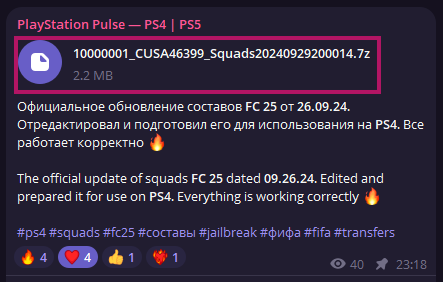
2) Next, we will need an activated PSN account on PS5 and its PSN ID. There are 2 options here, either you already have an activated PSN account. In this case you can find out the PSN ID through PS5OfflineAccountActivator, also you can activate your account if it is not activated yet by entering the desired ID. Or you can create an account and activate it offline via Homebrew launcher, for this you can watch the video. In which MODDED WARFARE explained how you can activate your PSN account via Homebrew launcher.
P.S. — Unfortunately I can't tell you about the process in detail, as I don't have a PS5 in my hands, so I could describe this moment in much more detail. You can always write to our chat and you will be helped with your problem.
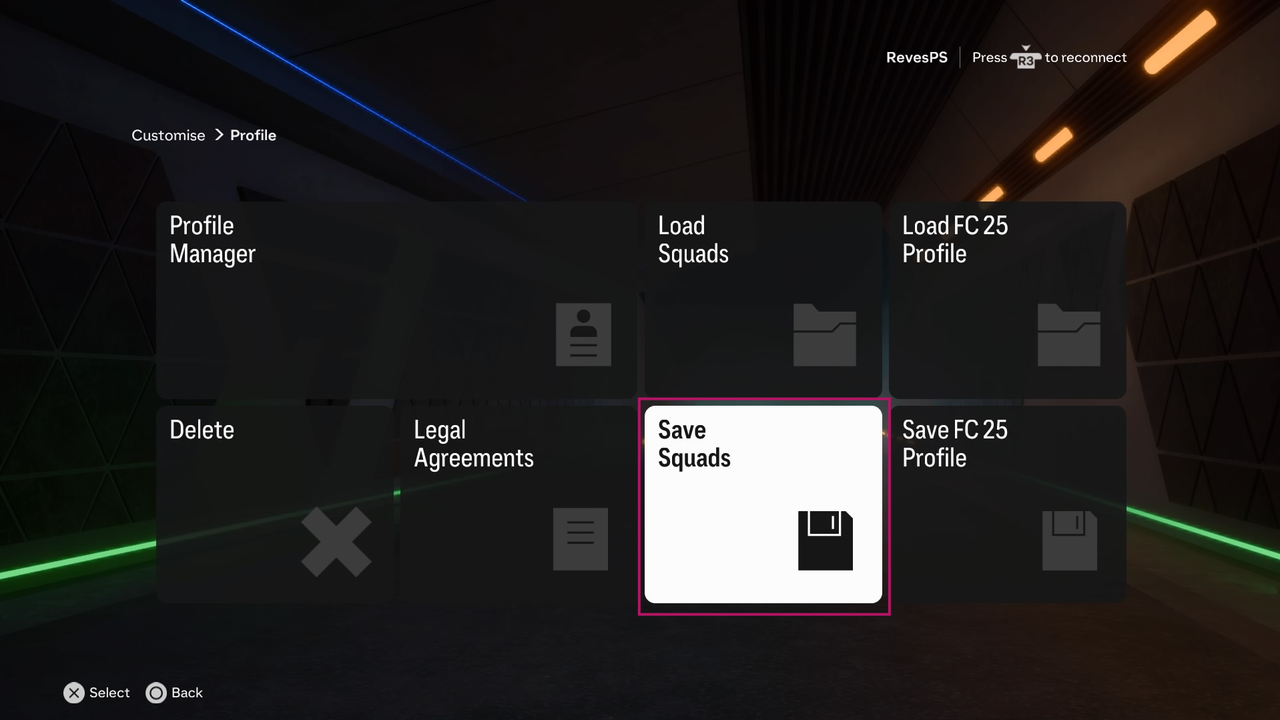
3) In EA SPORTS FC 25 itself, go to Customise —> Profile —> Save Squads (Here you create your own file to save "previous" squads, the name is better to write in English)
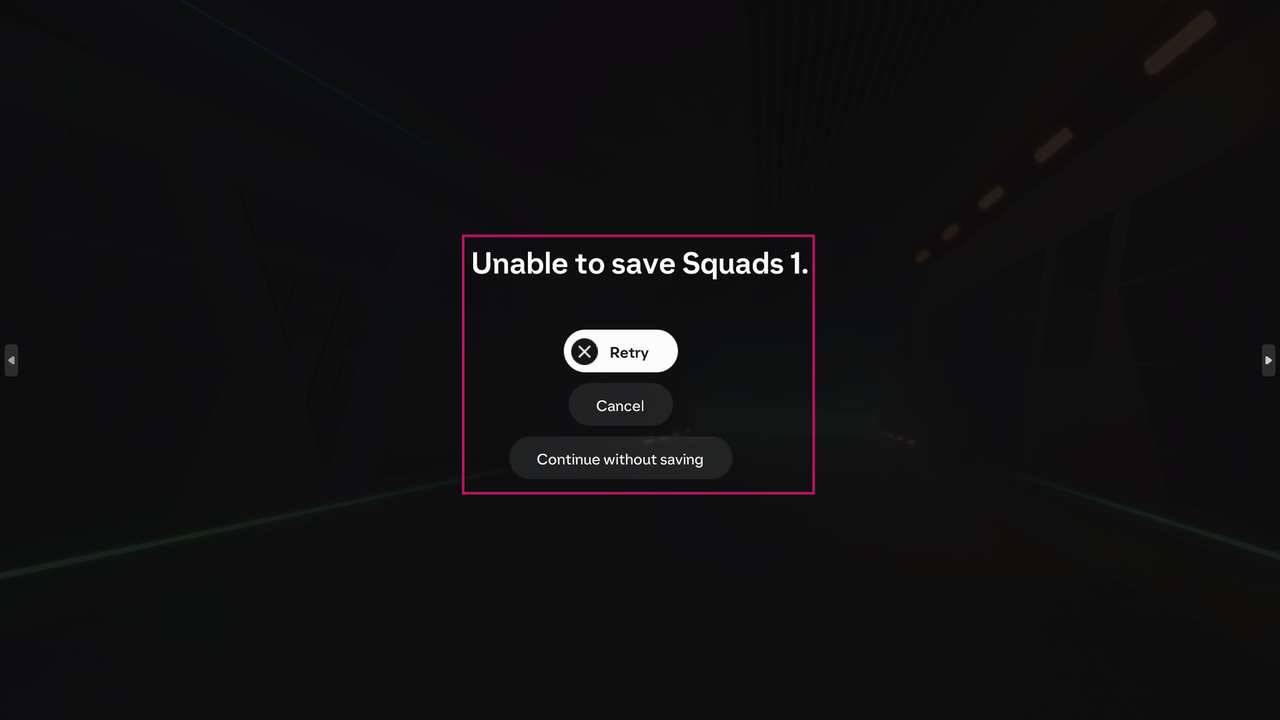
❗️Attention: If you have such a window with a save error when trying to save squads, it's okay, it happens, just completely reboot your PS5 and repeat everything from step 2), after restarting there should be no error
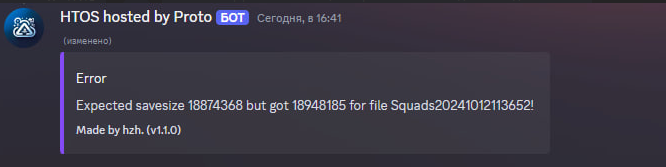
4) Now we need to get the created FC 25 squads files from the PS5. This can be done by connecting via FTP to your PS5 and going to the path “user/home/id of your profile/savedata/cusa46399” (for FC 25). But there is a nuance, when transferring files for example through FileZilla they can get damaged and then in Discord bot when trying to download your files it can give an error indicating that the file does not correspond to the size, also as an option you can do it via USB and PS5 Xplorer.
So my advice is to use the ready-made squads save files from PS5. You can use any user's files, you can use these. It doesn't really matter whose original squads files you take, because in the process we will swap the squads files with mine and sign with your PSN ID, the main thing is that the files were not broken.
5) Now you have squads FC 25 files from PS5 of this kind “sdimg_Squads20241003170231” and “Squads20241003170231.bin”. You need to change the file name from “sdimg_Squads20241003170231” to “Squads20241003170231” just remove the “sdimg_” first (this file should remain without extension).


6) Now go to Discord bot, follow the link. You need to be verified and choose a role to see all the bots on the channel. Follow the instructions on the screenshots below. ⚠️ (If the bot isn't working for any reason, try the alternative option via the link. Here, go to the "~ HTOS Save Bot ~" section —> "hto" subsection, find "PS Bot" and click "Get Started".)
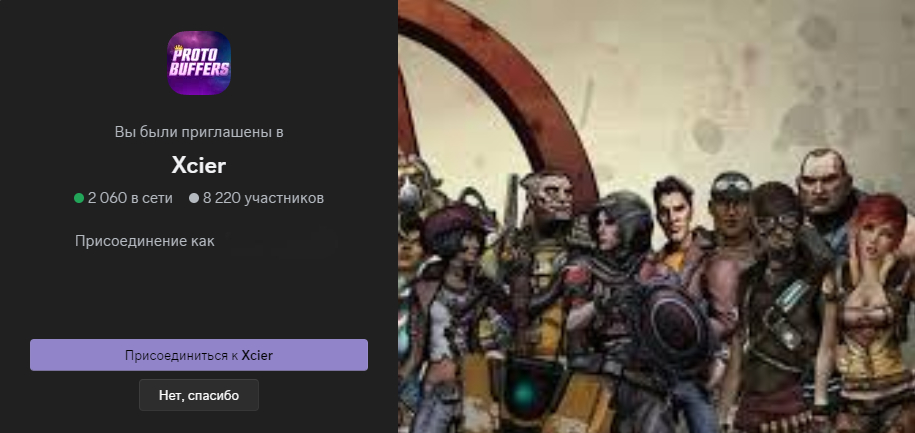
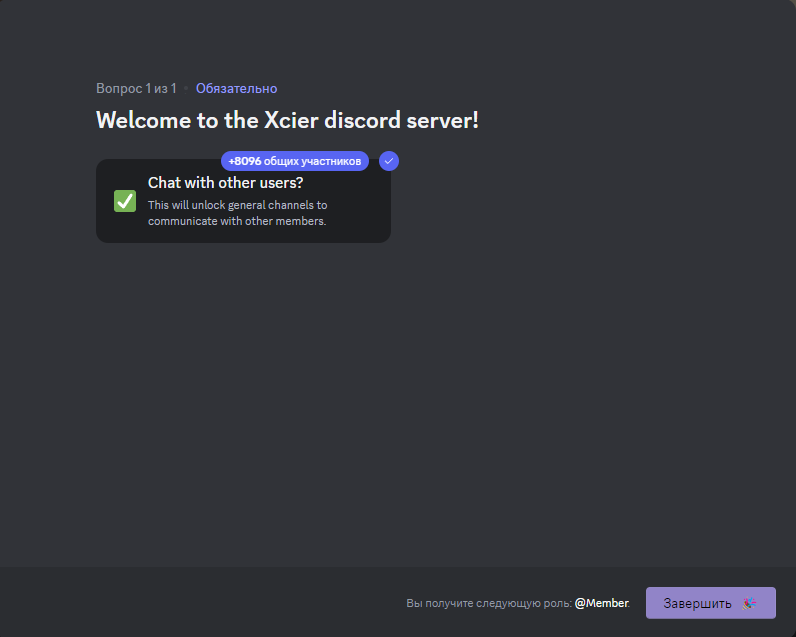
Read all the rules and get to “Get your Roles”
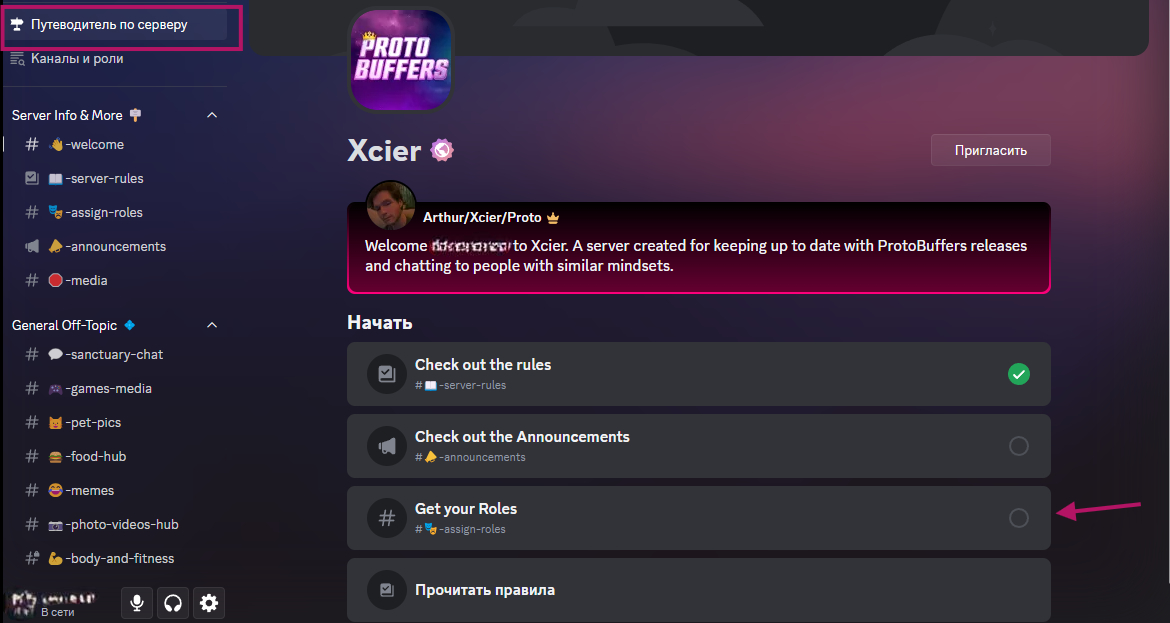
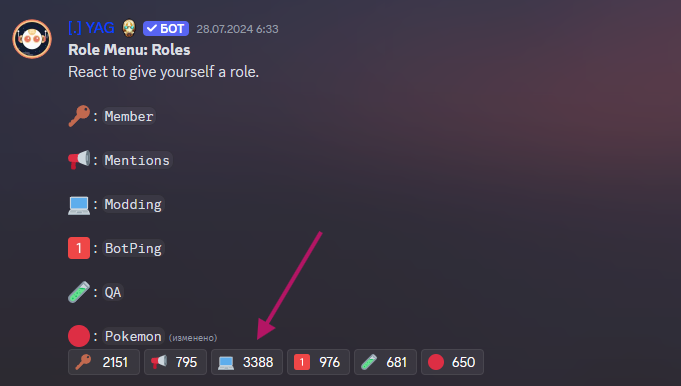
Like 💻 (This will give us the “Modding” role.
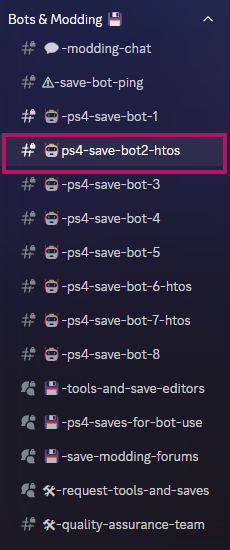
Now that you got the role, you can see a list of chat bots. We need a bot with the name “ps4-save-bot2-htos”.
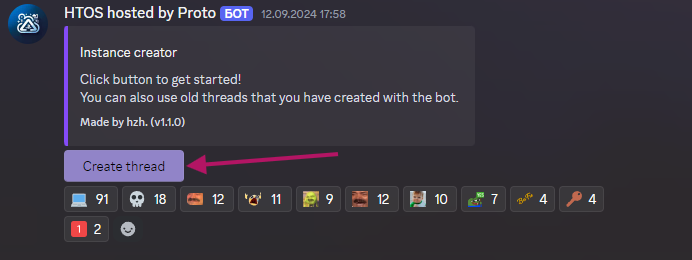
Go to the bot and click on “Create thread”
❗️Attention: Bots sometimes do not work from time to time, it is not known what it is connected with, if the button “Create thread” does not work, I advise you to wait and try later.
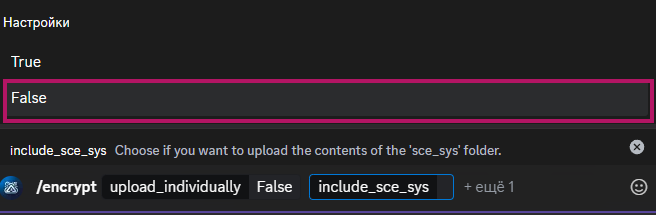
Go to the created chat with the bot and write the command “/encrypt” then select “False” twice
Next, enter your PSN ID from point “2)” and press

Next you will get an error (this is normal), just send your PSN ID to the same chat
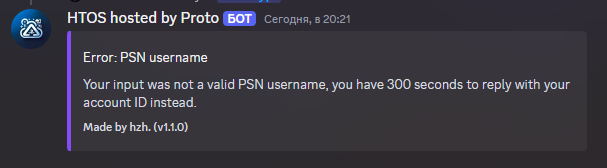
After you have sent your PSN ID to the chat, the bot will prompt you to download your encrypted PS5 squads files. You need to take the files prepared from point “4)” and send them to it
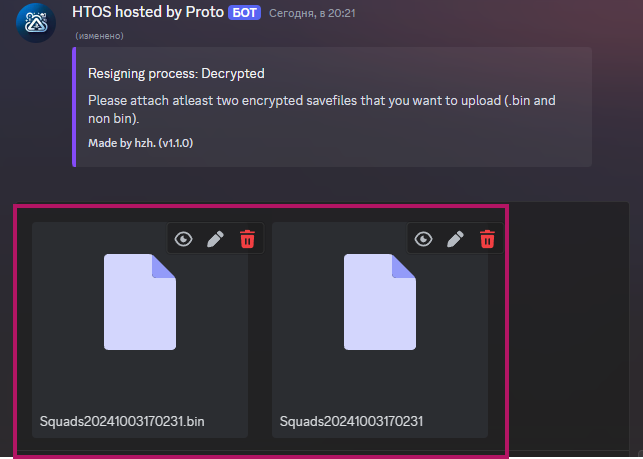
Then the bot will decrypt your files and ask you to send the files (DATA, INDEX, NAME) that you downloaded in my Telegram channel.
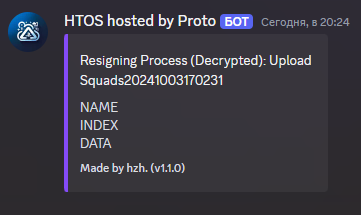
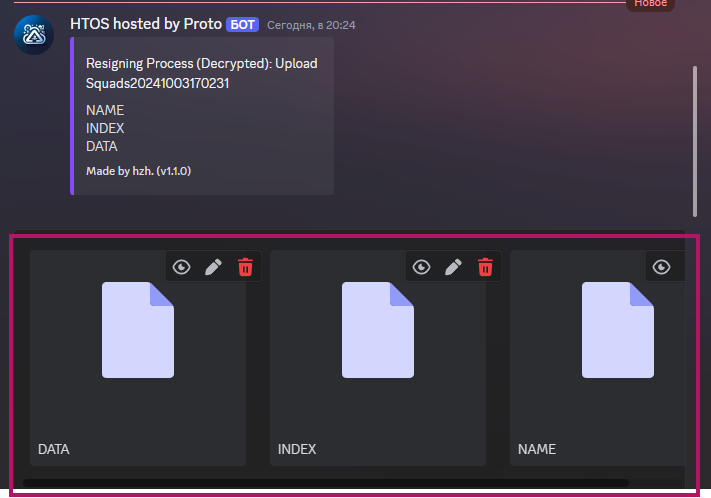
After sending, the bot will need time to replace the files with new ones, encrypt them and sign them with your PSN ID that you specified at the beginning. When finished, the bot will send you a zip archive with the finished files.
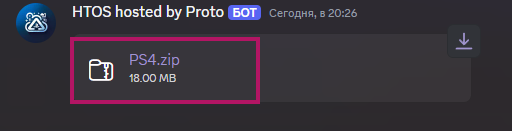
In the archive there will be 2 files of this type: “Squads20241003170231” and “Squads20241003170231.bin”
7) Transfer the obtained files to your PS5. You need to create a new save squads, after that, take the names of the newly created files and rename in these names received from the bot files, you will get 2 files of this type: “sdimg_Squads20241012113652” and “Squads20241012113652.bin”, which should be transferred via FTP or USB and PS5 Xplorer with replacement.
❗️Attention: It is necessary to create a new squads save on your PS5. Otherwise the files may not be read by the system.
8) Open EA SPORTS FC 25 go to Customise —> Profile —> Load Squads and select the previously named squads with already updated files, wait for the update
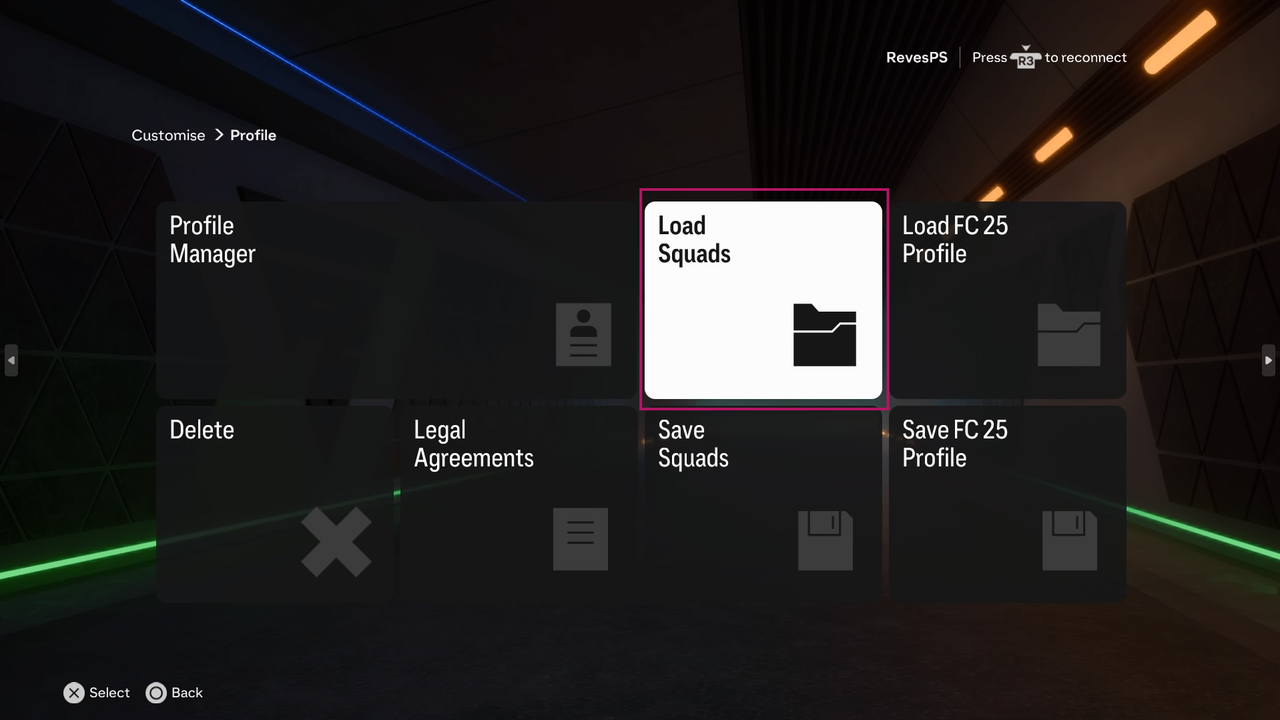
This completes the process of updating squads. I recommend that you check your squads on some teams before updating, for example, take a screenshot, or remember that you will see the difference after the update and make sure that the squads have been updated.
This article was prepared by the PlayStation Pulse team.
Our Telegram, where you will find the latest squads update for EA SPORTS FC 25, as well as the latest news.
We also recommend trying the Telegram bot - LinkRush Bot. This is your best bot for working with a file catalog! Convenient file search, update tracking, and receiving the latest information - all in one place. Fast, convenient, and always up-to-date!