Shimmer Effect in Flutter
FlutterPulseThis article was translated specially for the channel FlutterPulseYou'll find lots of interesting things related to Flutter on this channel. Don't hesitate to subscribe!🚀
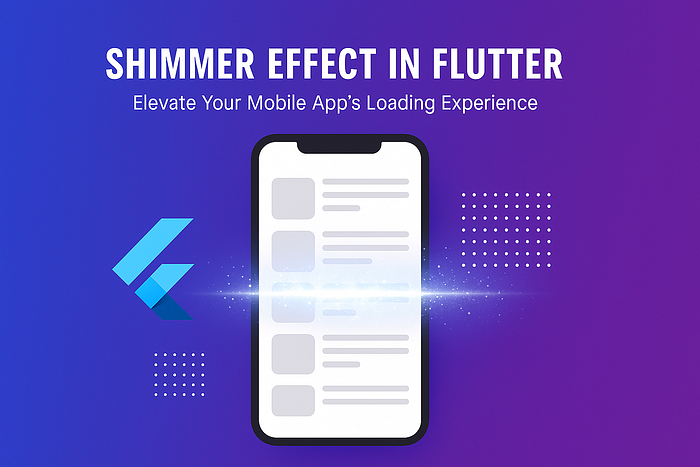
In modern mobile apps, a smooth and meaningful loading experience improves user engagement and reduces bounce rates. One of the most…
In modern mobile apps, a smooth and meaningful loading experience improves user engagement and reduces bounce rates. One of the most popular UI techniques to handle loading states is the Shimmer Effect. It gives users a visual cue that content is loading — without leaving the screen blank.
In this SEO-friendly guide, we'll explore what a shimmer effect is, why it matters, and how to implement it in Flutter step-by-step.
⭐ What Is the Shimmer Effect?
The Shimmer Effect is an animated placeholder that mimics a "glowing" or "moving light" over widgets while actual data loads in the background.
Apps like Facebook, Instagram, LinkedIn, and YouTube use shimmer to keep the UI engaging during data fetch operations.
Benefits of shimmer effect:
- Enhances user experience
- Makes loading screens feel faster
- Gives a professional and polished UI
- Reduces user frustration during API calls
- Perfect for skeleton screens
🎯 Why Use Shimmer Effect in Flutter?
Flutter apps heavily depend on asynchronous data (APIs, databases, Firebase).
A shimmer effect helps when:
- Data takes time to load
- Network connectivity is slow
- You need to show placeholders before rendering real content
- You want modern UI patterns used in popular apps
The shimmer effect creates the illusion of speed, improving perceived performance.
📦 Popular Packages for Shimmer Effect in Flutter
The most widely used package is:
shimmer: ^3.0.0
🛠 Step-by-Step: How to Implement Shimmer in Flutter
Step 1: Add Dependency
Add this line to your pubspec.yaml:
dependencies:
  shimmer: ^3.0.0
Run:
flutter pub get
Step 2: Wrap the Widget with Shimmer.fromColors
Here's the simplest shimmer example:
import 'package:flutter/material.dart';
import 'package:shimmer/shimmer.dart';

class ShimmerExample extends StatelessWidget {
  @override
  Widget build(BuildContext context) {
    return Shimmer.fromColors(
      baseColor: Colors.grey.shade300,
      highlightColor: Colors.grey.shade100,
      child: Container(
        height: 100,
        width: double.infinity,
        color: Colors.white,
      ),
    );
  }
}
🧱 Shimmer Skeleton UI Example (Cards + Text)
A real-world shimmer skeleton often includes rectangles for images and lines for text.
Widget shimmerCard() {
  return Shimmer.fromColors(
    baseColor: Colors.grey.shade300,
    highlightColor: Colors.grey.shade100,
    child: Column(
      crossAxisAlignment: CrossAxisAlignment.start,
      children: [
        Container(height: 150, width: double.infinity, color: Colors.white),
        SizedBox(height: 8),
        Container(height: 15, width: 200, color: Colors.white),
        SizedBox(height: 5),
        Container(height: 15, width: 150, color: Colors.white),
      ],
    ),
  );
}
✔️ Best Practices for Using Shimmer Effect
- Use shimmer only during actual loading states
- Avoid excessive shimmer animations — they increase CPU/GPU usage
- Keep placeholder shapes similar to real content
- Use lighter colors for a smooth UX
- Use
ListView.builderplaceholders for long lists
🎉 Conclusion
The shimmer effect is a small UI enhancement that creates a big impact on user experience. By giving users a visually engaging loading state, your Flutter app becomes smoother, faster, and much more professional.
Whether you're building an e-commerce app, social network, news feed, or dashboard, a shimmer loading placeholder keeps your users engaged while the data loads behind the scenes.