Setting up @channelPostBot
Imagine...
You have a great telegram channel, but you want others to suggest their posts for your channel. This can be done using @channelPostBot
If you haven't done already, create your brandnew channel.
Write down the channel username (starting with @)
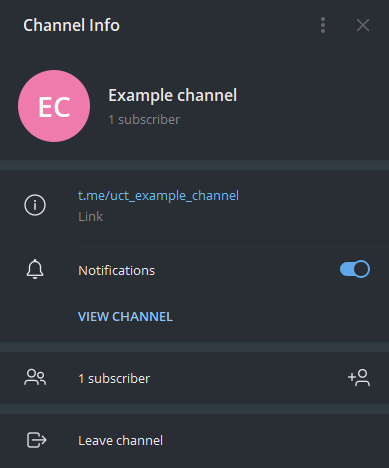
The link for sharing is t.me/uct_example_channel, but we only need the last part here.
In this screen, click the + next to '1 subscriber' and add @channelPostBot as admin. The bot only needs permissions to Post messages.
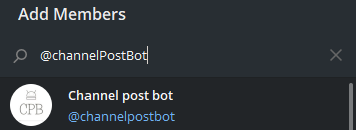
Start a chat with @channelPostBot and press START
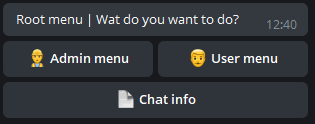
Press Admin menu > + Add channel

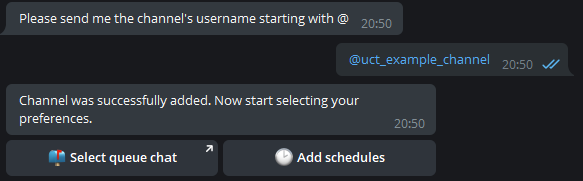
Fill in the username as you just wrote down.
Now go create a new telegram group which will be used in a minute. If you have other admins for your channel, you could add them as members in this group. If you do not, just add some friend and remove them right after creating this group. (you can apologise later) Remember what you named your group. (preferably something with queue in the name)
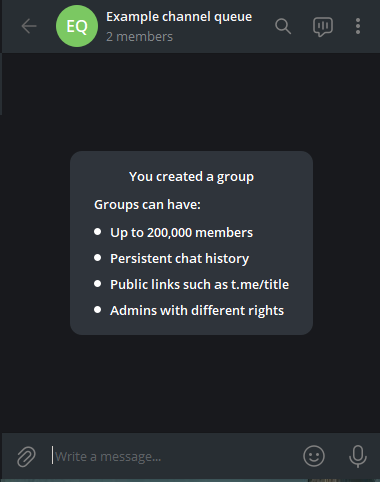
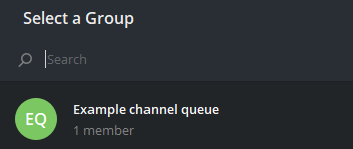
Now go back to your conversation with the bot and press Select queue chat.

Now go and select the group chat you just created.
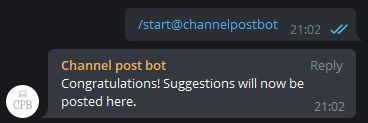
The bot now congratulates you on coming this far.
Go back to your private chat with the bot and click Add schedules
The bot wants you to select a schedule you want to edit. But since we don't have any yet, we are going to create a new one.
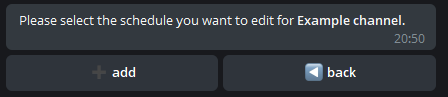
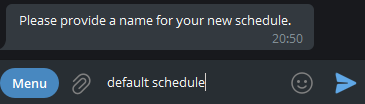
Press + add and type a name for this schedule. Name it something like 'default' or 'weekends only' or 'images only'.
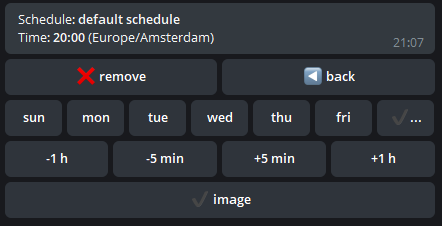
Now we are actually going to set up the posting scheduling. Press edit

Now select on what day ...

The check indicates that you selected this day.
... at what time ...

(time will change in the message)

... and which suggestion types ...

... you want to post. And press < back (saving is done instantly as you change params)
You are now basically done!
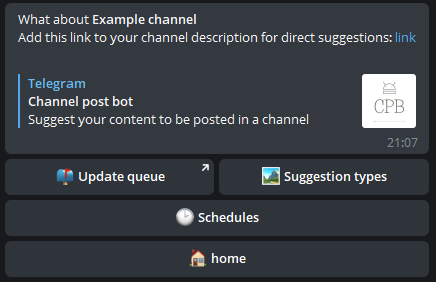
Notice the blue 'link' in the text. This is the link you can use in your channel to invite others to suggest a post for you channel. You can find this link again if you navigate from the Root menu > Admin menu > [channelname]
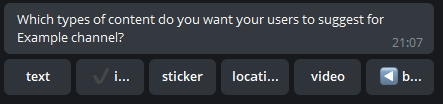
Now if you want users to be able to suggest more than text, press Suggestion types.

Sadly, for now only texts and images are supported. So you could select 'image' here. If you do not want people so send texts, disable them. And go b... (back)
If you did this, update your schedule so it can also post images.
If you long press (or right click) the link, you can copy the link.
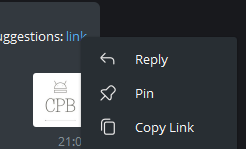
Go to the channel and type the message to invite users to suggest their awesome content. Then select the text you want as link and do something like this
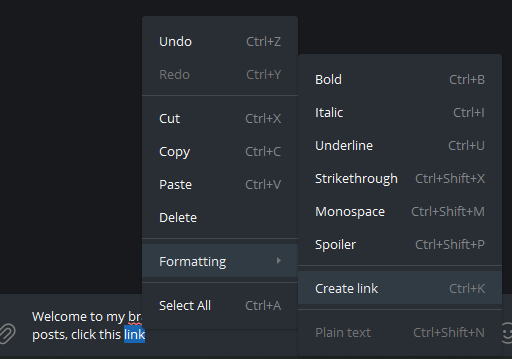
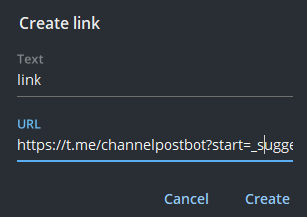
So now users can suggest ther posts using the link you just created.
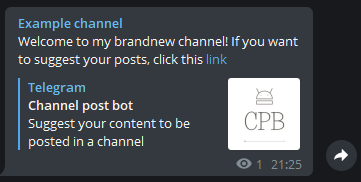
If anyone presses this link, they can suggest their content.
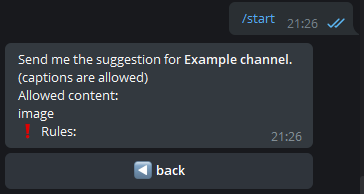
Okay, let's suggest a cool image.
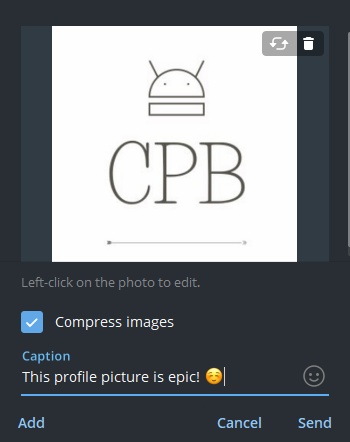
And wow! Now you get it why you created that queue group.
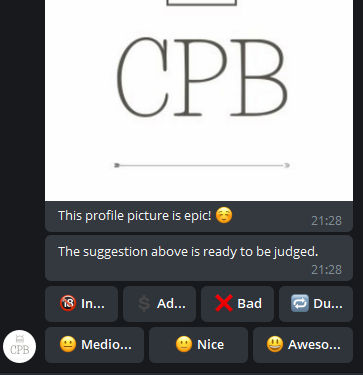
Go with whatever you think you should. In this case, we want to post this image (including caption) in our channel. So we vote Nice.

And heck. The user sees the text change to

Now if you set up the schedule correctly, the post should appear at the time you set up.
Done! You did it! Now wait for the storm and prepare yourself :)
Pro tip: if you ever encounter any weird behaviour, send /stop to @channelPostBot. It will reset your current conversation.