Scan Business Cards to Excel: A Small Team’s Export Checklist
BizConnectA useful contact spreadsheet begins before you open Excel. If the original card was captured badly, or the person who met the contact added no context, a tidy export will still contain weak information. Teams using BizConnect to scan business cards to excel should therefore treat the export as one stage in a repeatable process: capture, review, organize, export a sample, and check the destination before sharing the full working list.
This checklist is intended for small sales teams, event organizers, consultants, and other professionals who collect printed cards during normal business conversations. It does not assume that scanning a card creates a qualified opportunity or gives permission for every kind of future marketing. The practical objective is simpler: preserve accurate contact details and the relevant meeting notes in a format the team can understand.
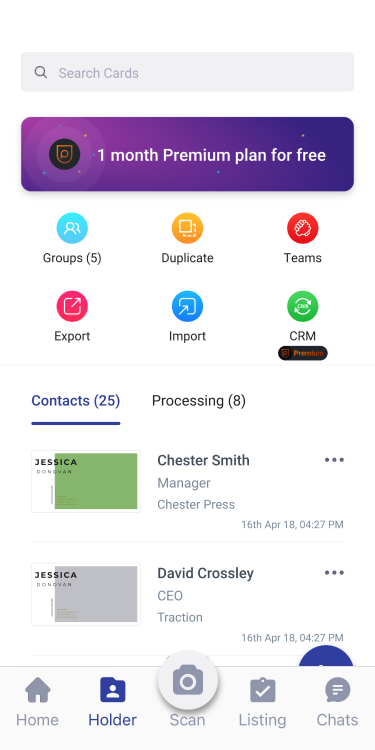
Agree what the contact spreadsheet needs to contain
Before scanning a large batch, decide which fields your team actually needs. Name, company, business email, telephone number, event label, and a short meeting note are a sensible starting point. Some teams also need an assigned owner or the next agreed action. Avoid adding columns that nobody will maintain. A long spreadsheet with inconsistent entries is harder to search than a shorter list with clearly defined fields.
Write down simple rules for those fields. For example, use one event label throughout the team, preserve the international prefix on telephone numbers, and keep the printed company name unless you have confirmed a correction. If a contact has several email addresses, record the relevant business address rather than choosing one at random. When something is unclear, flag it for review instead of silently filling the gap with a guess.
Separate the contact's printed details from your internal observations. The job title on the card is a source fact; your impression that the person might influence a purchase is an interpretation. Keeping those ideas apart makes the eventual export more useful to colleagues who were not present at the conversation. It also helps prevent a tentative note from becoming a confident claim as the file moves between people. Teams considering address-book workflows can also consult BizConnect's earlier guide to scanning cards into Google Contacts before deciding which destination suits their daily work.
Review scanned details before exporting them
Capture the card on a steady surface with enough light to read small text. Check that no edge has been cut off and that reflections do not cover important characters. If the reverse contains a second office address or another relevant detail, capture it as well. BizConnect describes scanning and contact management on its official site, but a person should still review the information extracted from each important card.
Pay special attention to email punctuation, similar-looking letters and numbers, and telephone fields. A misplaced character can make an otherwise complete record unusable. Check whether the software has put a company switchboard number into a mobile field or included an extension in an unexpected place. For names in unfamiliar formats, keep the original spelling and order rather than guessing a different presentation that may introduce an error.
Add brief context while the meeting is still easy to remember. A note such as 'requested the product overview discussed at the exhibition' is more useful than an unexplained label like 'hot lead.' Record a next step only when it reflects the actual conversation. If a colleague owns that response, identify the owner clearly so the exported list does not produce several competing introductions from the same team.
Export a sample and inspect it in Excel
Before exporting the entire event group, try a small sample containing the kinds of records you expect to use. Include a long telephone number, a name with an accent, a company name containing punctuation, and a contact with more than one useful field. Open that sample in your normal spreadsheet application. The purpose is to see how the data behaves in your actual workflow, rather than assuming every destination interprets it identically. BizConnect's related business card reader app guide provides another perspective on judging the workflow after capture.
Review the column headings and the values underneath them. Confirm that names have not shifted into neighboring columns and that notes remain readable. Telephone numbers require particular care because a spreadsheet may interpret them as numeric values. Check leading zeros and international prefixes after opening or importing the file. If the destination changes a field, adjust its import treatment and inspect the resulting sample again before proceeding with the larger batch.
Also check whether the export includes the groups, notes, and ownership information your team needs. Available fields and features can depend on the current app version, plan, and export method. Verify them in your own account instead of promising that a particular field will always transfer. Keep a reference copy of the approved sample so future event exports can be compared against a familiar structure.
Control duplicates, sharing, and the next update
Duplicate review should compare several meaningful fields. Two people at the same company are not automatically duplicates, and two records with a similar name may describe different people. When you identify the same contact twice, preserve the useful meeting context from both entries before deciding which record to retain. Document the working record so a later import does not restore an older version and undo the team's corrections.
Decide where the contact list will be maintained after export. If both the app and the spreadsheet remain editable, the team needs a clear rule for how changes are reconciled. Without one, a corrected telephone number may exist in only one copy.
Share the working file only with the colleagues who need it for the relevant business purpose. Keep the export in the approved workspace, use clear version names, and avoid distributing copies through unrelated personal channels. Before initiating any outreach, check the purpose and permission appropriate to that contact. A card handed over during a discussion can support a relevant response without justifying every subsequent promotional use of the person's details.
Finally, review whether the process produced usable records and completed next actions. The number of scans alone does not show whether your team followed through well. Track corrections, missing context, duplicate problems, and whether the promised information reached the appropriate owner. For current export features or account questions, use BizConnect's official Contact Us page.