Safely open Turrit on your Mac
Turrit Official
Safely open Turrit on your Mac
- Download and drag it to Applications
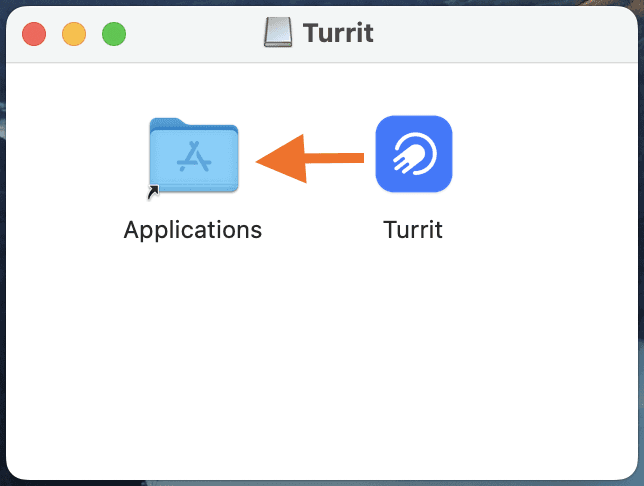
2.Click「Open」
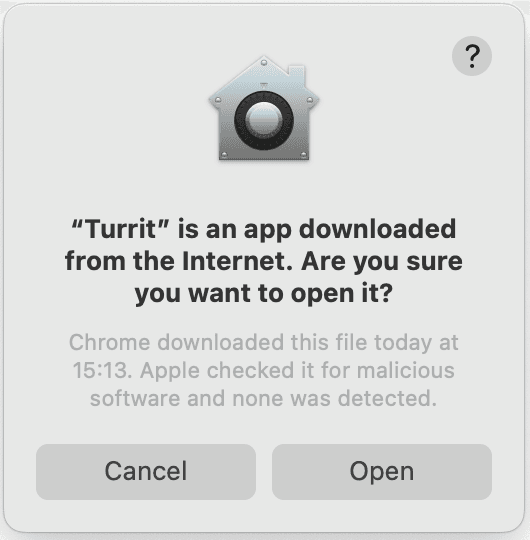
If it alert that the app wasn't downloaded from the App Store
- Click 「Done」in the pop-out window.

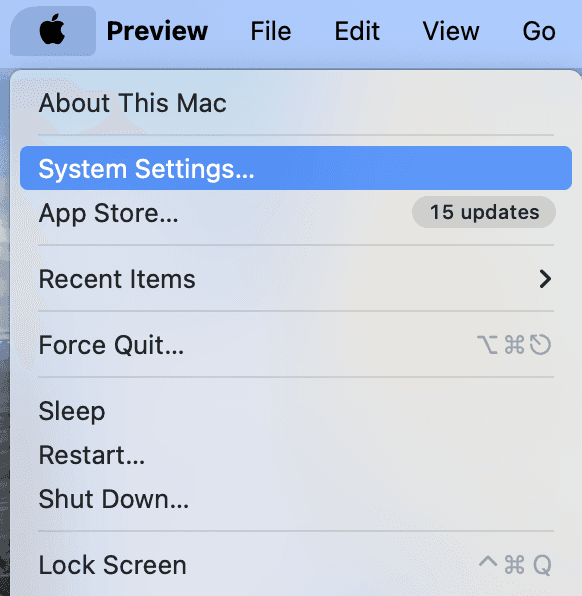
2. Top left corner of your Mac, choose「Apple menu」 > 「System Settings」
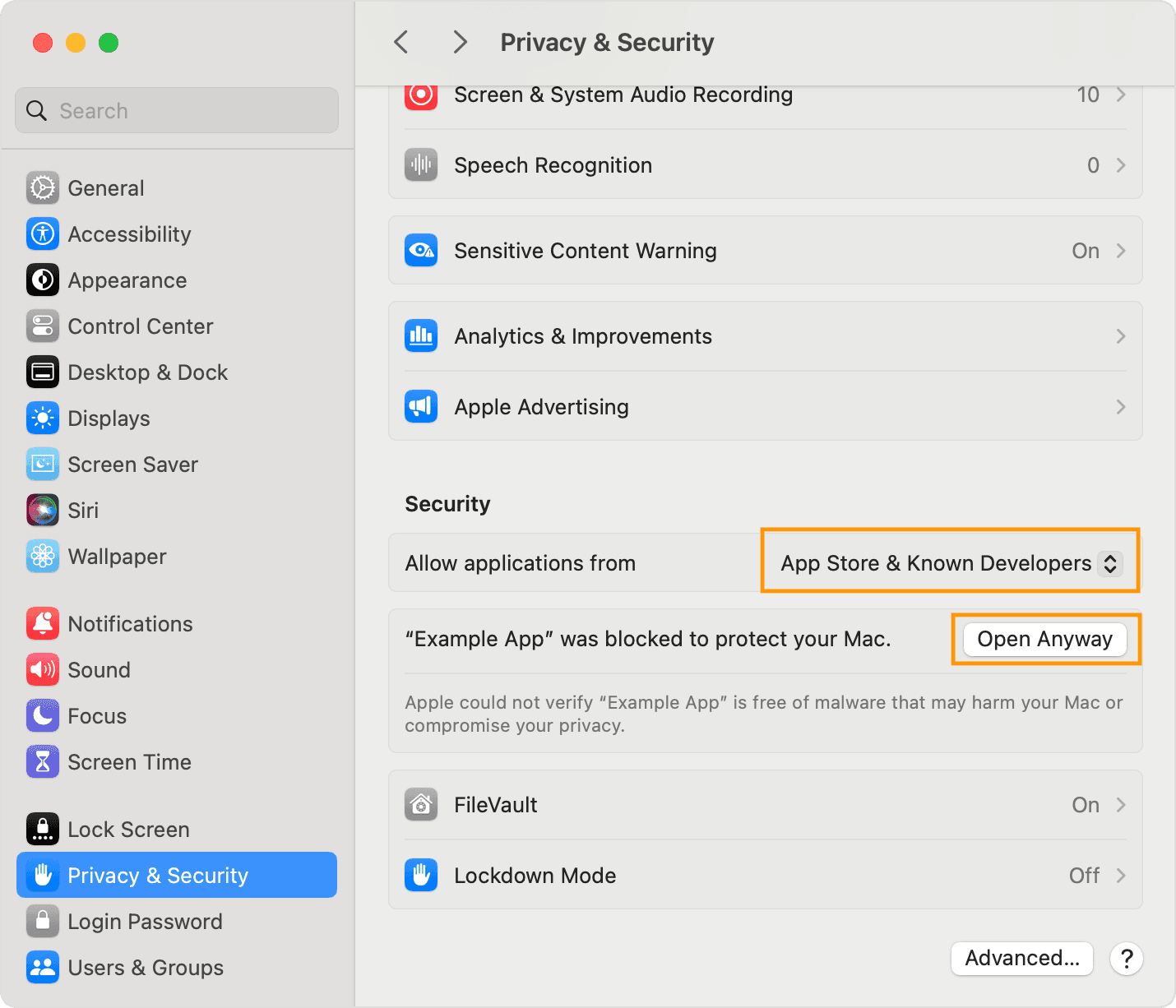
3. Click 「Privacy & Security」, choose 「App Store & Known Developers 」,choose「Open Anyway 」.
4. Click 「Open」

The app is now saved as an exception to your security settings, and you can open it in the future by double-clicking it, just as you can any authorized app.
Now you can use Turrit macOS!
Can't log in:
Network/Proxy Issues:
Method 1: Add Proxy in Turrit:Top right corner of the login / Settings - Data and Storage - Use Proxy)
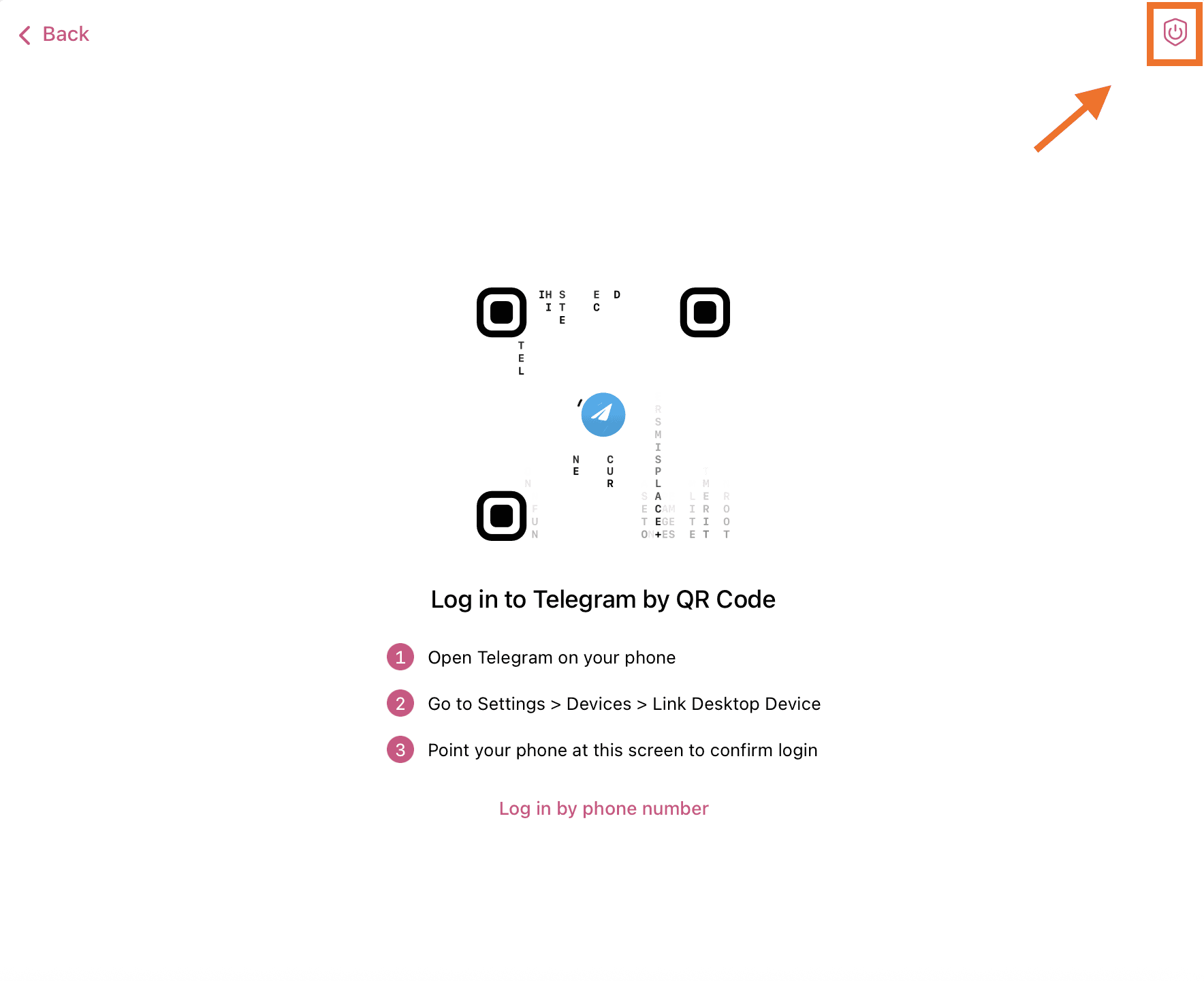

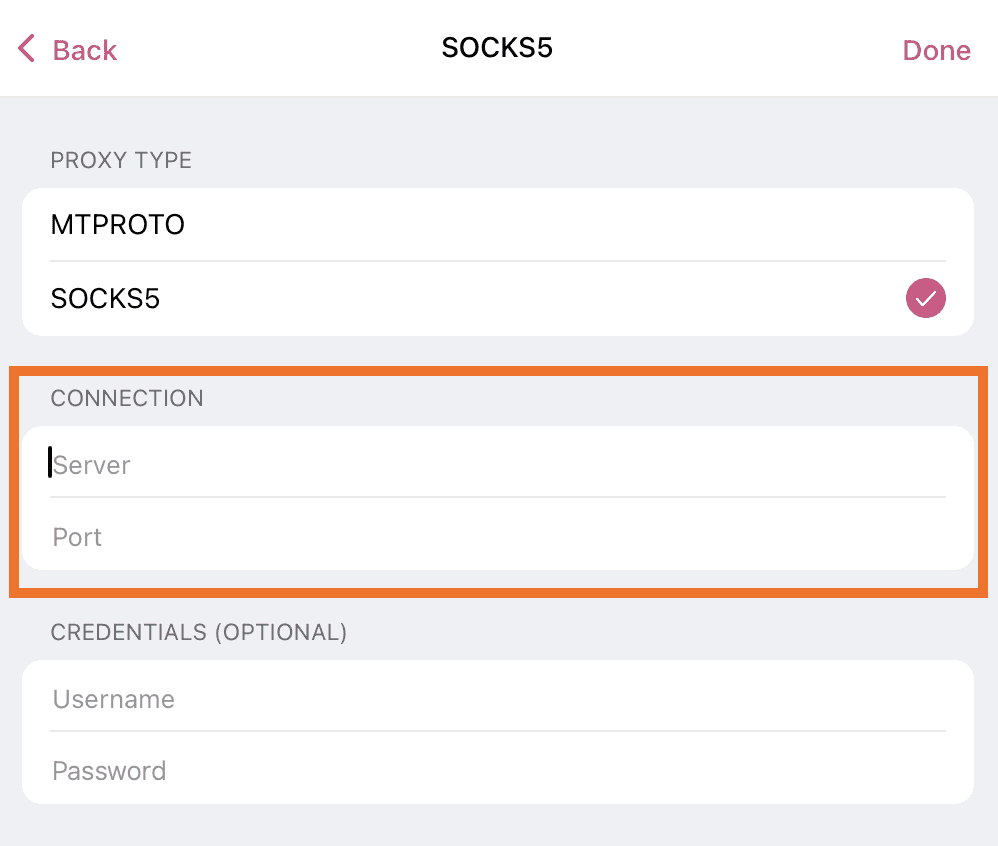
如何将代理添加到 Telegram:https://doc.flyintpro.com/faq/allfaqs/telegram
How to Add Proxy to Telegram | Proxy Integration Tutorial:
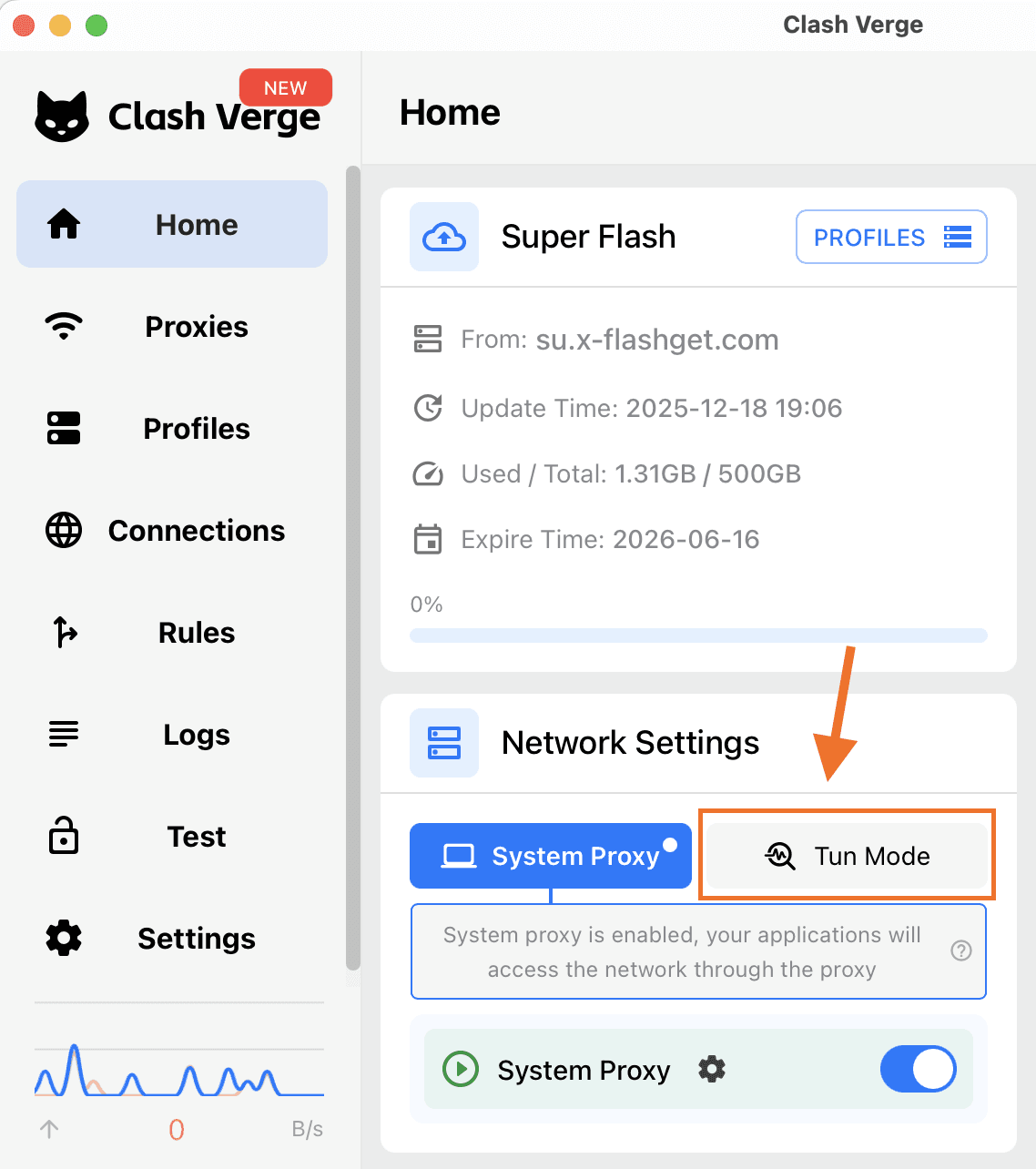
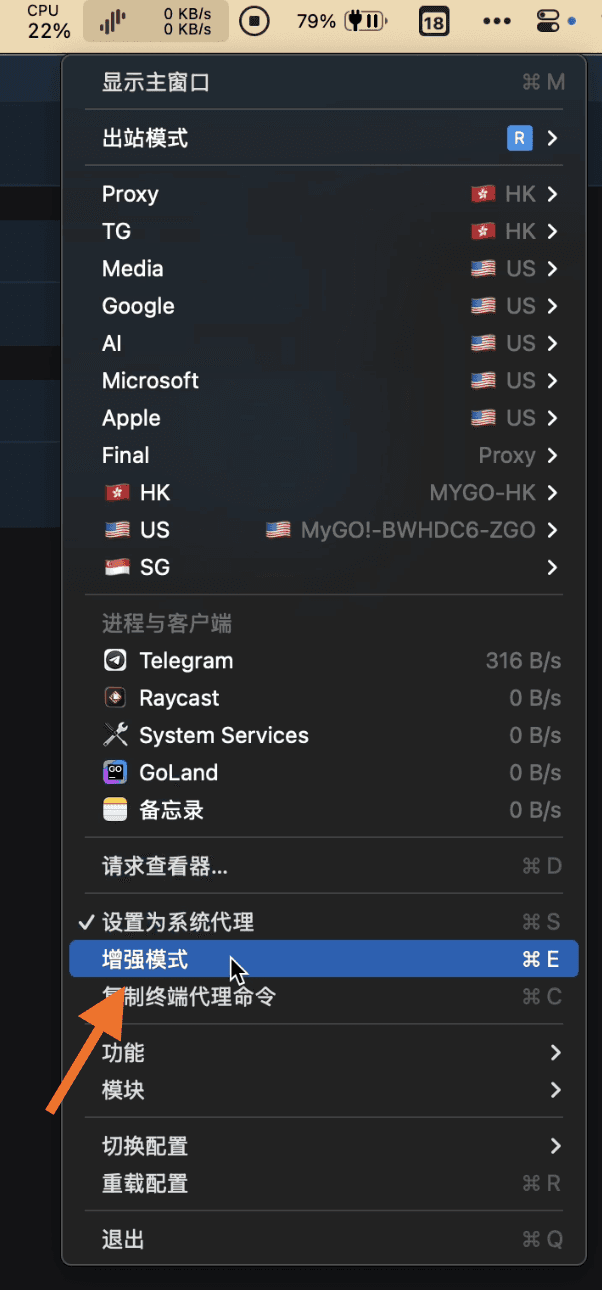
Method 2: Open your proxy software - enable system proxy - enable enhanced mode/Tun Mode. (Then no need to add proxy in Turrit.)
“I got a ‘Failed’ pop-up when trying to install Turrit”
- Try re-installing
- Text Turrit admin on Telegram @FreeJennie.