Running Linux As a Part of Windows OS
@InukaAsithLinux OS එක කියන්නෙ ගොඩාක් අයට නැතුවම බැරඉ OS එකක් නේ.
හැබැයි ගොඩක් දෙනෙක්ට Linux වලට යන උවමනා උනාට Windows OS එක අතෑරල යන්න බෑනෙ. Linux Windows වලම Part එකක් කරගන්න විදිය අද බලමු
LETS BEGIN..
Requirements you need:
64Bit Multicore processor
8GB ram (Recommended for Kex) 4GB minimum
Windows 10 v2004 (recommended) Windows 10 1909 (Minimum)
1) Enabling VT
Restart your PC and goto BIOS and look for a option called Virtualization Technology (VT) and enable it
2) Installing Wsl2 (Windows 10 v2004+)
Goto Start Menu. Type cmd and open as Administrator
Type the following command to install the WSL on Windows 10 and press Enter:
wsl --install
Restart PC
2) Installing Wsl2 (Windows 11)
Goto Microsoft Store and Search Windows Subsystem for Linux
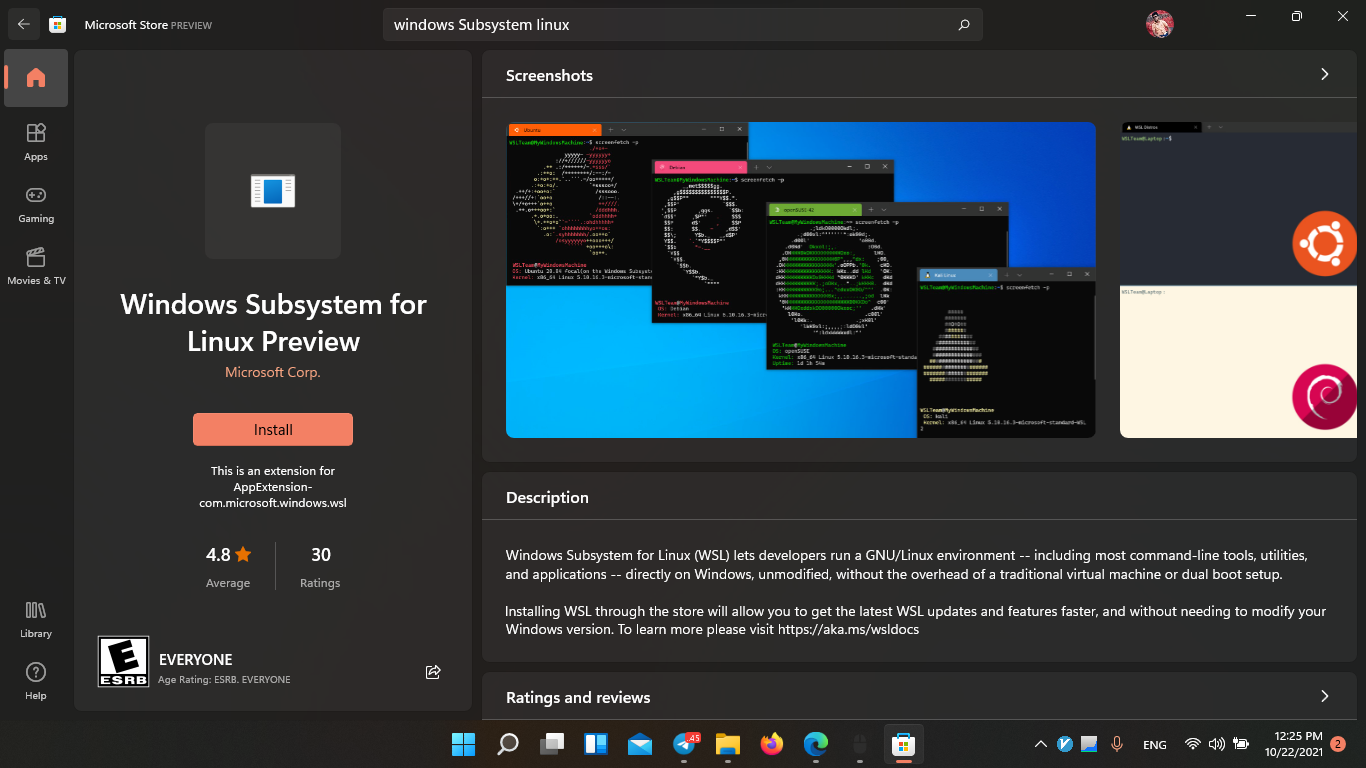
*Remember this is still in Preview mode (Following previous methord is recommended)
3) Installing Linux Distro
Install any linux distro you like from Microsoft
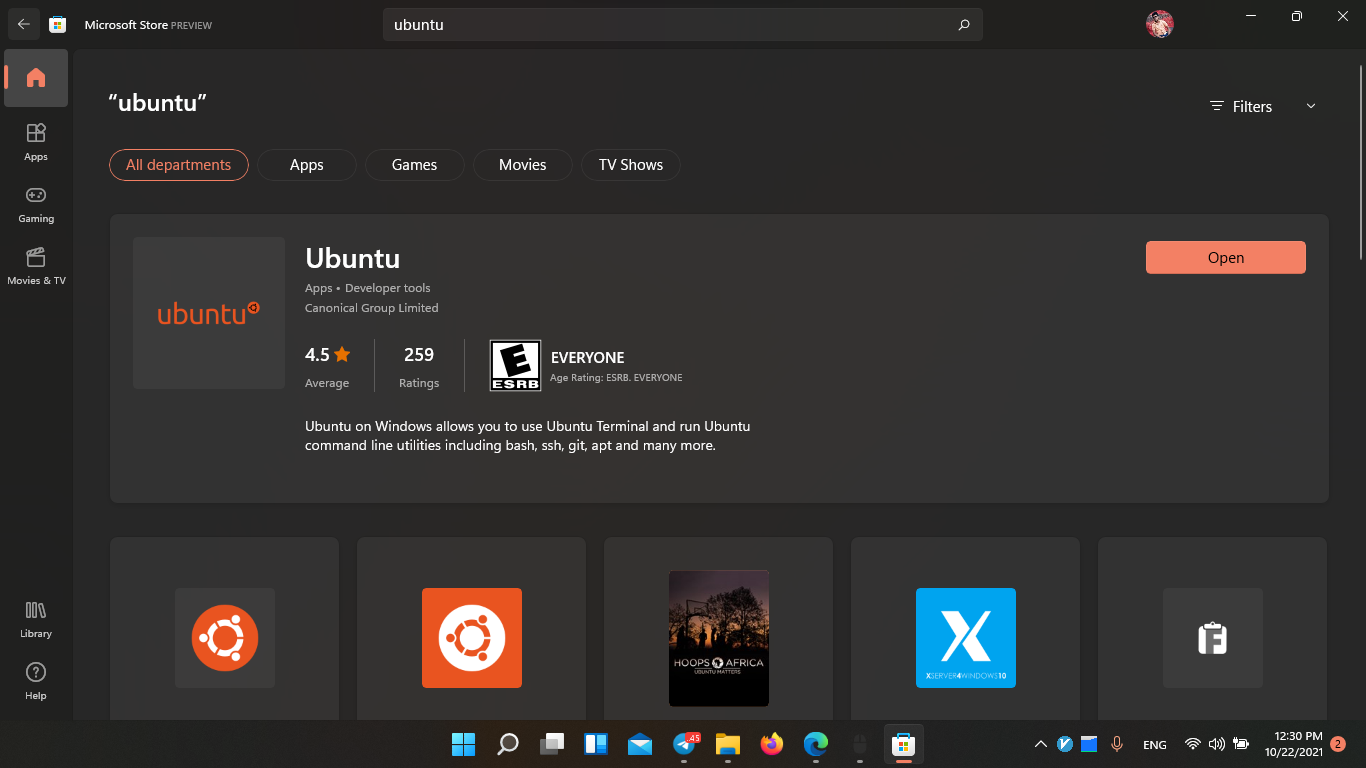
මෙන්න මෙතනදි පොඩි දෙයක් කියන්න තියනව. ඔයා Kali Linux Use කරන්න හිතාගෙන ඉන්නව නම් සම්පූර්ණ Linux Experience එකක් ගන්න පුලුවන් වෙන විදියට Kali Win-Kex කියල වෙනම Distro එකක් Kali developers ල දීල තියේ. පහල ලින්ක් එකෙන් ගිහින් කැමති අයට ඒක දාගන්නත් පුලුවන
Installing Win-Kex for Kali
- Install win-kex via:
kali@kali:~$ sudo apt update
kali@kali:~$
kali@kali:~$ sudo apt install -y kali-win-kex
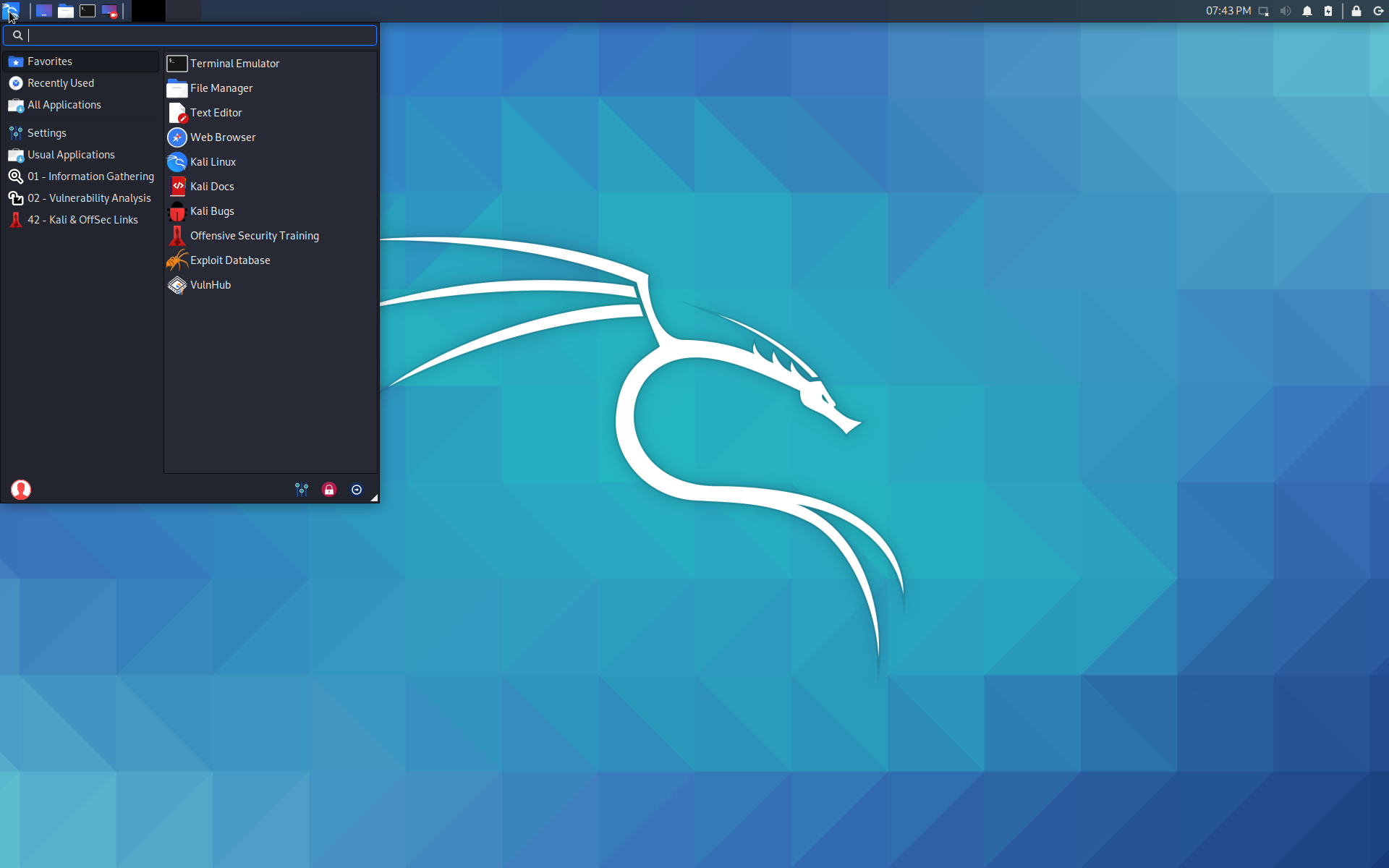
Win-KeX | Kali Linux Documentation
දැන් Install කරපු එක open කරන් Install වෙන්න දෙන්න
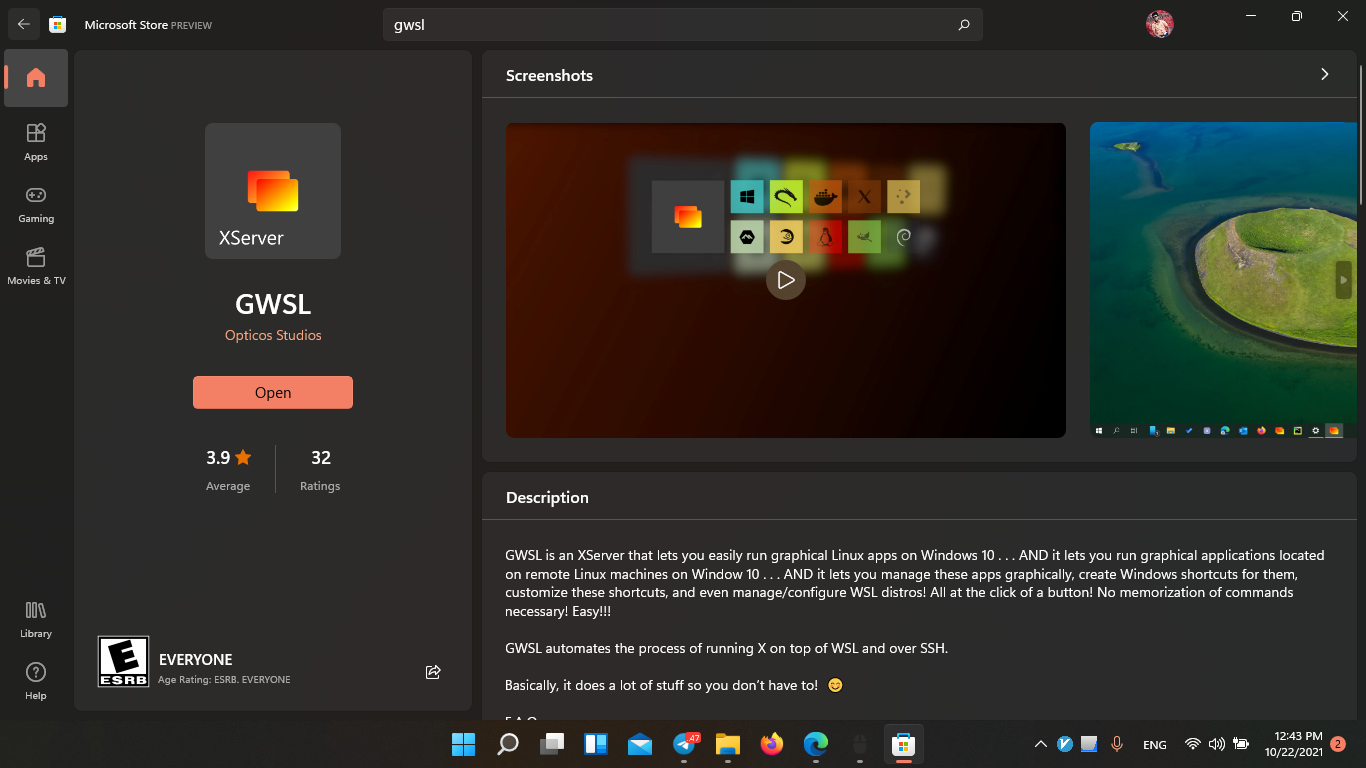
4) Installing GWSL
Goto Microsoft Store and Install GWSL
5) Installing Openinwsl
Goto Microsoft Store and Install Openinwsl
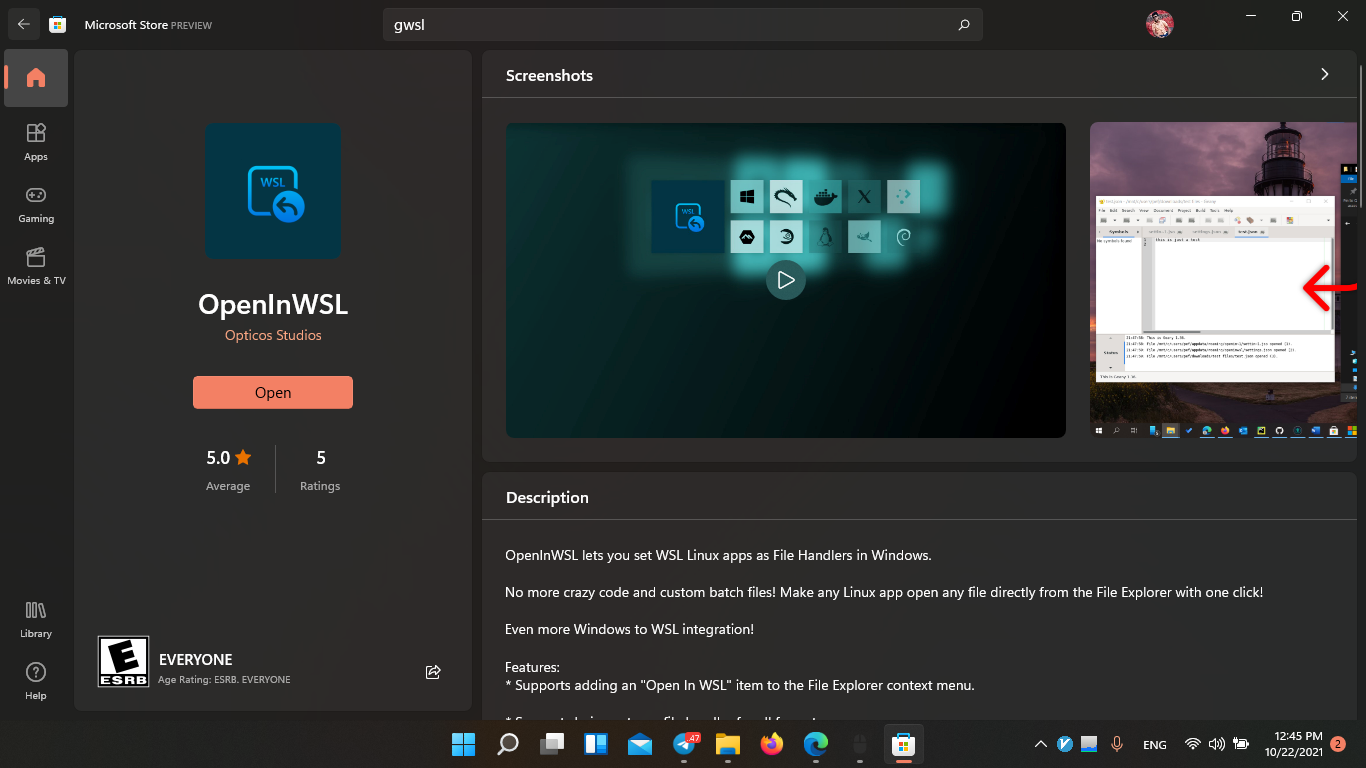
දැන් ඔයාගෙ Linux OS එක Ready. දැන් තියෙන්නෙ ඔයාට ඕන විදියට Customize කරගන්න ටික
6) Open GWSL
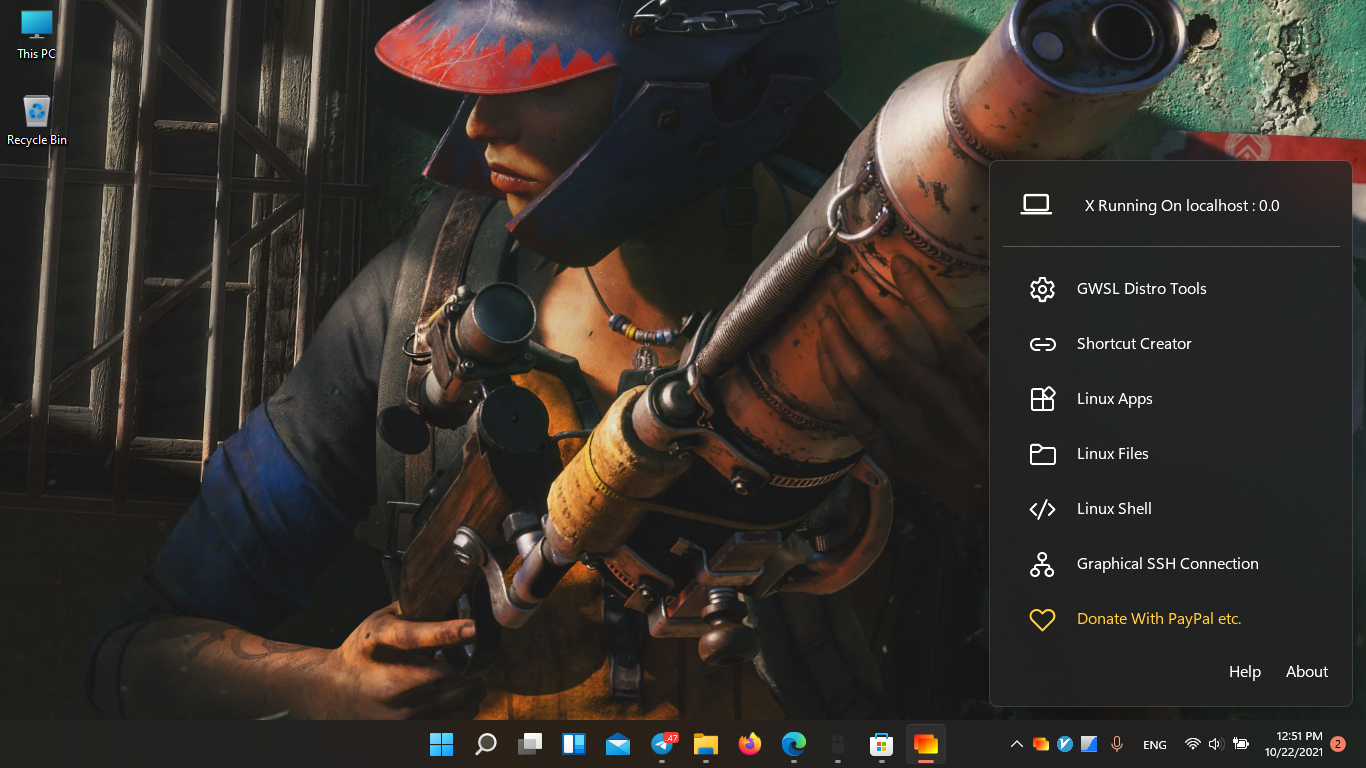
මෙතනින් එහාට කරගෙන යන්න ඔයාට Linux apps මොනවහරි දාගන්න වෙනව
Kali Win-Kex install කරගනිපු අයට OS එකේ tools ටික තියනව අනිත් Distro වල තියෙන්නෙ Terminal එක විතරයි
දැන් GWSL එකේ Linux files කියන එකෙන් Linux වල Files බලාගන්න පුලුවන්
Linux Apps වලින් Apps launch කරන්න පුලුවන්
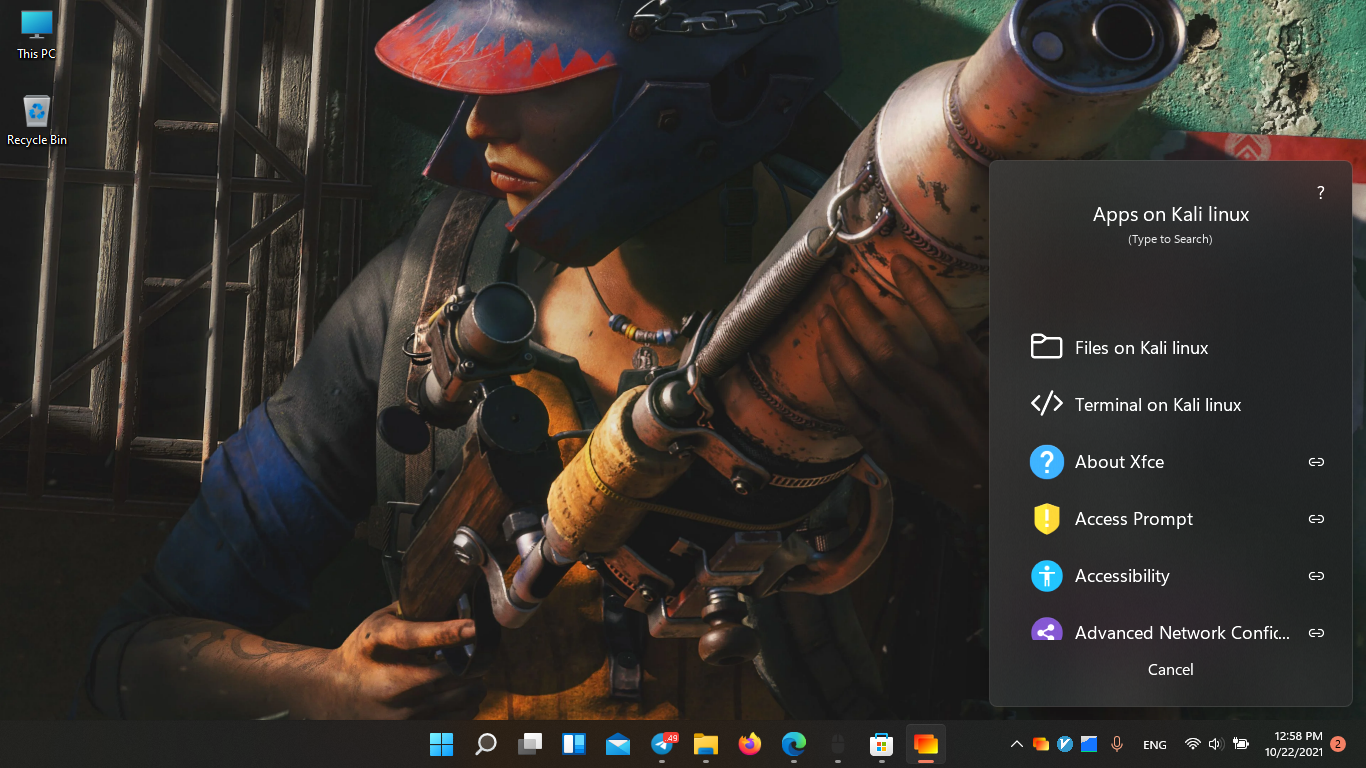
කෙලවරේ තියන Link icon එක Click කරල Windows Start menu එකට Shortcuts හදන්නත් පුලුවන්
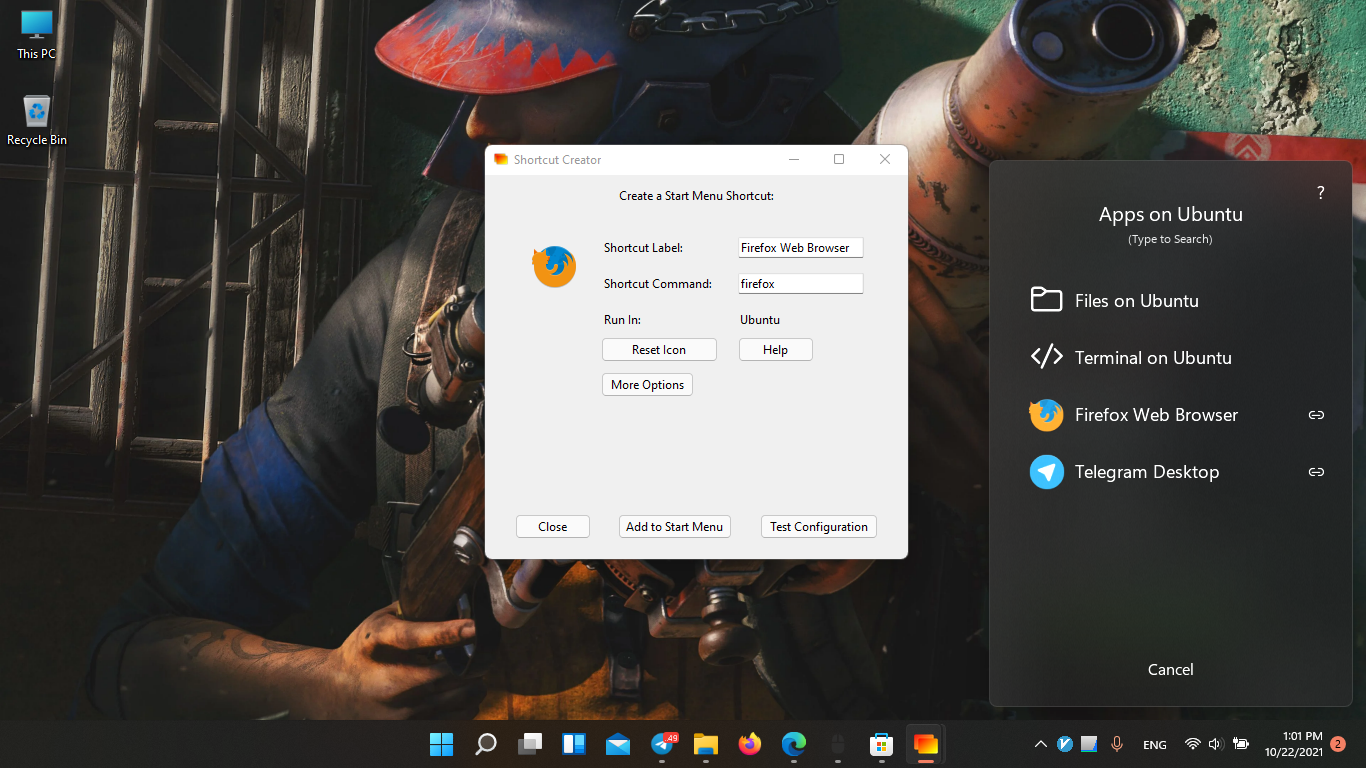
ENJOY RUNNING LINUX APPS BLAZING FAST ON WINDOWS...
Additional Tips
1) Opening windows Files with Linux Apps
Open Openinwsl
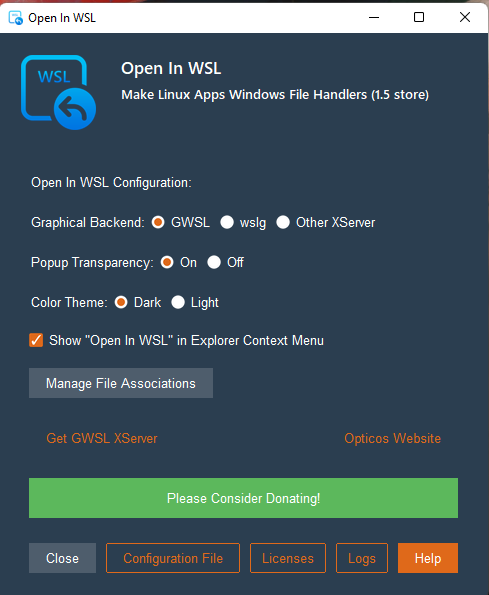
Change settings as shown
Rightclick on file (Windows 11 users Click show more options too)
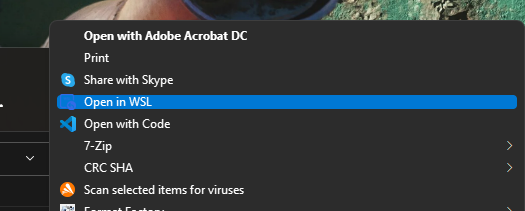
Click open in WSL
Select app and os and click on Test configuration to run once or save to save configuration
2) FIle Management
Windows 11 Shows linux files also on windows explorer
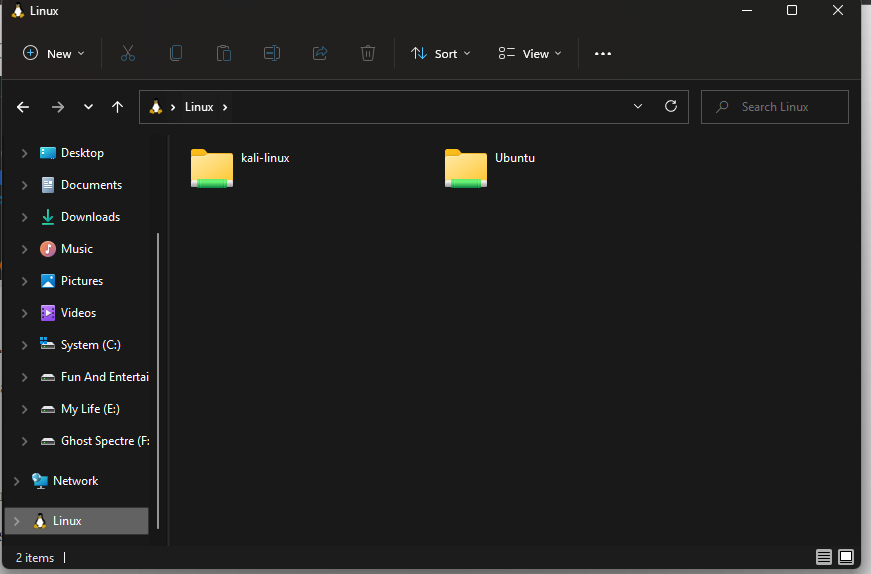
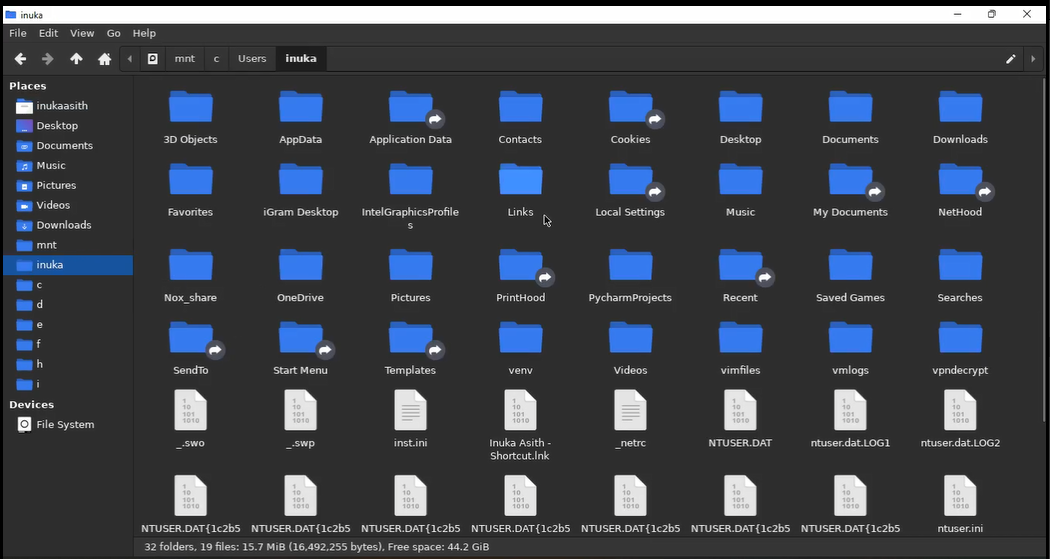
Also You can see windows drives in mnt folder of linux file managers
After enabling WSL features some Android Emulators will face issues. Use Bluestacks for HyperV beta for super fast android emulating experience (Not Sponsored 😂)