Report Generation in Cimplicity
Vignesh M BHi,
As explained in the training, This is the flow chart for Report Generation with Cimplicity and MSSQL Server.
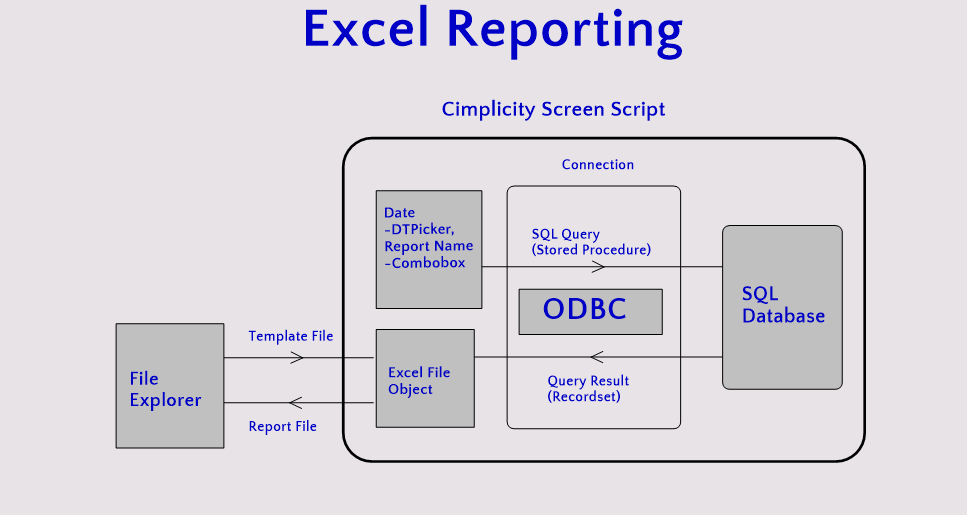
In the Report screen, We have the following components
- Date time picker - 1 - To select the date for the report
- Drop down control - 1 - To provide set of report names
- Button - 1 - To export the data of line(s) added to trend on basis of both Date time pickers into Excel file
Before Proceeding, Get the Scripts from here.
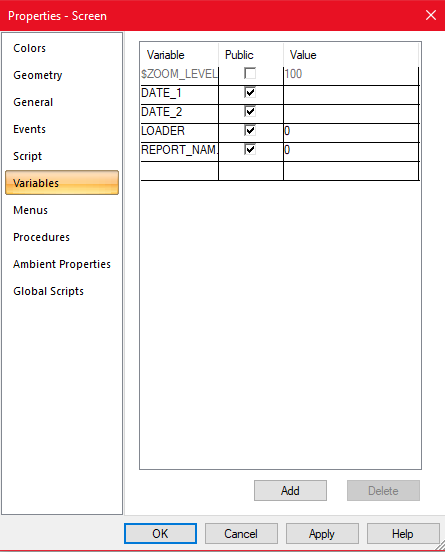
Create a new screen in Cimplicity. First You need to create 4 Screen Variables as "Public" in the Screen Properties.
1.REPORT_NAME
2.LOADER
3.DATE_1
4.DATE_2 (if you need two date selection in your report screen)
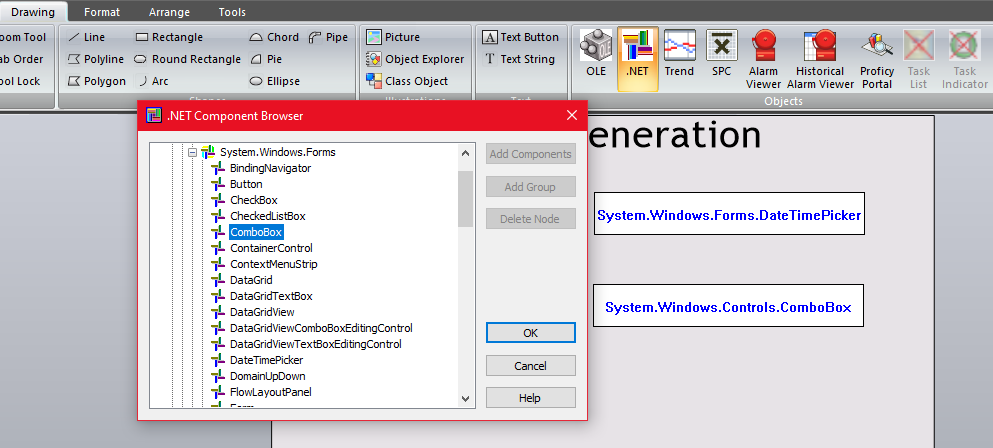
Then Place two .NET controls - DATETIMEPICKER , COMBOBOX in the screen
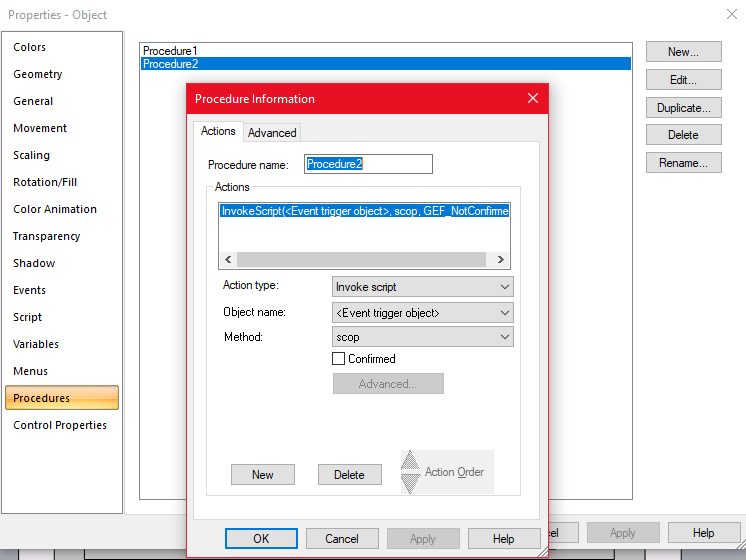
Copy the Scripts You downloaded earlier into the controls and Create Events & Procedures as shown in the screenshots below
DateTimePicker
Events
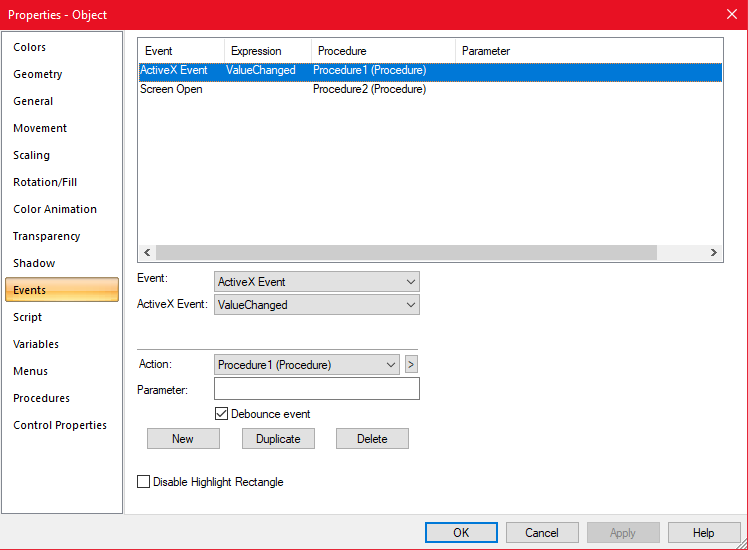
Procedures
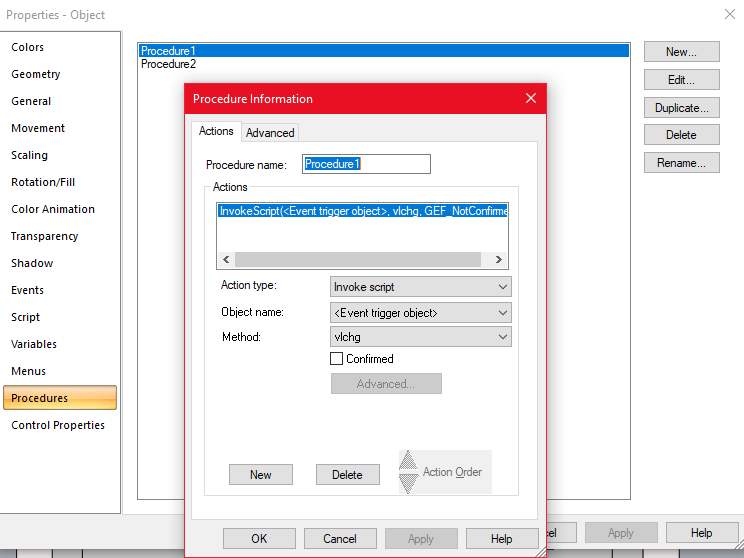
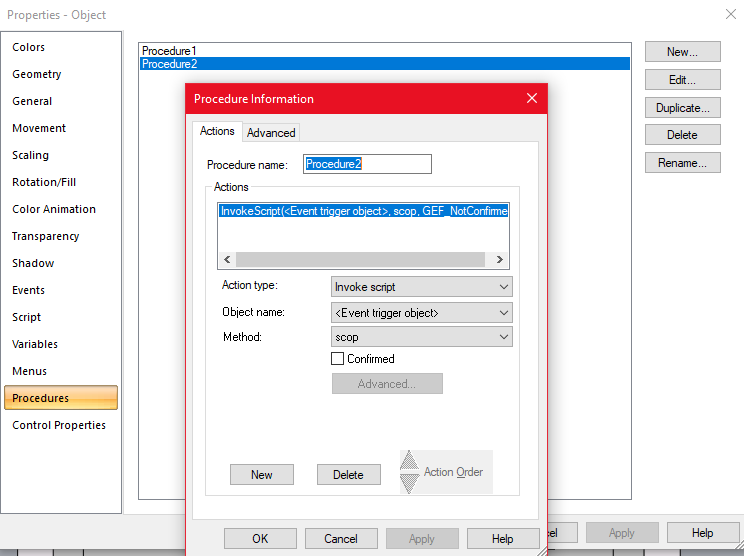
ComboBox
Events
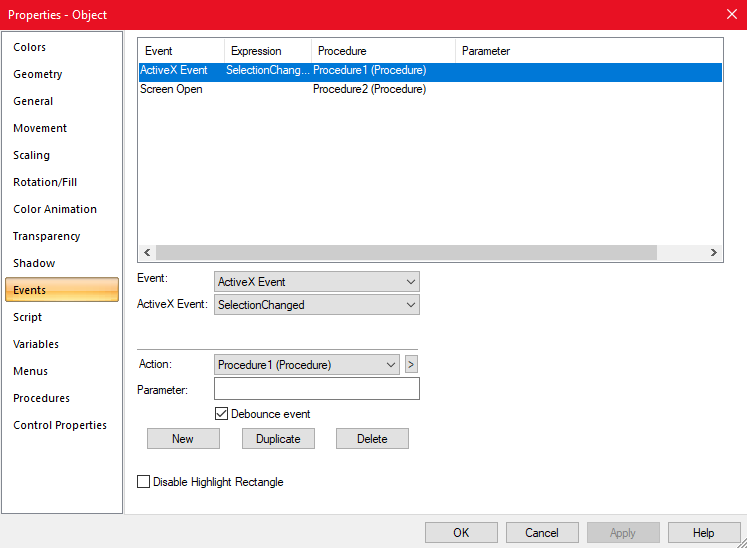
Procedures
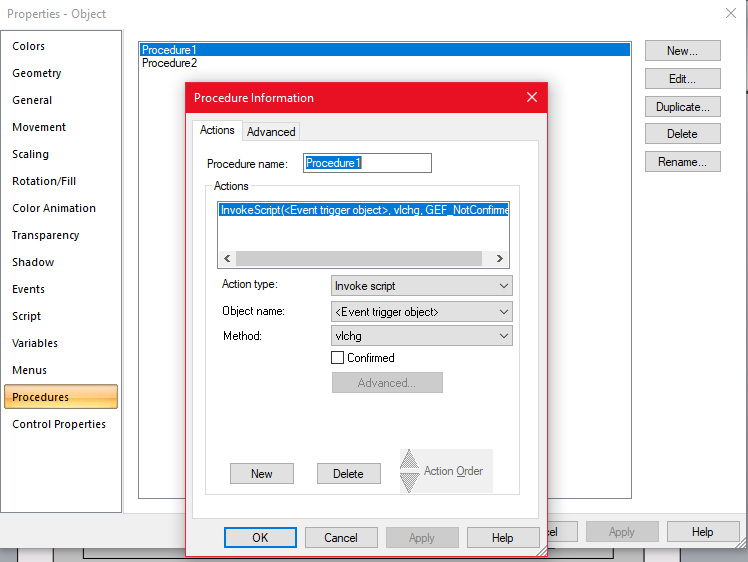
Now we need place a button which generates the Report(selected by user from the combobox) with a Mouse Up event to call the Script and give visibility to it({LOADER} eq 0).
Place your choice of loading animation and give visibility to it({LOADER} eq 1).
Also don't forget to create the SQL Stored Procedures also in the SQL Server. 😜