QuickBooks Error H202: How to Fix Multi-User Mode Connection Problems
Steven MoodyTroubleshoot server communication failures, firewall restrictions, hosting settings, and QuickBooks Database Server Manager to restore multi-user access.

Understanding QuickBooks Error H202
QuickBooks Desktop supports multi-user mode, allowing multiple employees to access the same company file over a shared network. However, this setup depends on reliable communication between the workstations and the computer hosting the company file.
When QuickBooks displays Error H202, a workstation cannot establish the required connection to the host computer. As a result, users may be unable to switch to multi-user mode or open a company file stored on another computer.
The issue is generally associated with network connectivity, hosting configuration, Windows firewall restrictions, or QuickBooks database services. It does not automatically mean that the company file is damaged.
Resolving the problem requires identifying which part of the network setup is preventing communication.
Common Reasons QuickBooks Displays Error H202
Several conditions can interrupt communication between QuickBooks workstations and the server.
1. Incorrect Hosting Configuration
The computer storing the company file should be configured as the host. If hosting settings are incorrectly enabled on a workstation, QuickBooks may experience problems locating the correct server.
2. Windows Firewall Restrictions
Windows Firewall or another security application may block the network traffic required by QuickBooks Desktop. When the necessary program or port permissions are missing, workstations may fail to connect to the company file.
3. QuickBooks Database Server Manager Problems
QuickBooks Database Server Manager helps other computers access company files stored on the server. If the required database service is stopped, misconfigured, or unable to scan the company file folder, multi-user access may fail.
4. Damaged or Incorrect Network Configuration
Incorrect folder-sharing permissions, disabled network discovery, connection problems, or changes to the server name can prevent workstations from locating the host computer.
5. QuickBooks Services Are Not Running
Services such as QuickBooksDBXX and QBCFMonitorService support QuickBooks network operations. If the required service is not running correctly, workstations may encounter H202.
How to Fix QuickBooks Error H202
Before making changes, close QuickBooks on the affected computers and create a backup of your company file. Identify the computer that actually stores the company file; this is the server for the following steps.
Solution 1: Run QuickBooks Database Server Manager
Database Server Manager is one of the most useful tools for diagnosing H202 because it checks the company file folder and helps configure the required firewall permissions.
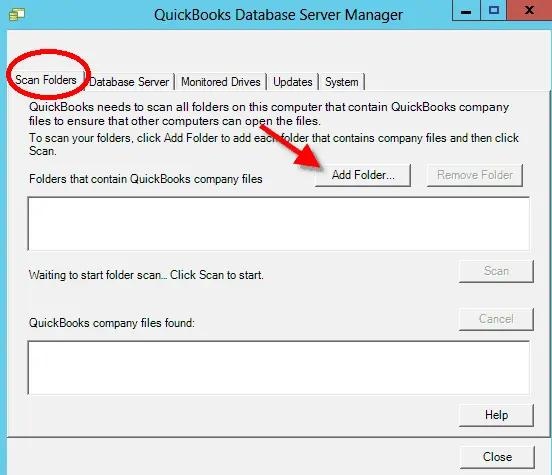
Follow these steps:
- Close QuickBooks Desktop on the server.
- Open QuickBooks Tool Hub on the server computer.
- Select Network Issues.
- Choose QuickBooks Database Server Manager.
- Browse to the folder containing your company file if it is not already listed.
- Select Start Scan.
- Allow the scan to finish.
- Close the utility after reviewing the result.
- Open QuickBooks on an affected workstation.
- Select File > Switch to Multi-user Mode.
If the workstation can now access the company file, test the connection on the other computers as well.
Solution 2: Verify QuickBooks Hosting Settings
Incorrect hosting settings can prevent the proper server from managing multi-user access.
On the server computer:
- Open QuickBooks Desktop.
- Open the company file.
- Select File > Utilities.
- If you see Host Multi-User Access, select it.
- If you see Stop Hosting Multi-User Access, do not select it.
On each workstation:
- Open QuickBooks Desktop.
- Select File > Utilities.
- If Stop Hosting Multi-User Access appears, select it.
- Do not enable hosting on a workstation that is not supposed to host the company file.
The goal is to keep hosting enabled on the designated server rather than on multiple computers.
Solution 3: Check QuickBooks Database Services
QuickBooks relies on Windows services to manage access to company files. Confirm that the appropriate services are running on the server.
- Press Windows + R.
- Enter services.msc and press Enter.
- Find the QuickBooksDBXX service corresponding to your installed QuickBooks version.
- Open its Properties.
- Check whether the service is running.
- If it is stopped, review the configuration and start it if appropriate.
- Check that its startup type is configured according to Intuit's instructions.
- Repeat the check for QBCFMonitorService.
- Reopen QuickBooks on the affected workstations and test multi-user mode.
The XX in QuickBooksDBXX varies by QuickBooks release. Do not assume that every installation uses the same service name.
Solution 4: Review Windows Firewall Settings
Firewall restrictions are a common reason for server communication failures.
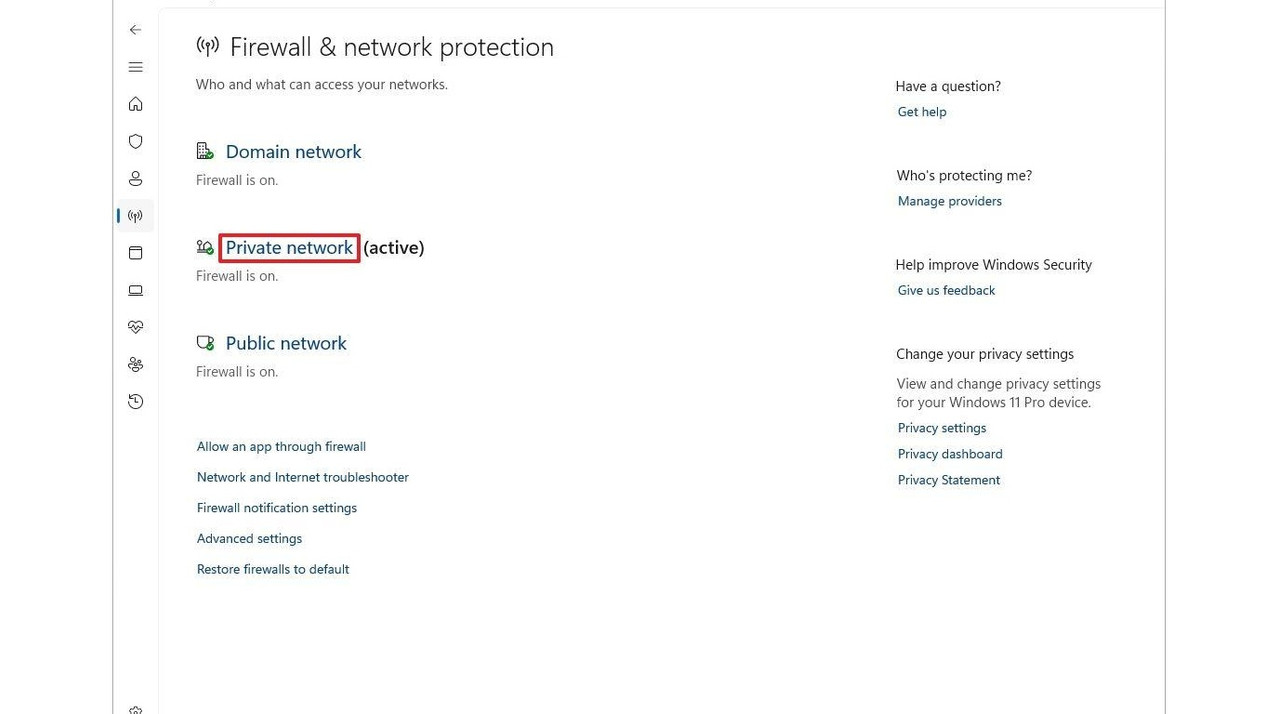
To investigate:
- Open the Windows Start menu on the server.
- Search for Windows Defender Firewall with Advanced Security.
- Select Inbound Rules.
- Review whether the appropriate QuickBooks programs and network ports are allowed.
- Check the corresponding Outbound Rules.
- Verify that the rules apply to the correct network profiles.
- Repeat the checks for any other security software managing network traffic.
QuickBooks Desktop versions use different port configurations. For QuickBooks Desktop 2019 and later, dynamic ports may be assigned during installation. Check the Port Monitor tab in QuickBooks Database Server Manager and use the port assigned to the installed version.
Do not open every port or disable the firewall entirely. Configure only the required exceptions for the appropriate QuickBooks version.
Solution 5: Check Company File Folder Permissions
Even when the server is reachable, incorrect folder permissions can prevent QuickBooks from accessing the company file.
- Locate the folder containing the company file on the server.
- Right-click the folder and select Properties.
- Open the Sharing tab.
- Review the advanced sharing configuration.
- Check the folder's Security permissions.
- Confirm that authorized users and the required QuickBooks services have appropriate access.
- Apply changes according to your organization's security policy.
Avoid giving every user unrestricted access. If you are unsure which permissions are necessary, have a Windows administrator review the configuration.
Solution 6: Test the Network Connection
A network test can help determine whether the workstation can communicate with the server.
First, find the server's computer name:
- Open the Windows Start menu on the server.
- Search for Command Prompt.
- Enter ipconfig /all.
- Locate the Host Name under Windows IP Configuration.
- Record the server name.
Next, test it from the affected workstation:
- Open Command Prompt.
- Enter ping ServerName, replacing ServerName with the actual host name.
- Press Enter.
- Review the response.
If the computer receives replies, basic network communication is working. If the test reports packet loss or cannot resolve the server name, investigate the network connection, name resolution, or firewall configuration.
A successful ping does not prove that all QuickBooks ports and services are working. It only helps check basic connectivity.
Solution 7: Run QuickBooks File Doctor
If the network and hosting configuration appear correct, use QuickBooks File Doctor to check for company-file and network-related issues.

- Open QuickBooks Tool Hub.
- Select Company File Issues.
- Choose Run QuickBooks File Doctor.
- Browse to the affected company file if it does not appear automatically.
- Select the network-related check option.
- Follow the instructions.
- Enter the company-file administrator credentials when requested.
- Allow the diagnostic process to complete.
- Test multi-user access again.
Make sure you use the official QuickBooks Tool Hub rather than an unofficial diagnostic download.
What If QuickBooks Error H202 Still Appears?
If the error continues after the above checks, avoid repeatedly changing network settings without identifying the underlying cause.
Collect the following information:
- The QuickBooks Desktop version installed on the server and workstations.
- The exact location of the company file.
- Whether the server can open the file locally.
- Whether all workstations or only one computer experience H202.
- The status of QuickBooksDBXX and QBCFMonitorService.
- The results of the network connectivity test.
- Any recent firewall, Windows, or network configuration changes.
If you use a third-party hosting provider, contact that provider for assistance with its hosting environment. Intuit also notes that QuickBooks Database Server Manager does not support NAS devices as company-file hosting locations.
How to Prevent QuickBooks H202 Errors
A properly maintained network environment can help reduce recurring multi-user connection problems.
- Keep QuickBooks Desktop updated.
- Maintain the appropriate Database Server Manager installation.
- Check QuickBooks services periodically.
- Review firewall rules after software or network changes.
- Keep company-file folders and permissions correctly configured.
- Use a consistent network setup for the server and workstations.
- Maintain regular company-file backups.
- Avoid moving company files without updating the corresponding network configuration.
Businesses that depend on multiple employees accessing the same accounting records should periodically verify that the server and workstations can communicate correctly.
Conclusion
QuickBooks Error H202 is primarily a multi-user network communication problem. It occurs when a workstation cannot establish the necessary connection to the computer hosting the company file.
The most effective troubleshooting approach is to verify the hosting configuration, run QuickBooks Database Server Manager, check database services, review firewall permissions, and test the network connection. QuickBooks File Doctor can provide additional diagnostic assistance when required.
Rather than reinstalling QuickBooks immediately, identify the component preventing communication and correct that specific issue. This approach can help restore multi-user access while reducing unnecessary changes to the accounting environment.
Frequently Asked Questions
1. What is QuickBooks Error H202?
QuickBooks Error H202 occurs when a workstation cannot communicate with the computer hosting the company file. It commonly affects attempts to switch to multi-user mode.
2. Can a firewall cause QuickBooks H202?
Yes. Windows Firewall or third-party security software may block the programs or ports required for QuickBooks network communication.
3. How do I run Database Server Manager to fix H202?
Open QuickBooks Tool Hub on the server, select Network Issues, open QuickBooks Database Server Manager, locate the company file folder, and select Start Scan.
4. Should hosting be enabled on every workstation?
No. In a typical self-hosted setup, the computer designated to host the company file manages multi-user hosting. Workstations should not independently host the same company file.
5. What is the difference between H202 and H505?
Both errors relate to multi-user connectivity, but H505 can involve incorrect hosting configuration on one or more computers. H202 generally indicates that a workstation cannot communicate with the host server.
6. Can QuickBooks File Doctor fix Error H202?
QuickBooks File Doctor can diagnose certain company-file and network problems. However, it may not resolve every firewall, hosting, or Windows service issue.
7. Why does QuickBooks H202 appear on only one workstation?
The affected computer may have a local firewall restriction, network configuration issue, incorrect folder access, or a connection problem that does not affect the other workstations.
8. Do I need to reinstall QuickBooks to fix H202?
Not necessarily. Check hosting settings, database services, firewall permissions, and network connectivity before considering an application repair or reinstallation.
About the Author
Steven Moody is a technology content writer associated with the Data Service Team. He writes practical educational guides covering QuickBooks troubleshooting, accounting software, payroll workflows, and business technology.
Website: https://dataserviceteam.com/
Phone: +1-(888)-718-7888