Popup Screen Script and Configuration
Vignesh M BHi,
In Cimplicity, We have Classes and Objects in order to simply replicate same behavior (type of device) with multiple instances(no of available devices of each type).
For Ex, If we have multiple devices which will have same number of Parameters(Inputs and Outputs), We can create a class called Device where we can define the similarities i.e Inputs and Outputs (as Data Items) and unique parameters which are used to identify each device(as Attributes).
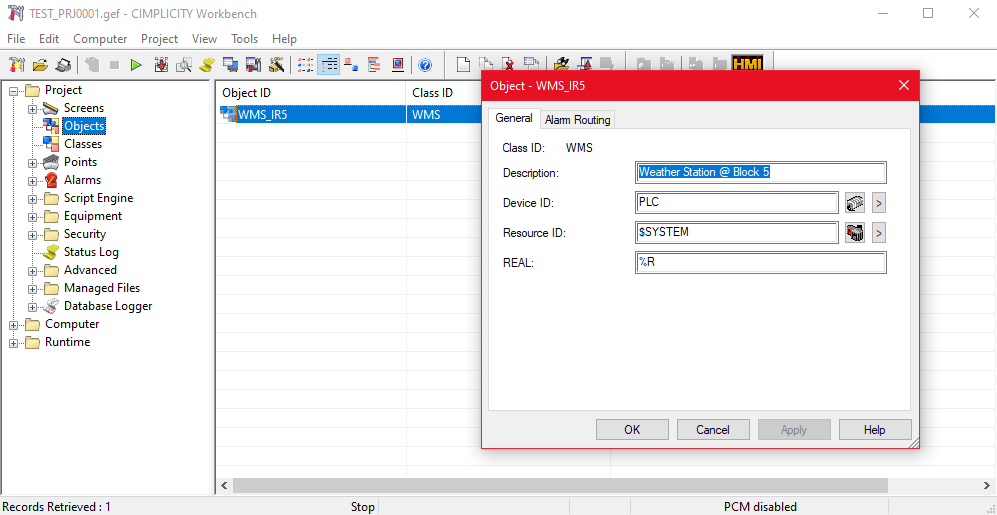
Once class Device is created, Multiple objects can be created based on the our class like Device_1 ,Device_2 ... Device_n. While creating we have to specify the values of Attributes we had created when creating the class.
Similarly a Single Screen i.e Popup can be parallelly used for Multiple Objects by passing the Object value to the screen while opening the screen itself.
For Example, I have created a Class for WMS(Weather Monitoring Station) which is a crucial device in Solar Power Plants.
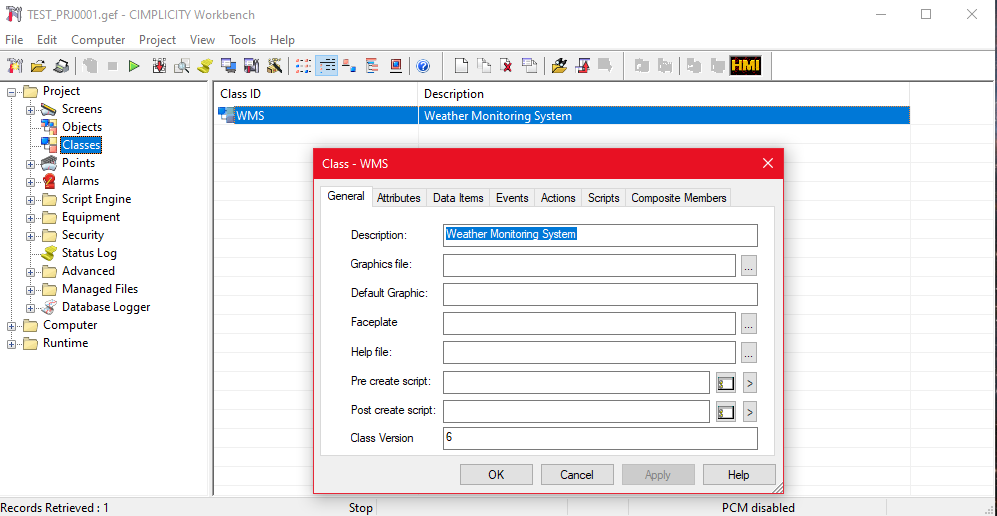
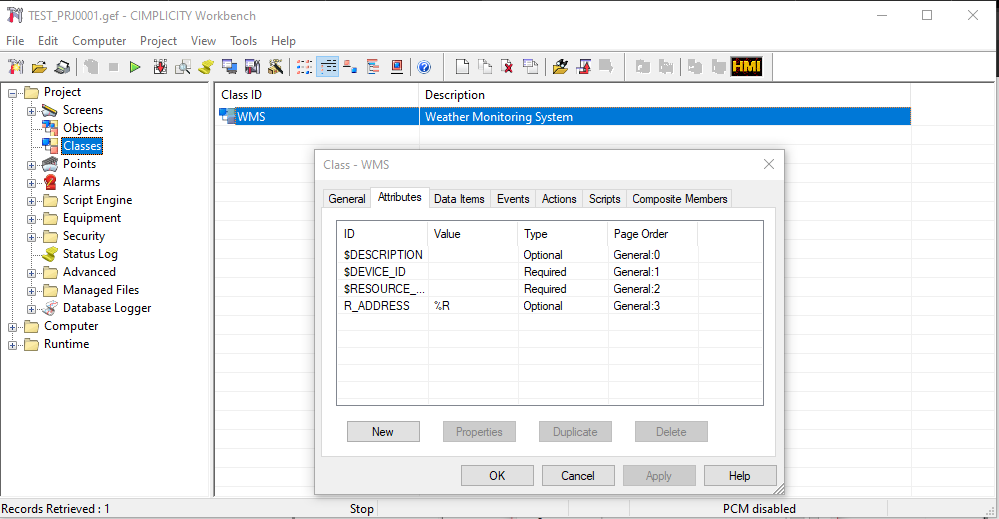
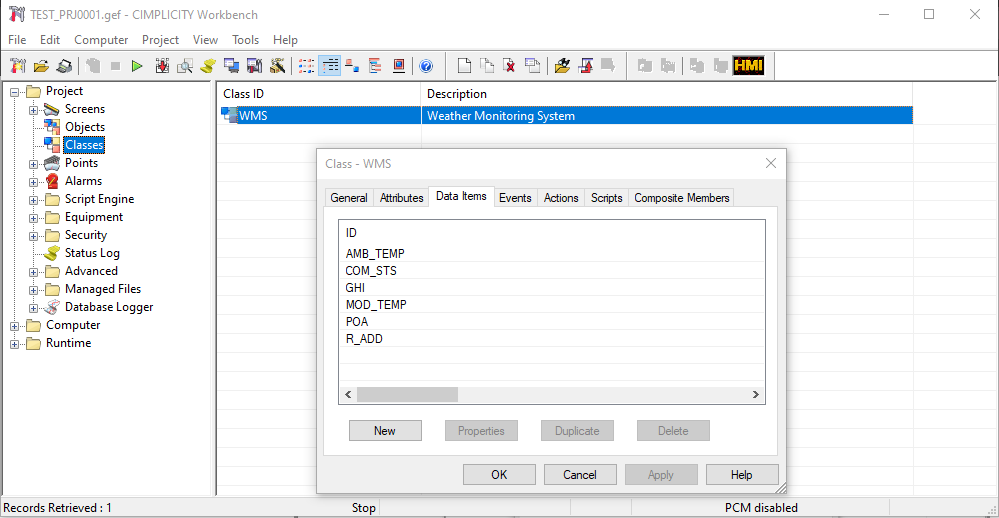
For the same Class, I have created a Object named "WMS_IR5"
There is a property called "VARIABLES" for each and every object in a screen and the screen itself. Using this variables as public, we can send values from one screen to another screen.
POPUP CALLING CONFIGURATION
We have button to call the popup & We are creating a variable called "$OBJECT" and making it as public.
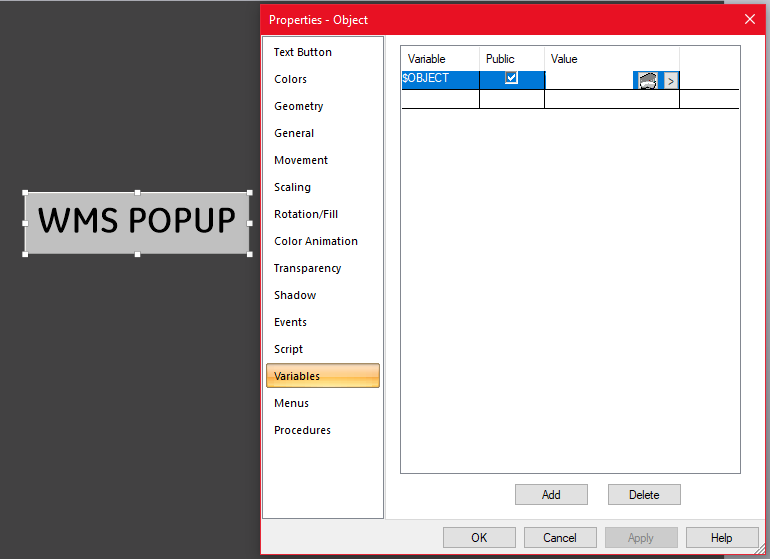
Get the Scripts from here and paste it in the script portion.
Configure the First Event as depicted below.
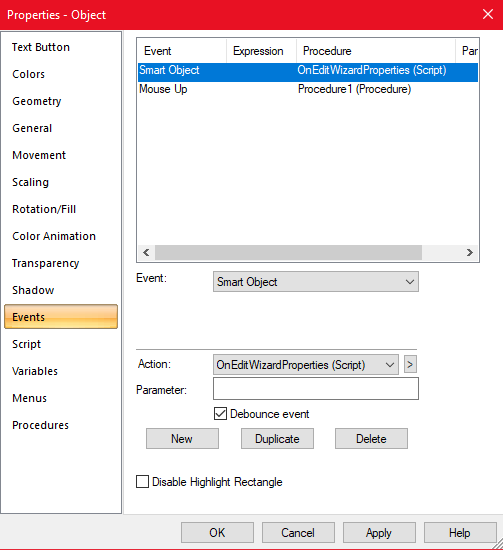
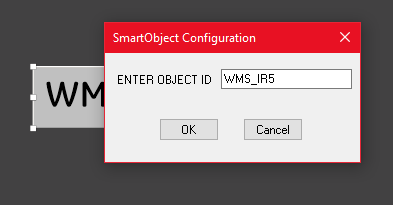
After creating the first event, Double click the Button. Give your Object name here (Which you want to give to Popup).
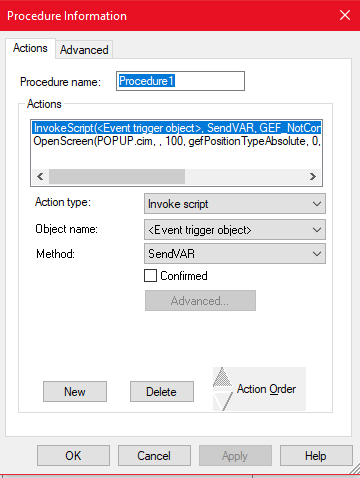
The Second Event('Mouse Up') have two actions in the procedures as shown below.
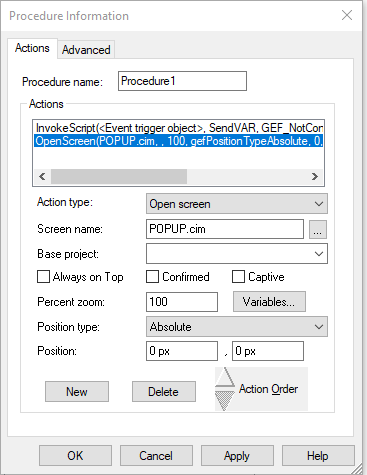
POPUP CONFIGURATION
In the Popup Screen, Create the variable "$OBJECT" in the screen properties.
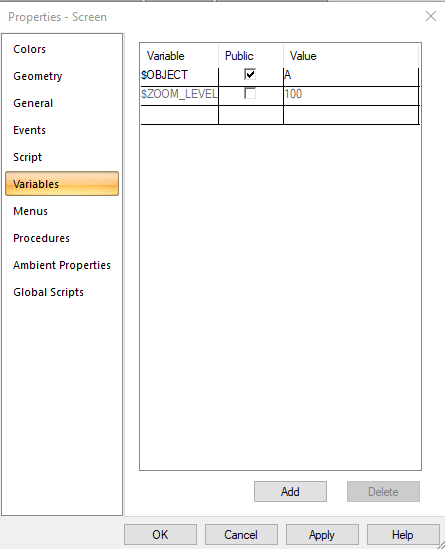
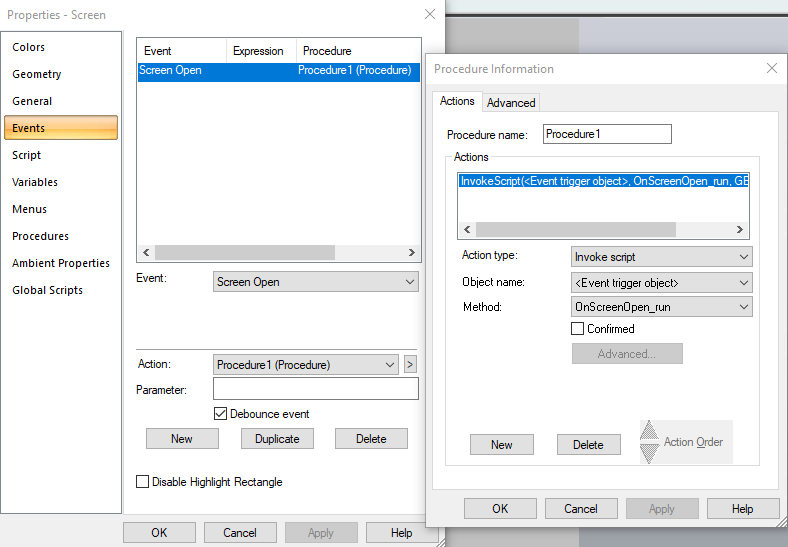
Copy script from here and configure the events as below.
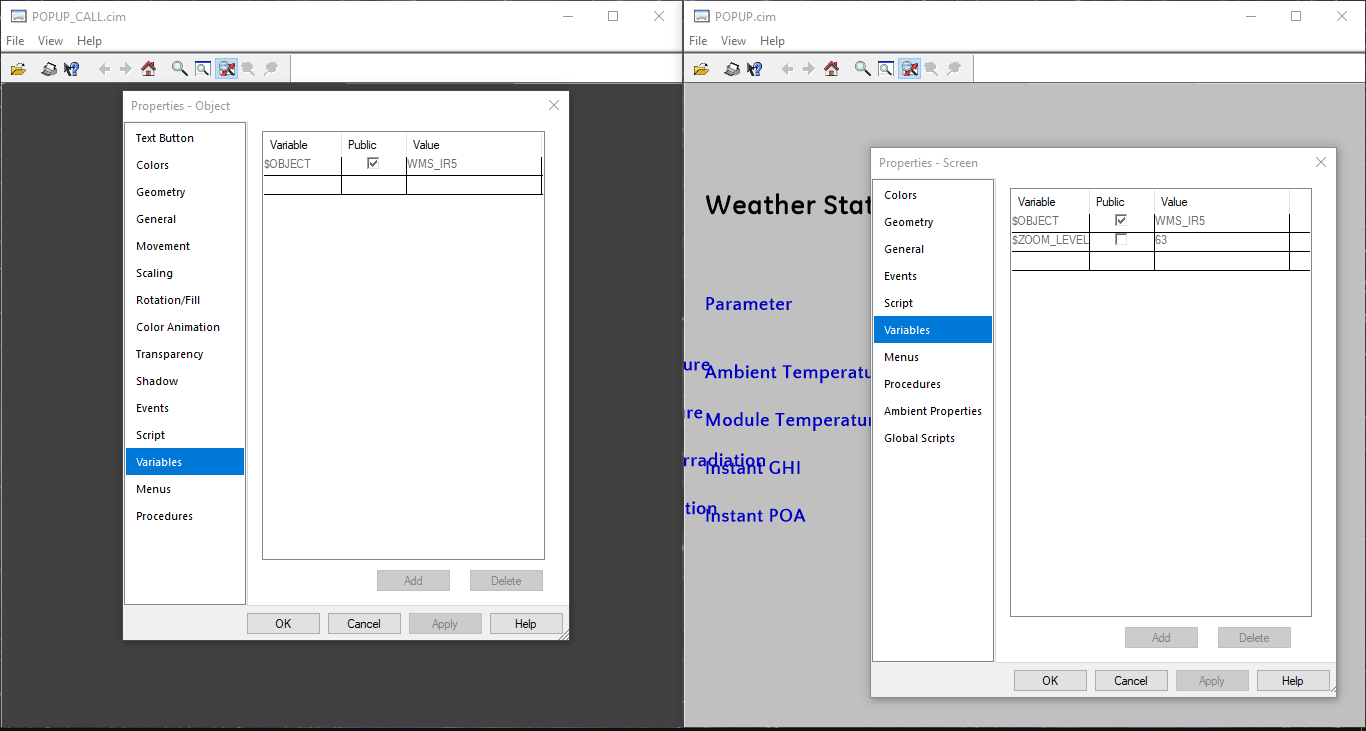
Now Run the Project and Try to Call your Popup and Check if the variable is passing.
For further exploring:-
My Cimplicity Screens(using Cimplicity 10 Sim 14)
GE page for Popup Screens and Templates
GE Sample Project(using Cimplicity 7) if you dont have GE Login