Poco guide U.S.
Crypto#4177Poco is a bot for listening to music with your friends, it also gives you the ability to create public and private playlists and search them (on a database)!
$help to see the available commands.
In all, there are 15 commands in the bot (including the $playlist command, whose operation will be explained later)
- $play [link or title]

This command is used to queue a song (if the queue is empty it will start directly).
Tracks with age limits cannot be entered!
If the link is a playlist, all the tracks will be inserted in the queue (it will not be possible for the bot to view a private playlist).
Aliases: $play - $p
- $stop
Terminate the player and clear the whole queue.
Aliases: $stop
- $disconnect
Clear the entire queue and get the bot out of the channel it's in.
Aliases: $disconnect - $dc - $leave - $quit
- $join
Enter the channel you are in.
Aliases: $join
- $pause
Pause the current track.
Aliases: $pause - $ps
- $resume
Resume the current track.
Aliases: $resume - $rs
- $skip
Skip the current track.
Aliases: $skip - $sk
- $song

Displays the track you are listening to.
Aliases: $song - $np
- $queue
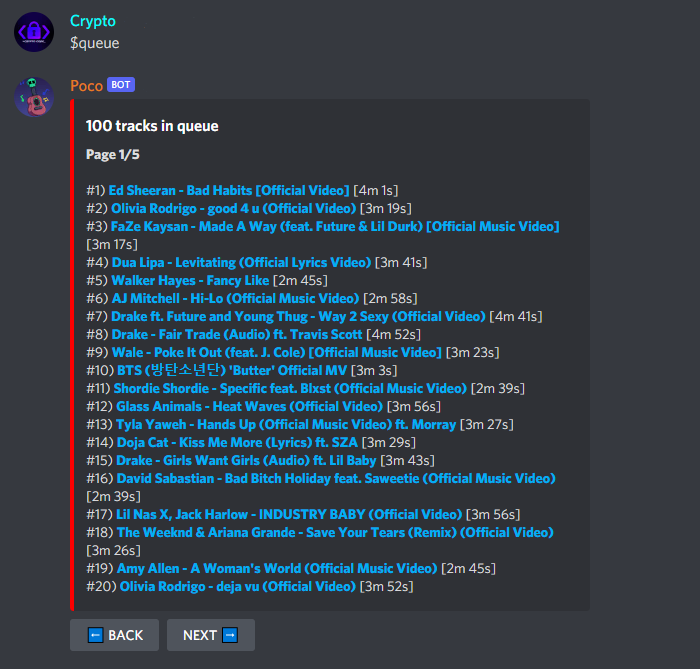
Shows all queued songs with their duration
You can also move forward and backward in the menu
Aliases: $queue - $q
- $remove [index]
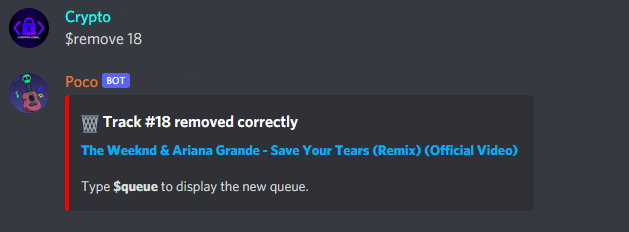
Remove a song from the queue.
Aliases: $remove - $rm
- $lyric

Show the lyric of the current track.
Sometimes, however, may not give results because the lyric of the track searched is not linked to the title of the track on youtube, so it is recommended to follow this syntax to search for it [Name - Author].

- $shuffle
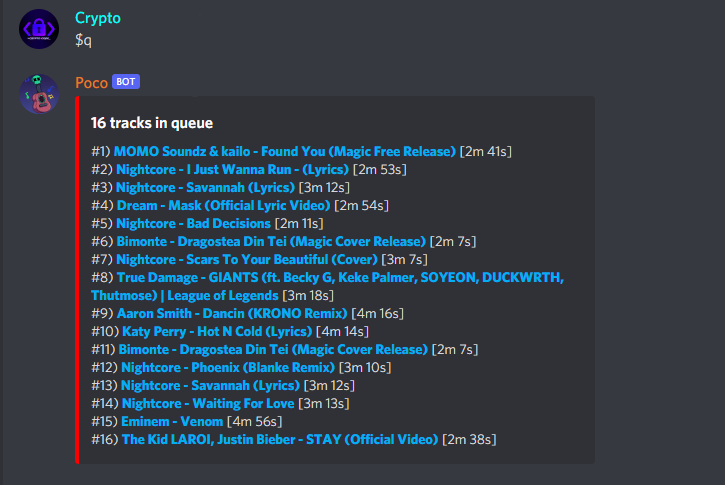
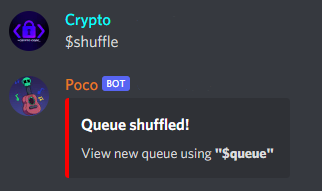

Aliases: $shuffle - $sh
- $loop

Loop the current song.
- $slider [hh:mm:ss]
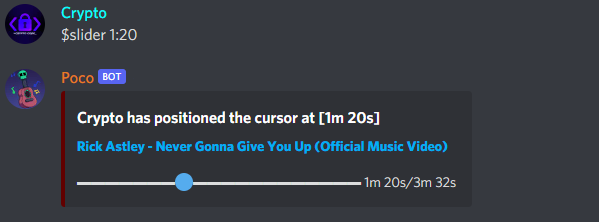
Lets you listen to a specific point in the track
You can also use a ":" since the bot converts seconds, e.g. $slider 80 is equal to 1m 20s
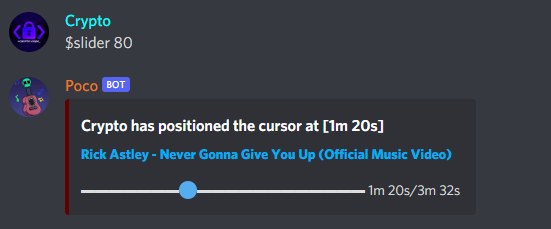
Now we come to the playlist part, in the bot there are 7 actions you can do using the $playlist command
Typing $playlist without further arguments shows you your playlists

The padlock means whether it is public (open) or private (locked), this feature will be explained later.
- $playlist [playlist's name]
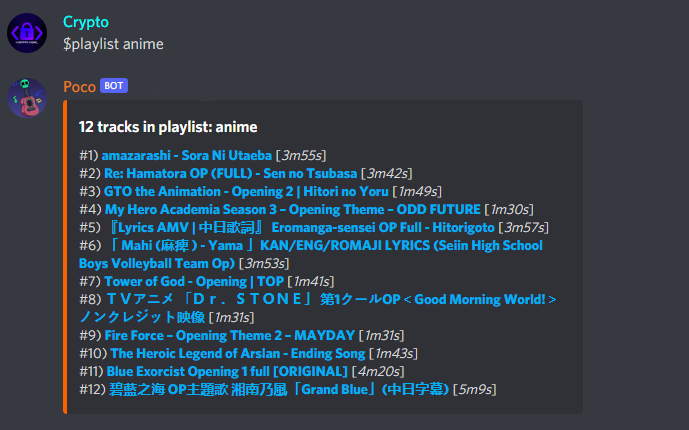
Instead, by typing following this format, the list of songs of the chosen playlist opens directly.
- $playlist -create [playlist's name] [public or private]

Create a playlist.
- $playlist -delete [playlist's name]
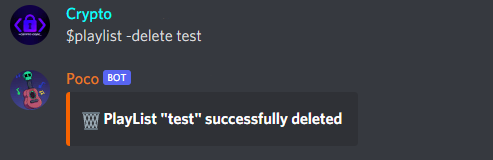
Delete your playlist.
- $playlist -add [playlist's name] [tracks links]

Adds a song to your playlist (you can post as many links as you like, only accepts links).
If one of the links is wrong, it will simply not be counted.
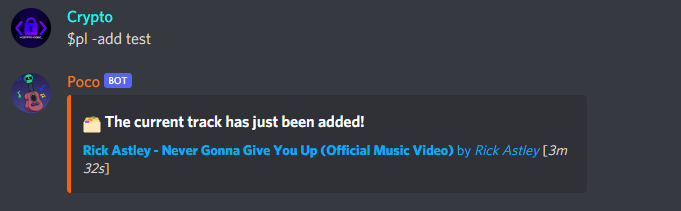
If the links are omitted, the current song will be added to the playlist.
- $playlist -remove [playlist's name] [tracks links or tracks index]
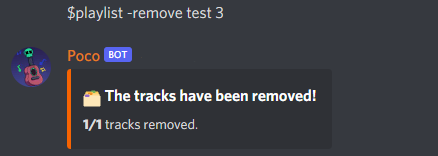
Removes a song from your playlist (you can insert as many links or index as you want).
- $playlist -search [playlist's name]
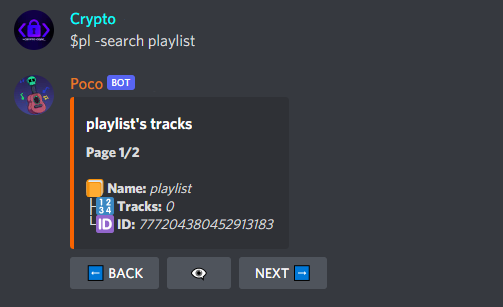
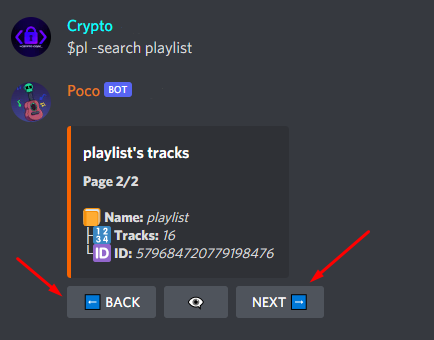
To view the tracks instead:
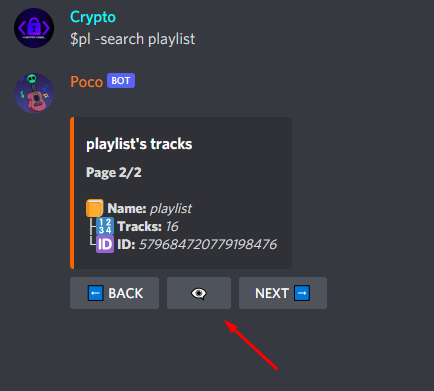
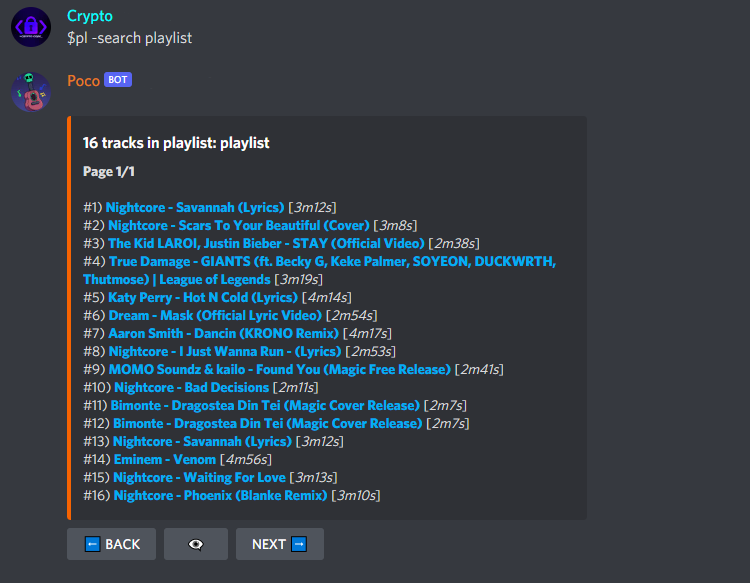
Obviously you can only search for public playlists
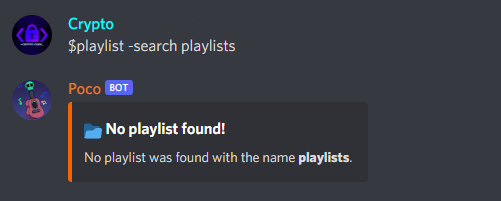
- $playlist -show [playlist's name] [playlist's owner ID]
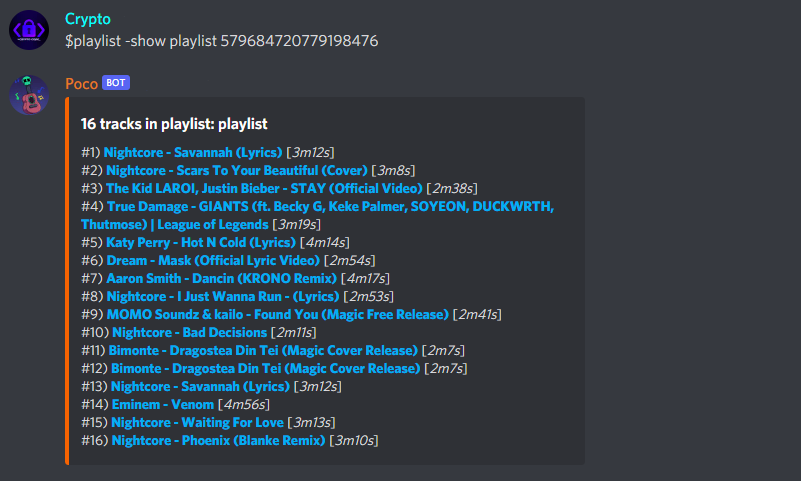
It shows you all the songs in the PUBLIC playlist with that name and id.
- $playlist -play [playlist's name] [playlist's id]
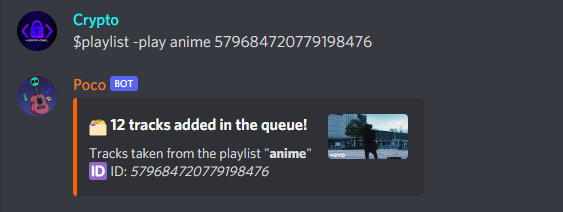

It plays the tracks in the PUBLIC playlist with that name and id, if you omit the id it plays directly your playlist with that name.
NOTE:
A public playlist can be searched/viewed/listened to by other users.
A private one is visible only to its creator.
The IDs of a playlist can be found by searching for it.
Aliases: $playlist - $pl
DEVELOPER:
Discord: Crypto#4177
Telegram: @Crypto_Code
Fiverr: NullTesting
Github: CarbonCock