Pixl | Flash Steps & Recommendations
@iamakima
Flash Steps & Recommendations
If you don't know how to flash any ROM and give some report things that you've no ideia it works. It because you don't flashed in correctly way. So don't use it, just go back to your memeui.

# Clean Flash means (wipes on):
- Dalvik / Art Cache
- Cache
- System
- Vendor
- Data

# Flashing Pixl
- After you did those wipes, flash pixlrom.zip
- Flash Firmware (Download)
- Magisk version recommended v23/24 (you can update if you want to)
- Kernel (optional, check this compatible list)
- DFE/DM Last file you'll flash
- Format Data and type yes
- Reboot system
- Enjoy

# Plus
Did you did that? Ok, you'll be fine and everything should works nice. That's why notes and support official group exists, try to contact or get some info, also be a nice person, someone will help you for sure. ;)

# Guide to Restore a Google Backup & SafetyNet
Guide to Login to your Google Account and restore your cloud backup in you first boot
Important: This guide if for rooted (Magisk) devices
So,
Please, in your first boot don't start login to your Google account,wait! In an initial setup, just click on skip & skip until you come to home screen. Ignore login prompt for a while.
- Connect to your wifi
- Open Magisk app and install it
- Open Magisk after installed
- Ignore requirement prompt
- Go to Settings (in Magisk)
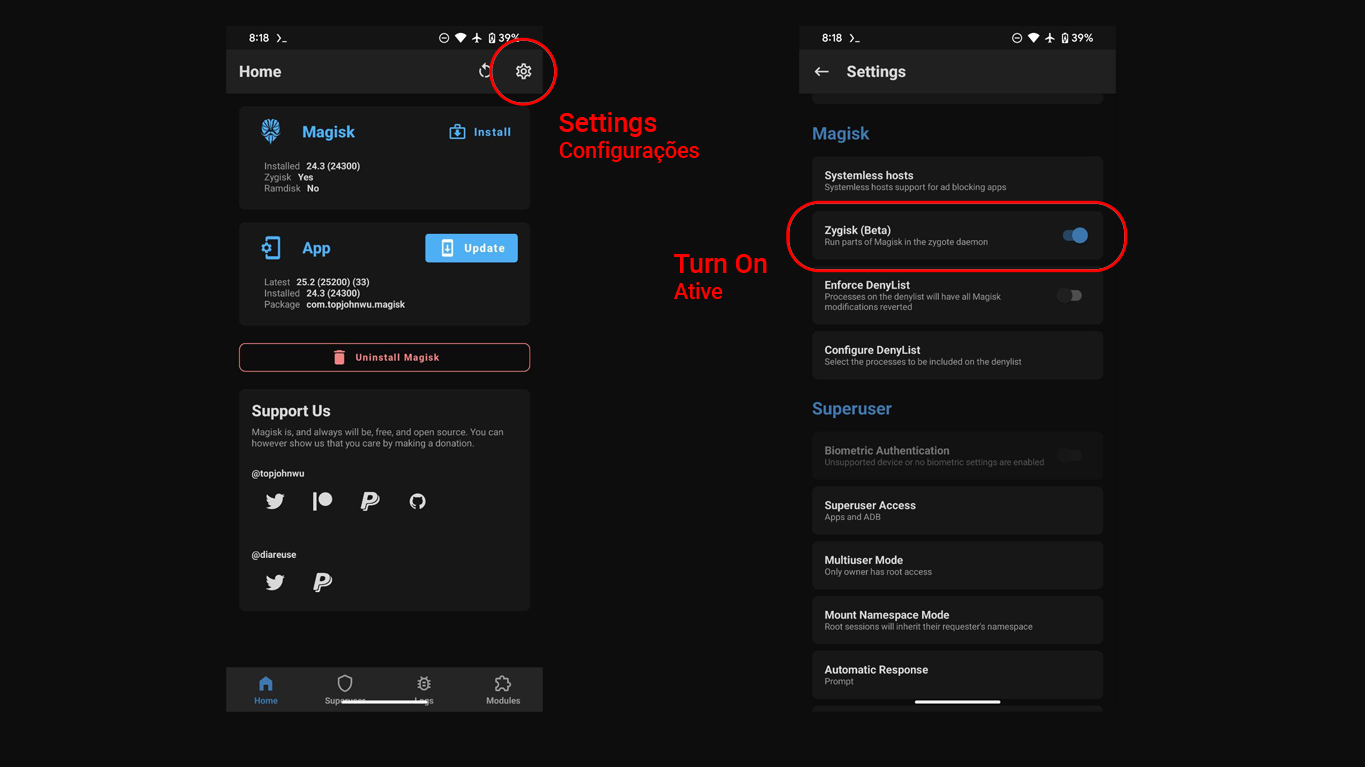
- Enable Zygisk
- Close Magisk from recent app list
- Open Magisk again and accept prompt requirement additional
- Your device will reboot automatically
- Wen boots, go to Magisk and flash this module
- Reboot
- Wait Pixel Setup notification ;)
Now, check if SafetyNet passes and if ok, just go! You can login to your Google Account.