Origami Simulator
Телеграм -> @oscave ORIGAMI SIMULATOR
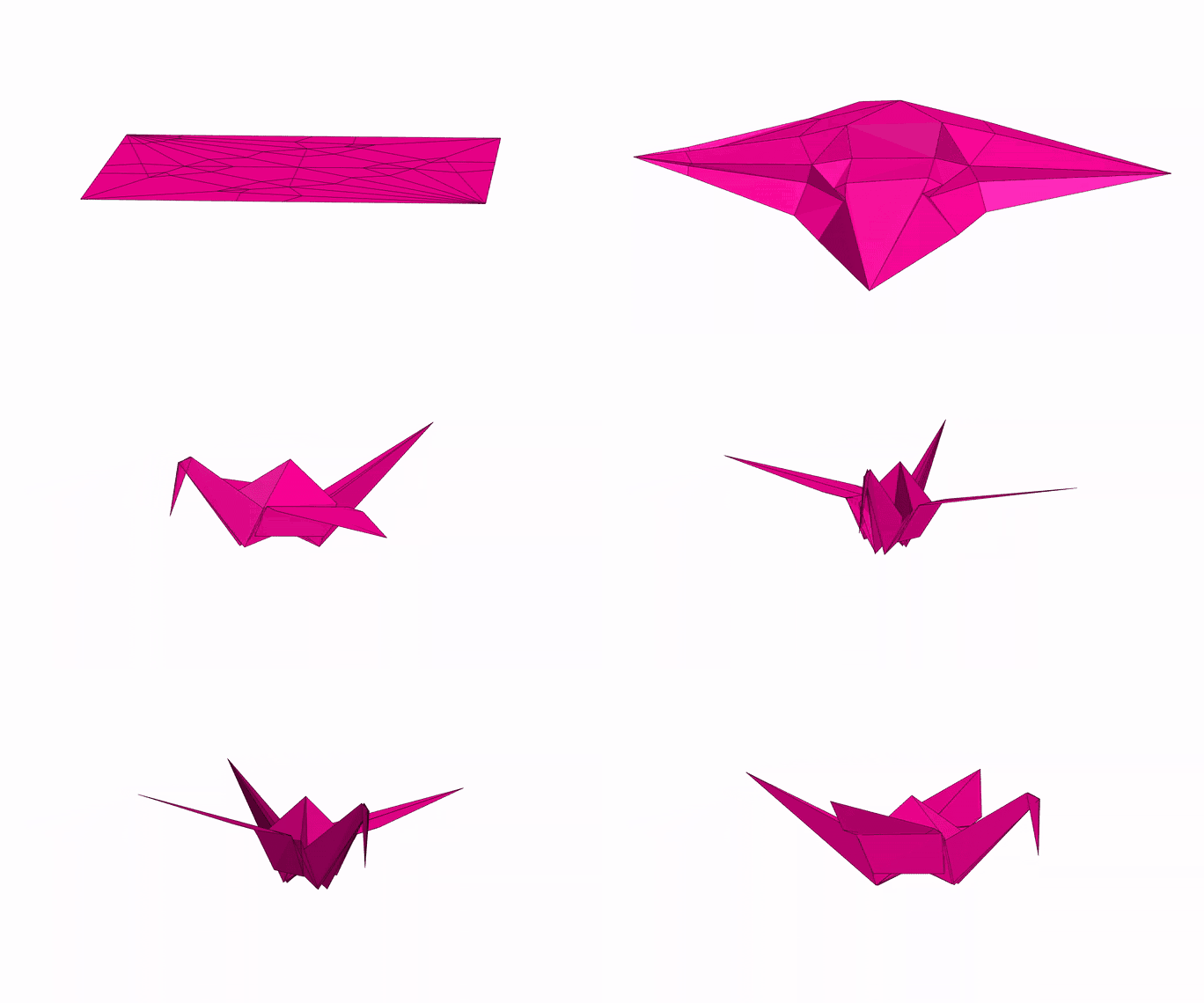
This app allows you to simulate how any origami crease pattern will fold. It may look a little different from what you typically think of as "origami" - rather than folding paper in a set of sequential steps, this simulation attempts to fold every crease simultaneously. It does this by iteratively solving for small displacements in the geometry of an initially flat sheet due to forces exerted by creases. You can read more about it in our paper:
- Fast, Interactive Origami Simulation using GPU Computation by Amanda Ghassaei, Erik Demaine, and Neil Gershenfeld (7OSME)
All simulation methods were written from scratch and are executed in parallel in several GPU fragment shaders for fast performance. The solver extends work from the following sources:
- Origami Folding: A Structural Engineering Approach by Mark Schenk and Simon D. Guest
- Freeform Variations of Origami by Tomohiro Tachi
This app also uses the methods described in Simple Simulation of Curved Folds Based on Ruling-aware Triangulation to import curved crease patterns and pre-process them in a way that realistically simulates the bending between the creases.
Originally built by Amanda Ghassaei as a final project for Geometric Folding Algorithms. Other contributors include Sasaki Kosuke, Erik Demaine, and others. Code available on Github. If you have interesting crease patterns that would make good demo files, please send them to me (Amanda) so I can add them to the Examples menu. My email address is on my website. Thanks!
Instructions:
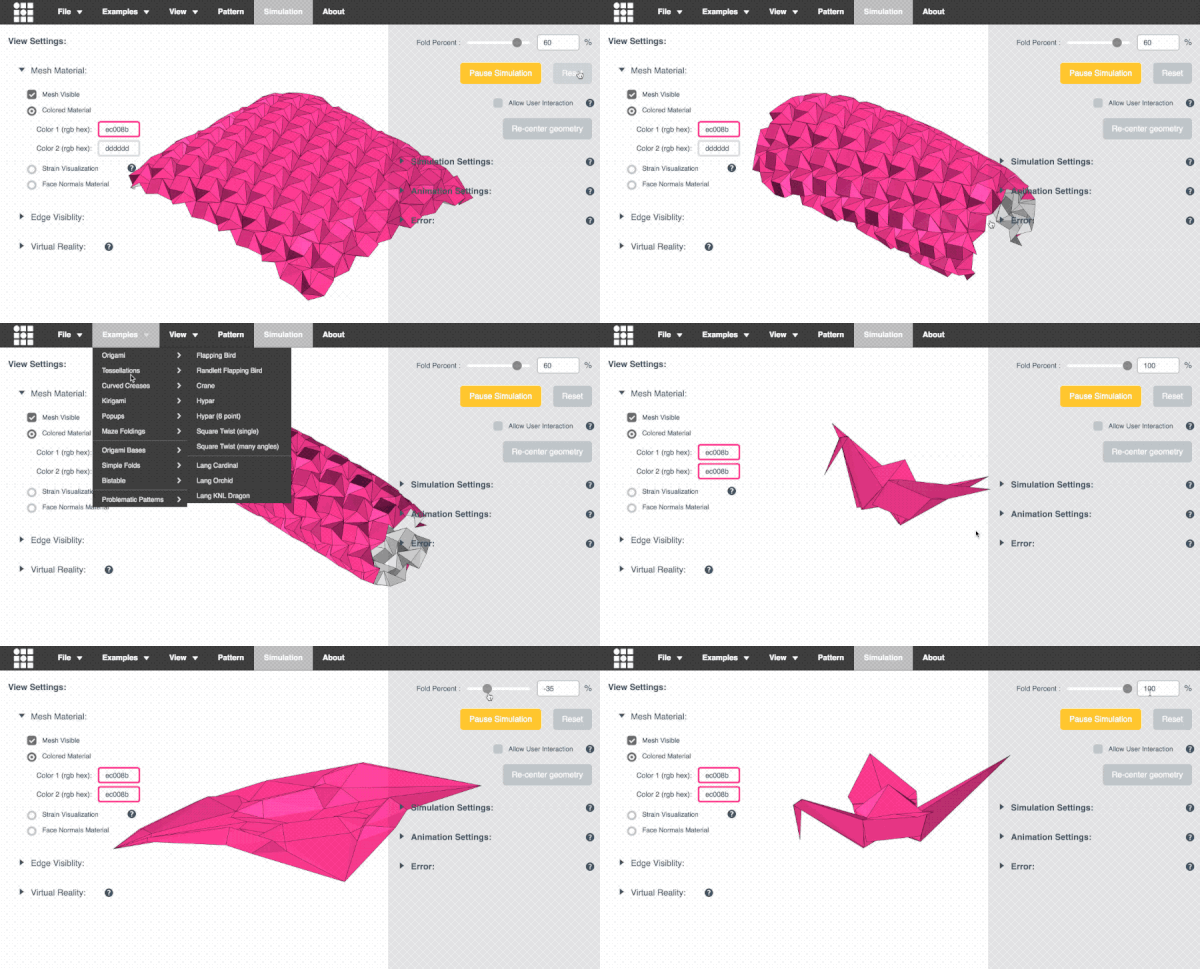
- Slide the Fold Percent slider to control the degree of folding of the pattern (100% is fully folded, 0% is unfolded, and -100% is fully folded with the opposite mountain/valley assignments).
- Drag to rotate the model, scroll to zoom.
- Import other patterns under the Examples menu.
- Upload your own crease patterns in SVG or FOLD formats, following these instructions.
- Export FOLD files or 3D models ( STL or OBJ ) of the folded state of your design ( File > Save Simulation as... ).

- Visualize the internal strain of the origami as it folds using the Strain Visualization in the left menu of the Advanced Options.

- If you are working from a computer connected to a VR headset and hand controllers, follow these instructions to use this app in an interactive virtual reality mode. (sorry I think this may be deprecated now!)
External Libraries:
- All rendering and 3D interaction done with three.js
- svgpath and path-data-polyfill helps with SVG path parsing
- FOLD is used as the internal data structure, methods from the FOLD API used for SVG parsing
- Arbitrary polygonal faces of imported geometry are triangulated using the Earcut Library and cdt2d
- numeric.js for linear algebra operations
- GIF and WebM video export uses CCapture
You can find additional information in our 7OSME paper and project website. If you have feedback about features you want to see in this app, please see this thread.


- File
- Examples
- Origami
- Tessellations
- Miura-Ori
- Miura-Ori (sharp angle)
- Waterbomb
- Whirlpool Spiral
- Flower Tower (flat foldable)
- Hex/Tri Tessellation (flat foldable)
- Huffman Extruded Boxes
- Huffman Waterbombs
- Huffman Rect Weave
- Huffman Stars-Triangles
- Huffman Exdented Boxes
- Lang Honeycomb Tessellation
- Lang Wedged Double Faced Tessellation
- Lang Oval Tessellation
- Lang Hyperbolic Limit
- Resch Triangle Tessellation
- Resch Barbell Tessellation
- Curved Creases
- Kirigami
- Popups
- Maze Foldings
- Pleating
- Origami Bases
- Simple Folds
- Bistable
- Problematic Patterns
- View
- Pattern
- Simulation
- About
Fold Percent :
Hide Advanced Options
Fold Percent : %
Allow User Interaction
Numerical Integration: Euler (first order) Verlet (second order)
Axial Stiffness : Face Stiffness : Fold Stiffness : Facet Crease Stiffness : Damping Ratio :
Δt = seconds
Num simulation steps per frame:
Average vertex error:
Load more origami patterns here! Help Us Improve Origami Simulator ➜

Material

Strain View Mode
Folded Fold Percent: %

Rotate

Grab Control Mode
View Settings:
Mesh Material: Mesh Visible Colored Material Color 1 (rgb hex):
Color 2 (rgb hex):
Strain Visualization
Max Strain: %
Face Normals Material
Edge Visibility: Edges Visible Mountains Valleys Facet Creases Undriven Edges Boundary Edges
Status:
DESIGN TIPS
Bad design files will throw errors and create models that explode or cannot be solved, here are some tips for importing FOLD or SVG files that work.
Importing FOLD:
The FOLD file format is specified in these docs. This tool imports FOLD v1.0 files with all of the following fields populated:
- vertices_coords
- edges_vertices
- edges_assignment
- faces_vertices
You may specify the target fold angle of each crease using the edges_foldAngle field. Note that fold angle is a number in degrees lying in the range [−180, 180]. The fold angle is positive for valley folds, negative for mountain folds, and zero for flat regions. Accordingly, the sign of edges_foldAngle should match edges_assignment if both are specified. You may also assign a null fold angle to a crease so that it is allowed to move freely - this is especially useful when the fold angle is unknown or the crease pattern is fully constrained and able to be driven by other creases in the system.
If you are unsure whether your FOLD file is valid, you can inspect it using the
FOLD Viewer. If you are having trouble, please refer to the
Importing SVG:
- The SVG importer supports path, line, rect, polygon, and polyline objects with the appropriate stroke color:
- Mountain folds have red stroke - rgb(255, 0, 0), hex #ff0000
- Valley folds have blue stroke - rgb(0, 0, 255), hex #0000ff
- Boundary edges have black stroke - rgb(0, 0, 0), hex #000000 - use this edge type for both the outline of the pattern, and any internal holes.
Your browser does not support SVG
- The final fold angle of a mountain or valley fold is set by its opacity. For example, 1.0 = 180° (fully folded), 0.5 = 90°, 0 = 0° (flat). Any fold angle between 0° and 180° may be used. The following patterns contain creases with varying final fold angles:
Your browser does not support SVG
- Before the model can enter the simulator, this tool will automatically triangulate regions in the pattern that form polygons with more than three sides. To control the triangulations, draw lines in yellow - rgb(255, 255, 0), hex #ffff00. In general, patterns are more stable when their triangulation is symmetric and minimizes long, skinny triangles. You can see how the app automatically triangulated your pattern by enabling "Facet Crease" visibility in the Advanced Options > Edges Visibility menu on the left side of the screen. It may not be necessary to add triangulation lines on your pattern.
Your browser does not support SVG
- Facet creases (yellow triangulation lines) are creases that try to remain flat (0° fold angle) as the pattern folds, but some compliance in the constraints of the simulation will allow them to bend slightly. Drawing in facet creases allows you to control the way the model bends in between mountain/valley folds. This is especially relevant in patterns with curved creases. If you import an svg with bezier curves and select the checkbox "crease pattern contains curves" in the import dialog, we attempt to triangulate it for you using the algorithm described by Simple Simulation of Curved Folds Based on Ruling-aware Triangulation. We recommend trying this first, and add additional facet creases to your svg design where needed.
Your browser does not support SVG
- Cuts have green stroke - rgb(0, 255, 0), hex #00ff00 - use this edge type to form thin slits in the pattern.
Your browser does not support SVG
- Undriven creases have magenta stroke - rgb(255, 0, 255), hex #ff00ff - creases of this type will swing freely. Use this crease type when you're not sure what angle some of the creases in your pattern should fold to.
Your browser does not support SVG
- Line style and stroke width do not matter.
- Remove clipping masks from your file before importing.
- This tool should be able to automatically clean files of slightly misaligned vertices, stray vertices, duplicate lines, and extra vertices falling in the middle of an edge, but it is recommended to remove these errors yourself in order to avoid problems.
- If your simulation is not working, check that the imported pattern looks correct by clicking on the Pattern view in the top nav bar. You can also download a copy of the imported pattern ( File > Save Pattern as SVG ) and view it in a vector editing program of your choice.
For Adobe Illustrator users:
I use Illustrator to create SVGs (though any vector editing program should be fine). Here are some tips I've found for making svgs to import into this tool.
- If you are starting with a pre-made vector file, first release all clipping masks (Select all + Object > Clipping Mask > Release).
- Create geometry using the Line Segment, Rectangle, and Polygon tools.
- Illustrator can help you select all lines of a particular type so that you can edit their color or opacity together. Click the line, then go to Select > Same > Appearance to select all similar lines in the pattern.
- Be sure that CSS Properties is set to Presentation Attributes in the Advanced options.
- Finally hit Save As and select .svg extension. I'm using the default SVG 1.1 settings, but version 1.0 will work as well.

VIRTUAL REALITY
This tool currently supports an interactive Virtual Reality mode for the Vive and Oculus headset and controllers (it may work on others, but it is not tested). For this to work, you must first use a WebVR enabled browser: currently only an experimental build of Chromium (with enable-webvr and -enable-gamepad-extensions flags) and the latest Firefox for Windows are supported by this app.
When you open this page with the appropriate browser, you will see a button that says "ENTER VR". Clicking this will put the app into an interactive VR mode. The hand controllers will allow you to grab the origami mesh and pull on it. This is especially interesting if you set the Mesh Material to Strain Visualization so you can see how your interactions change the internal strains in the material.
Troubleshooting:
- If the simulation looks choppy, consider lowering the Animation Settings > Num Steps Per Frame setting.
- The origami should load up in the center of your playspace. If things load way off in the distance, you may need to reboot your headset and controllers and refresh this app. I do this through SteamVR.
- If you hand controllers are not appearing, try clicking the System Button (Vive) to get them to wake up. If you still have trouble connecting, try refreshing this app.
- WebVR is changing rapidly, if you cannot connect be sure you have the latest browser version and install any firmware updates on your headset, controllers, and sensors.
ANIMATION SETTINGS
The dynamic simulation is calculated by solving for all the forces in the system, moving time forward in small Δt steps, and updating the vertices of the origami incrementally. The time step size for this animation is calculated automatically based on the material stiffnesses set in the Simulation Settings section: more stiff settings require shorter time steps to solve and will slow down the simulation.
Num simulation steps per frame allows you to control the number of tiny time steps forward to take on each render cycle. If the simulation looks choppy to you, you might consider lowering this setting. Lowering the number of steps per frame will slow down the simulation, but will result in a more smooth animation.
EXPORT STL
Filename: .stl
Scale:
Dimensions:
( the STL file format is unitless, but typically assumed to be either in inches or mm )
Double Sided
EXPORT OBJ
These OBJs are compatible with Freeform Origami
Filename: .obj
Scale:
Dimensions:
( the OBJ file format is unitless, but typically assumed to be either in inches or mm )
Double Sided
EXPORT FOLD
Filename: .fold
Author:
Scale: Units:
Dimensions:
Save with triangulated faces Save target angles in edges_foldAngle For more information about the FOLD file format, see the
offical docs. Use the
FOLD viewer to check that your file has been exported correctly.
IMPORT FOLD
Use current angles as target fold angles
SIMULATION ERROR
Average vertex error gives a sense of how much the distance constraints in the origami pattern are being violated (i.e. how much the sheet is being stretched). The error at each vertex is evaluated by averaging the percent deviation of all its distance constraints with adjacent vertices. This error is reported as a percent of the total length of the distance constraint to remove scaling effects.
This measurement is equivalent to Cauchy strain or engineering strain of the distance constraints on this system. Increasing the Axial Stiffness will tighten these constraints and lower the error in the simulation.
To visualize the error of each vertex graphically, select Strain Visualization under Mesh Material in the left menu.
SIMULATION SETTINGS
This app uses a compliant dynamic simulation method to solve for the geometry of an origami pattern at a given fold angle. The simulation sets up several types of constraints: distance constraints prevent the sheet from stretching or compressing, face constraints prevent the sheet from shearing, and angular constraints fold or flatten the sheet. Each of these constraints is weighted by a stiffness - the stiffer the constraint, the better it is enforced in the simulation.
Axial Stiffness is the stiffness of the distance constraints. Increasing axial stiffness will decrease the stretching/compression (strain) in the simulation, but it will also slow down the solver. Face Stiffness is the stiffness of the face constraints, which help the axial constraints prevent deformation of the sheet's surface between the creases.
Fold and facet stiffnesses correspond to two types of angular constraints. Fold Stiffness is the stiffness of the mountain and valley creases in the origami pattern. Facet Stiffness is the stiffness of the triangulated faces between creases in the pattern. Increasing facet stiffness causes the faces between creases to stay very flat as the origami is folded. As facet stiffness becomes very high, this simulation approaches a rigid origami simulation, and models the behavior of a rigid material (such as metal) when folded.
Internally, constraint stiffnesses are scaled by the length of the edge associated with that constraint to determine its geometric stiffness. For Axial constaints, stiffness is divided by length and for angular constraints, stiffness is multiplied by length.
Since this is a dynamic simulation, vertices of the origami move with some notion of acceleration and velocity. In order to keep the system stable and help it converge to a static solution, damping is applied to slow the motion of the vertices. The Damping slider allows you to control the amount of damping present in the simulation. Decreasing damping makes the simulation more "springy". It may be useful to temporarily turn down damping to help the simulation more quickly converge towards its static solution - especially for patterns that take a long time to curl.
A Numerical Integration technique is used to integrate acceleration into velocity and position for each time step of the simulation. Different integration techniques have different associated computational cost, error, and stability. This app allows you to choose between two different integration techniques: Euler Integration is the simplest type of numerical integration (first order) with large associated error, and Verlet Integration is a second order integration technique with lower error and better stability than Euler.
COMPLIANT DYNAMIC SIMULATION
....
COMPLIANT STATIC SIMULATION
....
RIGID STATIC SIMULATION
....
STRAIN VISUALIZATION
Cauchy strain or engineering strain is a unitless measurement of how much a material is being stretched or compressed under load. The Strain Visualization illustrates the strain across an origami sheet by mapping it to a color from blue (no strain) to red (max strain).

USER INTERACTION
Toggle this control to enable/disable mouse interaction with the origami model. When enabled, mousing over the model will display a highlighter; clicking and dragging allows you to interact with the model in real time. Very vigorous interactions with the model may cause it to pop into a strange configuration that it can't escape - use the Reset button to start the simulation again from a flat state.
ROTATION SPEED
Speed : ( radians per frame )
BACKGROUND COLOR
Color (rgb hex) :
Hex colors are 6 digit alphanumeric codes that specify different colors. You can get these codes using a color picker.
SVG IMPORT SETTINGS
Vertex merge tolerance (px) :
Vertices within this px tolerance in the SVG will be merged into one. It is recommended to keep this number above zero.
For curved folding crease pattern contains curves
Check this box if the crease pattern contains curves.
Intervals of vertices for discretization (px) :
Curves and borderlines are divided into segments by this value. It is recommended to keep this number above zero.
Approximation tolerance of curves (px) :
Curves are approximated by polylines. The smaller the value, the higher the quality of the approximation. Having trouble? See these
SVG Import Tips. This app uses GPU functions that are not supported by this device/browser, please try again on desktop with Chrome/Firefox.
This file was generated by
Maze Folder, an app by
Martin Demaine, and
Jason Ku that creates crease patterns for any raised maze on a square grid. Based on the paper
Folding Any Orthogonal Maze by the same authors. Designed by
David Huffman. Crease pattern adapted from the paper
Reconstructing David Huffman's Origami Tessellations. Designed by
David Huffman. More info about Huffman's curved crease folding can be found in the paper
Reconstructing David Huffman’s Legacy in Curved-Crease Folding and the thesis
Computational design with curved creases : David Huffman's approach to paperfolding. Designed by
Ron Resch. Conventional paper airplane. Pattern entered by
Scott Pakin. Designed by
Robert Lang. All original crease patterns can be found on
Lang's website. Designed by
Robert Lang using
Treemaker. More info about Lang's Treemaker software can be found in the
Treemaker Manual or in the book
Origami Design Secrets. All original crease patterns can be found on
Lang's website. Move
Fold Percent slowly for this pattern to fold correctly! When this pattern is triangulated (during the setup of the simulation) it forms many skinny triangles, these triangles are very unstable as the pattern folds. Alternating asymmetric triangulation of hypar from
(Non)existence of Pleated Folds: How Paper Folds Between Creases. Designed by
Samuel Randlett. Comparison of square twist bistability, inspired by the paper
Origami structures with a critical transition to bistability arising from hidden degrees of freedom. Switch to strain visualization to compare patterns. Designed by
Koryo Miura. Designed by
Sam Calisch. Designed by
Johann Kreuter. Designed by
Jun Mitani. Designed by
Jun Mitani, crease pattern from the book
Curved-Folding Origami Design. Designed by
Jun Mitani, crease pattern from the book
3D Origami Art. Designed by
Kendrick Feller based on the Spidron Tessellation by Daniel Kwan and similar spiral tessellations by Ekaterina Lukasheva. Designed by
Kendrick Feller based on a
smocked pattern based on the origami of Alessandro Beber. Designed by Elod Beregszaszi, original patterns available at
Popupology. Designed by Ullagami, original pattern available at
Ullagami. Designed by Tomoko Fuse. Crease pattern by
Sara Adams. Create your own variations using David O'Sullivan's
parametric whirlpool design tool. Designed by
Yoshinobu Miyamoto. Crease pattern from
Happy Folding. This file was generated by
Polygami, an app by Shahul Alam, Lauren Huang, and Mahi Shafiullah that creates crease patterns for any 2D arrangement of voxels on a square grid. Allow this pattern to fold, then select
Allow User Interaction (Advanced Options right menu) and drag the central vertex to pop into into an alternate, inverted configuration. Original design by Emmanuel Mooser. Crease pattern corrected and modified for rigid origami by William Gardner. Based on Flower Tower design by Chris K. Palmer. Crease pattern files generated by William Gardner. Designed by
Goran Konjevod. Try folding these to ~65% and letting them settle to a curved shape. Designed by Garrett Milliron based on the paper
"Programmable active kirigami metasheets with more freedom of actuation." Generate more variations in
this parametric design tool for auxetic pleated kirigami. Designed by
Ekaterina Lukasheva. Designed by
Ekaterina Lukasheva, crease pattern from the book
SCREEN RECORDING ANIMATED GIF SAVE PNG
Configure Fold Percent Animation
Filename: .gif .webm .png
Scale:
Increasing scale allows you to record at higher than screen resolution.
Dimensions:
Resize browser window to change aspect ratio.
Quality ( 0-63 ):
Framerate ( 1-60 fps ):
Framerate ( 1-60 fps ):
Num simulation steps per frame:
Notes: This feature captures the output of the canvas only - no UI or cursor will be included. Do not resize window while recording. You can increase the amount of motion per frame by increasing the "Num simulation steps per frame". Check the
View menu (above) for more rendering options.
FOLD PERCENT ANIMATION SETUP
Current Fold Percent: %