LOCALRENT.COM PROFILE CREATION & ENTERING
Max TONBOARDING TUTORIAL
If you already have account on our platform, enter it by this link: ENTER YOUR CABINET
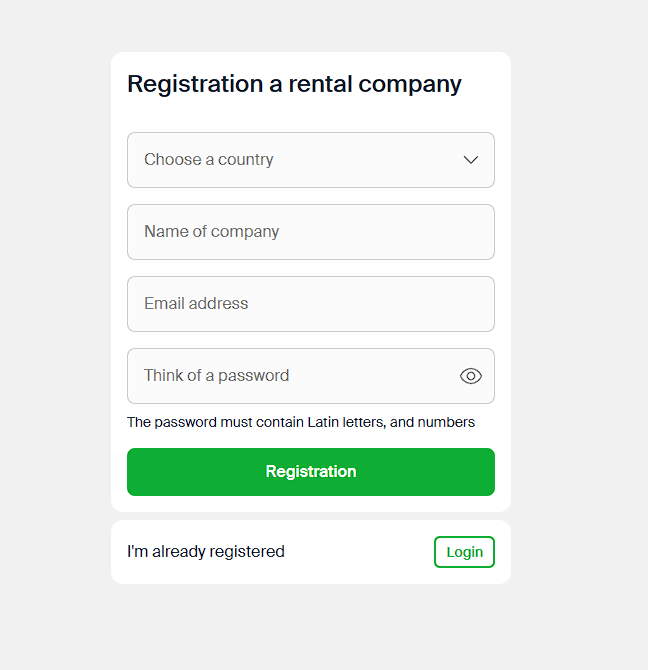
If you are NEW USER, please follow below link to register your company's account RENTAL COMPANY REGISTRATION
Tip: For a better view of this instruction or any page content, use Ctrl + Plus (+) to zoom in.
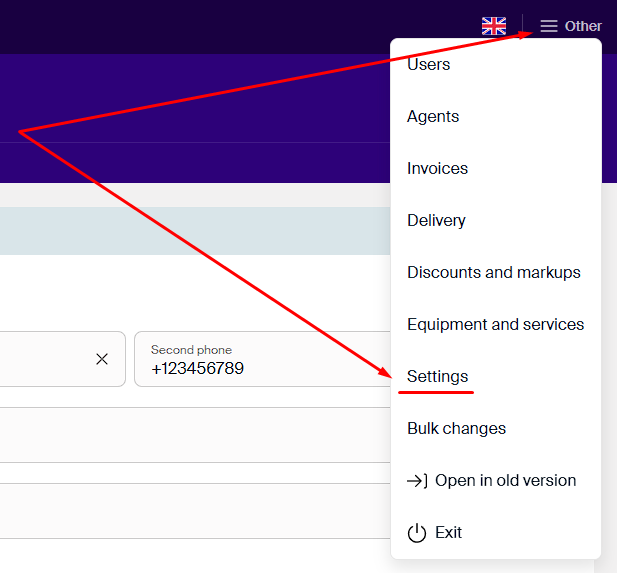
SETTINGS
Please complete the Settings page thoroughly before uploading your cars. Each field plays a crucial role in clearly presenting your rental conditions to customers.
Main Information
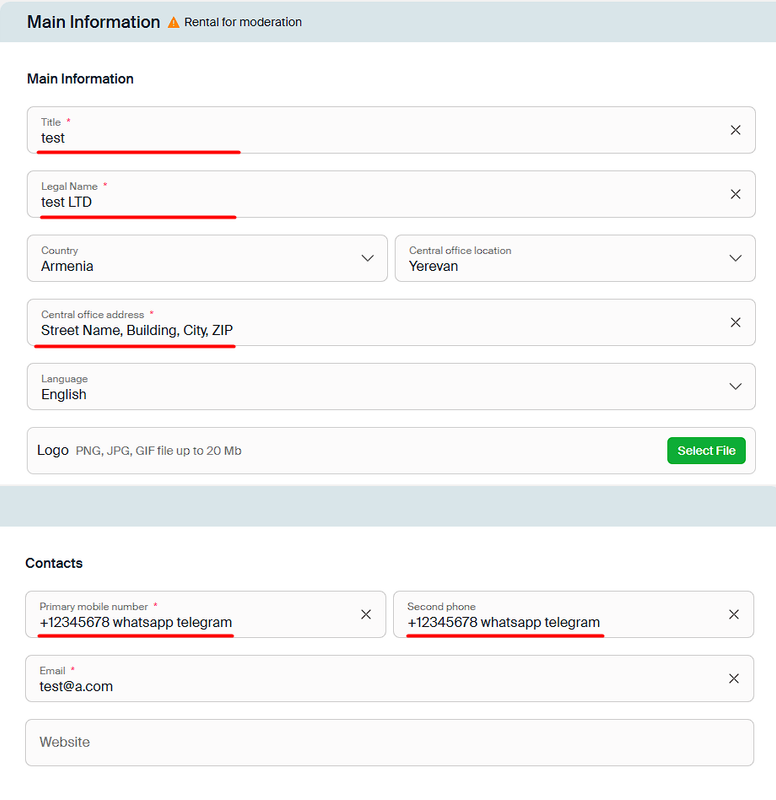
Please fill out all required fields carefully and in full detail.
- Company Name: Avoid using overly generic names like “Georgia Rent a Car,” “Georgian Car Rental,” or “Rent in Georgia”. These are too common and may cause confusion. Choose a unique and recognizable name that reflects your brand - be creative, but keep it professional.
- The Legal Name field must match your company’s official registered name exactly, as it appears on legal documents.
- Phone Numbers: You must provide two valid phone numbers. For each number, indicate which messaging apps are available (e.g., WhatsApp, Telegram) by simply adding the app names after the number as plain text. Example:
+995 5XX XXX XXX (WhatsApp, Telegram)
Below is an example showing how to correctly fill out the key points for optimal presentation.
Working Hours/Days Off Settings
Working Hours:
Set your standard working hours based on your regular office or operational schedule.
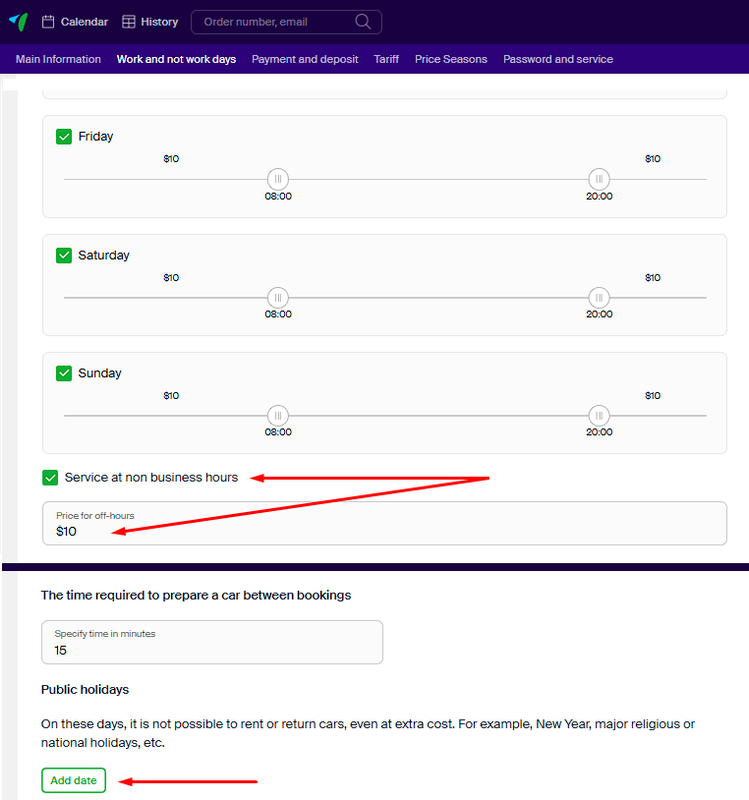
- If you are available to handle pickups and drop-offs outside of these hours without charging an additional fee, you may extend your availability accordingly - either by setting it to 24 hours or by specifying the exact extended hours you’re willing to operate.
- If you do charge for service outside normal hours, be sure to define those hours and set the corresponding fee.
Recommended: For better visibility and more booking opportunities, we recommend setting your daily operating hours to cover at least a 12-hour window.
Days Off:
Select the days when no pickups or returns are possible. These are considered full closures, and vehicles will not be shown as available for those dates.
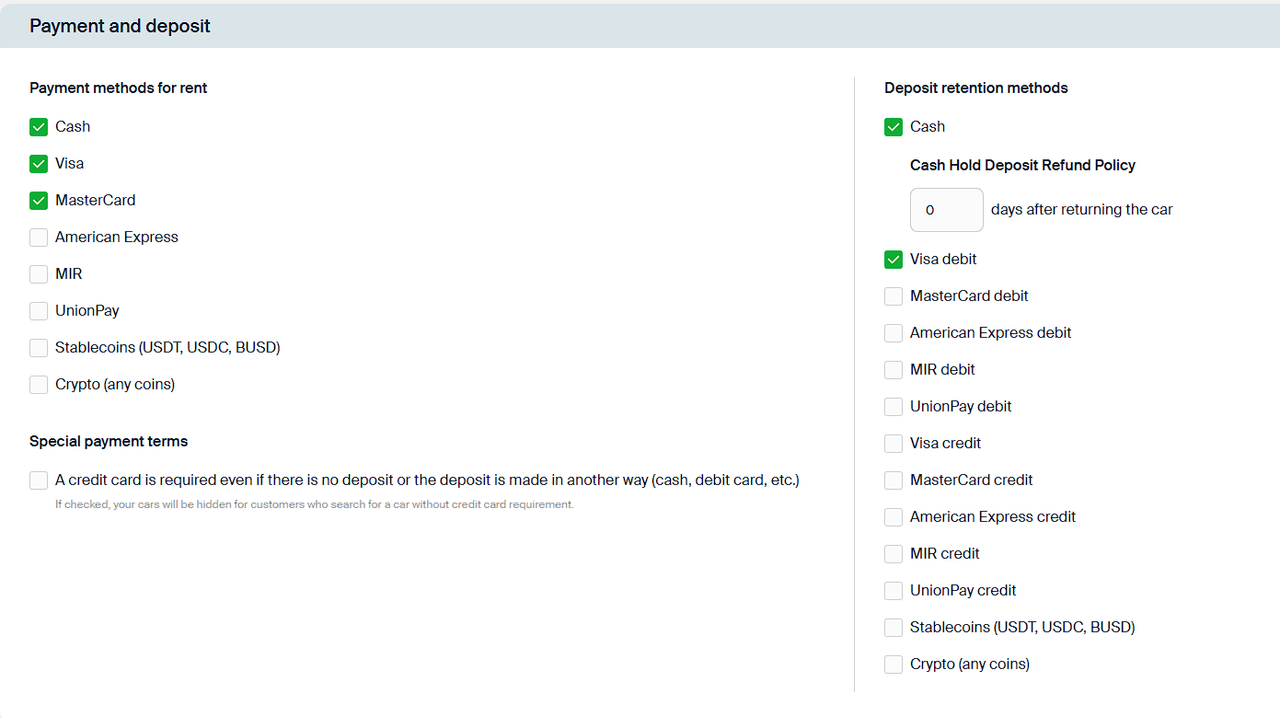
Payment and Deposit
Please specify the payment methods your company accepts. Accuracy here is essential for setting correct customer expectations and avoiding confusion at pick-up.
Accepted Payment Methods:
- Indicate whether you accept Cash, Visa, Mastercard, American Express, and/or MIR cards.
NOTE: A manual bank transfer (e.g., via mobile app or online banking) is not considered a card payment. It is treated as a cash-equivalent transaction. In contrast, card payments made through a POS terminal are recognized as official bank card operations. This is especially important for the MIR payment system - if you select MIR as accepted, it means customers can pay with MIR cards via POS terminal at your location.
NOTE: In some cases like using debit cards bank commission may apply - include it in final rental price.
Cash Deposits:
If you accept a cash deposit, specify:
- The number of days needed to return the deposit to the customer after the rental period
- The method of return (e.g., cash, bank transfer, etc.)
Recommend: If the cash deposit is returned immediately at vehicle drop-off, set the return period to zero.
Card Deposit Policy:
- Be precise about whether you accept credit cards, debit cards, or both for holding security deposits.
⚠️ Please double-check if your company can actually block deposits on debit cards - this is a common point of confusion and must be accurate.
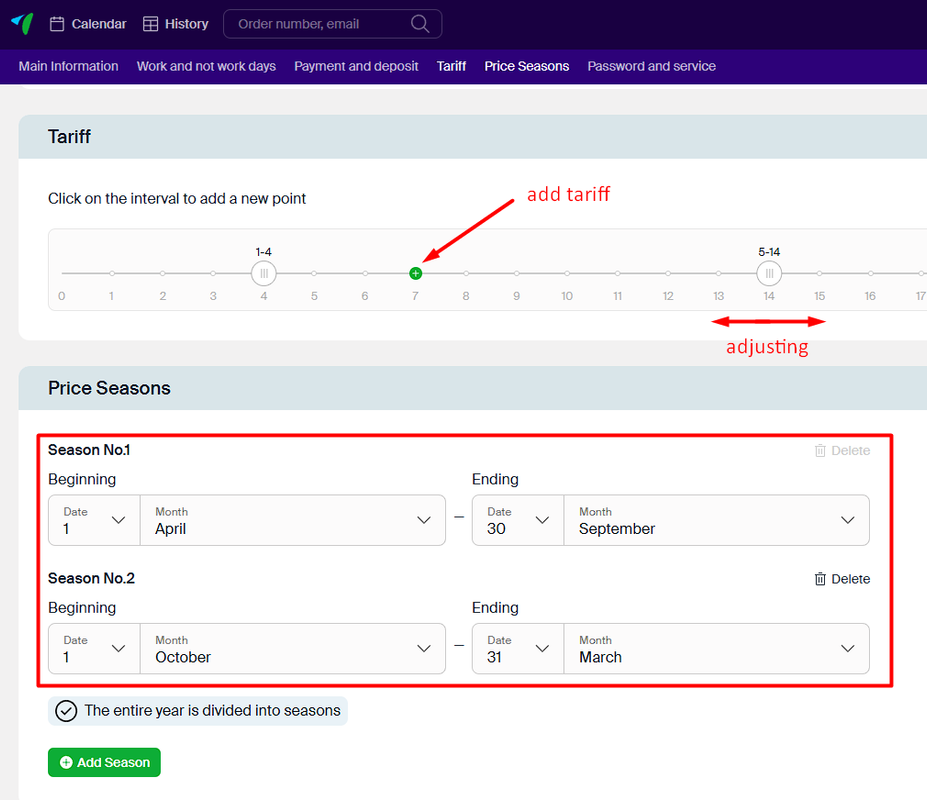
Tariffs and Seasons
Please pay close attention to setting up your Tariffs and Seasons, as these directly impact your pricing strategy.
Your seasonal periods should collectively cover all 365 days of the year without any overlaps between seasons.
Below is an example illustrating the correct way to configure your seasons.
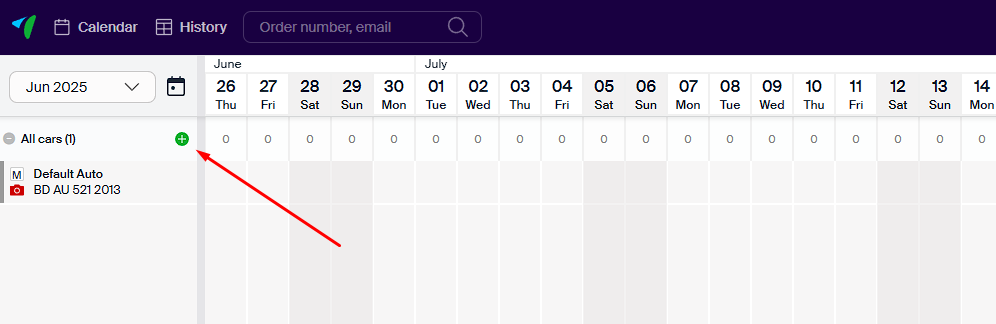
CALENDAR PAGE and CAR UPLOADING
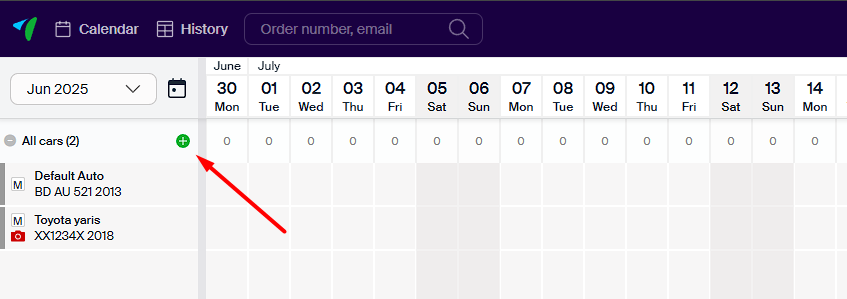
Now you can start adding your cars:
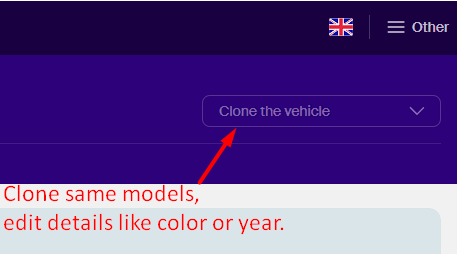
Fill in car specifications (engine, type of fuel, etc) accurately. Pay attention on prices specifics and clone option on example below.
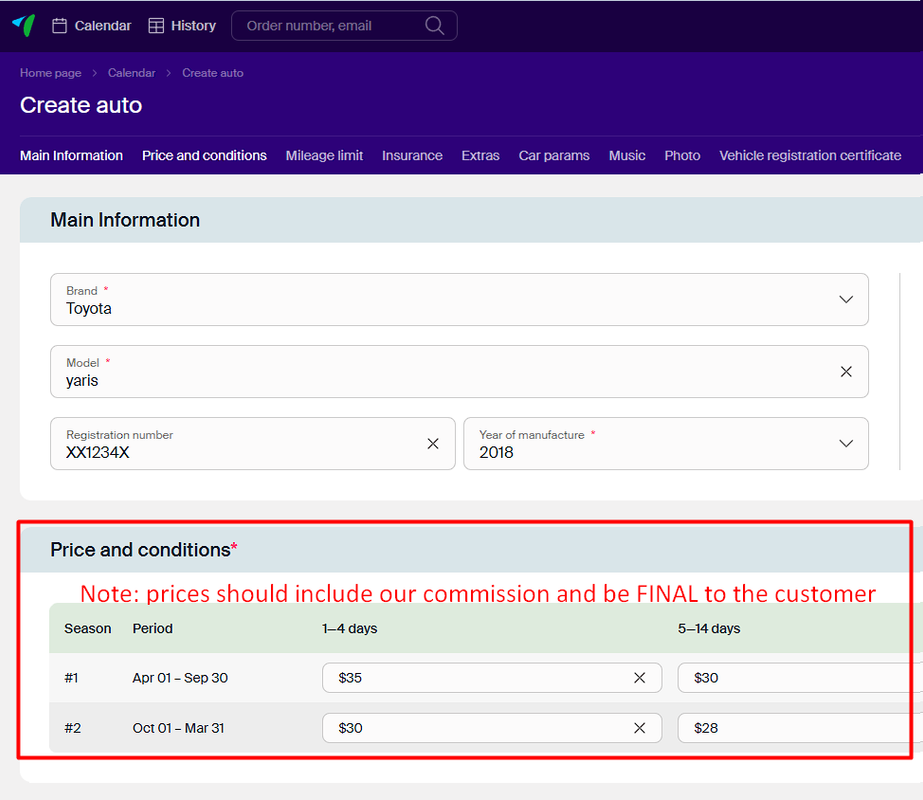
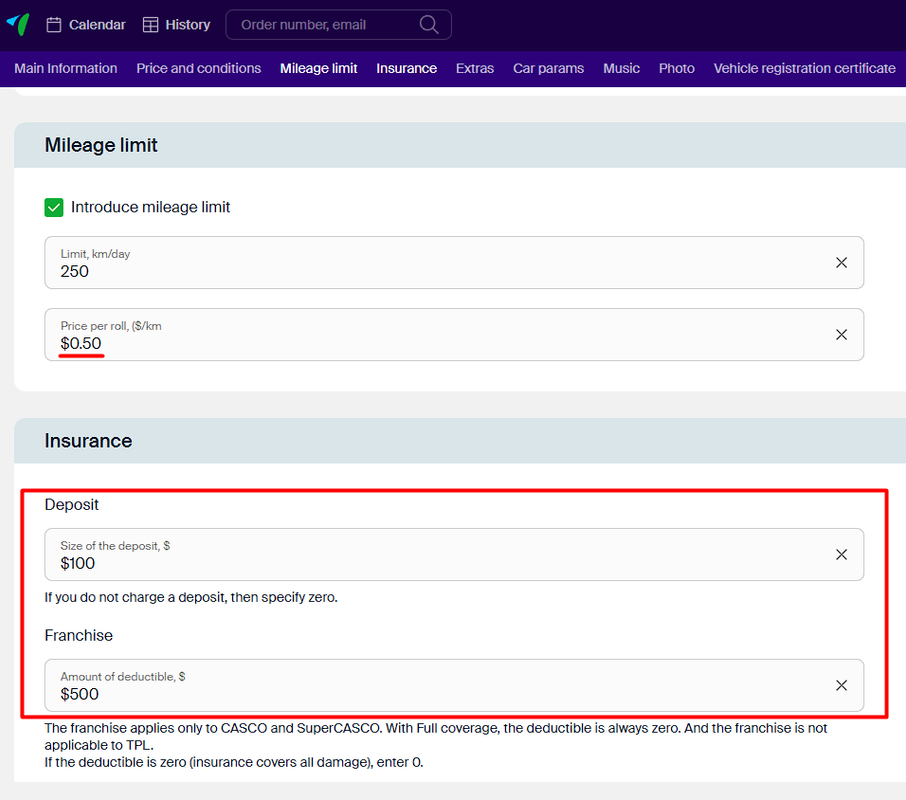
Make sure to clearly specify any deposit and franchise (excess) amounts if applicable. Customers should be fully informed about all mandatory charges before pickup - there should be no unexpected costs at the time of collection.
While you may offer additional services or insurance options at the counter, customers must always have the right to decline these extras and proceed based on the original voucher price.
NOTE: If your rental includes CDW (Collision Damage Waiver), it's important to specify the franchise (excess) amount, especially if it differs from the deposit. See the example below for clarity.
NOTE: Please enter the franchise (excess) amount as a fixed monetary value, not as a percentage. The amount should reflect the maximum financial responsibility the customer holds in case of damage or incident, and must be specified as an exact number (e.g., 300 €, not 10%).
Photos & Documentation
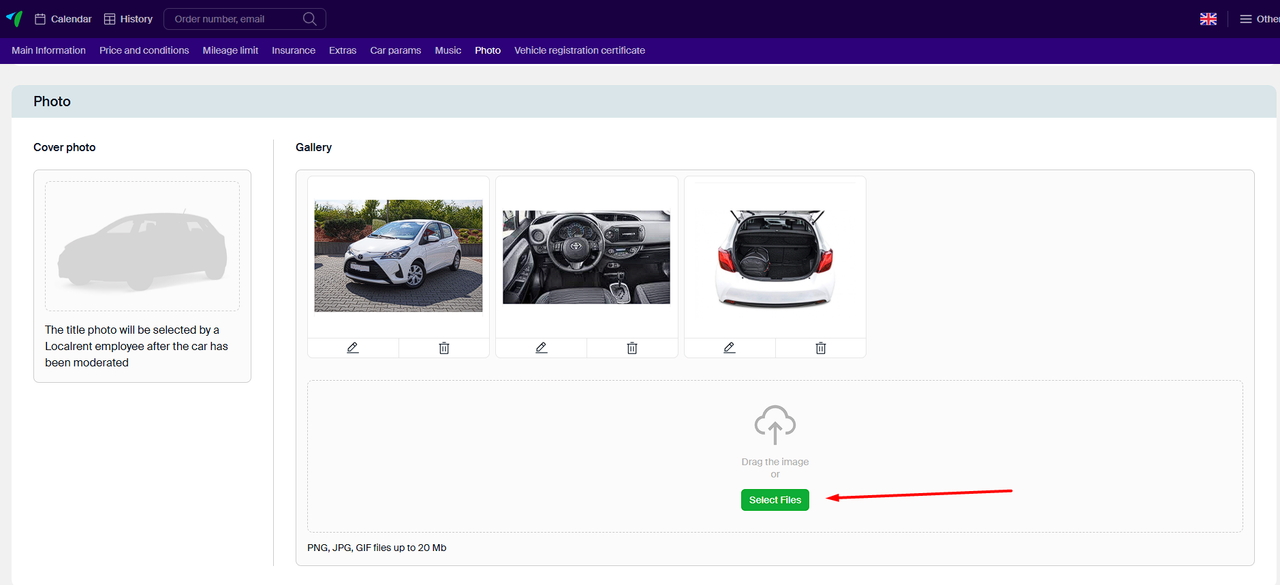
Please upload live (real) photos of your actual vehicles. Listings with real images significantly increase customer trust and booking likelihood, as renters prefer to see the exact condition and appearance of the car they’re reserving.
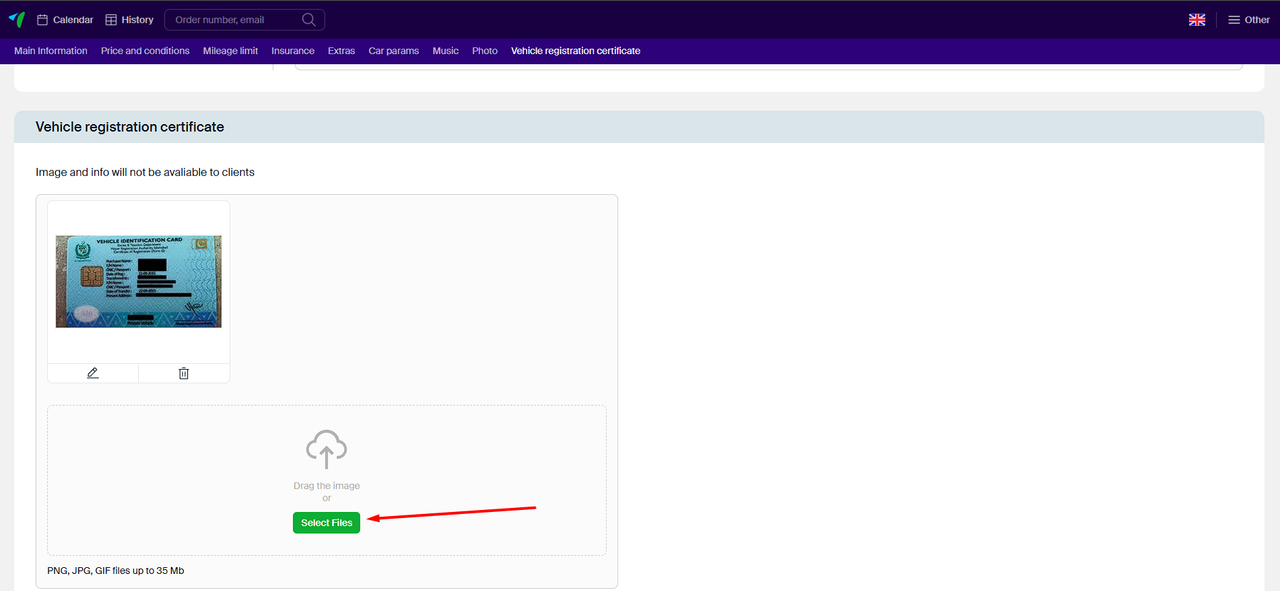
Additionally, make sure to upload a Car Registration Certificate for each vehicle.
Photo requirements: https://telegra.ph/How-to-make-a-good-photo-for-Localrentcom-12-12
You can continue adding more vehicles - either by uploading them one-by-one or by cloning existing models to save time when adding similar cars.
Moderation status:
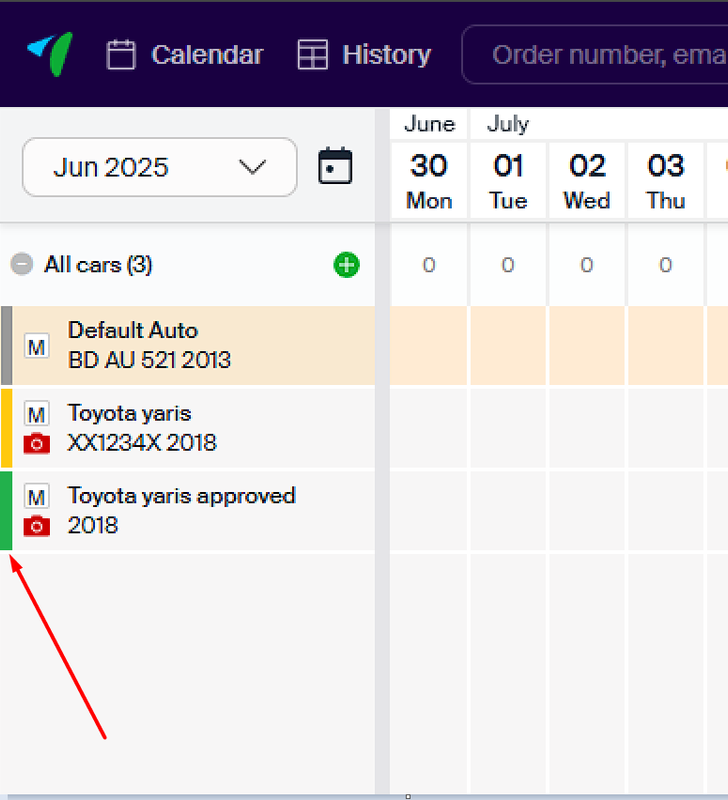
On the left side of each vehicle listing, you will see a color-coded label indicating its status:
- Orange: The car is currently under moderation.
- Green: The car is active and available for sale.
- Grey: The car is saved for internal use only and is not published.
Please note that vehicles cannot be made available for sale until the moderation process for your account is fully completed.
NOTE: You can check the status of your onboarding at any time by contacting your Localrent Supply Supervisor.
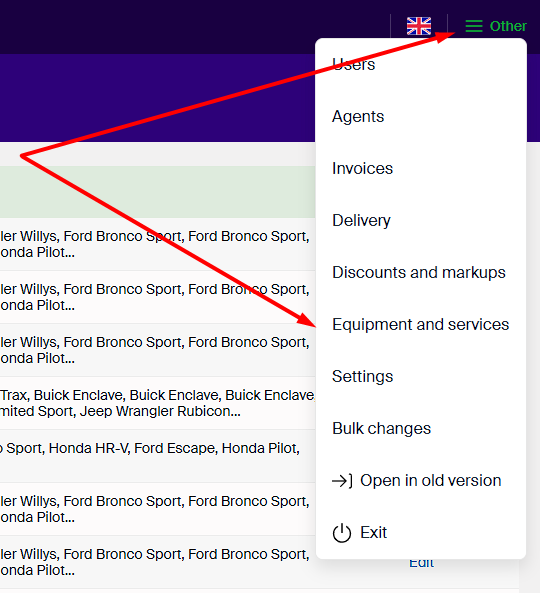
EQUIPMENT AND SERVICES
On this page, you can add all additional equipment and services that you offer, such as accessories, insurance options, or comfort features.
Important: The following services are mandatory and must be included in your extras list:
- Insurance - Third-Party Liability (TPL) coverage must be included in the rental price, but it also needs to be added here as a free extra so the system can properly recognize and display it.
- Second Driver - This option should be listed, whether free or paid.
- Child Seats - Include different types based on age (e.g., infant, toddler, booster), as available in your fleet.
NOTE: You may also add other optional extras depending on your company's offerings, such as GPS, Wi-Fi, snow chains, or additional insurance packages.
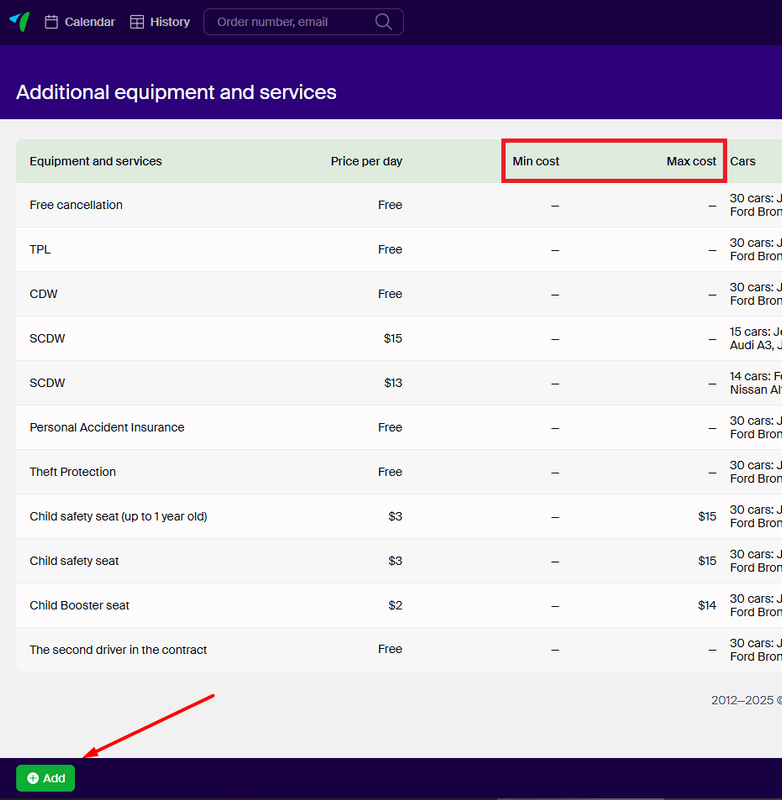
Min Cost: Minimum charge required to activate the service (e.g. $10/day × 3 days → Min Cost = $30).
Max Cost: Maximum total charge cap.
Example: If a child seat costs $2/day and Max Cost = $10, then even for rentals over 5 days, the customer pays no more than $10.
NOTE: Some extra options like second driver, cross border fee, etc. may include our commission. Check it please inside each extra profile and consider our commission inside that extra price.
DELIVERY
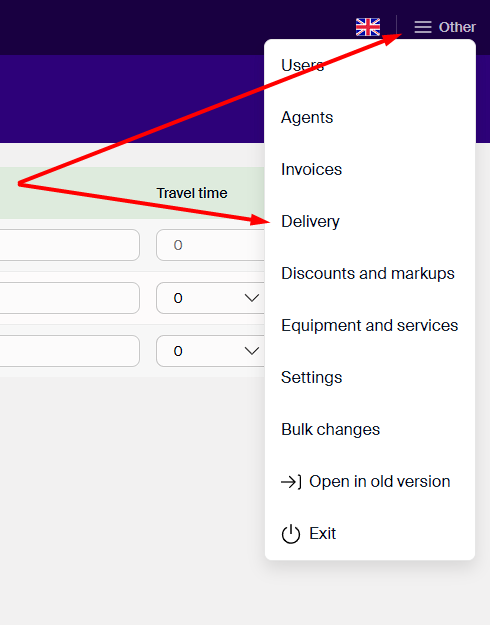
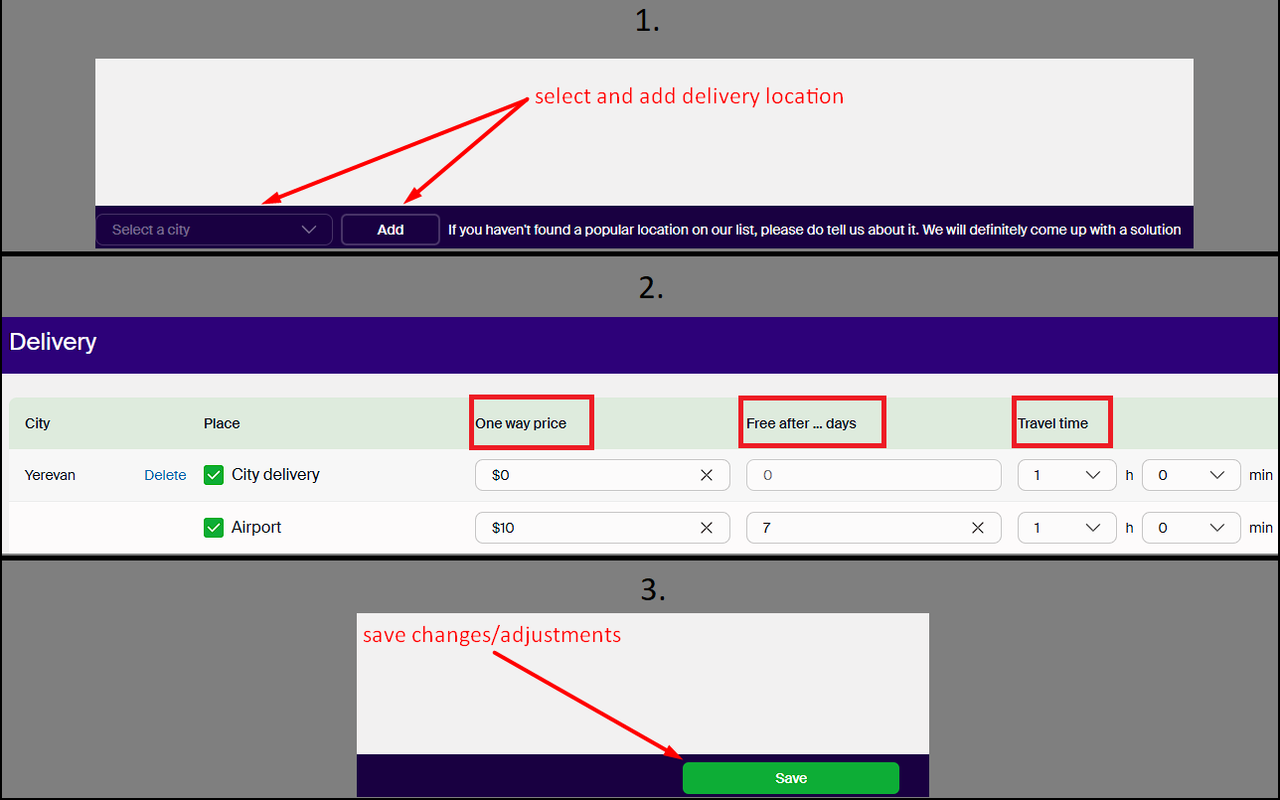
Navigate to the Delivery page to set delivery availability, fees, and conditions and to specify the cities where you offer car delivery services,
You have two options for setting delivery prices within each city:
- If the delivery cost is the same for all locations within the city, simply keep the “Any place” box checked.
- If delivery fees vary depending on the specific area or neighborhood within the city, click the “Any place” box unchecked and set prices individually for each location.
Free after ... days
Use this option to specify the minimum rental duration (in days) that qualifies for free delivery.
Travel Time
When setting travel time include only the actual driving duration from point A to point B. Do not factor in time spent on car washing, cleaning, or any other additional activities.
FINISHING
Once you have fully completed your profile, please notify your Localrent Supply Supervisor. There are a few important steps that must be completed before we officially begin:
- Cabinet Moderation: Your supervisor will review your entire cabinet setup to ensure all information is accurate and complete.
- Fleet Moderation: Your vehicle listings will be reviewed, including verification that all required photos (exterior and interior views) are properly uploaded.
- Special Conditions Review: You will be asked to fill out a form about your unique rental conditions or policies. This helps us understand your business better and tailor our support accordingly.
After these steps are successfully completed, we will create a dedicated group chat with you in the messenger for ongoing communication - and then we’re ready to start!