NFT Pass on OpenSea and Meta Mask
@trace_global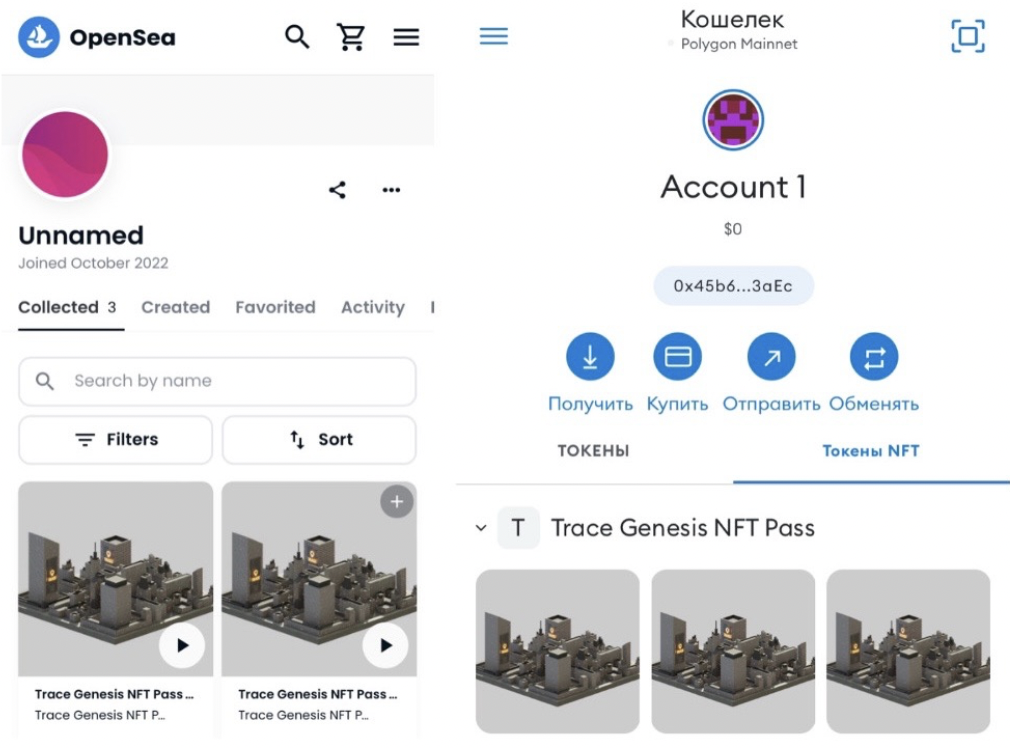
NFT Pass on OpenSea are located in the "Hidden" section. What should you do to have them displayed in your collections? 👇
1. Make sure that you have created and linked a MetaMask wallet to our bot. How to do it — https://t.me/trace_global/122
2. Go to the MetaMask app and connect it to OpenSea: click the 3 stripes in the upper left corner and then the "Browser" button.
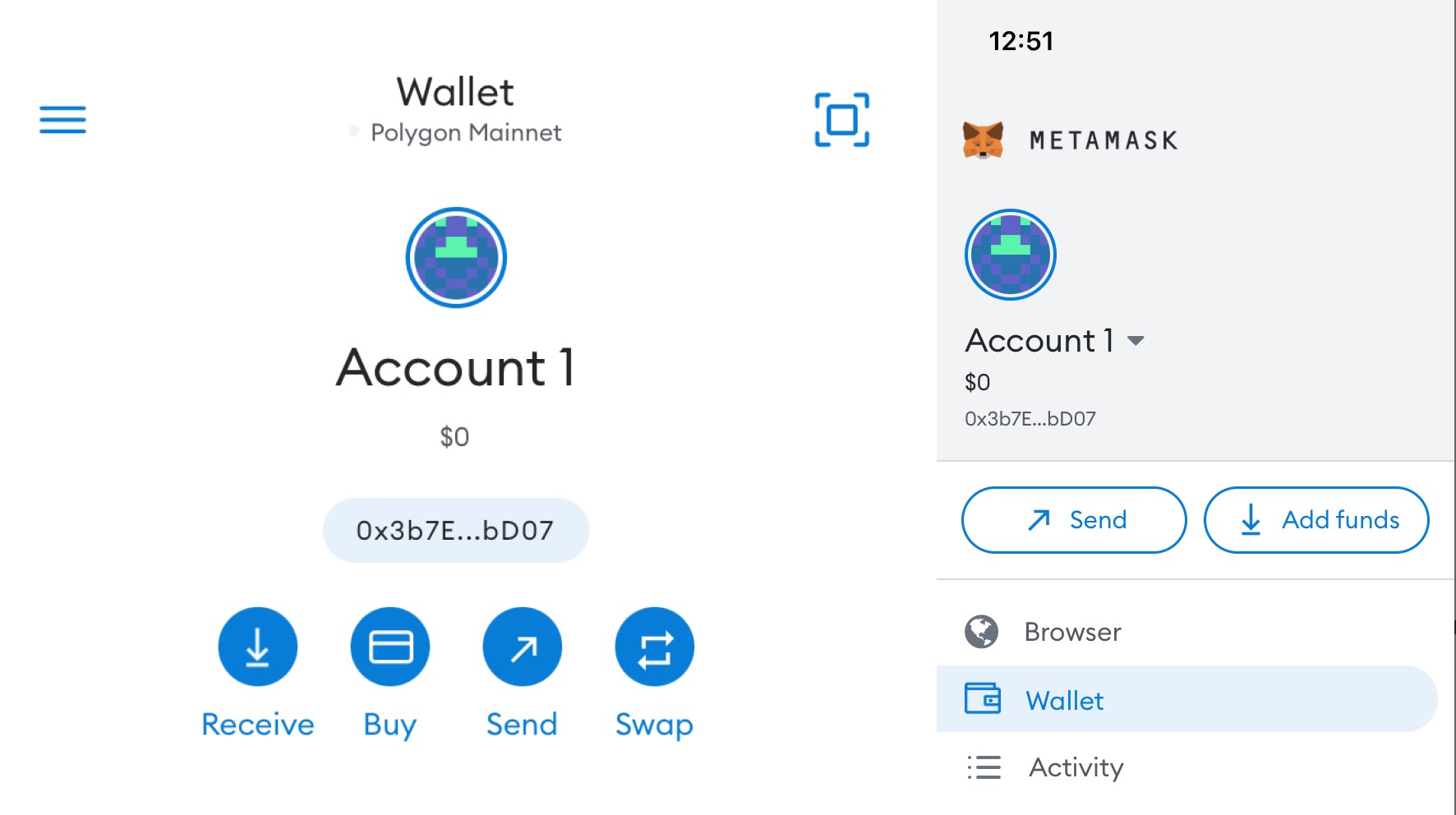
3. Select Meta Mask and sign the agreement.
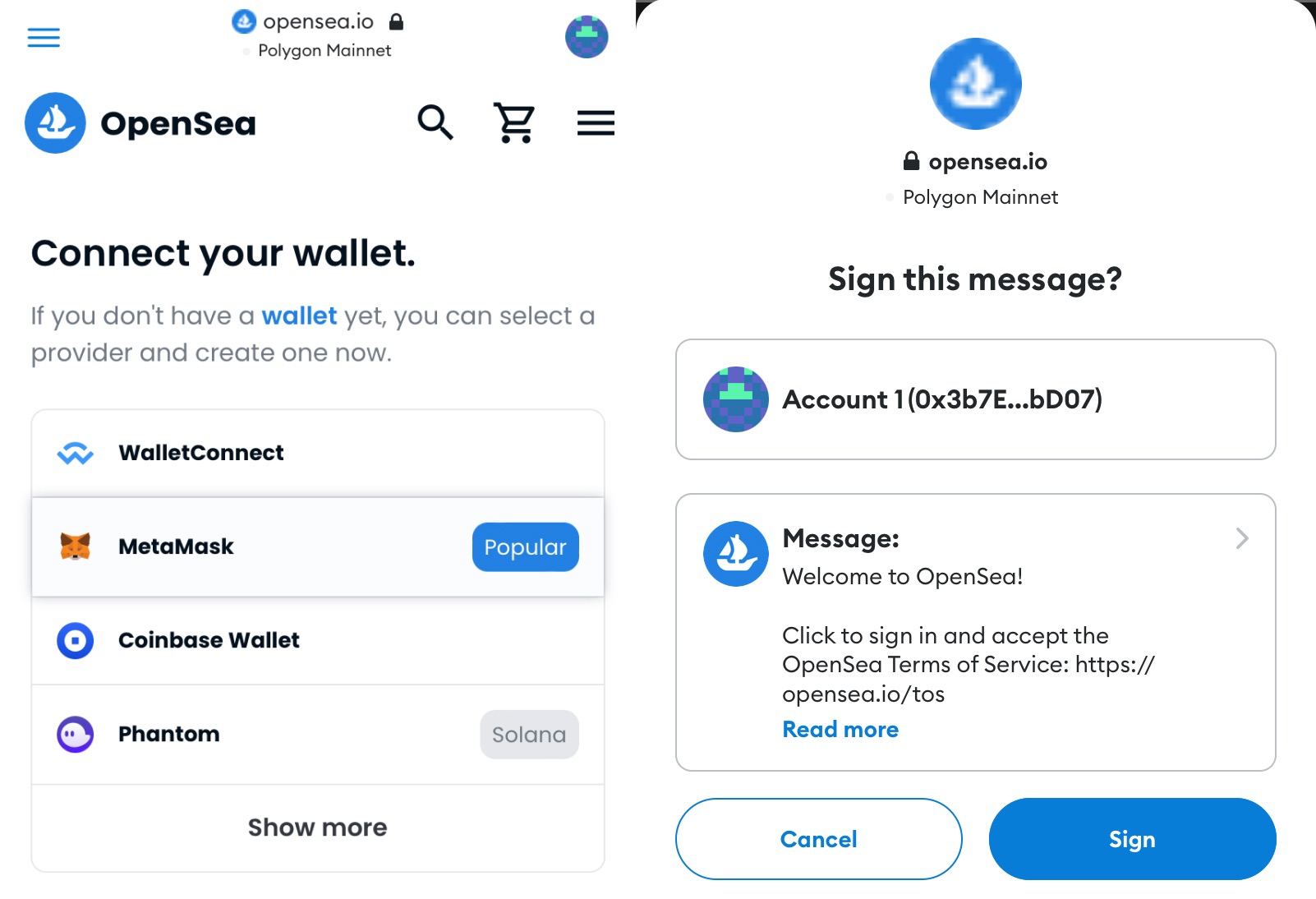
4. Click the 3 bars in the upper right corner, select the "Account" section and then "Profile".
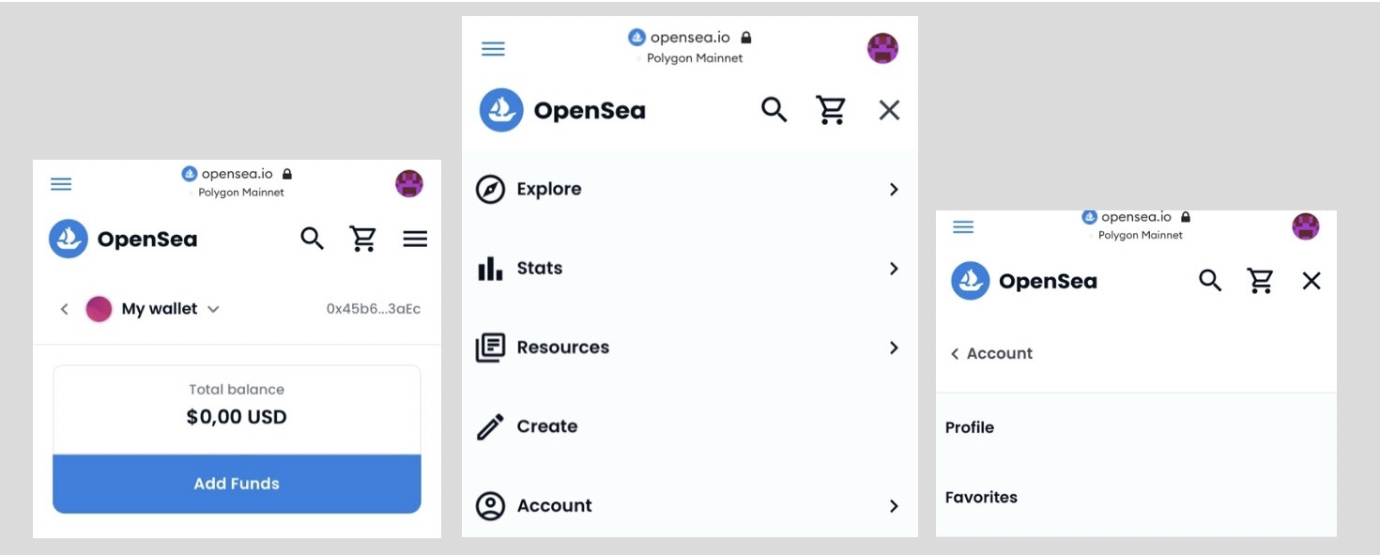
5. Go to the "More" -> "Hidden" section.
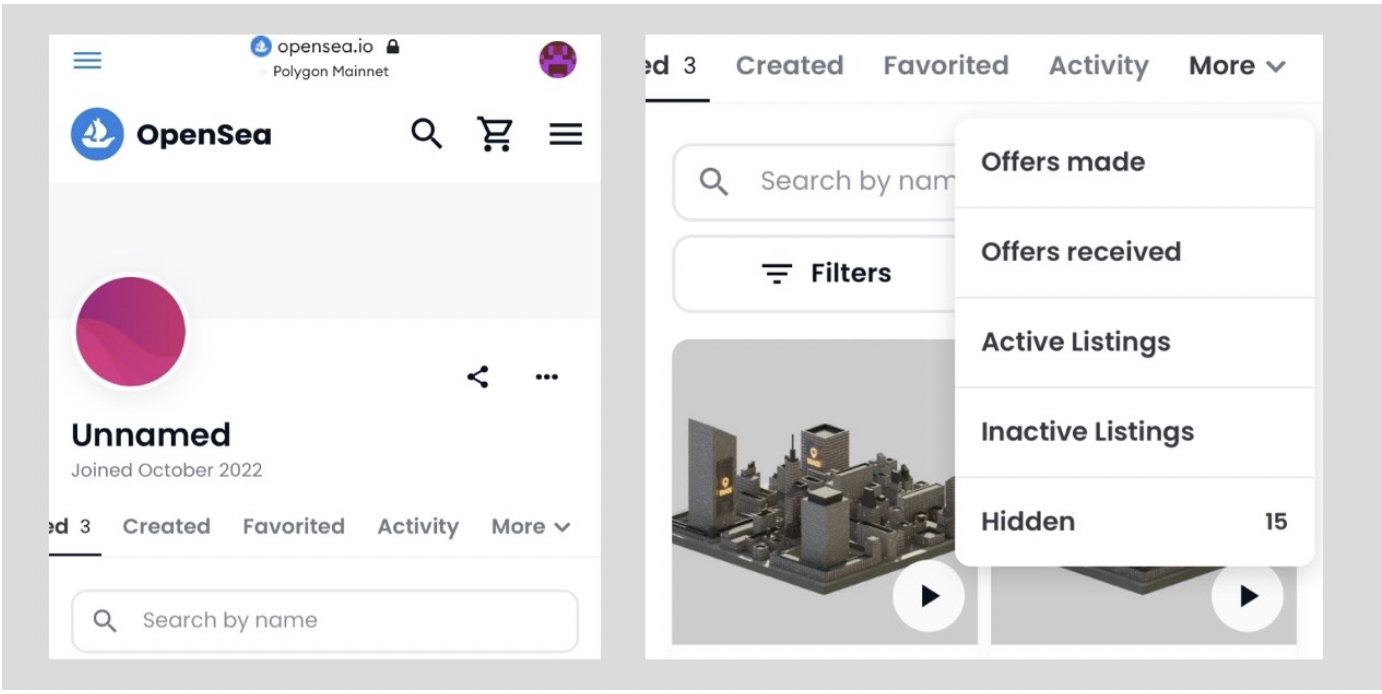
6. Click "..." under NFT, select "Unhide". You can select and move all NFTs to the collected section at once. Then click "Continue". Ready!
Now NFT Passes are displayed in your Collected section 🎉
NFT Passes are not displayed in the Meta Mask wallet automatically, but they are linked to it. If you want to see them in your wallet, follow these steps:
*this is optional
1. Log in to the Meta Mask app and copy the address of your wallet.
2. Open it https://polygonscan.com and paste the wallet address into the search bar.
3. Scroll to the "Transactions" section and switch it to "ERC-721 Token Txns". This is where all the received NFT Passes are displayed.
4. Swipe left to the "Token ID" section.
5. Now go back to MetaMask, go to the "NFT Tokens" section and click "Import NFT".
6. In the "Address" line, enter our contract address 0xB09C483EE6771eb1dA375bFF7E96467F4e67140b, and in the "ID" line, enter the Token ID from the 4th step.
Now NFT Passes are displayed in MetaMask 🎉