NEBORTRADE PRO Strategies Guide
https://nebortrade.comStrategies Section
In the Strategies section, you can manage all trading algorithms used for automated trading.
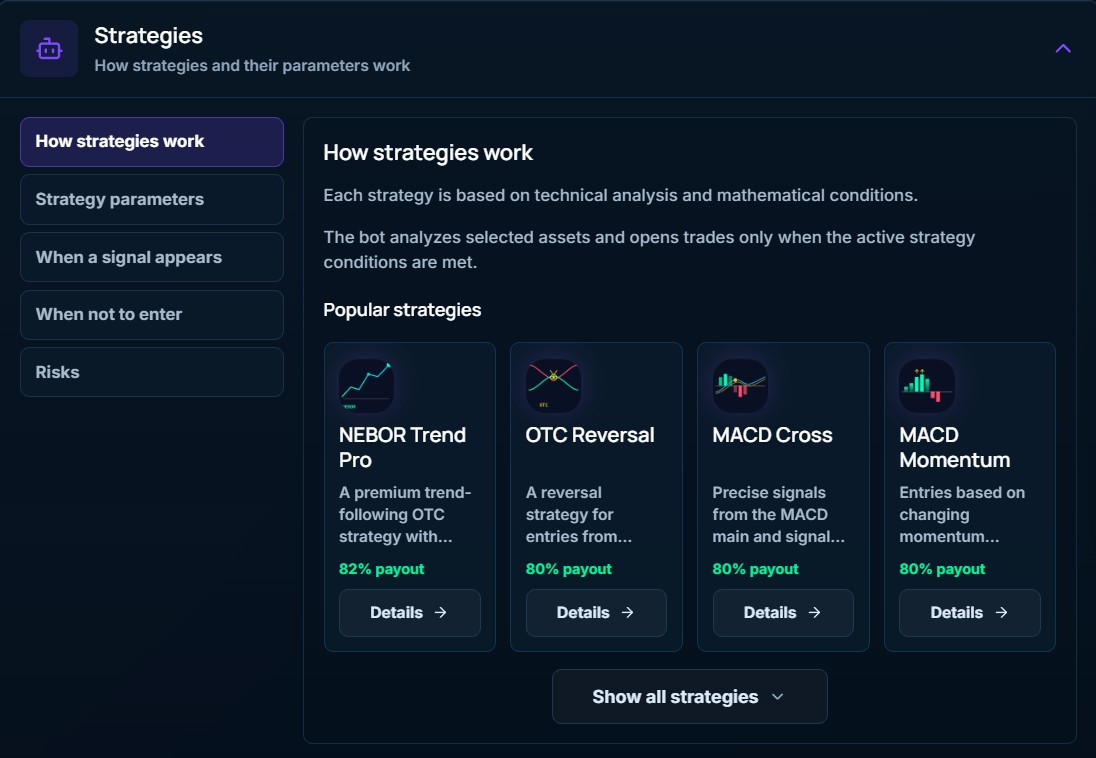
Two tabs are available:
My Strategies
This section contains the strategies you have created or copied.
Here you can:
✅ Enable or disable strategies with a single switch.
⚙️ Edit the settings of each strategy.
🗑️ Delete strategies you no longer need.
➕ Create your own strategies from scratch.
📋 Copy ready-made strategies and customize them to suit your trading preferences.
💡 Tip: You can run several strategies at the same time. Each strategy works independently and opens trades only when its specific conditions are met.

Ready-Made Strategies
This section contains a library of preconfigured strategies available for copying and use.
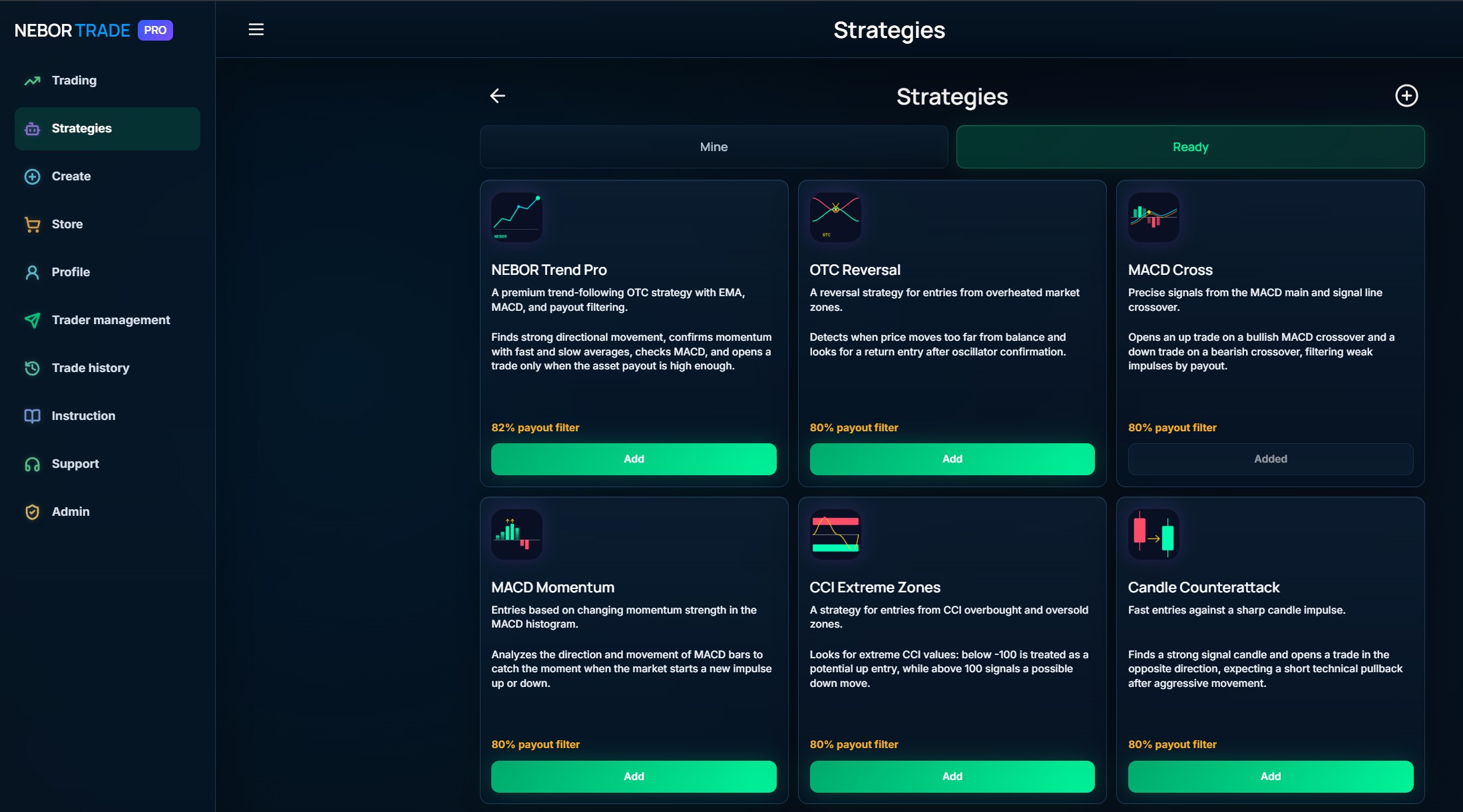
Creating & Configuring a Strategy — Step 1: Assets
Creating and configuring any strategy consists of four sequential steps:
- Assets
- Indicators
- Trading Rules
- Martingale
The first step is selecting the trading assets that the strategy will monitor and trade.
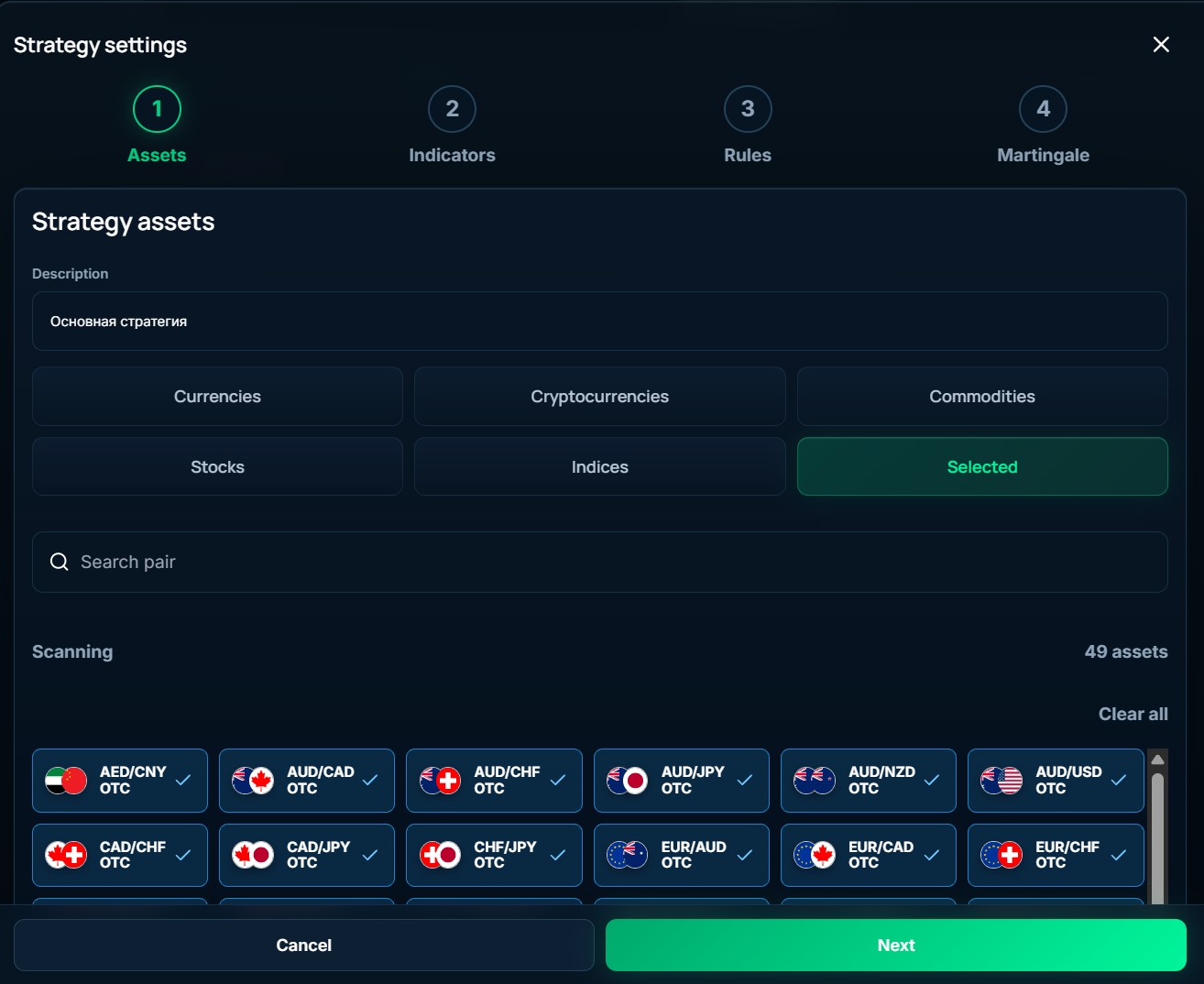
Here you can:
- 📝 Enter a name or description for your strategy.
- 📊 Choose an asset category: Currencies, Cryptocurrencies, Commodities, Stocks, Indices, or Favorites.
- 🔍 Use the search bar to quickly find a specific trading pair or asset.
- ✅ Select only the assets on which you want the strategy to operate.
- 🗑️ Click Clear All to instantly remove all selected assets if needed.
💡 Tip: The more assets you select, the more trading opportunities your strategy can find. If you want to focus on specific market conditions, simply choose only the assets that match your trading plan.
Шаг 2. Индикаторы
Creating & Configuring a Strategy — Step 2: Indicators
The second step is configuring the indicators your strategy will use to analyze the market and determine when to open trades.

Each indicator has its own unique set of parameters, allowing you to fine-tune your strategy to match your trading style.
All indicators and their settings are fully synchronized with those available on the official Pocket Option platform, making it easy to recreate almost any existing strategy without modification.
For each indicator, you can configure:
- 📊 The indicator timeframe.
- ⚙️ All available indicator parameters.
- 📈 Buy (CALL) signal conditions.
- 📉 Sell (PUT) signal conditions.
- 🕒 The candle on which the signal will be evaluated.
- ➕ Add multiple indicators to a single strategy.
- 🗑️ Remove indicators you no longer need.

💡 Tip: You can combine as many indicators as you like. A trade will be opened only when all configured conditions are met simultaneously, allowing you to build anything from simple trading systems to advanced professional strategies with highly accurate entry signals.
Once you have finished configuring your indicators, click Next to proceed to the Trading Rules step.
Step 3: Trading Rules
The third step is where you define your strategy's trading rules. Here you configure trade management, risk management, and the overall trading conditions.
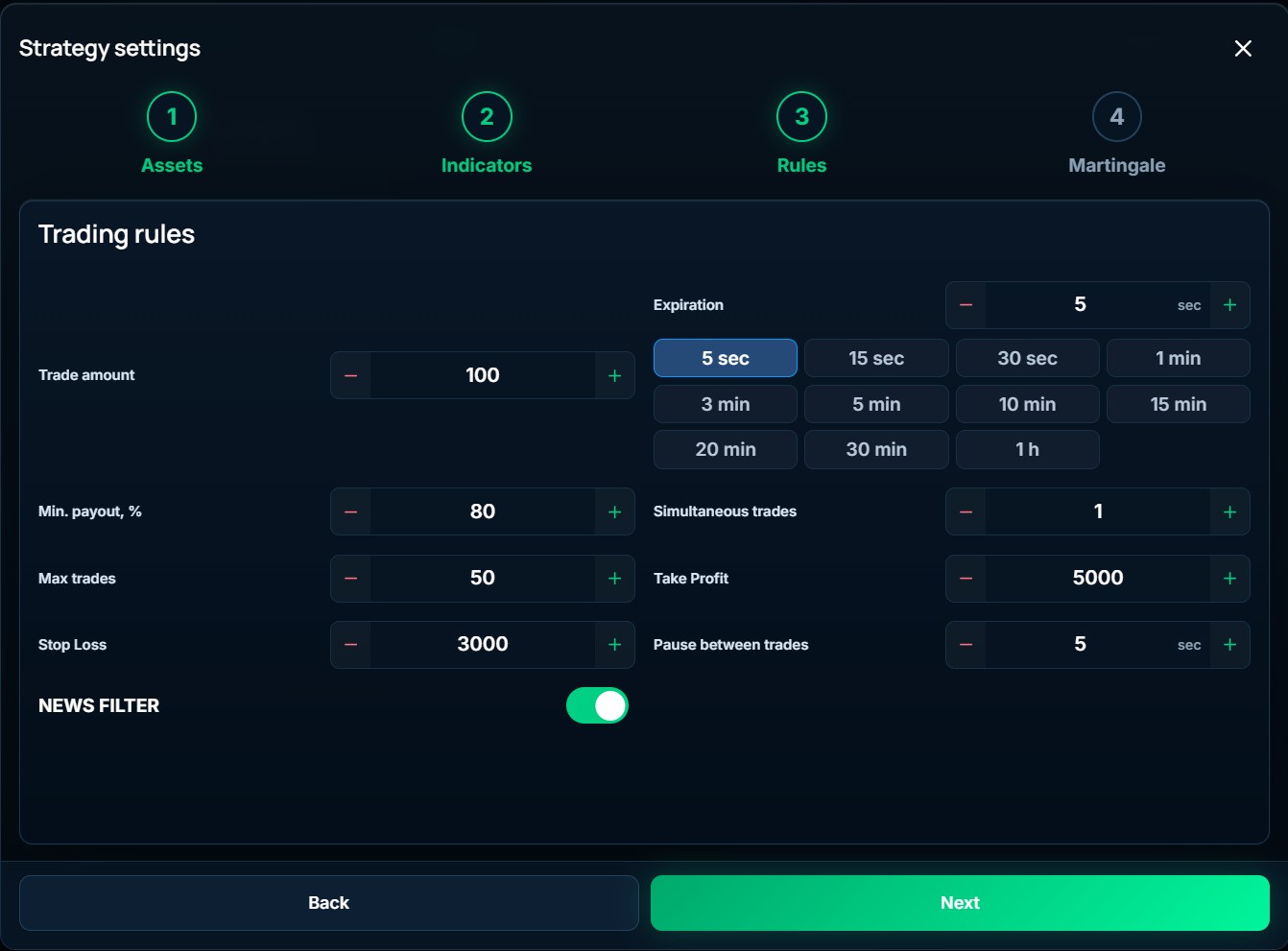
The following settings are available:
- 💰 Trade Amount — the amount used for each trade.
- ⏱ Expiration Time — the trade duration (from 5 seconds to 1 hour).
- 📈 Minimum Payout — trades will only be opened if the selected asset's payout percentage is equal to or higher than the value you specify.
- 🔢 Maximum Number of Trades — limits the total number of trades the strategy can open.
- 📊 Maximum Simultaneous Trades — limits how many trades can be open at the same time.
- 🎯 Take Profit — the strategy will automatically stop once the specified profit target is reached.
- 🛑 Stop Loss — the strategy will automatically stop once the specified loss limit is reached.
- ⏳ Delay Between Trades — the minimum time interval before opening a new trade.
- 📰 News Filter — when enabled, the strategy will avoid opening trades during major economic news events, helping reduce risk during periods of high market volatility.
💡 Tip: Properly configuring these settings allows you to control your risk and automatically stop trading once your desired profit or maximum loss has been reached.
Once you have finished configuring the trading rules, click Next to proceed to the final step — Martingale.
Step 4: Martingale
The final step is configuring the Martingale system. It allows the strategy to automatically increase the size of the next trade after a losing one based on your own custom rules.
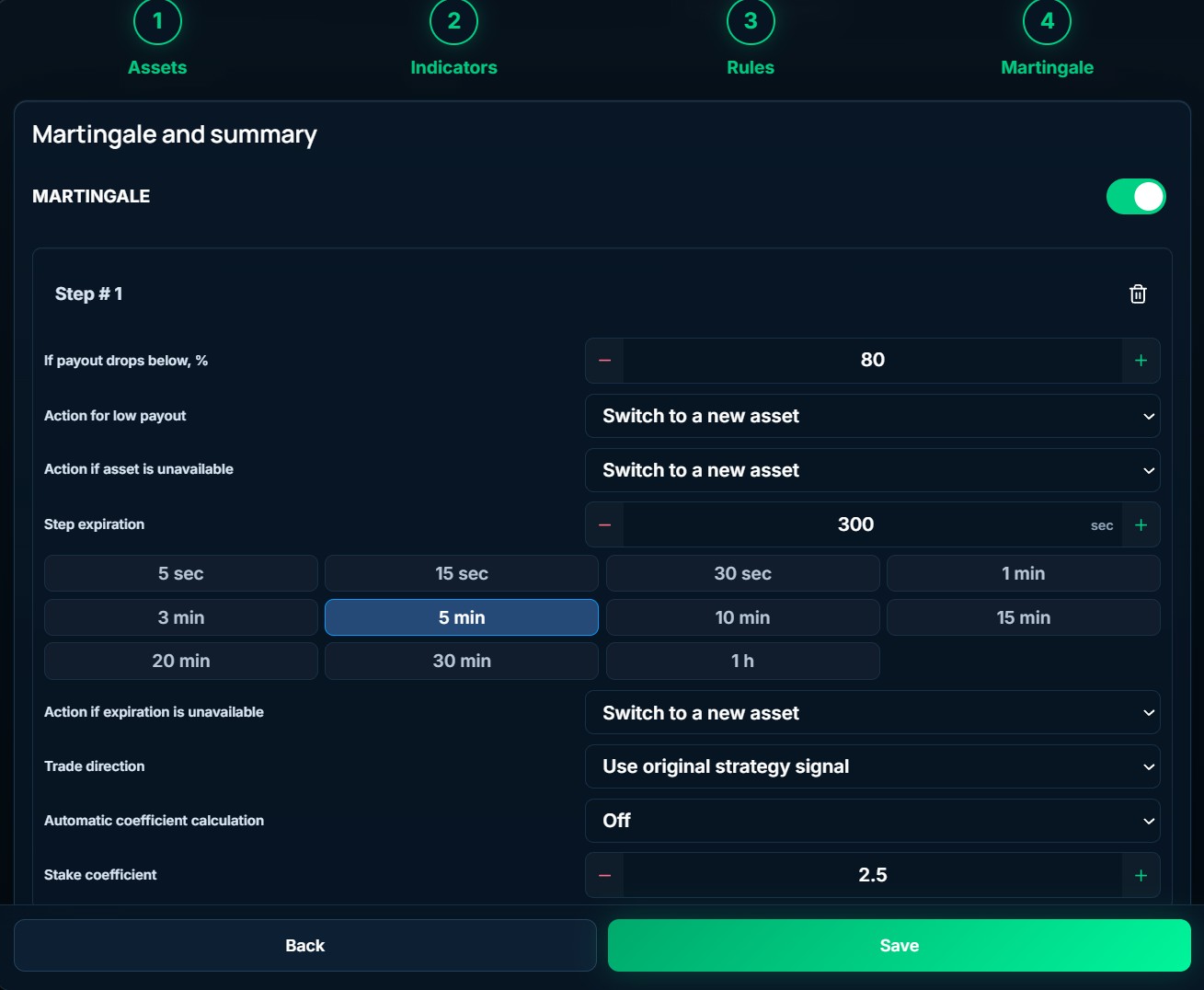
The biggest advantage is that the number of Martingale steps is unlimited. You can create as many levels as you need, with each step having its own independent settings.
For each Martingale step, you can configure:
- 📈 Minimum Asset Payout — the minimum payout percentage required for the asset.
- 🔄 Action for Low Payout or Unavailable Asset — define how the strategy should behave if the payout is too low or the asset is unavailable.
- ⏱ Trade Expiration Time.
- ↔️ Trade Direction — follow the strategy signal or trade against it.
- ⚙️ Automatic or Manual Multiplier Calculation.
- 💰 Stake Multiplier — the amount by which the next trade size increases.
- 🎯 Individual settings for every Martingale step.
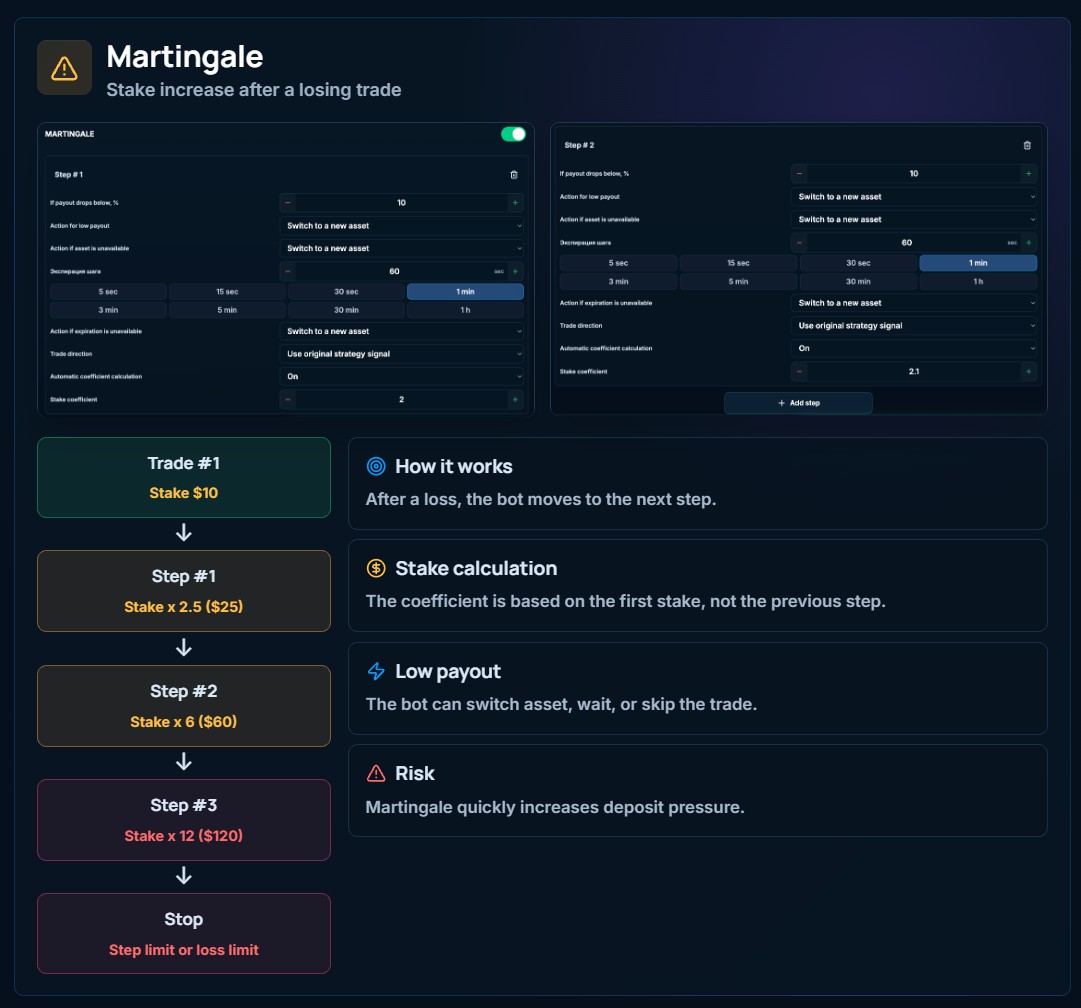
💡 Tip: Every Martingale step is configured completely independently, allowing you to build anything from a simple one- or two-level recovery system to advanced professional strategies with an unlimited number of Martingale levels.
Once you have finished configuring all settings, click Save. Your strategy will be created and will be ready for automated trading.