NEBORTRADE PRO Registration & Setup
https://nebortrade.com1. Registration
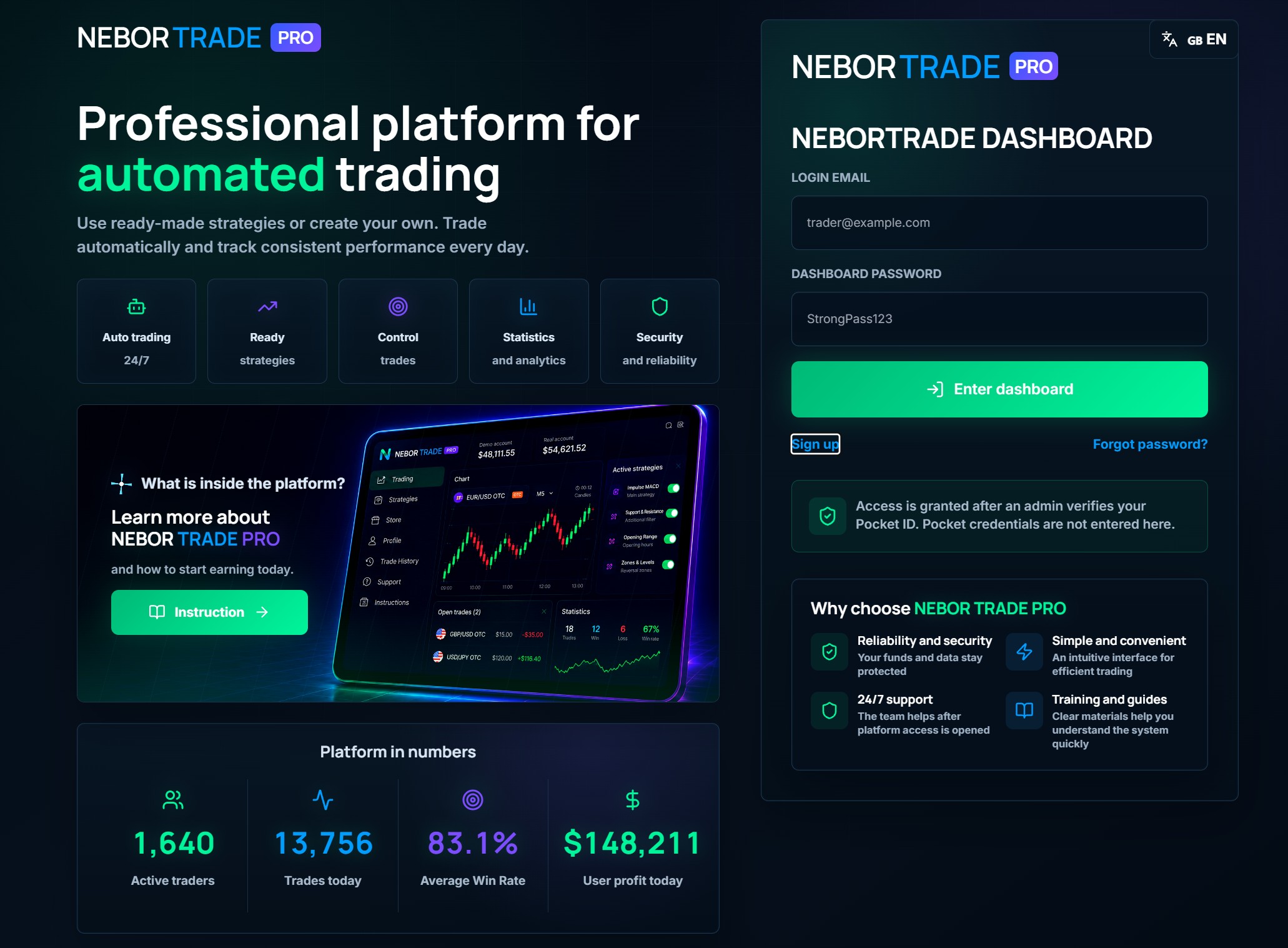
After opening the main page, you will see the login window for your personal dashboard. To create a new account, click the "Registration" button.

2. Complete the Registration Form
Enter your email address, create a secure password, and choose any nickname for your dashboard. Select your preferred interface language if needed.
If you already have a Pocket Option account registered through our partner link, choose “Yes, I have an account” and enter your Pocket ID.
⚠️ Important!
Access is available only to users registered through our Pocket Option partner link.
If your account was not registered through our partner link, click “No, I will register”, create a new Pocket Option account using the opened link, then copy your Pocket ID and enter it in the registration form. After that, submit your request by clicking “Submit request to admin”.

3. Wait for Access Approval
After submitting your request, the administrator will verify your Pocket ID and confirm that your Pocket Option account was registered through our partner link.
If all the information is correct and your application is approved, you will receive an email confirming your access along with instructions on how to log in to NEBORTRADE PRO.
Add the following paragraph only if it is accurate for your service:
⏳ Verification usually takes from a few minutes to several hours, depending on the administrators' workload.

4. Log In to Your Dashboard
After receiving the access approval email, return to the main page of the platform.
Enter the email address and password you used during registration, then click “Log In to Dashboard.”
💡 Important!
Use the same email address and password that you provided when submitting your registration request. If you have forgotten your password, click “Forgot Password?” to reset it.
5. Connect Your Pocket Option Real Account
After logging into your dashboard, you need to connect your Pocket Option real account to the automation service.
To do this:
- Go to the Profile section.
- Scroll down to the Pocket Option Connection section.
- Click the "Connect" button.

6. Connect Your Pocket Option Account
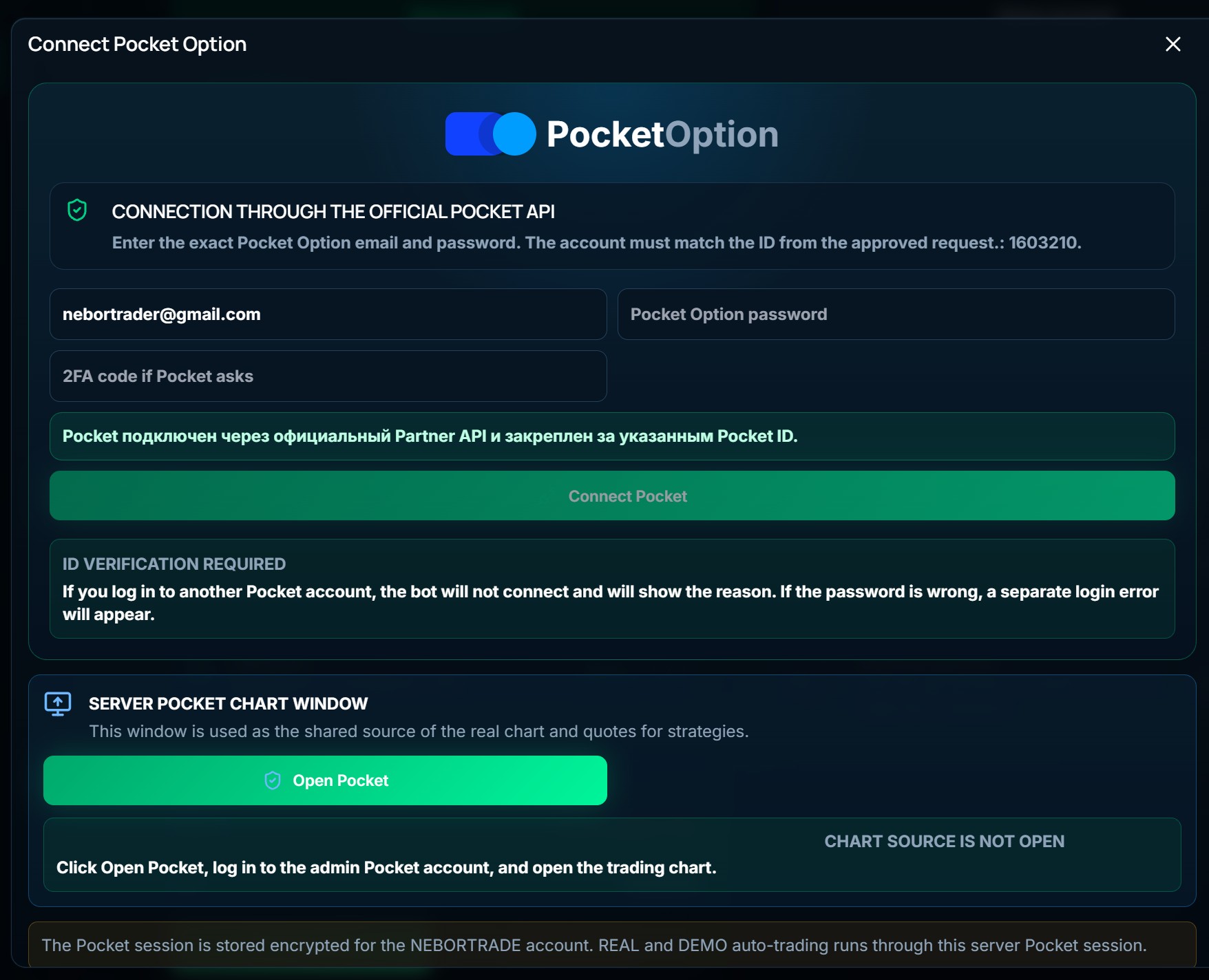
After clicking the "Connect" button, the Pocket Option connection window will open.
Enter the email address and password for your Pocket Option account. If the broker requests Two-Factor Authentication (2FA), enter the verification code in the appropriate field.
Once all the required information has been entered, click the "Connect Pocket" button.
🔒 Important!
Use the email address and password for your Pocket Option account, not your NEBORTRADE PRO login credentials. Your login details are entered only through the official secure Pocket Option authentication window and are never stored on the NEBORTRADE PRO platform.
7. Verify Your Account Connection
Once your account has been connected successfully, the status in the Pocket Option Connection section will change to "CONNECTED."
You will also see your Real Account Balance and Demo Account Balance displayed at the top of the dashboard.
🎉 Congratulations! Your account has been connected successfully.
You are now ready to start using NEBORTRADE PRO. You can enable ready-made trading strategies, create your own strategies, or copy trading signals. Simply choose the strategy that best suits your trading style and activate it to begin automated trading.
