📊 NEBORTRADE PRO — Trading Guide
The Trading section is your main workspace for automated trading.
Here, you can choose where to receive trading signals, set your trade amount, start or stop automated trading, and monitor your results.
Once trading is activated, NEBORTRADE PRO automatically processes signals and opens trades according to your settings.
Let's go through each section!
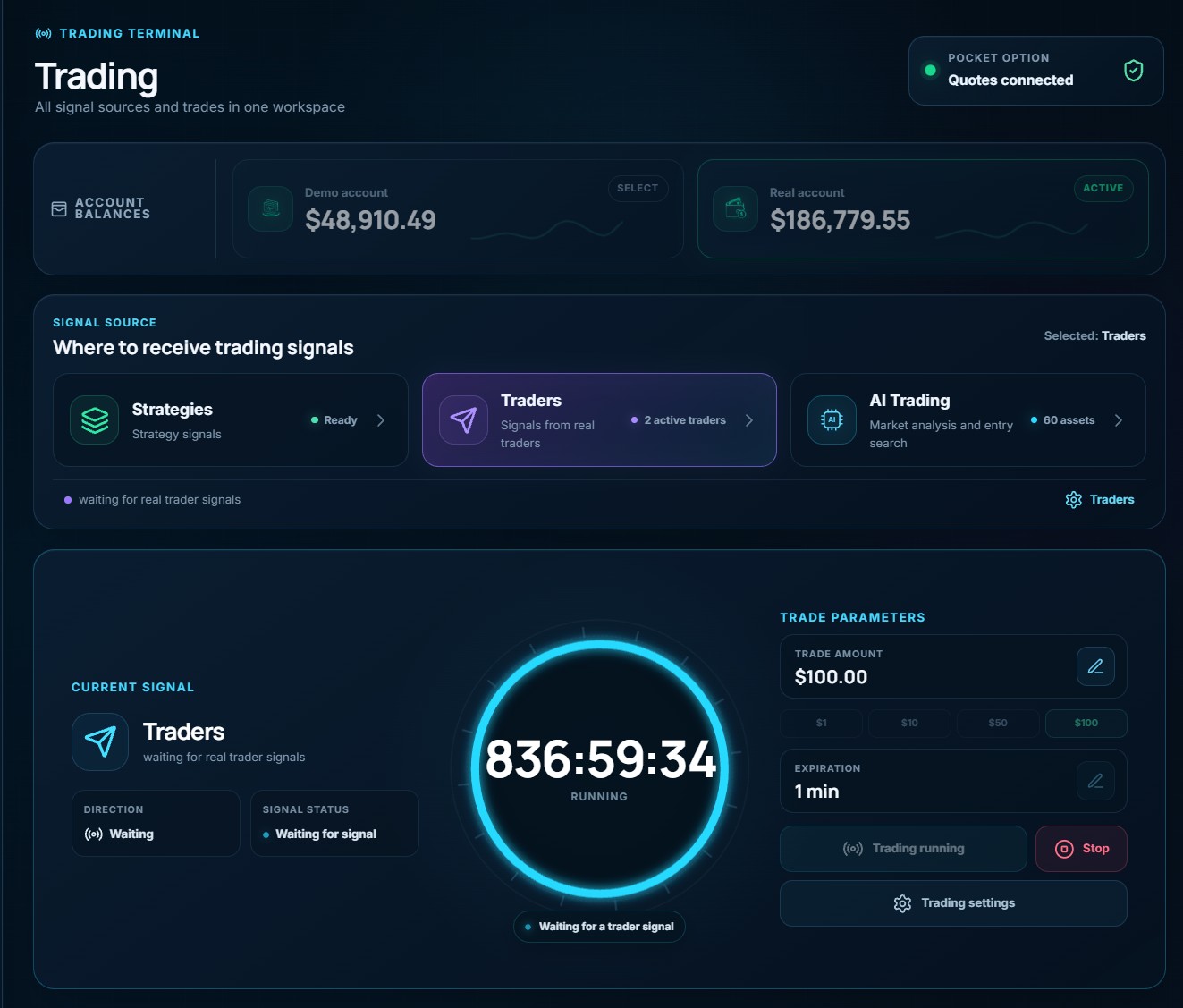
1. Trading Accounts
At the top of the page, you'll see your Pocket Option account balances.
🟢 Real Account — Trade using real money.
🔵 Demo Account — Practice trading with virtual funds.
Click on the account you want to use before starting trading.
Tip: If you're new to the platform, start with a Demo Account to test your settings without risking real money.
The Quotes Connected indicator shows that the service is receiving market quotes from Pocket Option.
2. Choose Your Signal Source
This is where you decide how NEBORTRADE PRO will receive trading signals.
There are three options:
🟢 Strategies
Trade automatically using trading strategies.
The system generates signals based on the rules and indicators of your selected strategies.
You can enable and configure strategies in the Strategies section.
🟣 Traders
Automatically copy trading signals from connected traders.
Choose which traders you want to follow in the Traders section.
When a selected trader generates a signal, NEBORTRADE PRO can automatically open a corresponding trade on your account.
You don't need to open each trade manually.
🔵 AI Trading
Let AI analyze the market and search for trading opportunities.
The AI monitors selected currency pairs, evaluates market conditions, and opens trades when its configured requirements are met.
AI Trading has its own settings and dedicated dashboard.
Simply choose the signal source that works best for you.
3. Trading Terminal
After selecting your signal source, you can manage trading from the main terminal.
Current Signal
Displays which source is currently selected and whether the system is waiting for a signal.
Direction
Shows the direction of the incoming signal:
🟢 UP — Buy direction.
🔴 DOWN — Sell direction.
Signal Status
Shows the current state of signal processing, such as waiting for a signal or opening a trade.
Trading Timer
The large circular timer shows how long the trading session has been running.
4. Trade Parameters
On the right side of the terminal, you'll find your trading settings.
💵 Trade Amount
Choose how much money to use for each trade.
You can enter your preferred amount or use one of the quick selection buttons.
For example, selecting $10 means the system will use $10 for each new trade, unless another enabled setting changes the amount.
⏱ Expiration
Choose how long each trade will remain open.
For example:
- 1 minute
- 3 minutes
- 5 minutes
Available expiration times depend on your selected trading mode and settings.
▶️ Start Trading
Once everything is configured, click the button to start automated trading.
The system will begin waiting for signals from your selected source.
When a valid signal arrives, NEBORTRADE PRO can automatically execute the trade.
⏹ Stop
Click Stop to stop automated trading and prevent new trades from being opened.
Already opened trades may remain active until expiration.
⚙️ Trading Settings
Open this section to configure additional trading parameters and restrictions.
Always review your settings before starting automated trading.
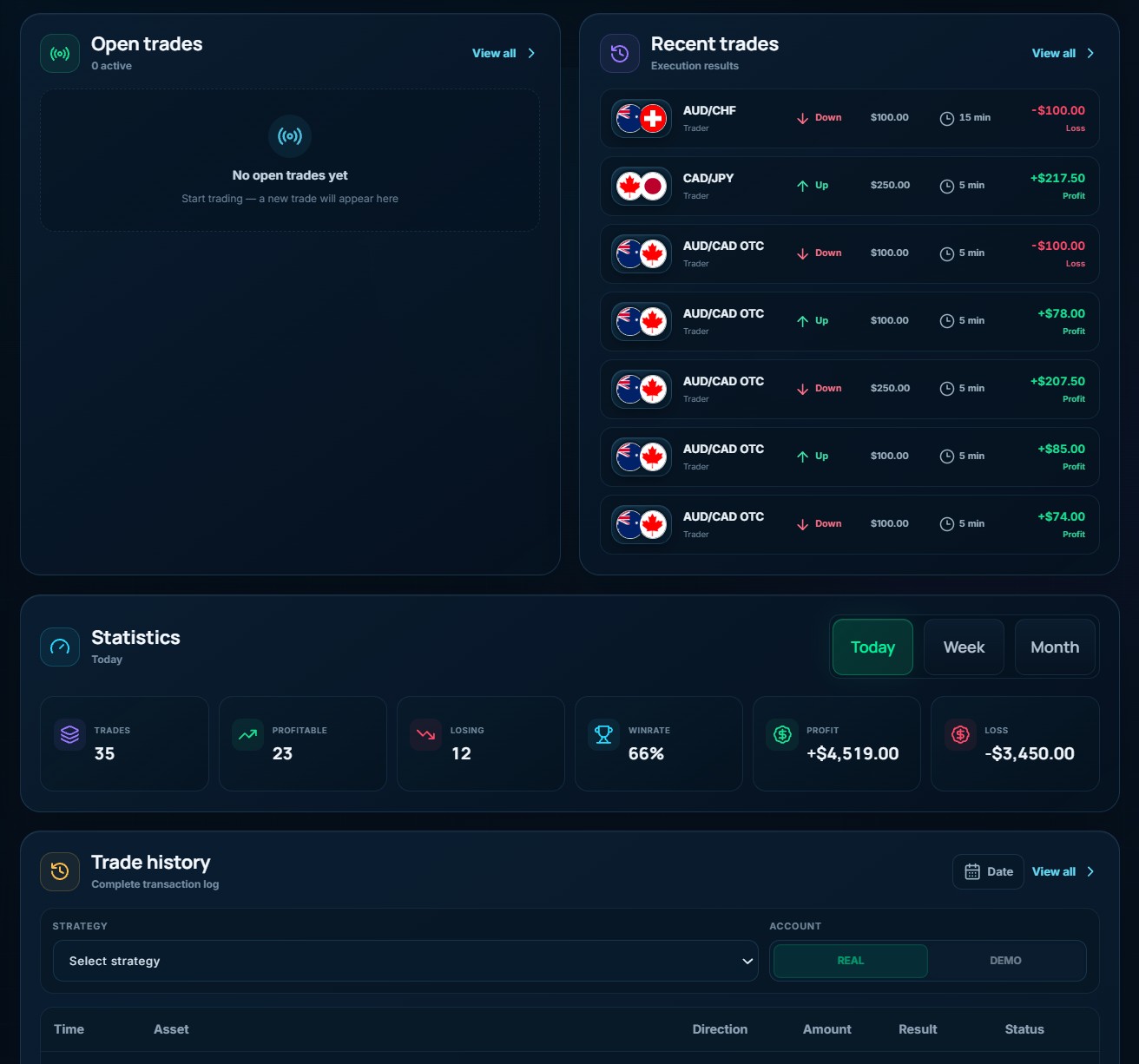
5. Open Trades & Recent Trades
Below the trading terminal, you'll find two important sections.
📂 Open Trades
Displays trades that are currently active and have not yet expired.
If there are no active trades, you'll see No open trades yet.
📋 Recent Trades
Shows your latest completed trades, including:
- Currency pair.
- Trade direction.
- Trade amount.
- Expiration time.
- Profit or loss.
🟢 Green results indicate profitable trades.
🔴 Red results indicate losing trades.
Click View All to access more trading records.
6. Trading Statistics
The Statistics section helps you track your trading performance.
You can select:
📅 Today — Today's results.
📅 Week — Weekly results.
📅 Month — Monthly results.
The dashboard displays:
- Trades — Total number of trades.
- Profitable — Number of winning trades.
- Losing — Number of losing trades.
- Win Rate — Percentage of profitable trades.
- Profit — Total positive results.
- Loss — Total negative results.
This information helps you review how your trading settings have performed.
Remember that past results do not guarantee future profits.
7. Trade History
At the bottom of the page, you'll find the Trade History section.
This is your detailed trading activity log.
You can:
- Select a strategy to filter trades.
- Switch between Real and Demo accounts.
- Choose a date.
- Review previous trading operations.
Each record includes the trade time, asset, direction, amount, result, and status.
Use this section to review your trading activity and understand your results.
🚀 How to Start Trading — Quick Guide
Step 1. Connect your Pocket Option account to NEBORTRADE PRO.
Step 2. Select your Real or Demo account.
Step 3. Choose a signal source: Strategies, Traders, or AI Trading.
Step 4. Configure your trade amount and expiration time.
Step 5. Review your trading settings and risk limits.
Step 6. Click Start Trading.
That's it! NEBORTRADE PRO will monitor your selected signal source and automatically process eligible trades.
You can follow everything in real time from your Trading dashboard.
⚠️ Important: Automated trading involves financial risk. No trading strategy or signal provider can guarantee profits. We recommend testing your settings on a demo account first.