👤 NEBORTRADE PRO — Profile Guide
The Profile section is your personal trading dashboard in NEBORTRADE PRO.
Here, you can manage your Pocket Option connection, switch between real and demo accounts, track trading statistics, access available bonuses, and manage your trading strategies.
Let's explore each feature.
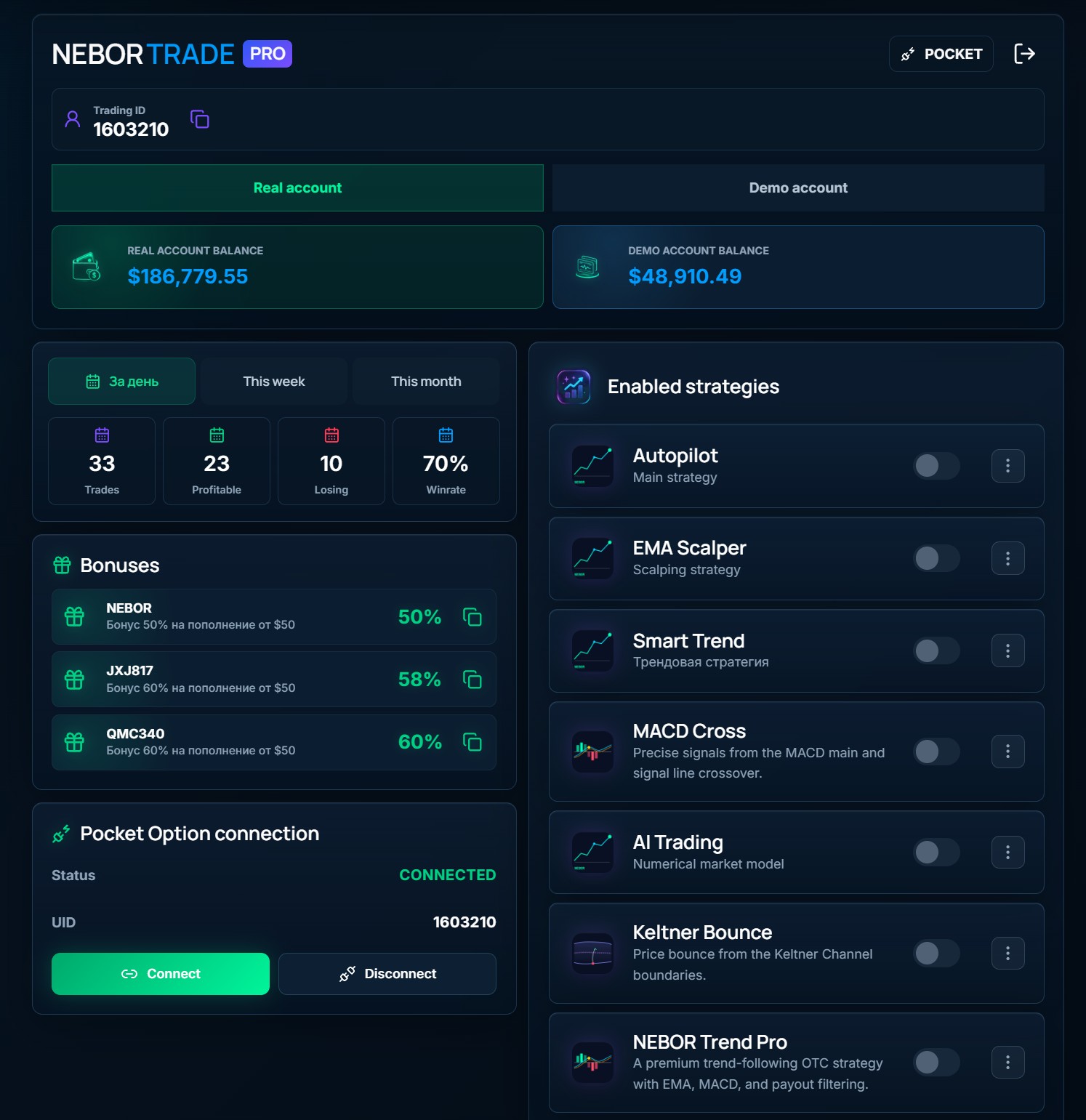
1. Trading Account Information
At the top of your profile, you'll find your trading account details.
🔹 Trading ID
Your unique Pocket Option account identifier.
Click the copy icon next to your Trading ID to copy it instantly.
🔹 POCKET Button
Located in the upper-right corner, this button provides quick access to Pocket Option.
2. Real and Demo Accounts
Below your Trading ID, you'll find two account options:
🟢 Real Account — Trade using real funds.
🔵 Demo Account — Practice trading with virtual funds without risking real money.
Simply select the account you want to use.
Below these options, you can view the balances of both accounts.
We recommend testing new strategies on a demo account before using real funds.
3. Trading Statistics
The statistics section gives you an overview of your trading performance.
You can switch between three periods:
📅 Daily — Today's trading results.
📅 Weekly — Your trading performance for the week.
📅 Monthly — Your trading results for the month.
Each period displays four key metrics:
- Trades — Total number of executed trades.
- Profitable — Number of winning trades.
- Losing — Number of losing trades.
- Win Rate — Percentage of profitable trades.
For example, if 23 out of 33 trades are profitable, your win rate is approximately 70%.
These statistics help you monitor your performance and evaluate your trading settings. Past performance does not guarantee future results.
4. Pocket Option Bonuses
🎁 The Bonuses section displays available promotional codes for account deposits.
Each offer includes:
- Promotional code.
- Bonus percentage.
- Minimum deposit requirement, if applicable.
- Copy button.
How to use a bonus:
- Choose an available promotional code.
- Click the copy icon.
- Open Pocket Option.
- Enter the code when making a deposit, if eligible.
- Review the promotion's terms before confirming your payment.
Bonus availability, eligibility, withdrawal restrictions, and turnover requirements are determined by Pocket Option.
5. Pocket Option Connection
🔗 This section allows you to manage the connection between NEBORTRADE PRO and your Pocket Option trading account.
Connection Status
- CONNECTED — Your trading account is connected.
- Disconnected — No active connection is established.
UID
Displays the unique identifier of your connected Pocket Option account.
Connect Button
Use this button to connect your trading account to NEBORTRADE PRO.
Disconnect Button
Use this button to disconnect your trading account from the service.
Before disconnecting, we recommend stopping automated trading and checking for any open positions.
6. Enabled Strategies
📊 On the right side of your profile, you'll find the Enabled Strategies section.
This area displays the trading strategies available in your account.
Examples include:
- Autopilot — Main trading strategy.
- EMA Scalper — Scalping strategy.
- Smart Trend — Trend-following strategy.
- MACD Cross — Signals based on MACD line crossovers.
- AI Trading — Numerical market analysis model.
- Keltner Bounce — Price bounces from Keltner Channel boundaries.
- NEBOR Trend Pro — Premium OTC trend-following strategy using EMA, MACD, and payout filtering.
Strategy Toggle
Use the switch next to each strategy to enable or disable it.
Enabled strategies can generate trading signals according to their configured conditions.
Three-Dot Menu (⋮)
Click the three-dot button to access additional options for the selected strategy.
Available actions may vary depending on the strategy and service version.
Important: Enabling a strategy in your profile does not necessarily start automated trading immediately. Make sure the correct signal source and trading settings are selected in the Trading section.
⚠️ Important Recommendations
Before starting automated trading, make sure that:
- Your Pocket Option account is successfully connected.
- The correct trading account is selected.
- Your preferred strategies are enabled.
- Trade amounts and risk limits are configured correctly.
- New strategies have been tested on a demo account.
Automated trading involves financial risk, and no strategy can guarantee profits.