Mastering Midjourney: Tips for Making Prompts
What Is a Prompt?
A prompt is a brief description that Midjourney uses as a foundation to generate an image. A well-crafted prompt can help bring your vision to life. You can easily use Midjourney through @GPT4Telegrambot.
Prompts begin with the /imagine command and can include text, image links, and parameters:
- The text describes what image you want to generate;
- Image URLs can be added to a prompt to influence the style and content of the finished result. Image URLs always go at the front of a prompt;
- Parameters change how an image is generated. They go at the end of the prompt with two dashes --

How to Use Image URLs in Prompts?
You can use images as part of a prompt to influence a picture's composition, style, and colors. You can also combine two different images.
How it works:
- Upload your image (or two) to Imgur or Postimages.org and get links to them in .png, .jpg, or .webp format;
- Paste the link at the front of a prompt and then add the text description;
- To combine two images into one, use two links in a row separated with a comma.
Example of the prompt with image:
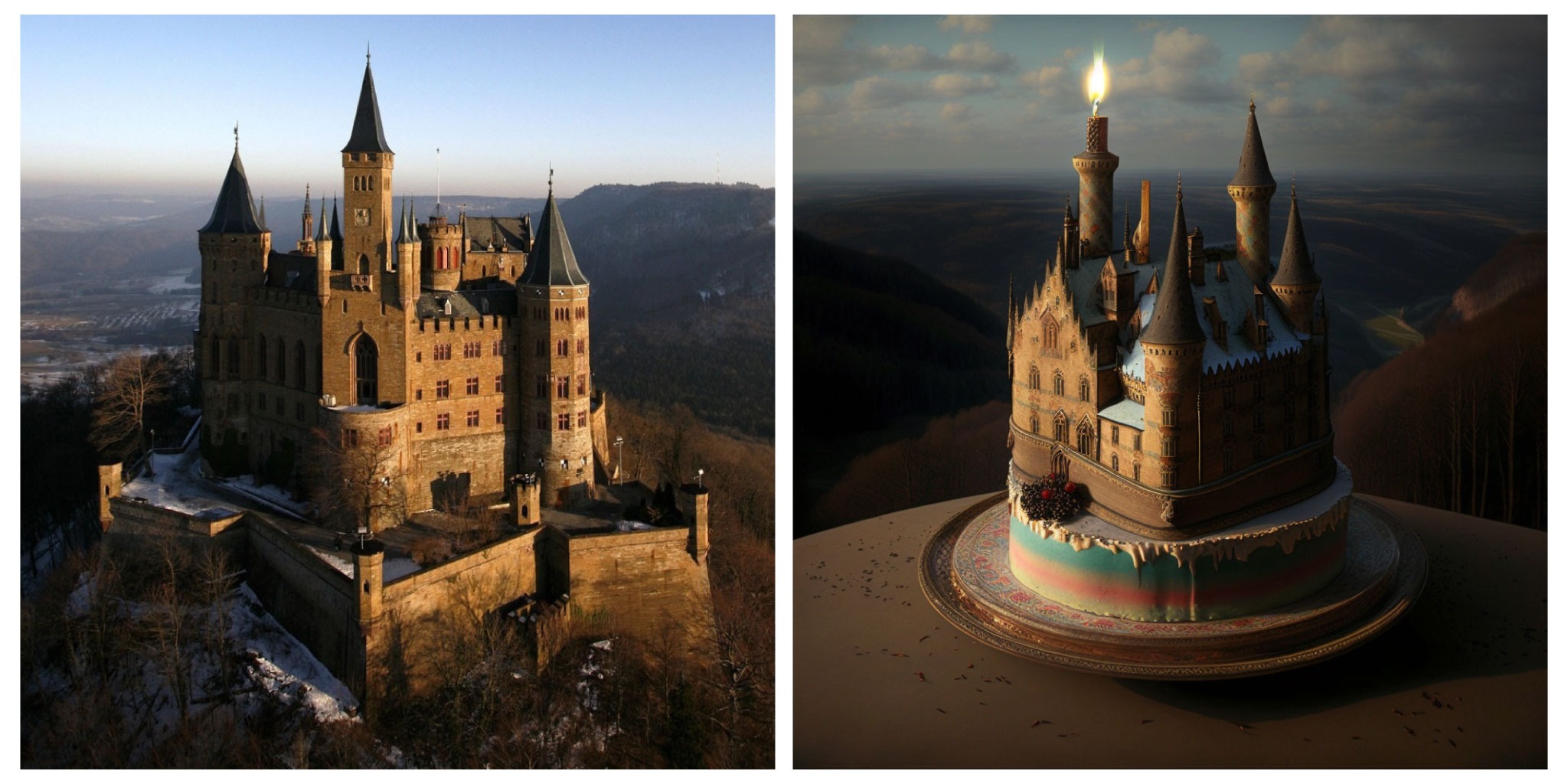
Example of combining images:
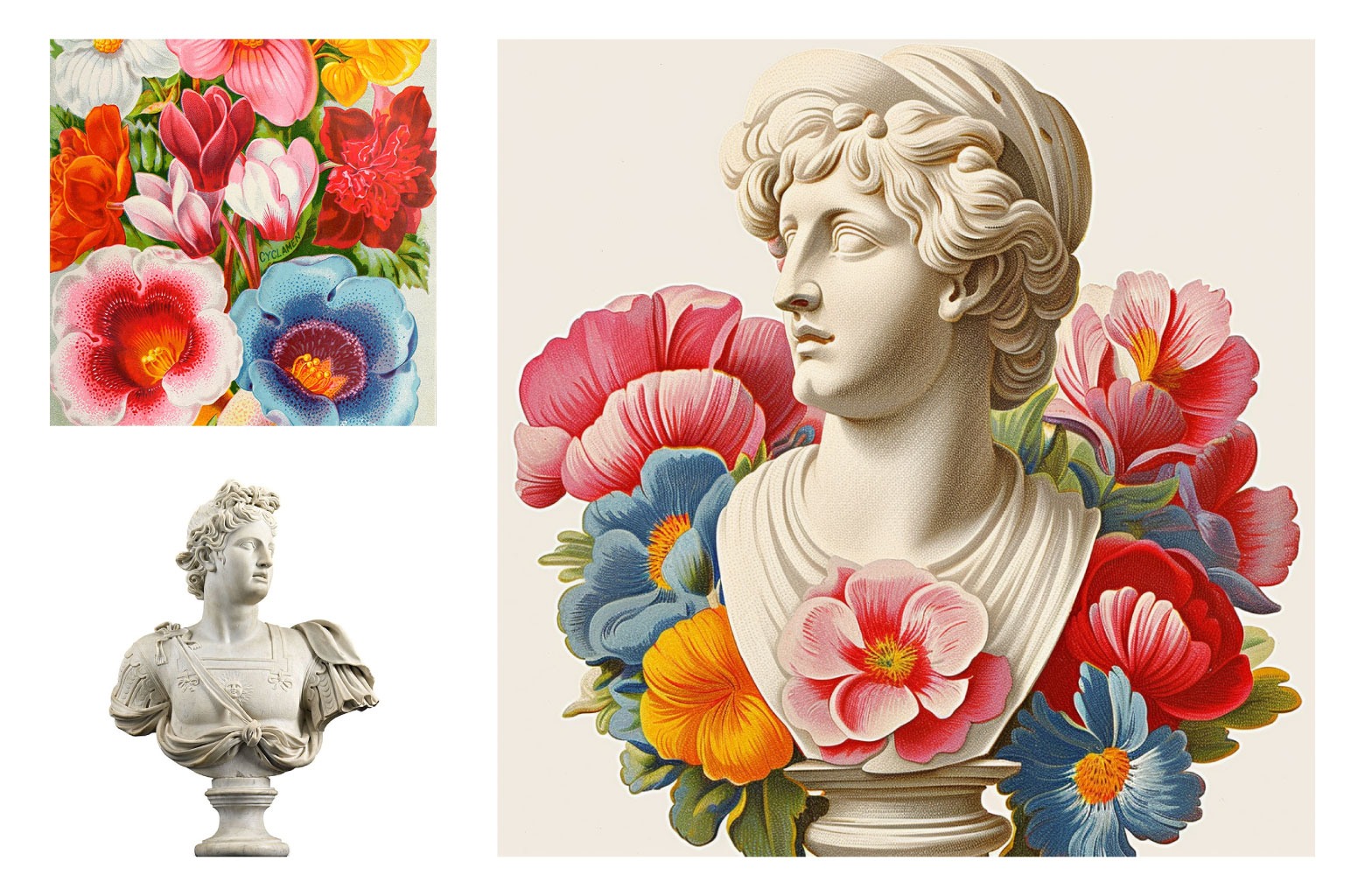
Parameter List --
Parameters are options added to a prompt that change how an image is generated. Parameters are always added to the end of a prompt. You can add multiple parameters to each prompt.
Here is the List of the Most Useful:
--v 5.2, or --v 4 To use an earlier version of Midjourney (version 5.2 or version 4, respectively). The default setting is Midjourney V6;
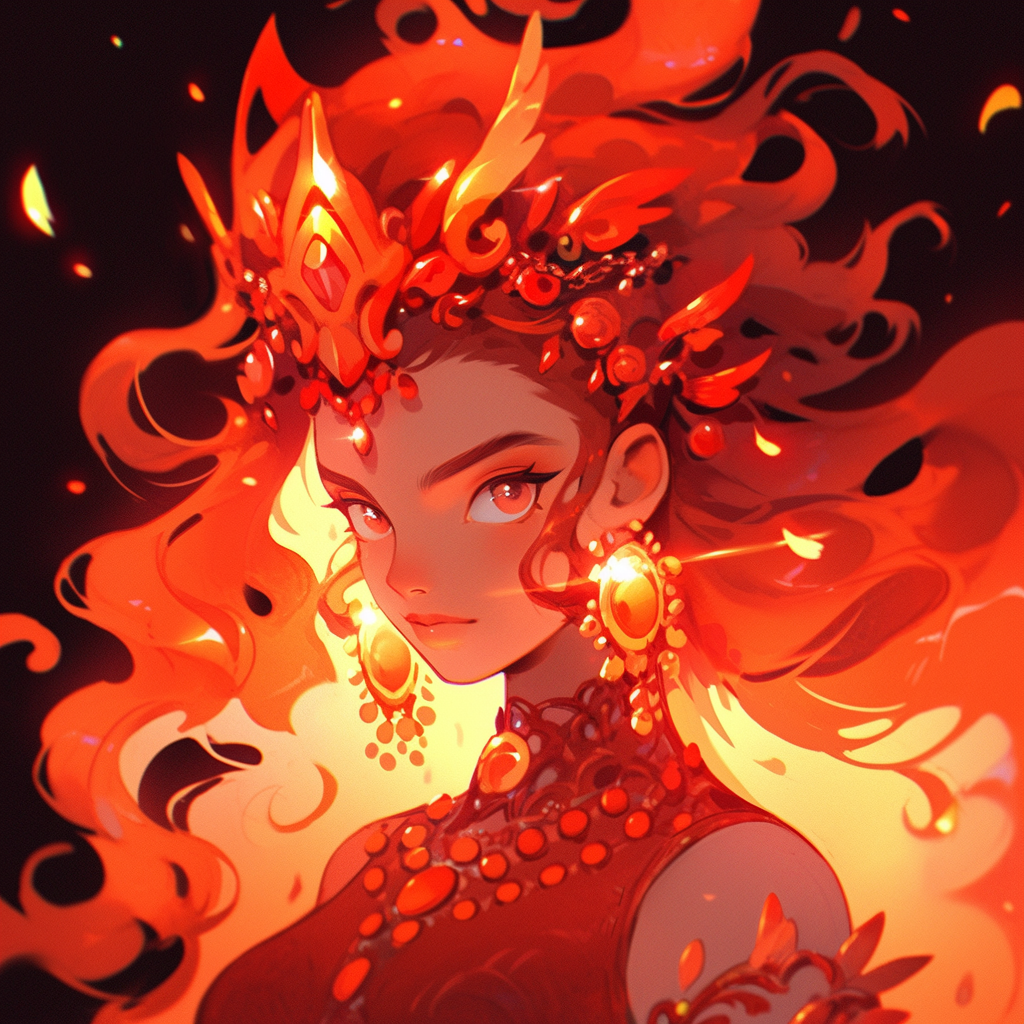
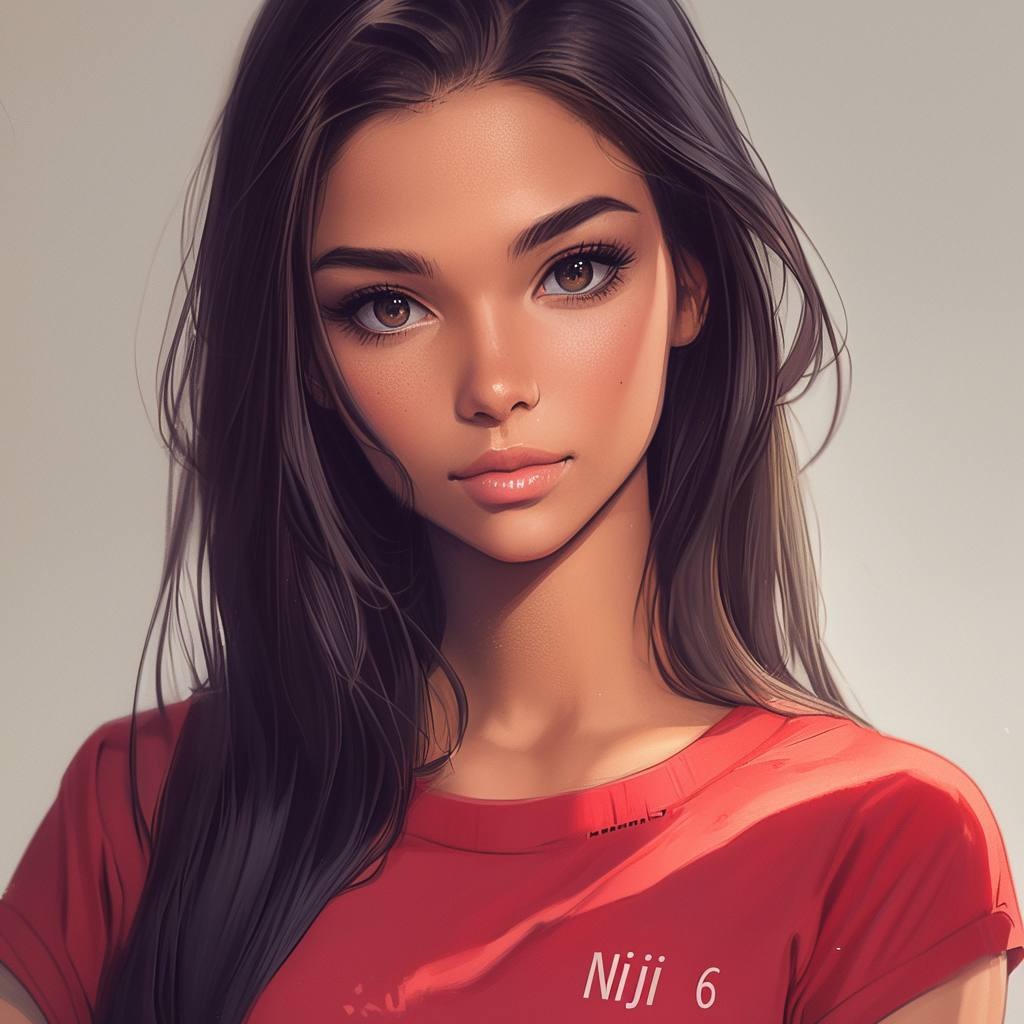
--niji and --niji 6 To produce anime-style images;
--aspect, or --ar changes the aspect ratio of the generated image. An aspect ratio is the width-to-height ratio of an image. It is typically expressed as two numbers separated by a colon, such as --ar 16:9 or --ar 4:3. The default aspect ratio is 1:1;
--style raw creates more natural and realistic images by reducing the influence of Midjourney's aesthetic processing;
--stylize or --s <number 0–1000> parameter also affects the artistic processing of the image. Lower stylization values produce more natural-looking pictures that closely match the prompt, while higher values produce more artistic images. The parameter ranges from --s 0 to --s 1000, with the default being 100;
--chaos <number 0–100> parameter influences how varied the initial image grids are. Higher values produce more diverse and unique initial image variations;
--weird <number 0–3000> introduces quirky and offbeat qualities to your generated images, resulting in unique and unexpected outcomes. The scale goes from 0 by default, indicating no "weirdness," to 3000, representing maximum "weirdness";
--no tells the bot what not to include in your image, --no plants would try to remove plants from the image.
Find out more parameters on the Midjourney website. @GPT4Telegrambot supports the following parameters: --v --niji --niji 6 --aspect --ar --style --s --stylize --chaos --weird --no --upbeta --seed --tile --uplight --hd --test --testp --iw --sameseed.
Prompt Length
Prompts can be very simple. Single words will produce an image. Short prompts rely heavily on Midjourney’s default style, so a more descriptive prompt is better for a unique look. However, super-long prompts aren’t always better. Concentrate on the main concepts you want to create. Remove words when possible. Fewer words mean each word has a more powerful influence.
Think About What Details Matter
Anything left unsaid may surprise you. Be as specific or vague as you want, but anything you leave out will be randomized. Being vague is a great way to get variety, but you may not get the specific details you want. Try to be clear about any context or details that are important to you.
Hint Commands for Prompt Design
Midjourney offers 2 helpful commands to assist you in creating a well-designed prompt:
/describe + image uploading. This command works in reverse: upload an image from your device's gallery, and add the /describe command in the caption. Midjourney will respond by sending several prompt options for that image.
/shorten and text prompt. Midjourney will analyze your prompt and suggest how to improve it: what words might not be doing anything and which might be key.
These commands do NOT consume generations, allowing you to look at prompts from Midjourney's perspective and better understand their design principles.
How to Use the U, V, 🔄, ✉️, and Zoom Buttons?
After sending the /imagine command with your prompt, the generation of 4 initial images begins, usually taking 1-3 minutes. Along with the images, two rows of buttons will appear:
- U 1-4 – upscales the selected image by adding more detail;
- V 1-4 – creates four new variations of the selected image;
- 🔄 – regenerates the images using the same prompt again;
- ✉️ – allows you to obtain the "seed" of the image. Midjourney uses a seed number to create a field of visual noise as a starting point to generate the initial image grids. Seed numbers are generated randomly for each image but can be specified with the --seed parameter. If you use the same seed number and prompt, you will get similar final images.
After upscaling (U) the initial image, new buttons appear:
- Upscale – increases the resolution by two or four times. More details below;
- 🪄 Vary – creates four new variations of the image with either significant (Strong) or minor (Subtle) changes;
- 🔍 Zoom out (1.5x or 2x) – zooms out of the image and adds new details;
- ⬅️ ➡️ ⬆️ ⬇️ Pan – extends the image in the selected direction.
How to Get High-Resolution Images?
Upscale buttons allow for increasing the resolution. The buttons differ for Midjourney V6 and V5.
- For Midjourney V6: Upscale (Subtle) and Upscale (Creative) both double the resolution to 2048x2048 pixels. "Subtle" aims to keep changes minimal, while "Creative" introduces more artistic alterations.
- For Midjourney V 5.2 and earlier: Upscale X2 and X4 increase the resolution by two or four times, reaching 2048x2048 or 4096x4096 pixels, respectively.
The commands Upscale X2, "Subtle", and "Creative" consume two regular image generations, Upscale X4 consumes four generations.
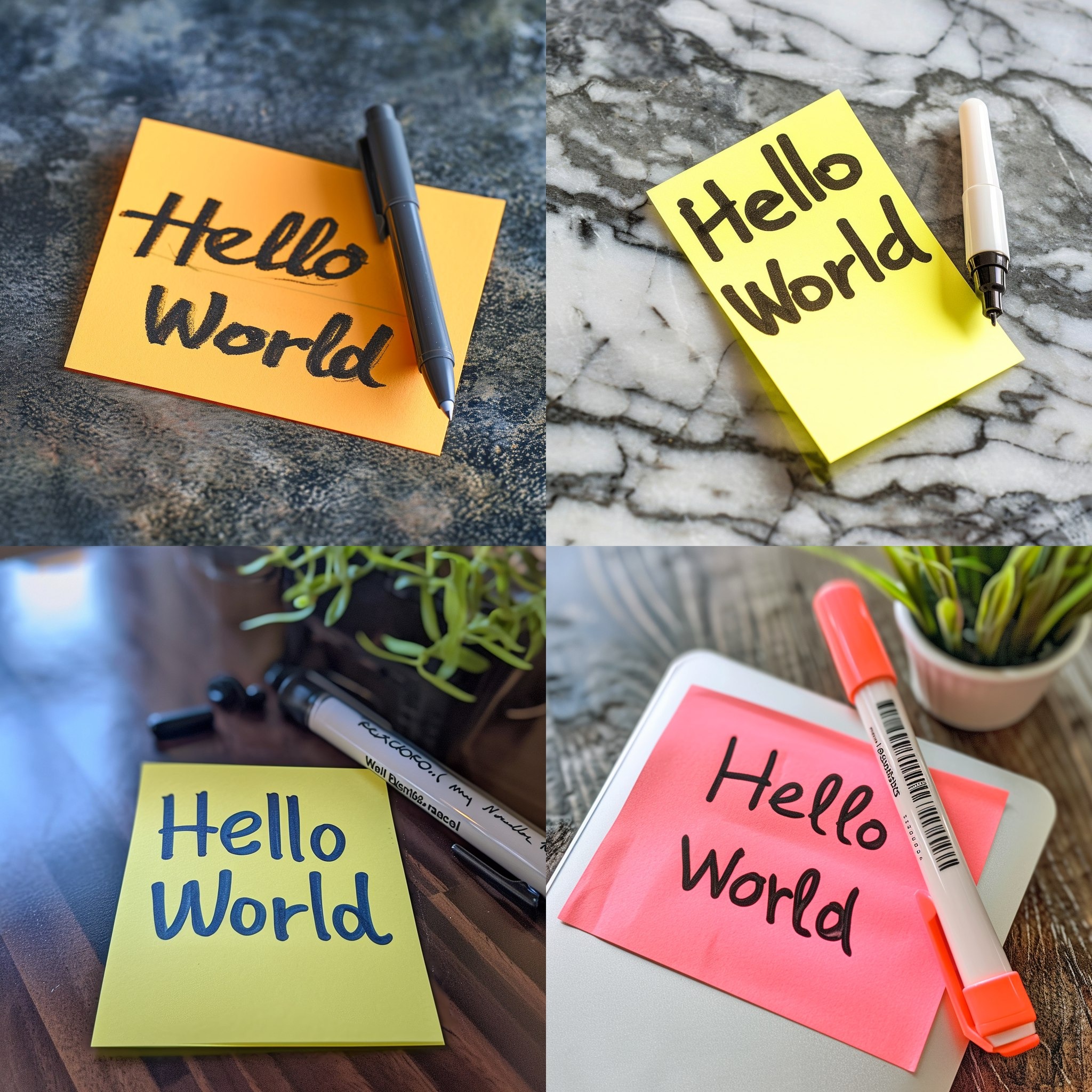
How to Place Text on an Image?
Midjourney V6 can generate a short text on images: Write the text in English and enclose it in "quotes".
How to Make Images Photorealistic?
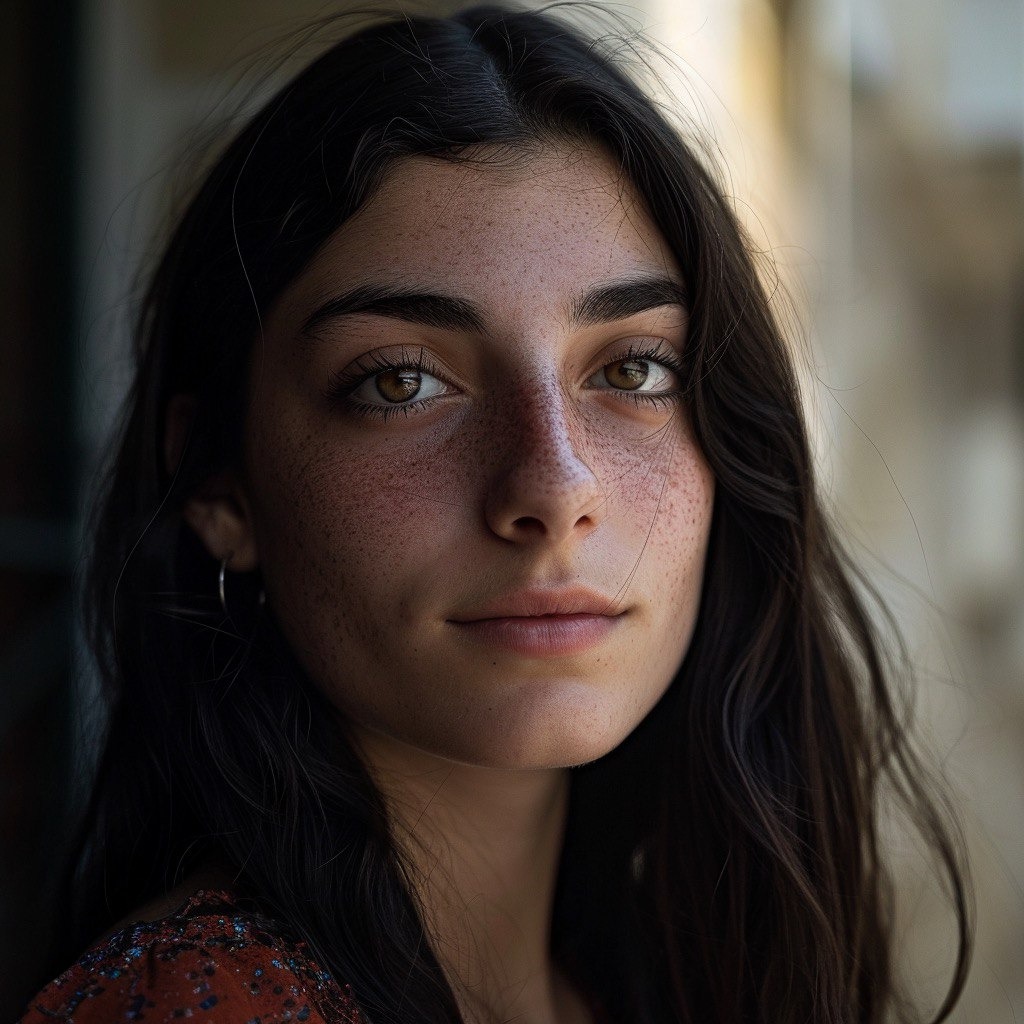
Midjourney V6 generates incredibly photorealistic images that look as if they were taken with a camera or phone. How to achieve such realism?
- Add the --style raw parameter, which produces more natural and realistic images;
- Use lower stylization values, for example: --s 0;
- Avoid clichés such as "4k", "8k", "photorealistic"; it doesn't work;
- You can specify the type of camera or film used for the "shot." For example: "Shot on Canon R6 Mark II camera, 35 mm lens" or "Shot on iPhone";
- Specifying the parameter --ar 9:16 will result in a vertical iPhone-style photo;
- Midjourney V6 is the default setting.
Selection of "camera" and lighting on Midjourney >
Mastering Angles and Perspective >
Examples of Prompts
Examples are provided in English, Midjourney's primary language. However, @GPT4Telegrambot automatically translates your request so that you can write the prompt in any language.
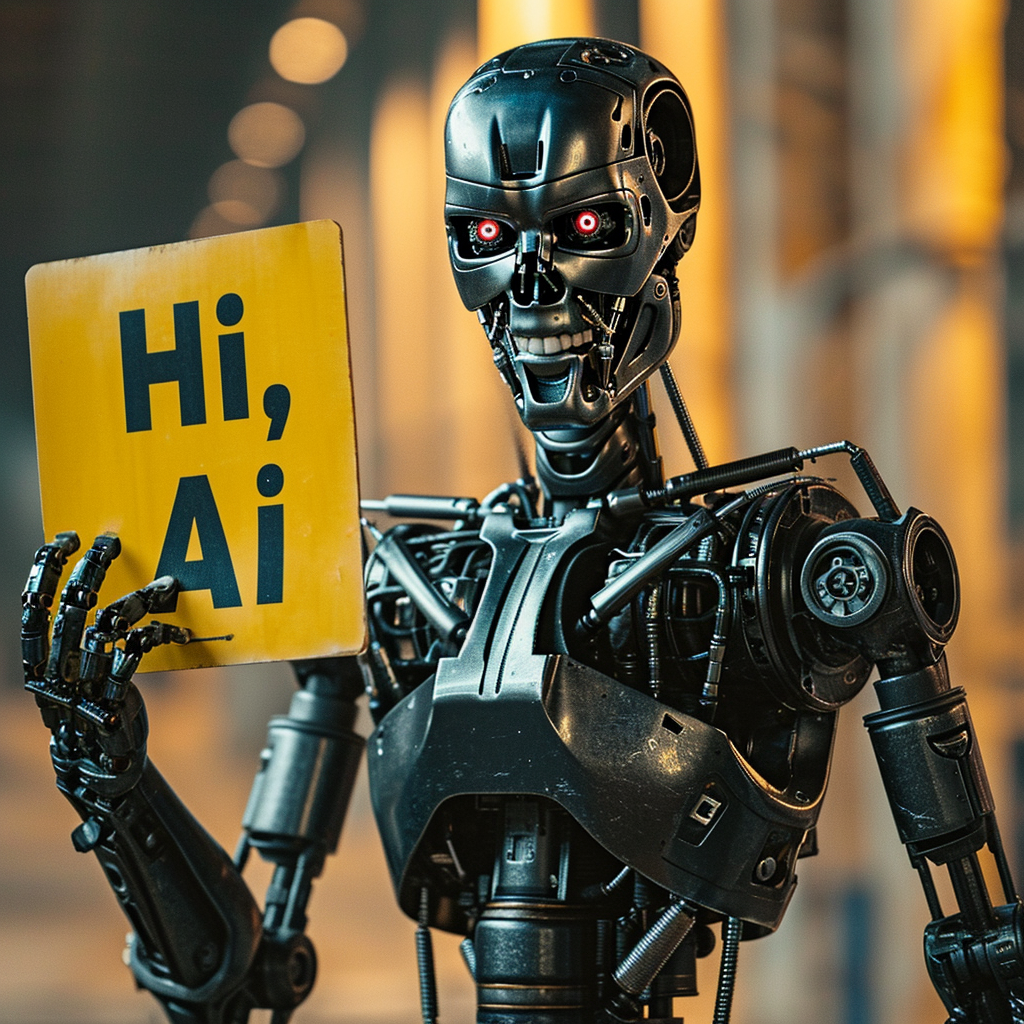
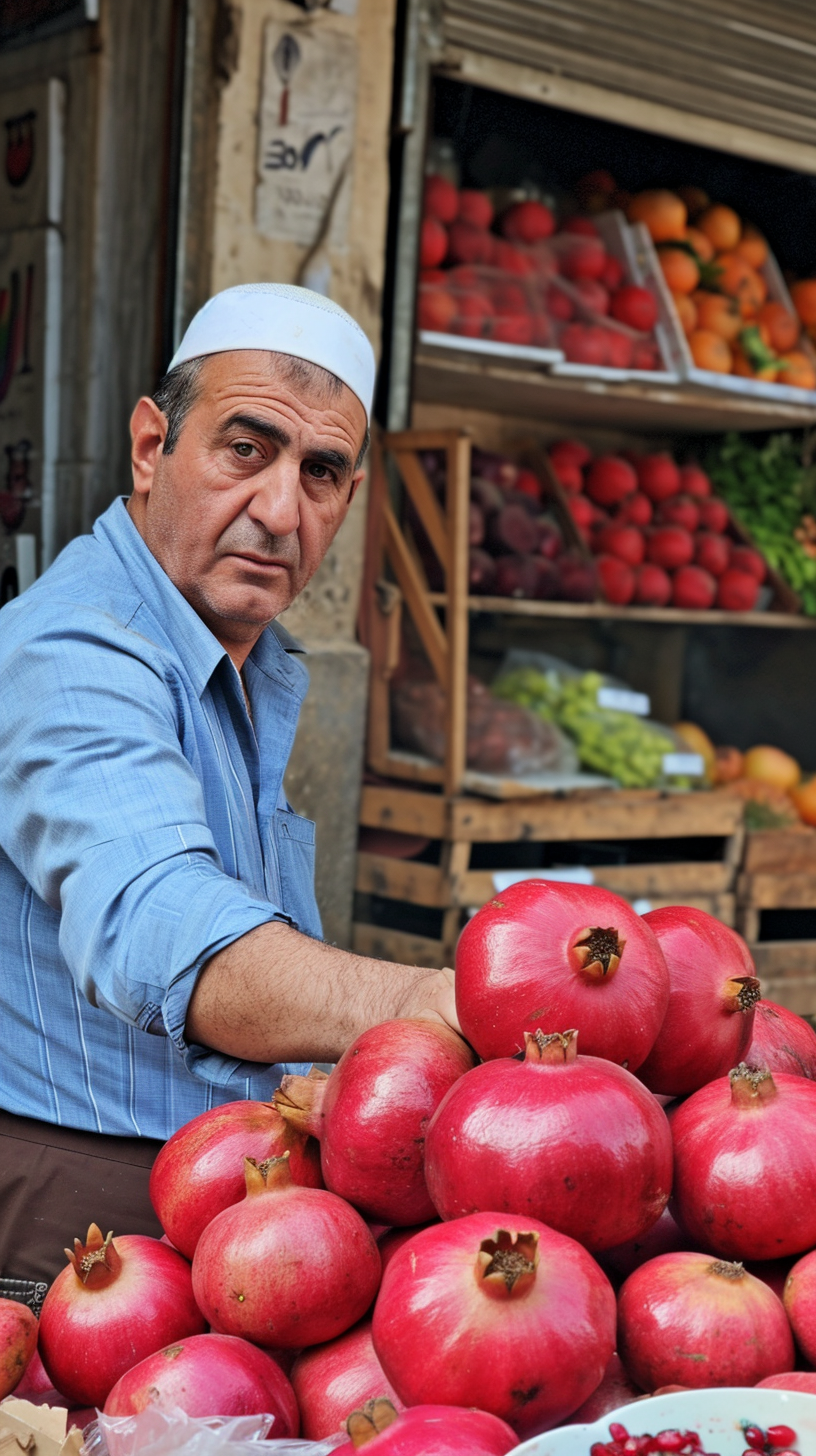
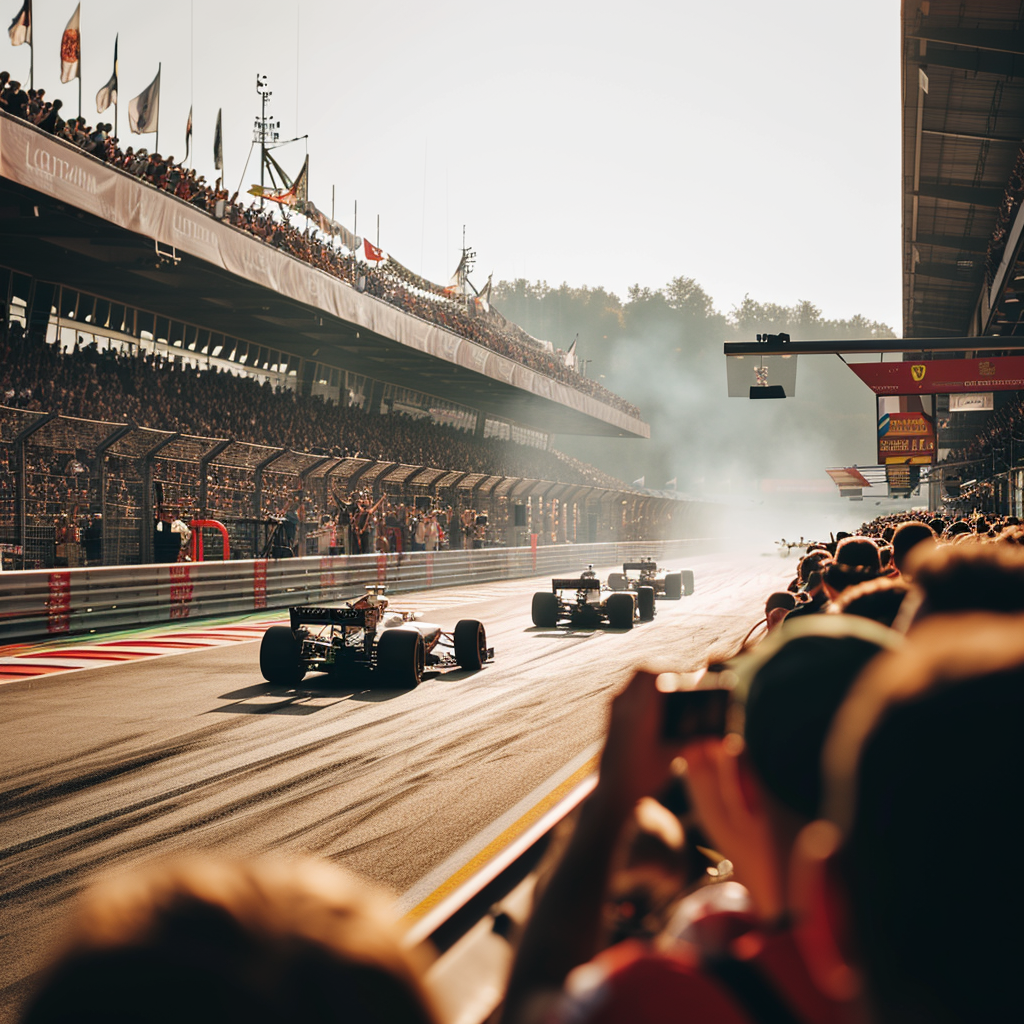
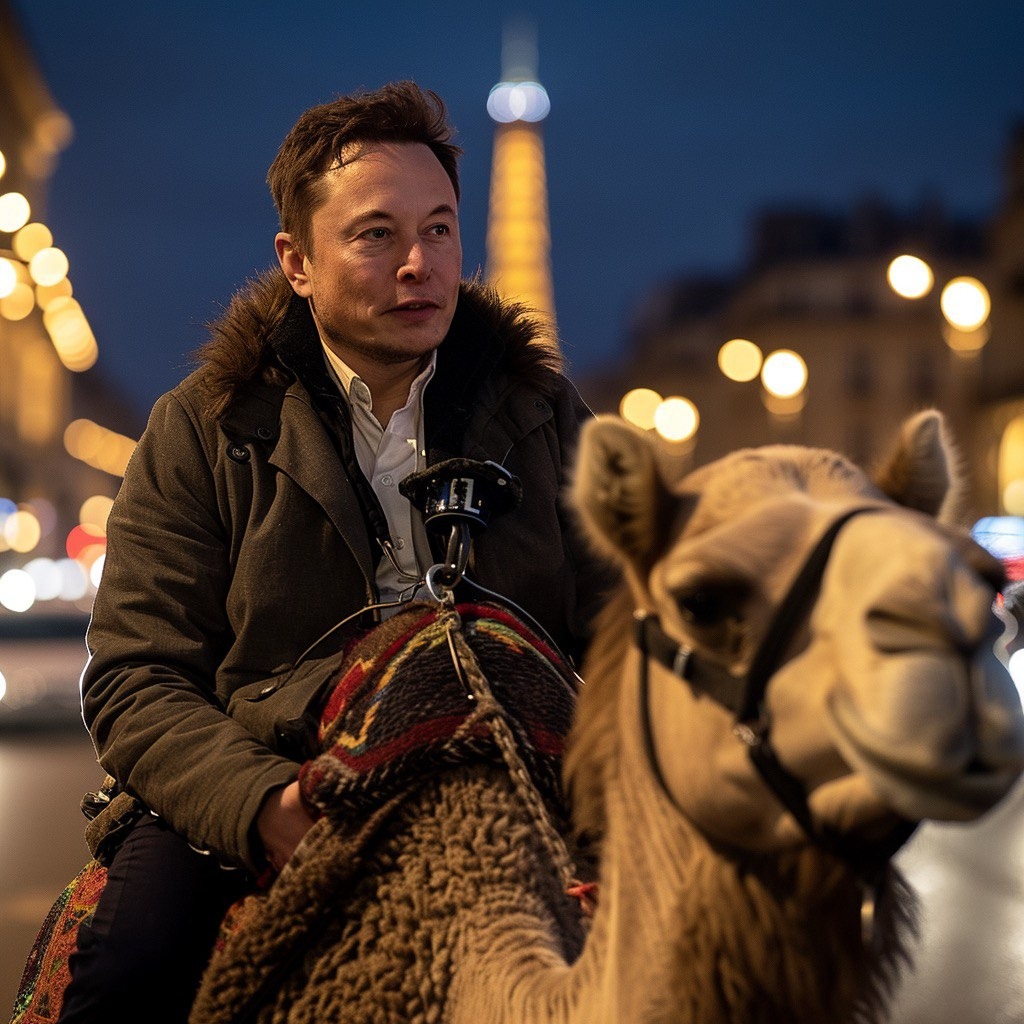
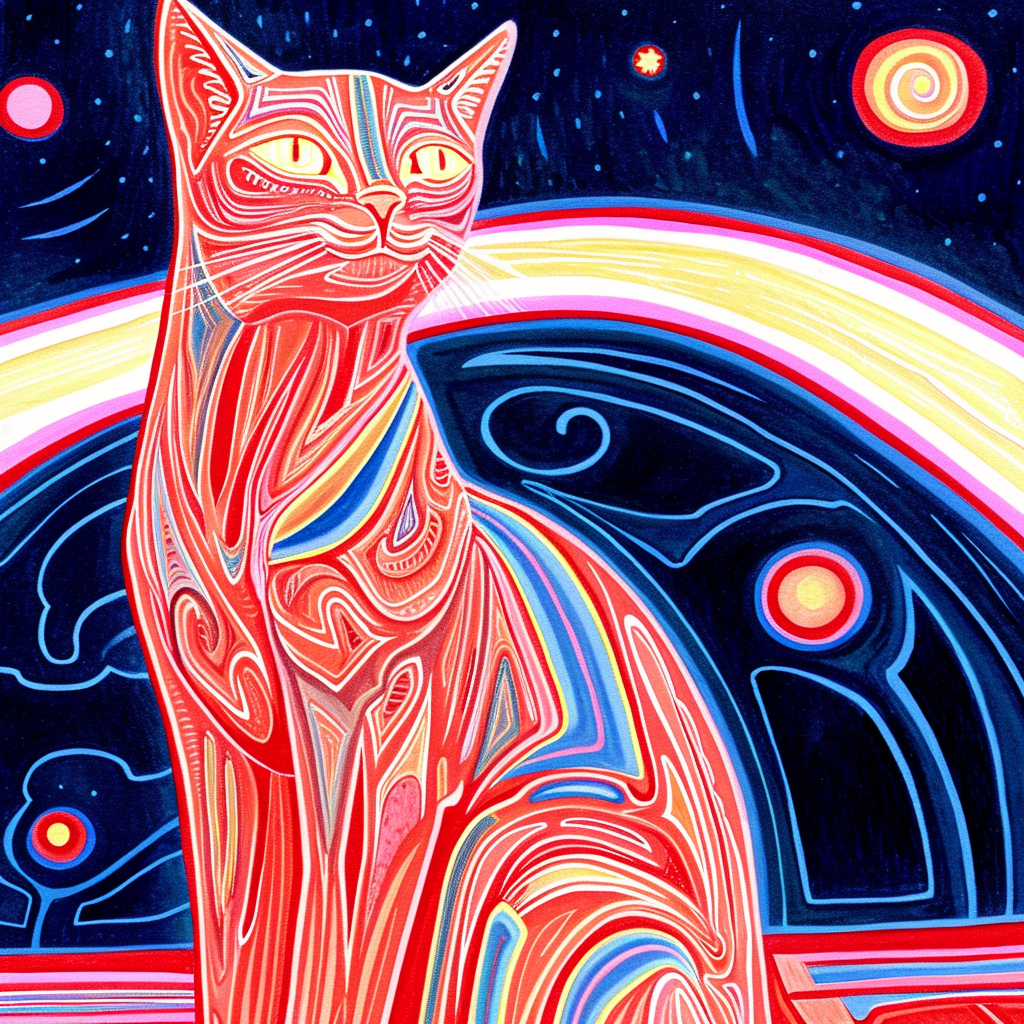
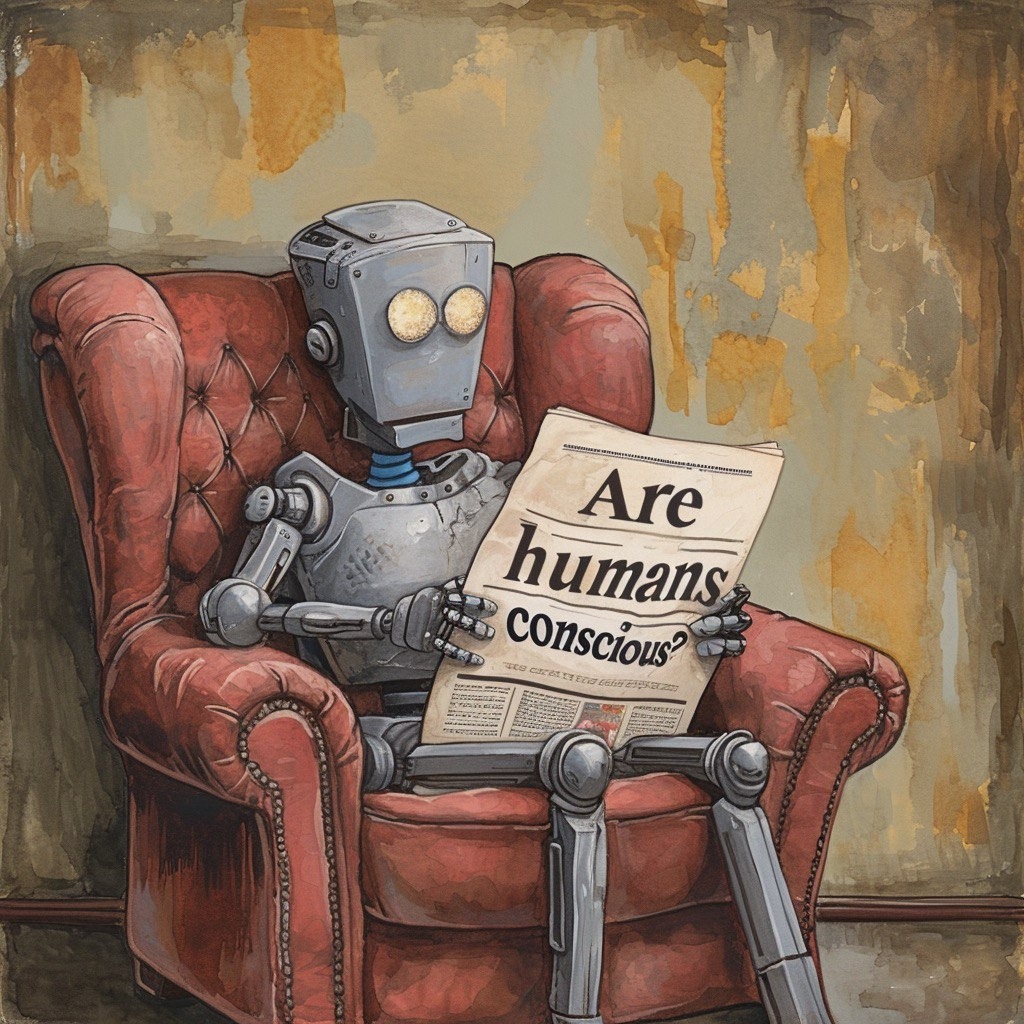
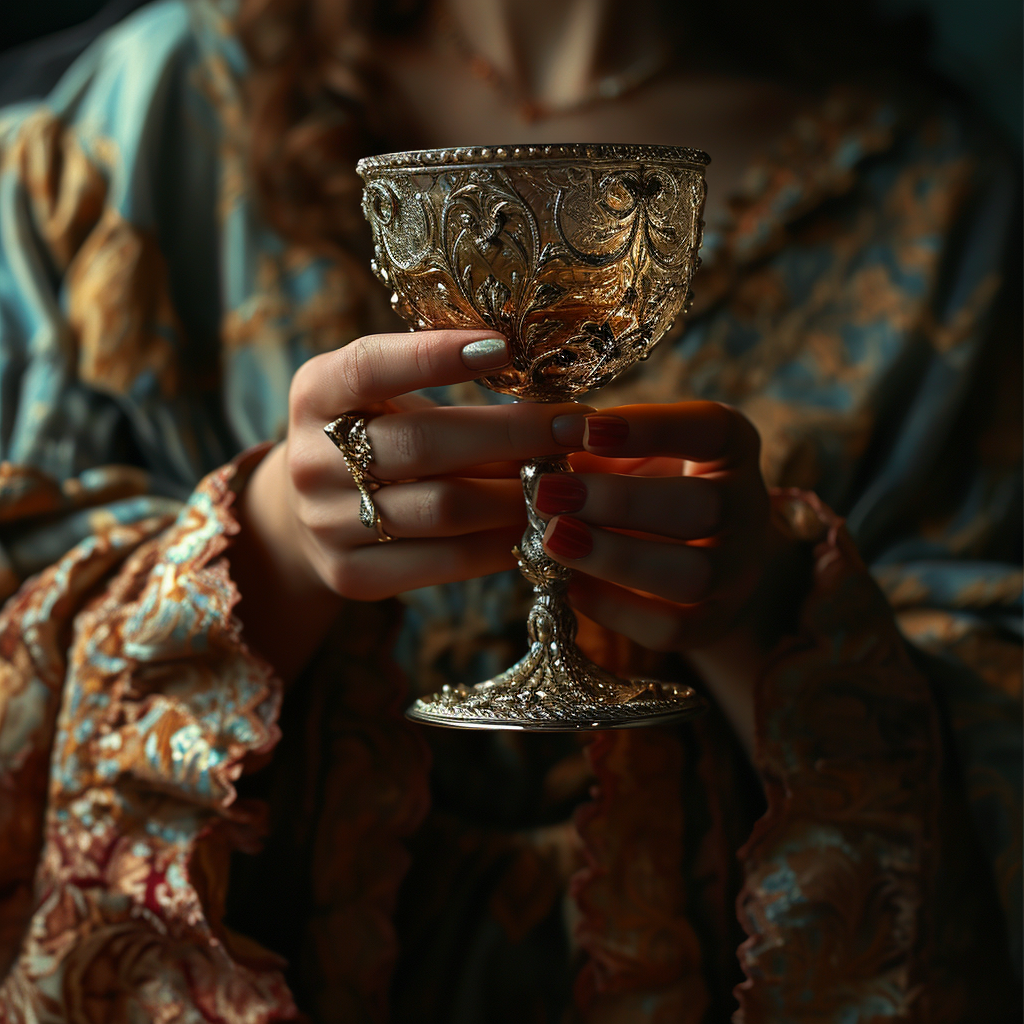
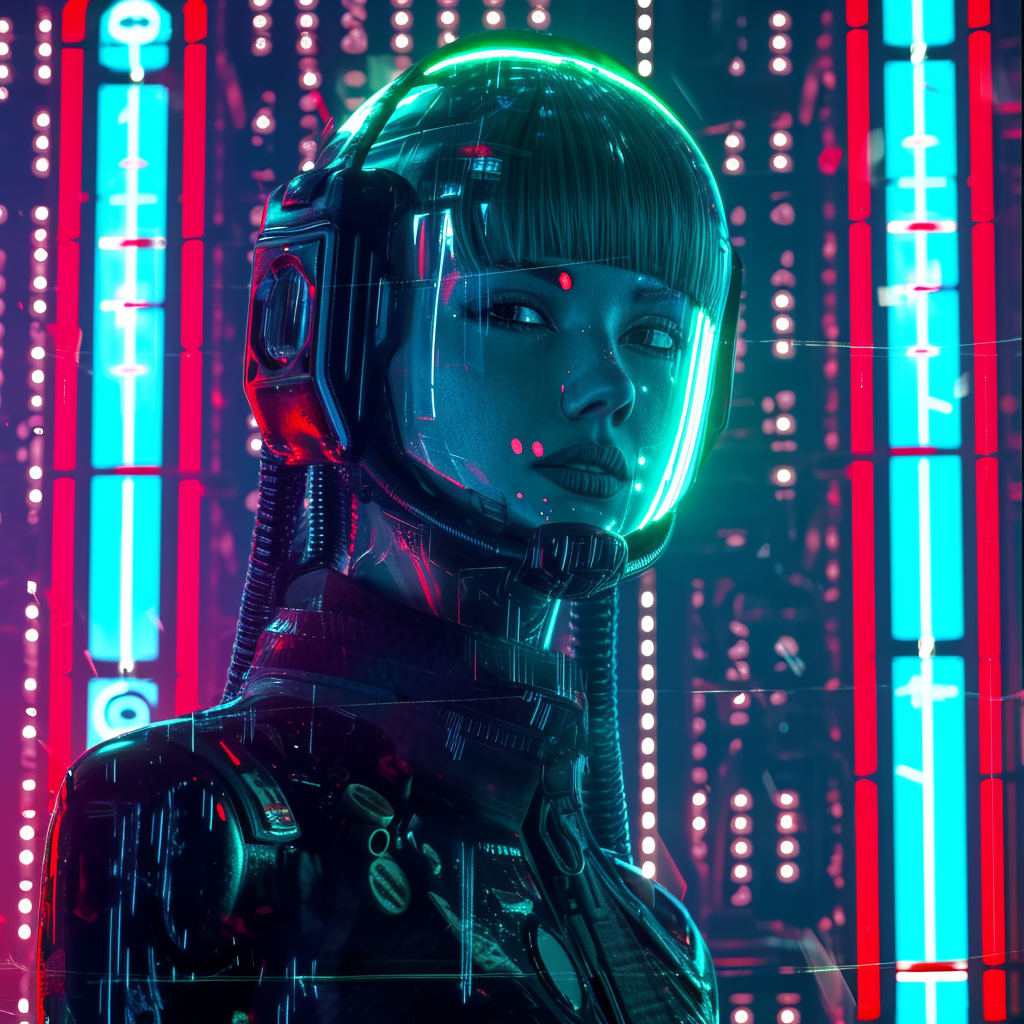
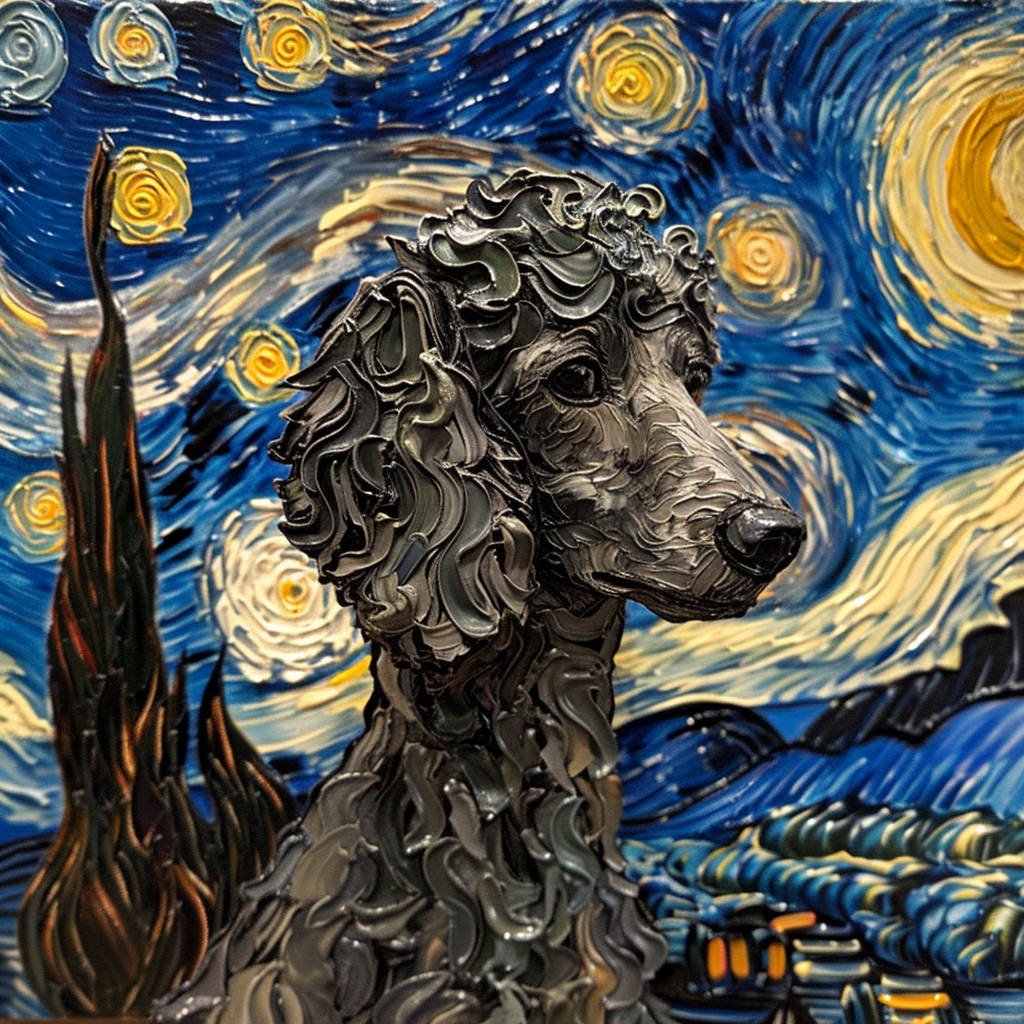
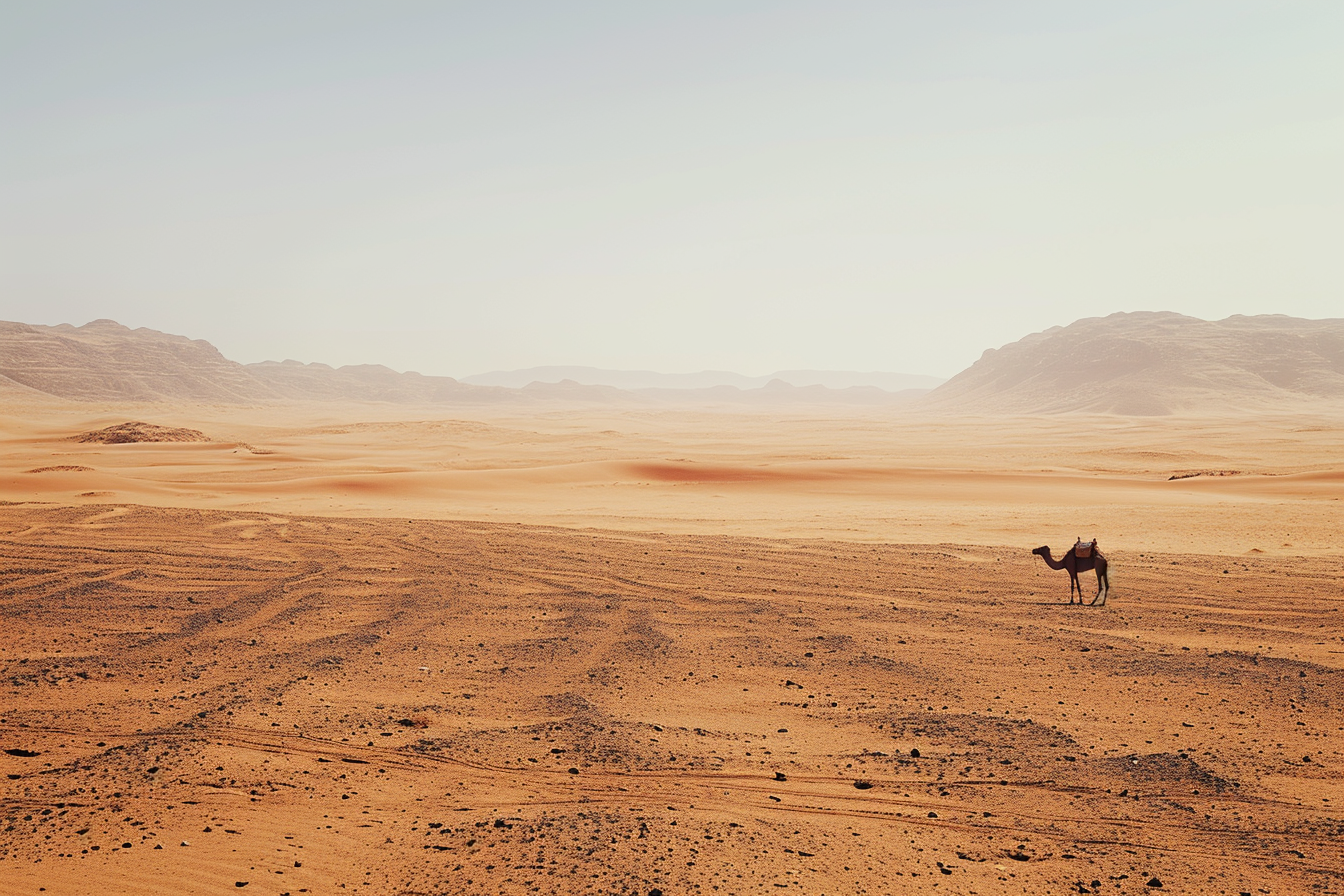
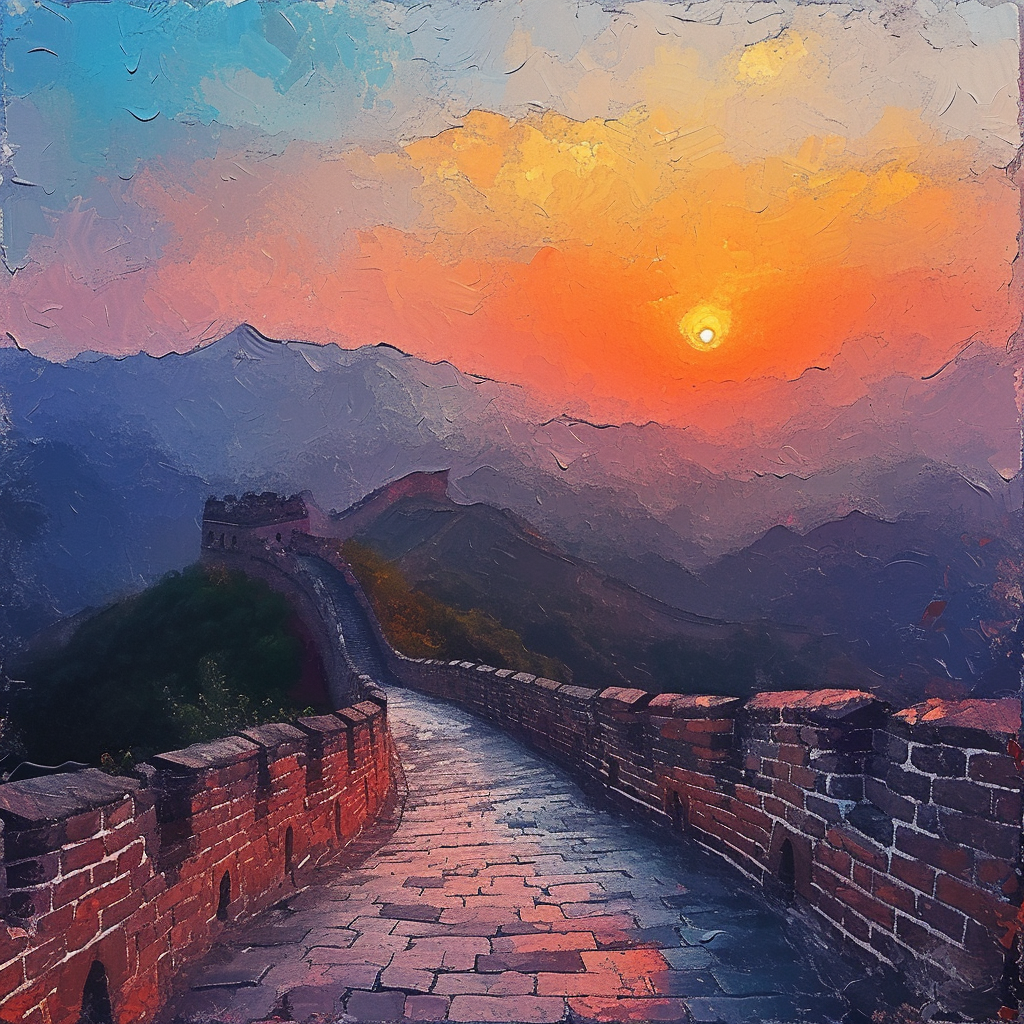
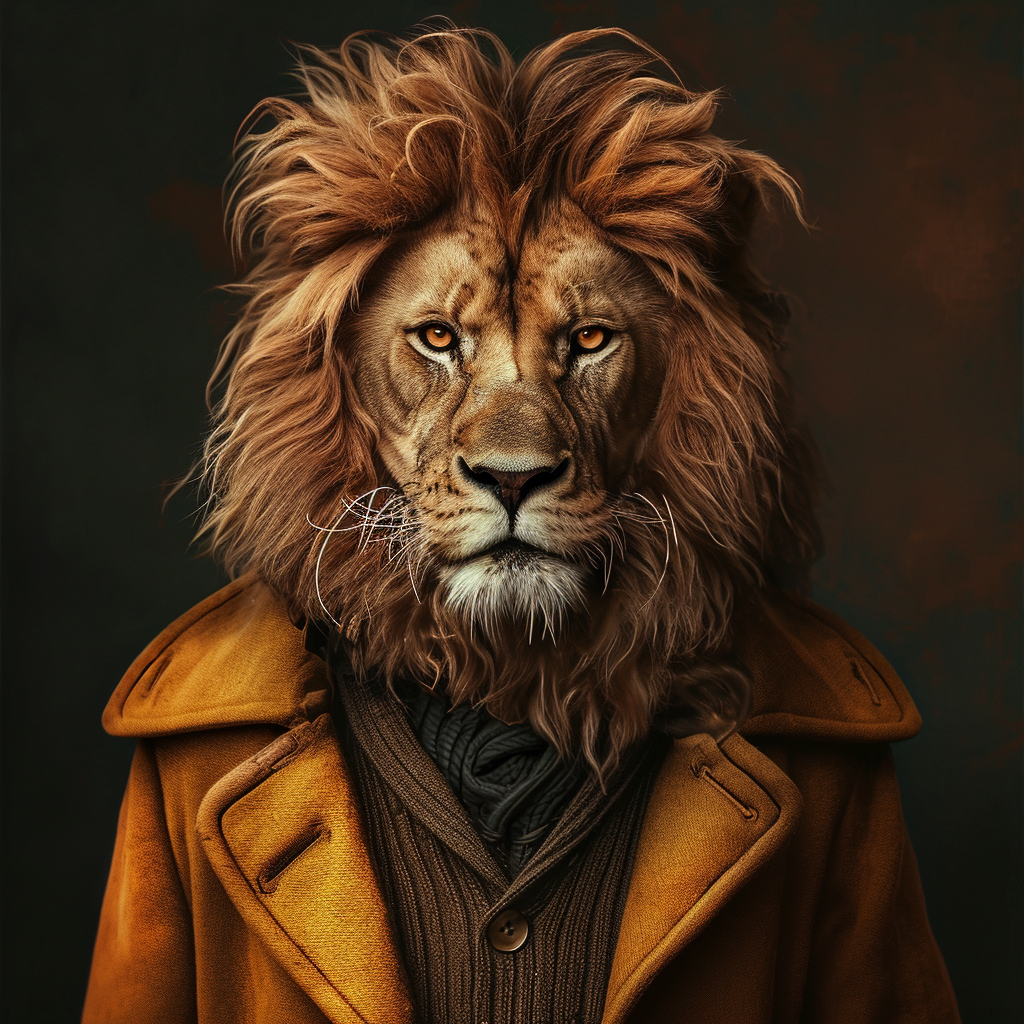
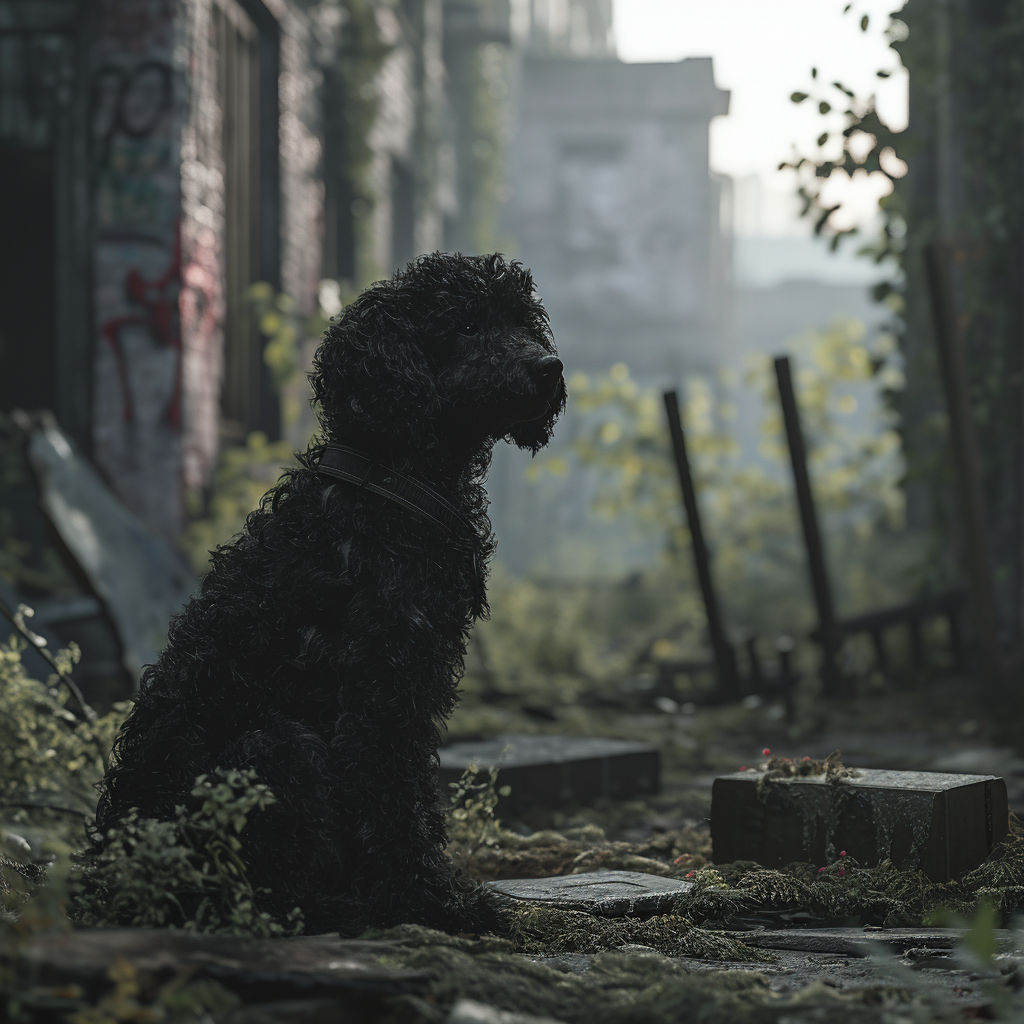
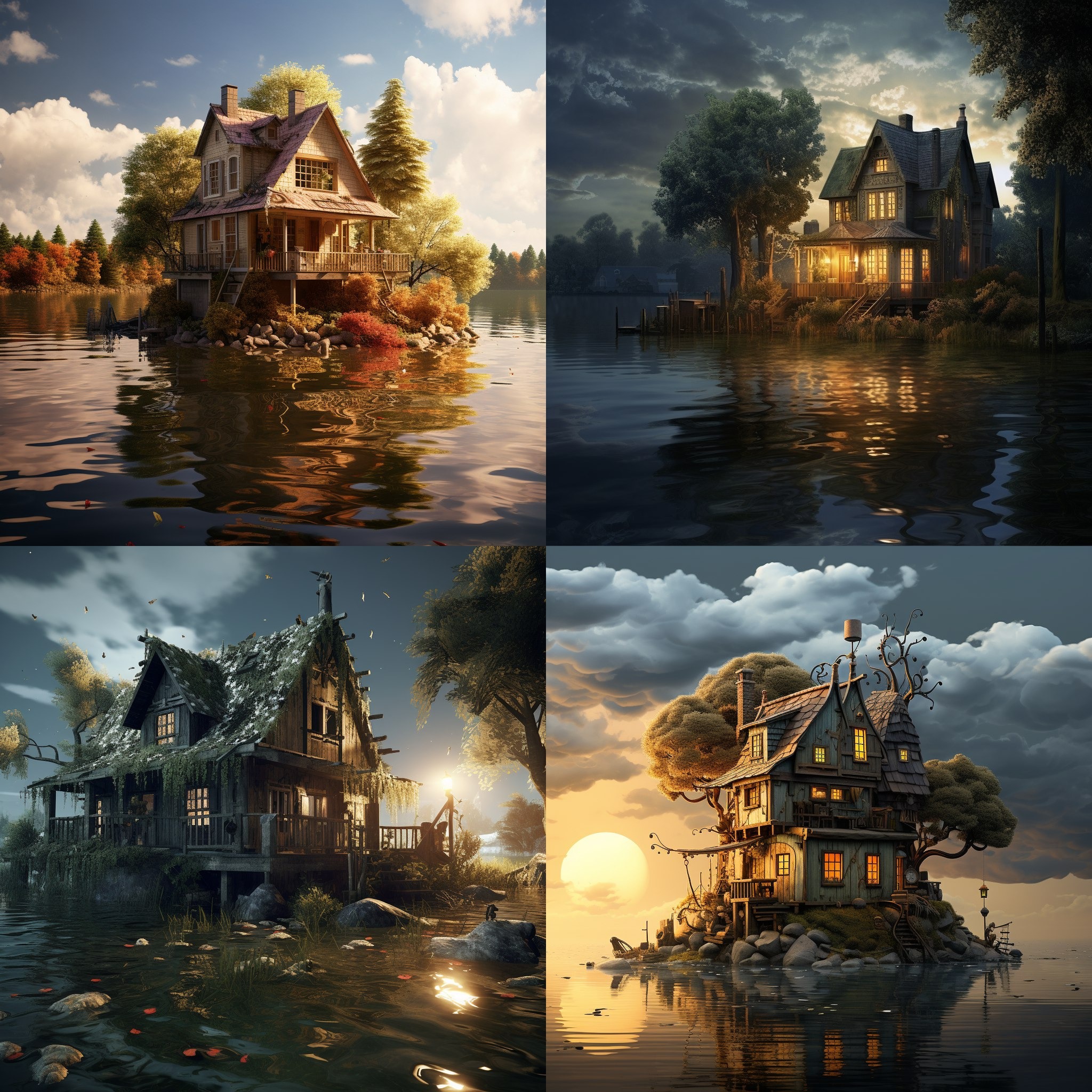
/imagine house by the water --chaos 0
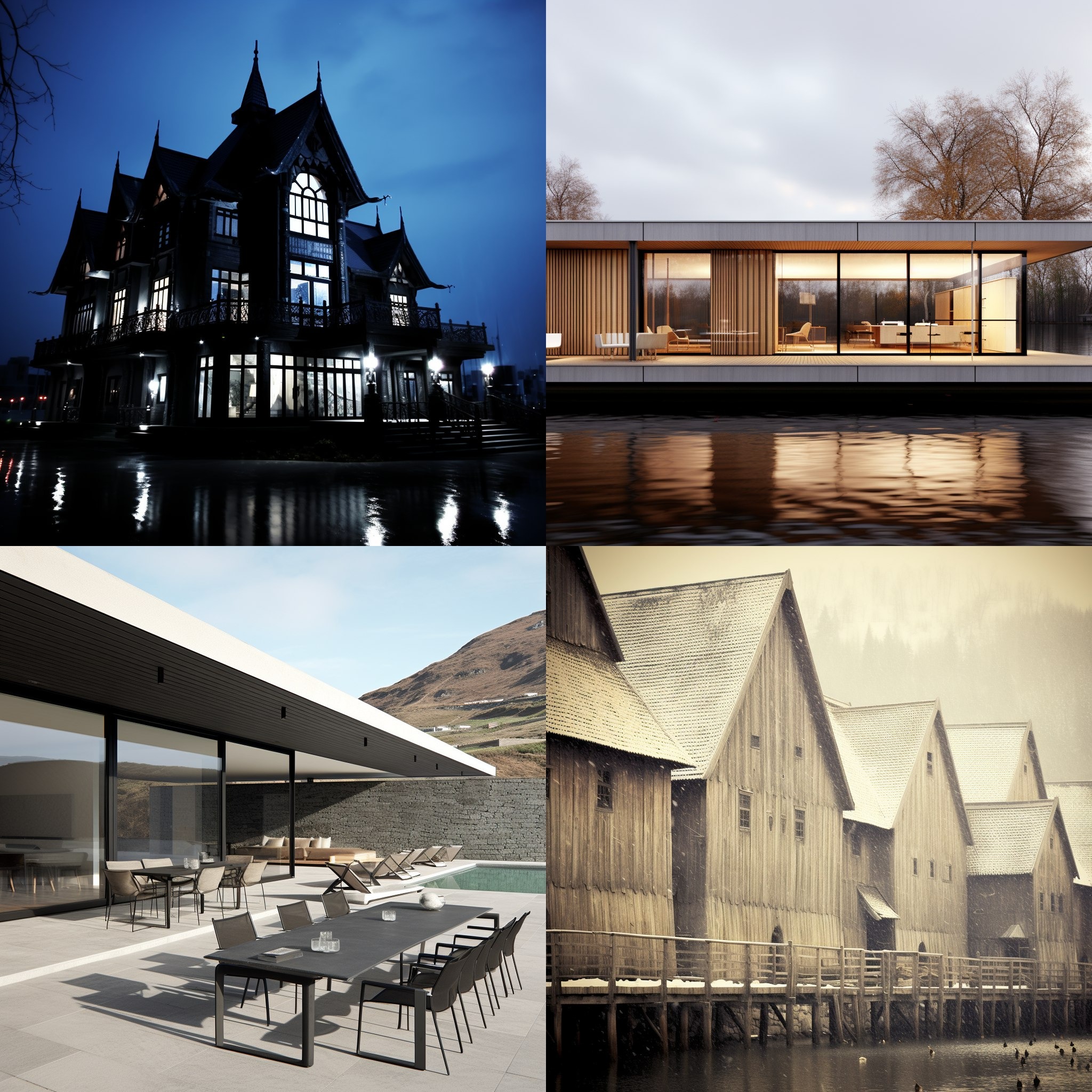
/imagine house by the water --chaos 100
Now, it is your turn to create a prompt and see what Midjourney can do for you ❤️