Maclear AutoInvest User Manual
@maclear_channelWhat Is AutoInvest?
AutoInvest is a feature that allows you to automate your investments on Maclear by setting a custom strategy based on your preferences (country, risk, interest rate). The system will automatically invest for you when matching projects go live, saving your time and letting you access opportunities first.
At this stage, AutoInvest is accessible to investors who have completed both the Proof of Address (POA) and Form A. If you haven’t completed these steps yet, please follow the instructions sent to your email. These documents are required to ensure a secure and compliant investment process.
Soon, POA and Form A will also be available directly on the platform, making AutoInvest setup quick and seamless for everyone.
We appreciate your patience as we refine the feature and work to bring you a fully automated, safe investment experience.
Benefits
- Invest faster than manual users — you’re first in the queue.
- Hands-free investing — no need to monitor the platform constantly.
- Strategy-driven — your preferences always come first.
How It Works
When a new project is marked open for investment and the AutoInvest toggle is enabled by the admin, the system automatically:
— Checks all active user strategies
— Builds a queue of eligible investors
— Allocates investment amounts before manual investors can access the project
💡 If your strategy is created after the project goes live, you will not be included in that project's auto-queue.
Before You Start
To access and use the AutoInvest feature, please ensure the following steps are completed:
- You have signed the Proof of Address (POA)
- You have submitted Form A
These steps are essential to activate the full investment functionality and ensure compliance with Swiss regulations. If these are not completed, your AutoInvest strategy will not activate.
Getting Started
- Go to your Maclear account
- Open the Autoinvest section from the left navigation panel.
- Set up a strategy:
— Choose country, risk, interest rate
— Define investment amount
— (Optional) Enable automatic activation of the strategy after its creation - Save and activate
You can create up to 10 strategies and have several active ones at a time.
Create Your Strategy: Step-by-Step Guide
Here’s how to set up your AutoInvest strategy on Maclear:
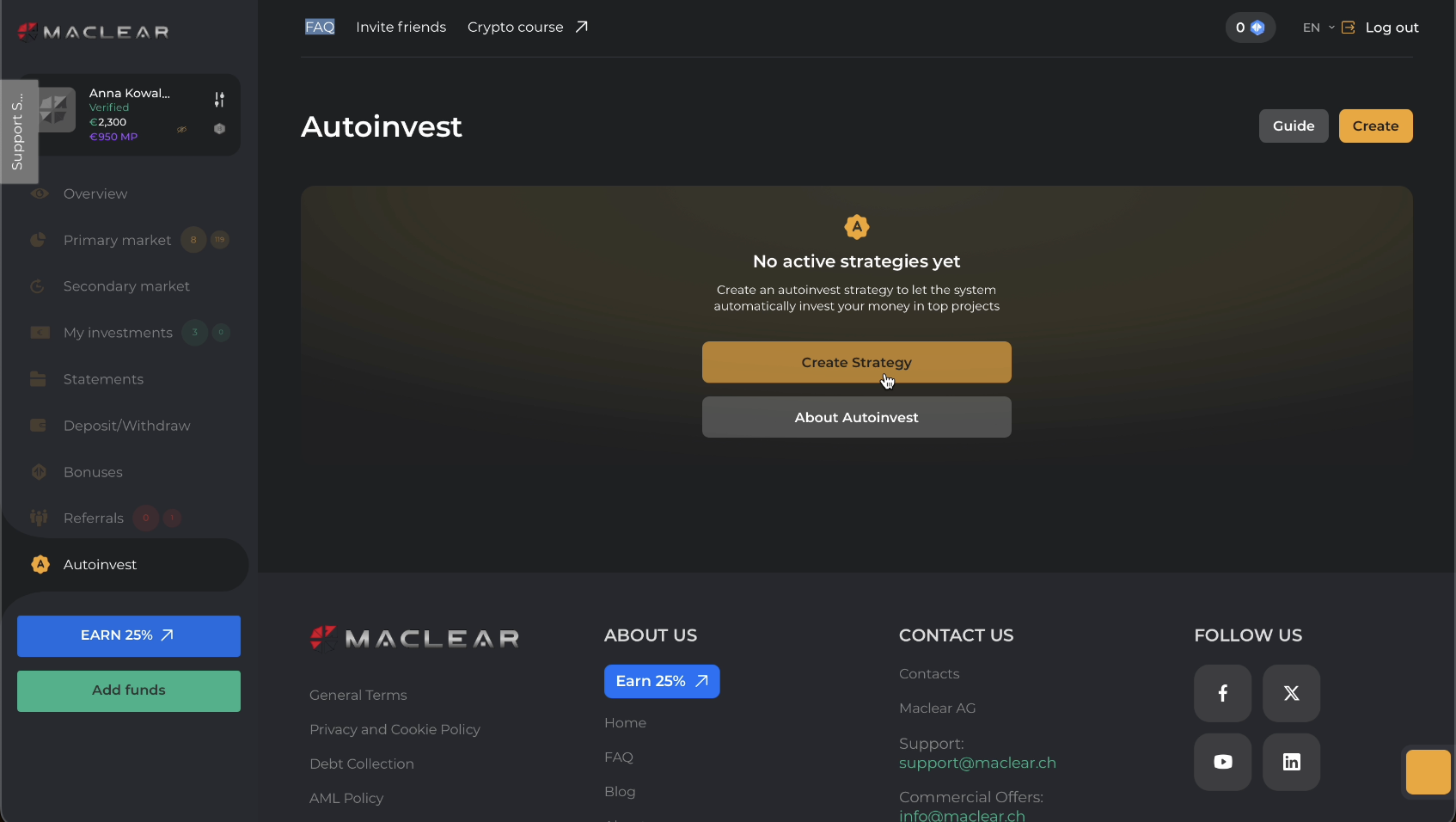
1. Open the “AutoInvest” Section
If no strategies are available, “No active strategies yet” will be displayed.
If strategies exist, a list of your strategies will be shown.
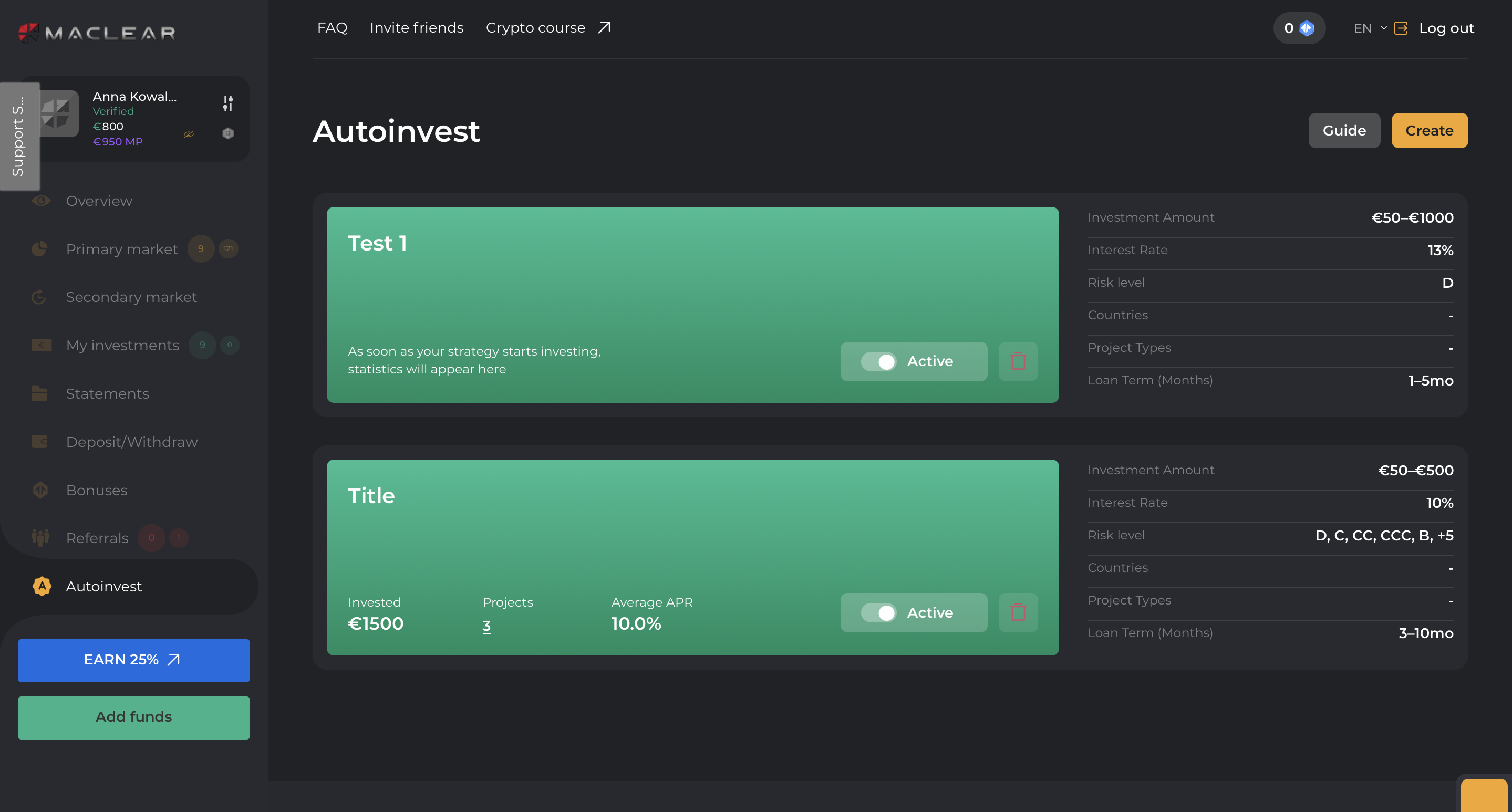
Note: You can create up to 10 strategies and keep multiple strategies active at the same time.
2. Click the “Create” Button
Once you click “Create”, a form will appear where you can set up your strategy.
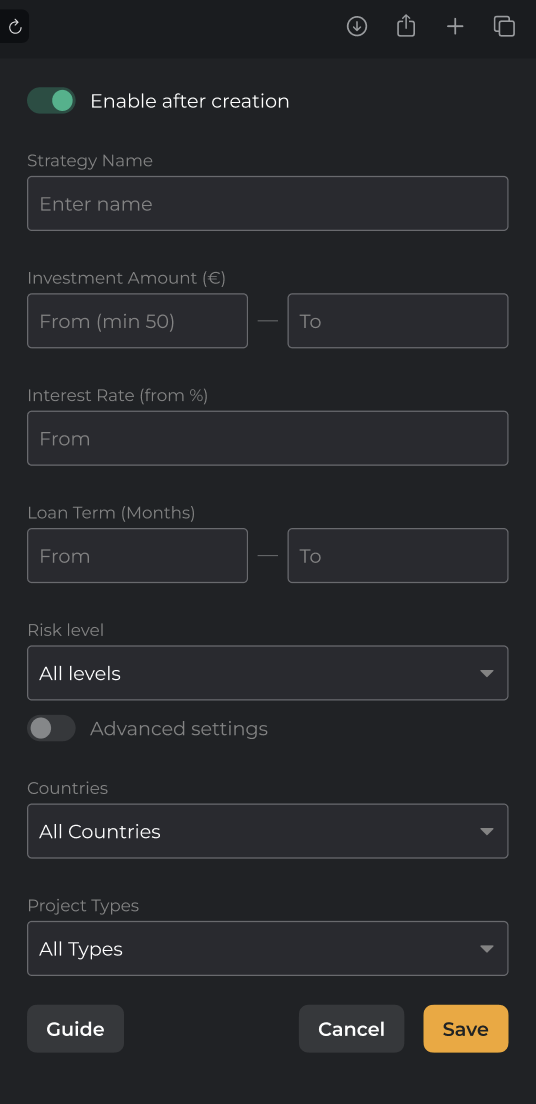
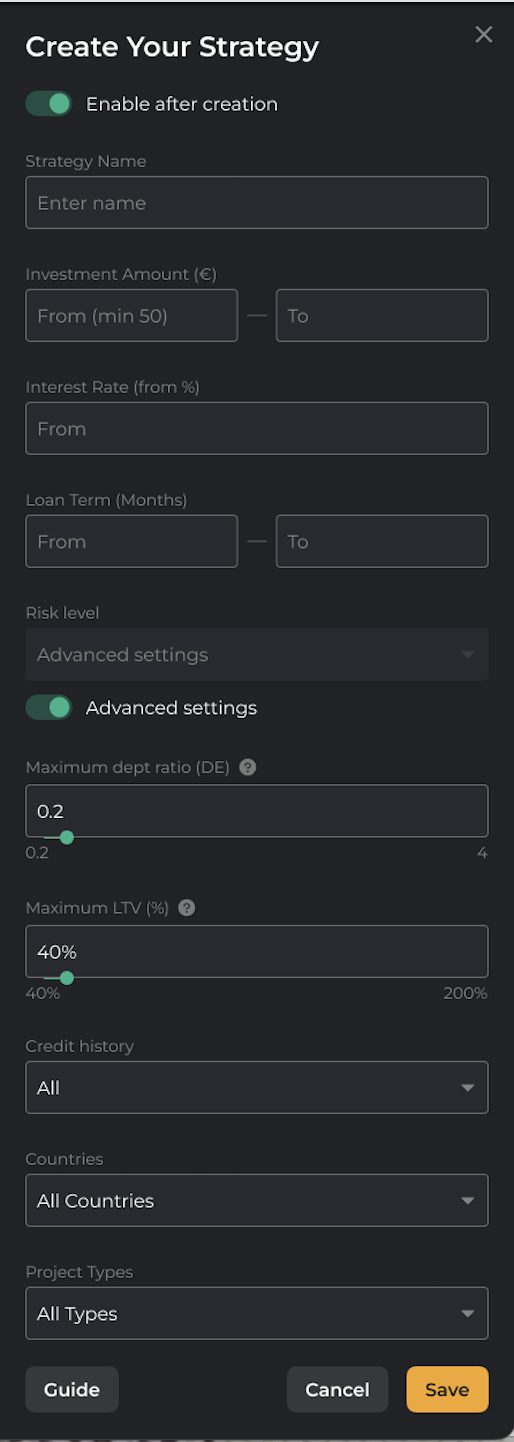
You can also access advanced settings to create a more detailed, customized strategy.
3. Enable After Creation
At the top of the form, you’ll see a toggle switch:
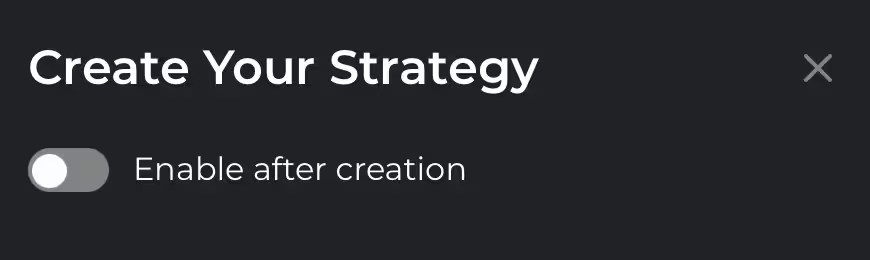
Enable — turn this on if you want your newly created strategy to become active immediately after saving.
Note: Several active strategies are allowed at a time.
Leave disabled — this will save the strategy as a draft without activating it.
Note: In this case, either your previous strategy will remain active, or no strategy will be active if none was selected before.
2. Name Your Strategy
In the "Strategy name" field:
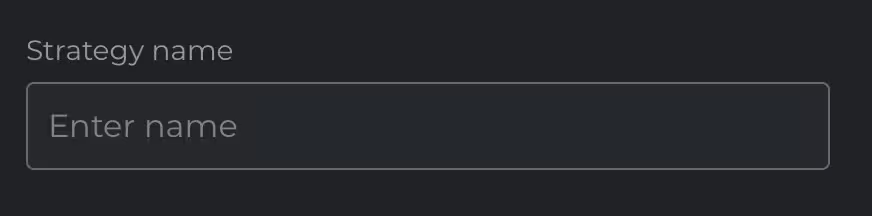
- Give your strategy a clear, personal name (e.g., “Low-Risk Eurozone”).
Mind that duplicates are not allowed.
3. Set Your Investment Amount
In the "Investment Amount (€)" section:
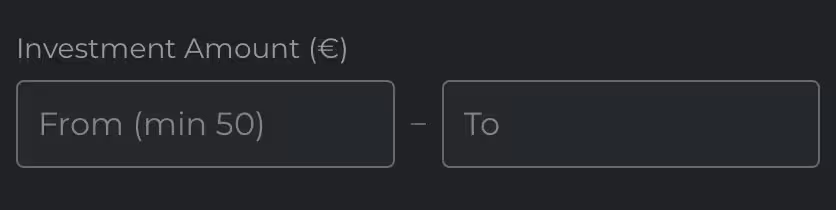
- Define the minimum and maximum amounts you want to invest in a single project.
- Minimum investment is €50.
Example:
From: 100 — To: 500
This means AutoInvest will allocate any amount between €100 and €500 to each matching project.
4. Set Your Interest Rate Preference
In the "Interest Rate (from %)" field:
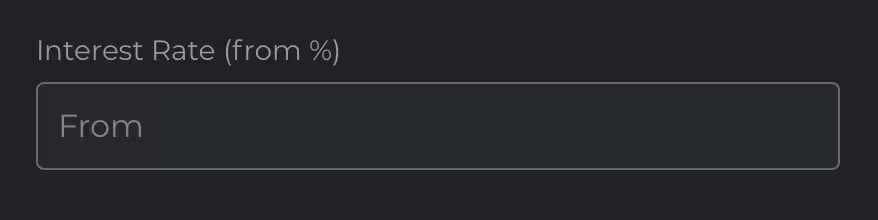
- Enter the minimum acceptable interest rate for the projects you want to invest in.
Example:
From: 12
This tells the system to only match with projects offering 12% or higher annual interest.
5. Define Loan Term Range
In the "Loan Term (Months)" section:
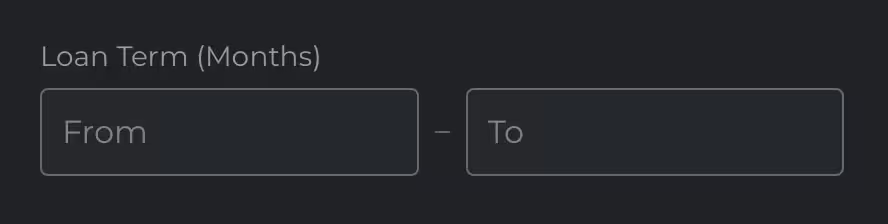
- Choose the minimum and maximum loan duration you're comfortable with, in months.
Example:
From: 6 — To: 24
Only projects with loan terms between 6 and 24 months will be considered.
Mind that most Maclear projects currently fall between 12 and 16 months, so we recommend setting your range to at least cover this window for better matching results.
6. Select Risk Level (Optional)
From the “Risk level” dropdown, choose your preferred credit risk profile, or select “All levels” for maximum exposure.
You can select multiple options if desired.
Maclear uses an investment-grade credit rating from D (default) to AAA (exceptional):
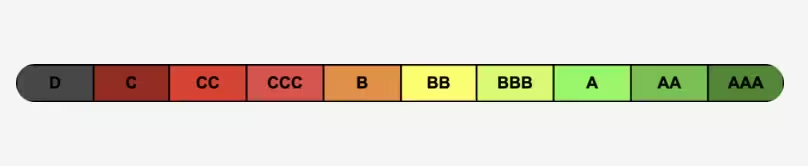
The system will only match with projects that fall into your selected risk category.
Note: This option is available only in Basic mode. When Advanced Settings are selected, this field becomes unavailable.
7. Countries (Optional)
Filter by geography.
You can choose to invest only in projects from specific countries or select “All Countries” for broader diversification.
When you choose “All Countries” while creating a strategy, the country list becomes dynamic — any new countries added to the platform after your strategy is created will automatically be included and eligible for investment under this strategy.
Note: Maclear currently features borrowers from a wide range of European countries, the UAE, and the African region — and we’re continuously expanding.
8. Project Types (Optional)
Choose which types of business activities your strategy should invest in.
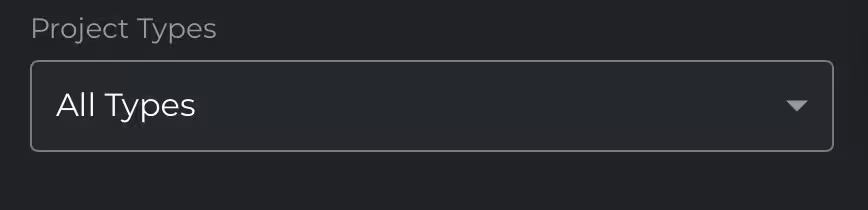
Maclear lists projects across various sectors. You can target specific industries or select “All Types” for broader diversification.
When you choose “All project types” while creating a strategy, the project type list becomes dynamic — any new project types added to the platform after your strategy is created will automatically be included and eligible for investment under this strategy.
Here’s a full list of available categories:
- Manufacture
- Manufactory/Production
- Production
- Production/Wholesale
- Retail
- Wholesale and Services
- Services
- Logistics/Transportation
- Construction/Services
- Agriculture
- Loan Originator
Note: Selecting specific types can help align your portfolio with industries you understand or trust more. For example, some investors prefer production-based businesses for their tangible assets, while others seek high-growth potential in services or logistics.
9. Advanced Settings (Optional)
- Maximum debt ratio (DE)
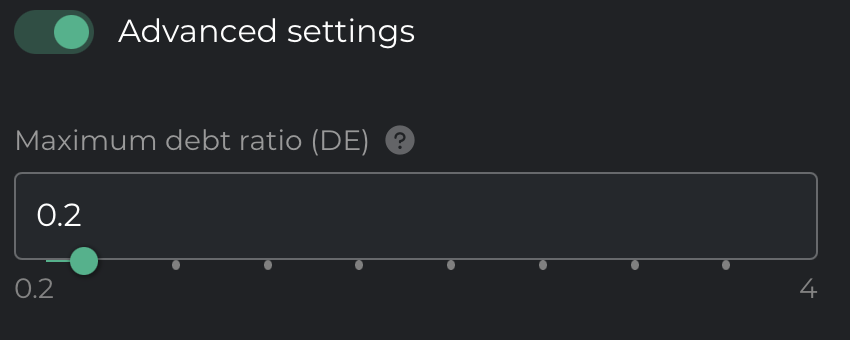
Indicates the ratio of borrowed funds to owners’ equity.
Formula: Debt / Equity = Total Liabilities ÷ Shareholders’ Equity
Default value: 0.2
Selection range: from 0.2 to 4.0
A lower ratio indicates lower risk for the investor and a more financially stable company.
- Loan-to-Value (LTV)
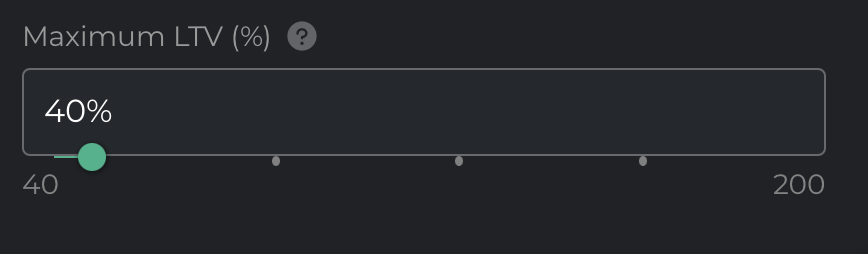
Represents the ratio of the loan amount to the value of the asset or collateral.
Formula: LTV = Loan Amount ÷ Collateral Value
Default value: 40%
Selection range: from 40% to 200%
40–80% — low risk
80–120%
120–160%
160–200% — high risk
A low LTV indicates higher protection for the investor.
A high LTV suggests higher potential returns, but also greater risk.
- Credit History
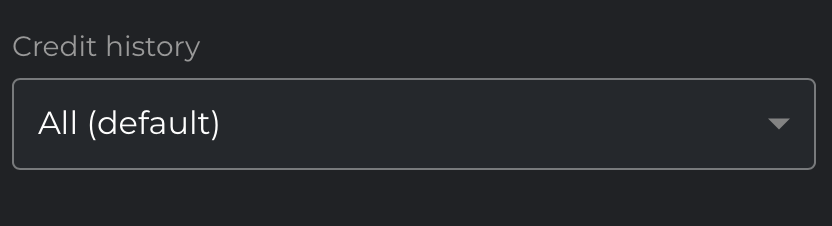
Reflects the borrower’s payment history and reliability.
Selection range: from 6 to 10 points (out of 10).
Default value: All
When Advanced Settings are enabled, the Risk Level field automatically changes to Advanced Settings and cannot be modified.
Saving Your Strategy
After filling out the form:

- Click Save to finalize your strategy.
- If you enabled auto-activation, it will immediately become active.
- You can always deactivate or delete it later if needed.
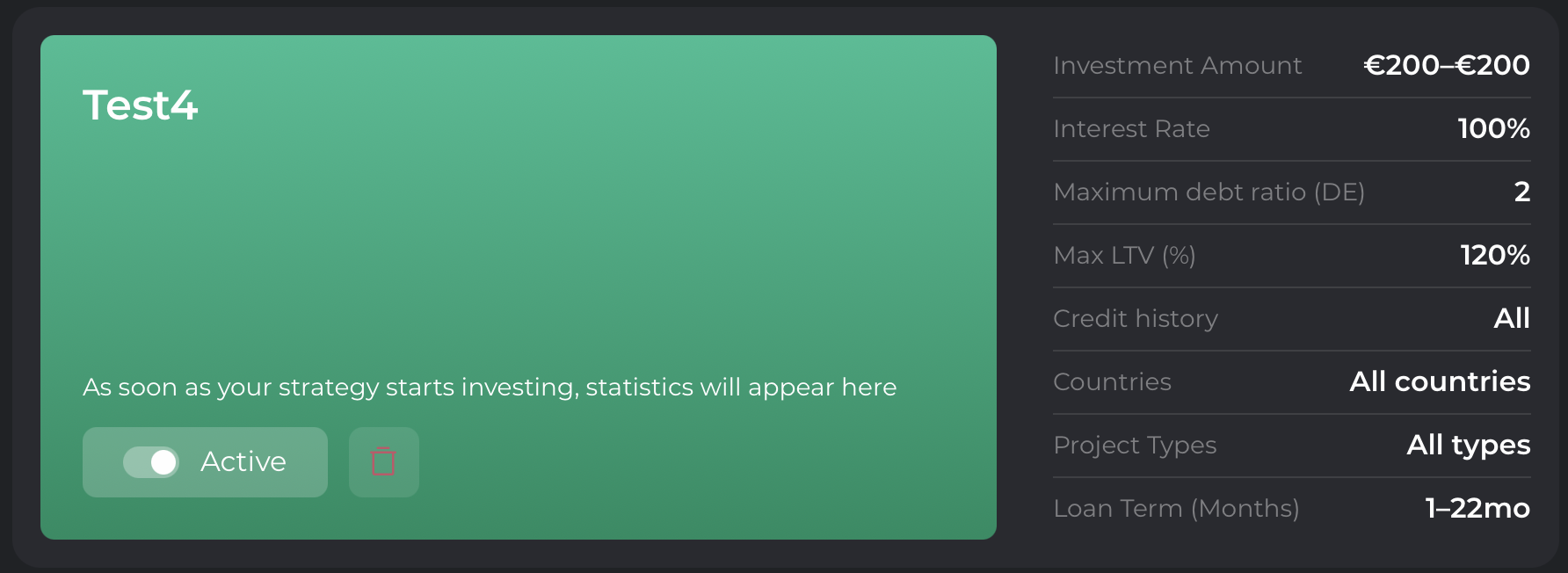
That’s how your strategy will look:
1. When no projects have been selected by your strategy. You won’t see any statistics.
2. When one or more projects have been selected by your strategy.
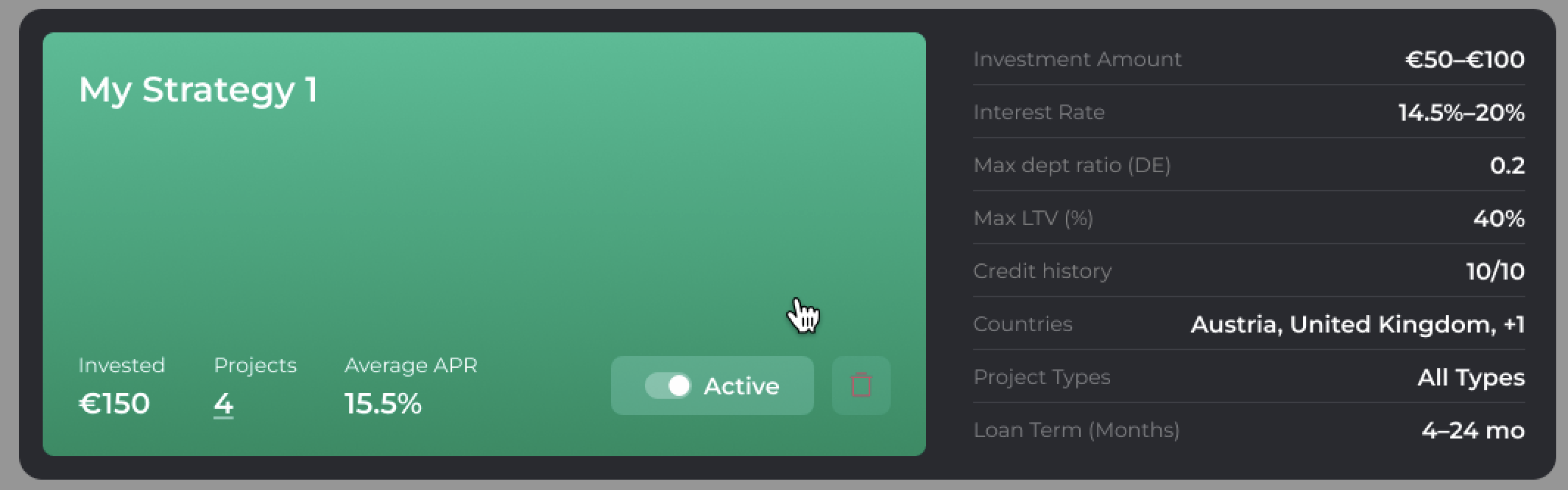
Statistics will be shown, including the following indicators:
- Invested — total investment amount (€).
- Projects — number of projects made under the strategy. You can click this number to open the "My Investments” section, automatically filtered by this strategy. In the My Investments section, investments made through Autoinvest are marked with the “Auto” label.
- Average APR — average annual percentage rate (%).
Frequently Asked Questions
Can I still invest manually if AutoInvest is on?
Yes. Manual and automated investments can run in parallel.
What if multiple projects match my strategy at the same time?
Projects are activated one by one. AutoInvest places your full defined amount into each matching project at activation — no splitting between simultaneous projects.
What if my strategies overlap?
If you have multiple active strategies with overlapping parameters (e.g., country, project type, interest rate, etc.), the system may create multiple investments in the same project.
Why didn’t my strategy work for a certain project?
Some common reasons for missing a project:
- The project was funded before your position in the queue
- Your strategy didn’t match the project
- The project wasn’t marked as AutoInvest-enabled by admins
Can I deactivate or pause my strategy?
Yes. You can deactivate and reactivate it later without creating it from scratch.
Can I edit an active strategy?
Not at the moment, strategy editing is disabled during this phase.
What if I disable my strategy just before AutoInvest activates?
If it’s before the queue is built, you’ll be excluded.
If it’s after the queue is built, your investment will still go through.
Security & Transparency
Can I cancel an AutoInvest after it happens?
No. Like manual investments, it’s irreversible, but you may be able to sell on the secondary market after the funding round.
Will I be notified when AutoInvest happens?
Yes, you’ll receive an email notification for each investment made through the strategy, containing: investment amount, project details, interest rate and term, and your updated balance.
You can also view your AutoInvest investments in “My Investments” in your personal account, where they are labeled AUTO.
Is there a limit to how many projects my strategy can invest in?
There is no strict limit — your strategy will invest in any matching project, as long as you have available funds and the strategy is active.
Important:
- Each strategy can make only one investment per project. A second investment in the same project using the same strategy is not allowed.
- Activating a strategy does not guarantee participation in any specific project.
Financial Details
Does AutoInvest qualify for bonuses or cashback?
Yes. You receive the same bonuses as with manual investments (e.g. welcome bonuses, cashback campaigns, loyalty and referral programs).
Does Maclear support AutoReinvest?
Not at this time.
Notifications & Filters
Can I see a list of projects that match my strategy before investing?
Currently not available. This is to avoid confusion and keep the feature simple for users.
Can I subscribe to alerts for matching projects without AutoInvest?
No. Only AutoInvest executes automatically. There’s no passive alerting system at this time.