KWGT At A Glance Instructions
First of all Download the widget from below links from the post itself.
1.) Add an empty kwgt widget to your homescreen
2.) Press on It & give kwgt all the required permissions
3.) Click "Create New"
4.) On top right press (+)
5.) Select Komponent
6.) Click 'Import' & Import downloaded file "ataglance.komp" & select this widget from Library after importing
7.) Click on calander fix & notification fix after importing
8.) Press Save
9.) Force Close KWGT app
10.) Open kwgt editor again and press save again
Troubleshooting & Enable Extra Features
• You can tweak many settings & enable hidden features of this kwgt widget by going to kwgt editor. In 'Items' Section you can enable hidden features related to Now Playing, Enable Clock, Change Fonts & Icons and much more. Some of the instructions to enable those hidden features are written below. I can't write every information so find it yourself.
• If kwgt gives error while importing then force stop kwgt app & open it again from the app drawer(not from widget). Repeat all the steps from point #3
• If you face any issue like weather details aren't showing or some other issues then just force stop kwgt app & open it again. It will fix all those issues.
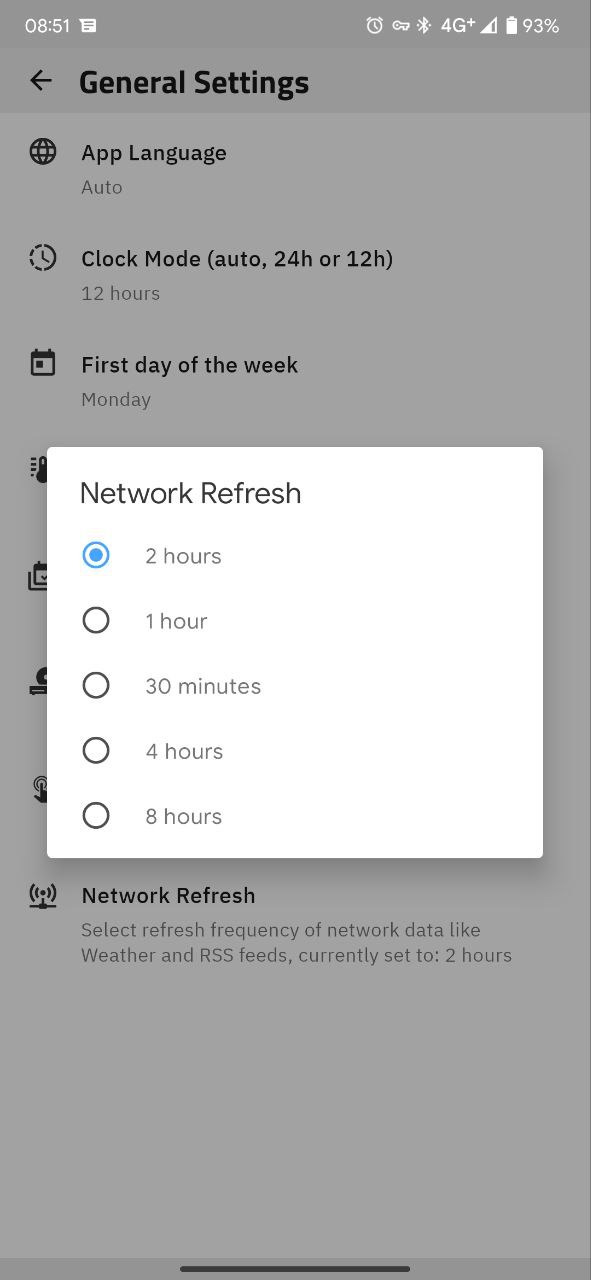
• You can change refresh interval of weather from General Settings(Check Screenshot).
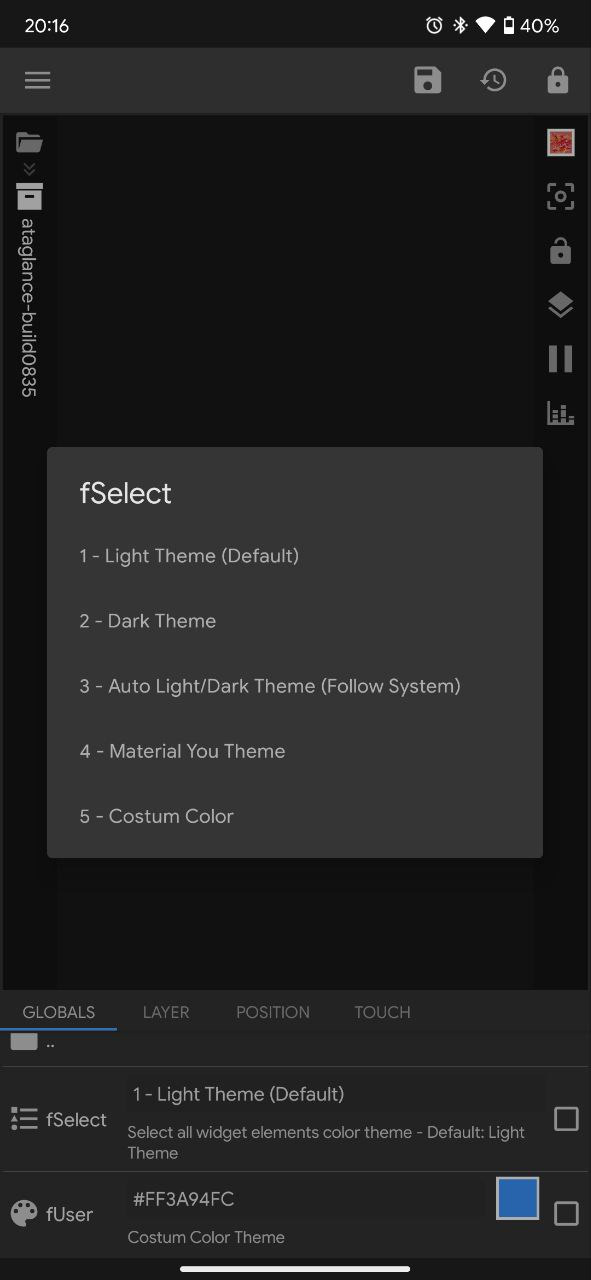
• Wanna Change Text Colour Of Widget (i.e. Black or Material You) then from kwgt editor section go to items tab & click ataglance, go to Globals -> Fonts -> Colour and select fSelect. Now choose the colour of your style.
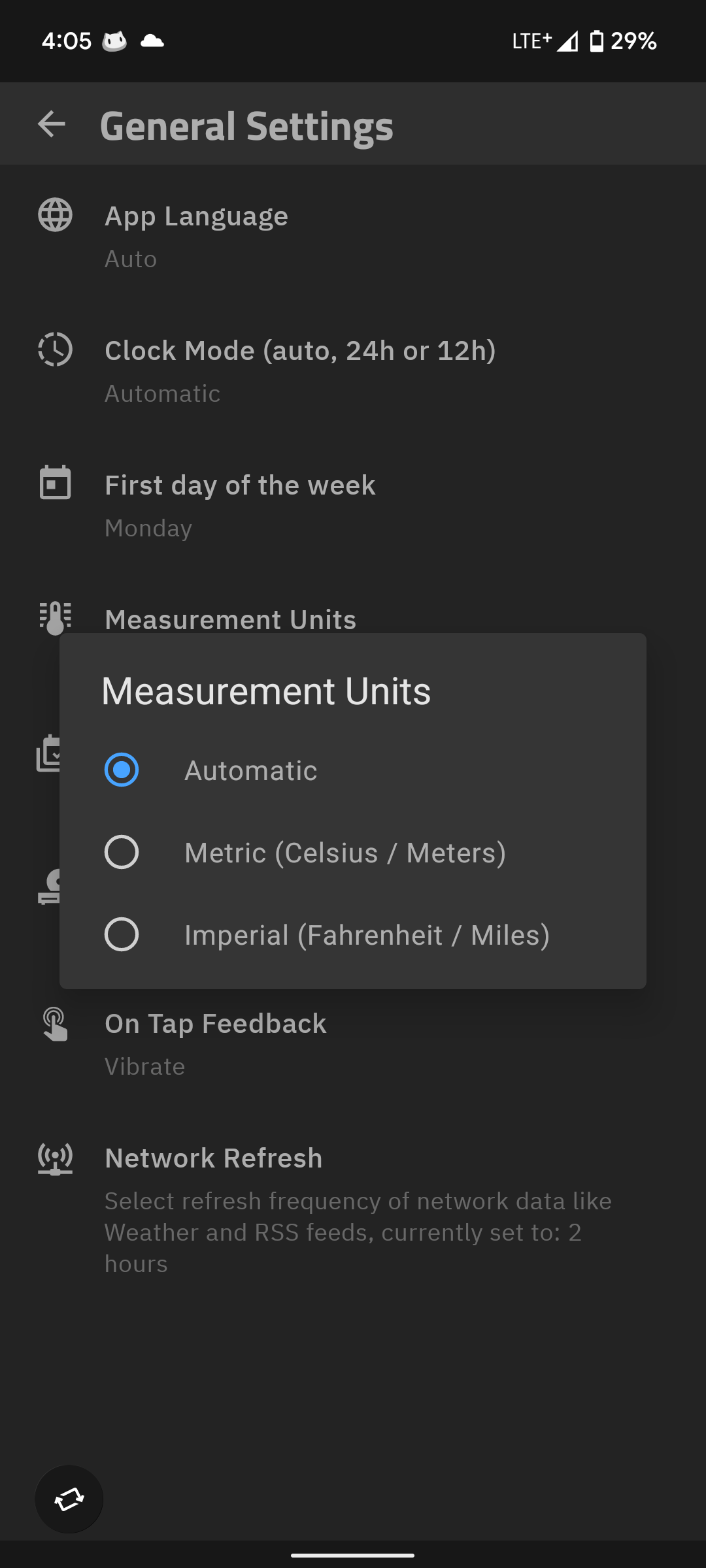
• Wanna change temperature unit? Check KWGT settings for temperature unit (°C or °F). Go to KWGT app, From the left 3 bars click on settings - General Settings - Measurement Units must be set to Metric. After this, Load widget again and force stop kwgt app, open again and you will get your desired temperature unit.
• If the weather icon doesn't appear for you or you wanna change the weather icon style then you can change it from kwgt editor. In editor section go to items, click ataglance. In Globals section, go to weather>wStyles & Select your desired styles.

• You can enable battery charging details like battery temperature & charging current from Globals settings. Go to Battery>bDetails and turn it on.
• Now Playing Supports for all the music player except local music player. You can enable it for local music player by going to item menu. Go to Globals>Music folder>enable mComp. Why we disabled it by default? Because some of local music don't have right song information (may show unknown artist)
• You can enable clock by going to Globals>Date Folder>dClock.
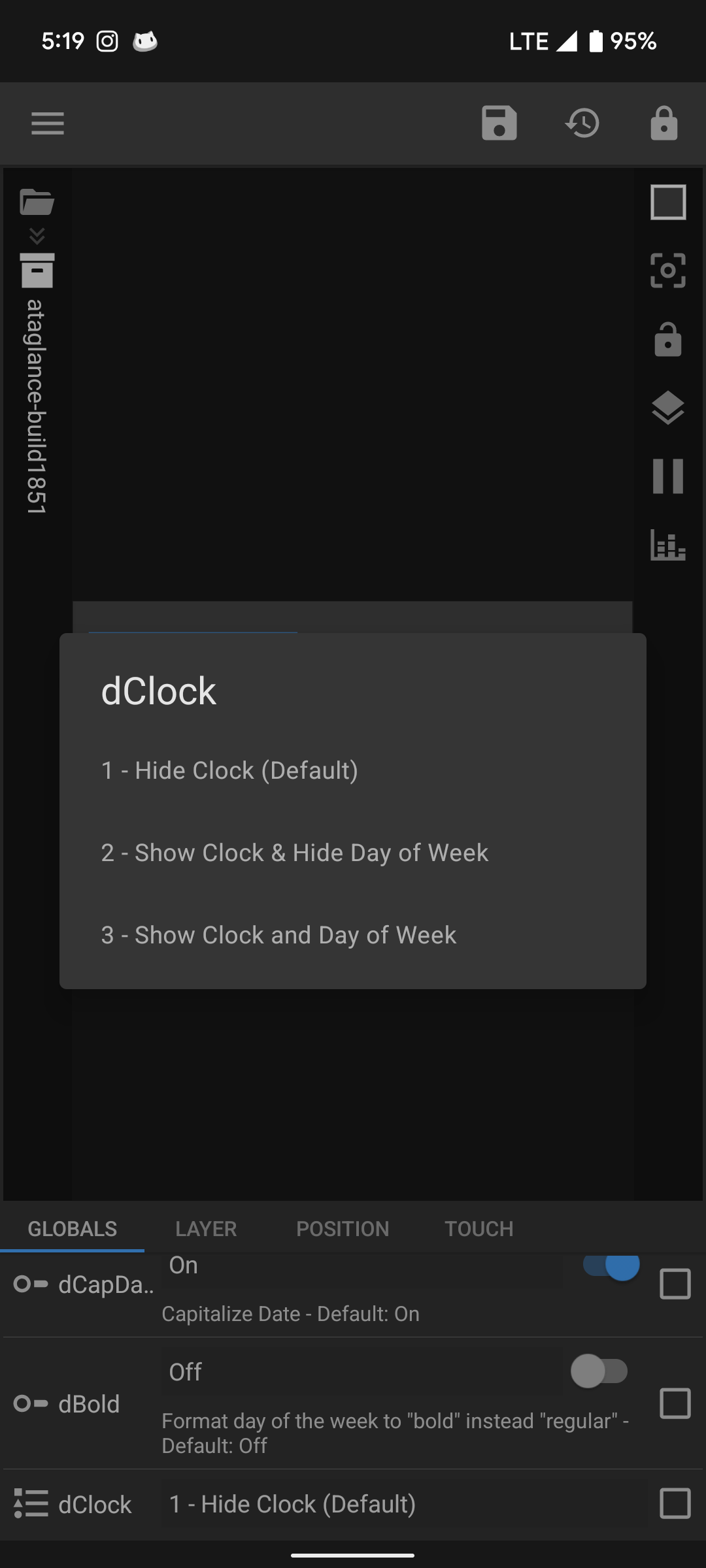
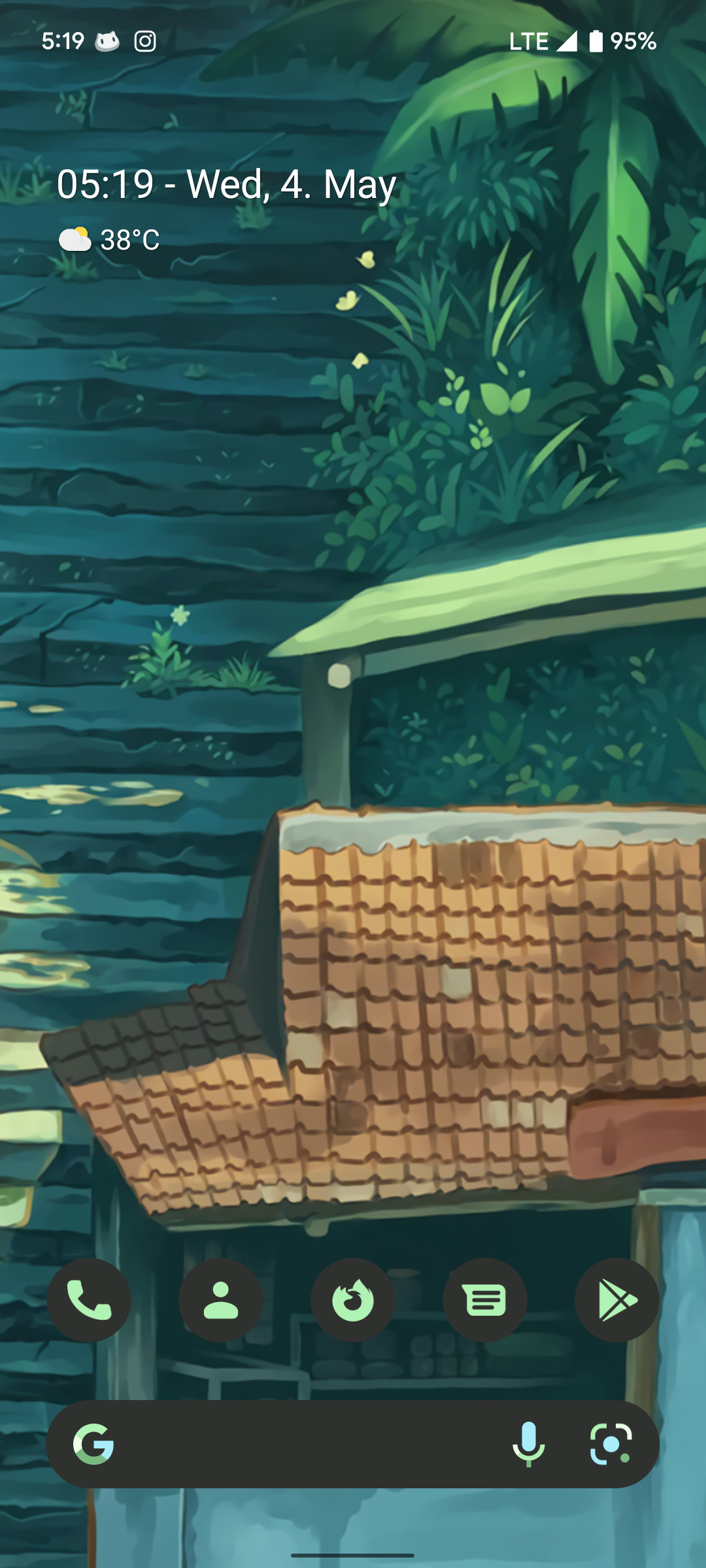
• Make sure kwgt & system language both are same. The date and battery information can look strange if the kwgt language is different from system language.
• You can change fonts by going to Globals>Fonts folder>fStyle.
Note
If you're unable to understand this then you can check step by step screenshot instructions by clicking here.
After setting up widget you can remove tap gesture which 'Opens the Kwgt editor by tapping on widget' from the editor itself. Open kwgt editor. Go to touch option. Select "Kustom Action => Advanced Editor" and press delete. Save it.