Instructions for using CoinSignalBot
Coin Signal Bot will help you monitor the entire Binance cryptocurrency market and notify you of changes so that you can make trades on time
Getting a link to your signals
Viewing Subscriptions to Signal Authors
Buying an extended subscription
Getting started with the bot
When you first start the bot, the description of the bot and the “Start” button are displayed
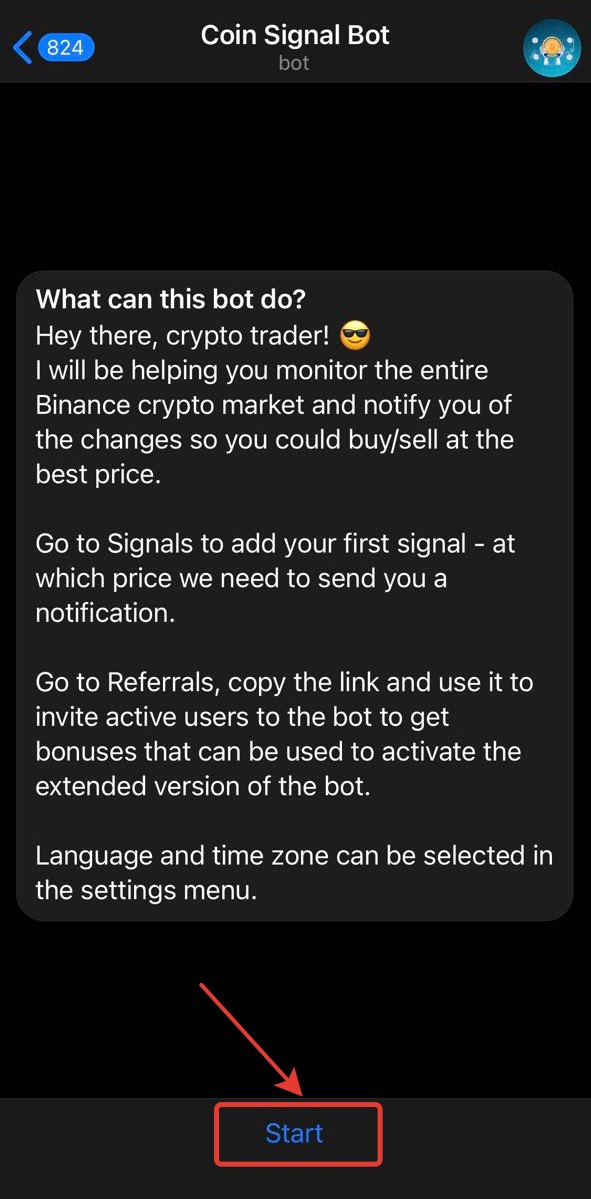
Click the “Start” button
Welcome window and main menu open
*To go to the main menu at any time, you can enter the /start command or call it from the menu to the left of the input field
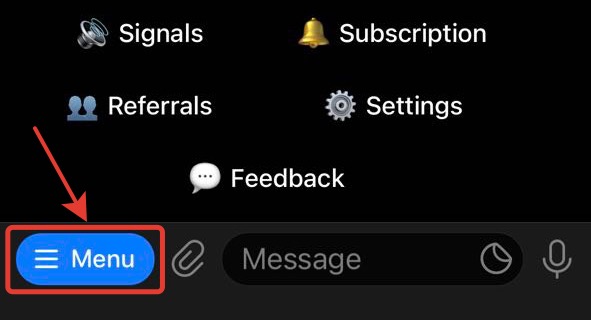
Working with signals
When you press the "Signals" button, you go to the signal management menu
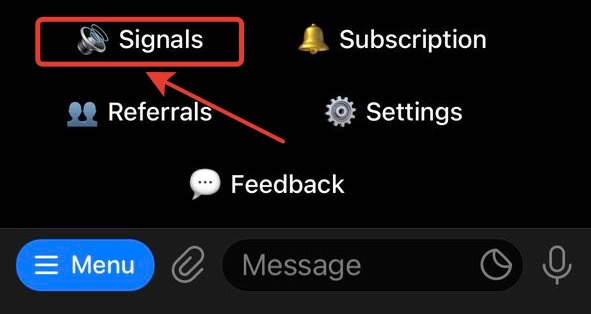
Menu is displayed:
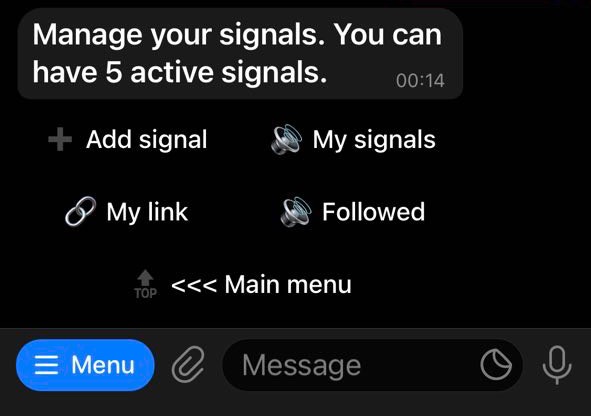
Adding a signal
To add a new signal, click the "Add Signal" button
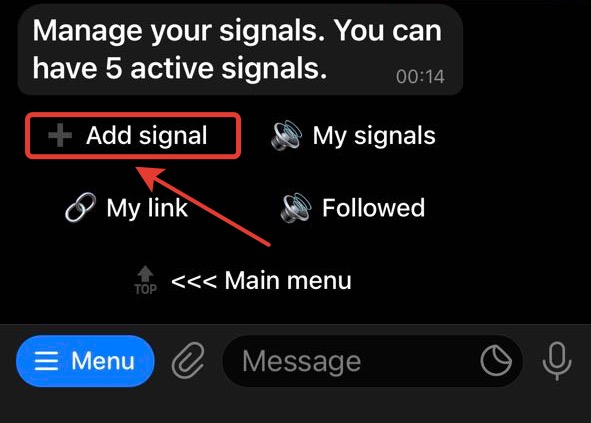
Enter the pair you want to track (for example: BTCUSDT). You can have up to 5 active signals for free
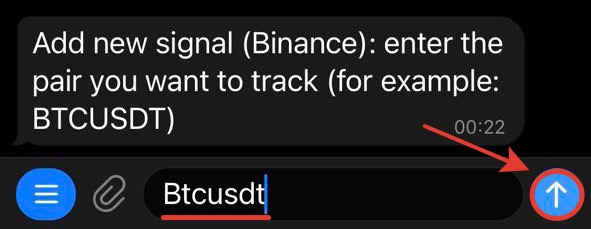
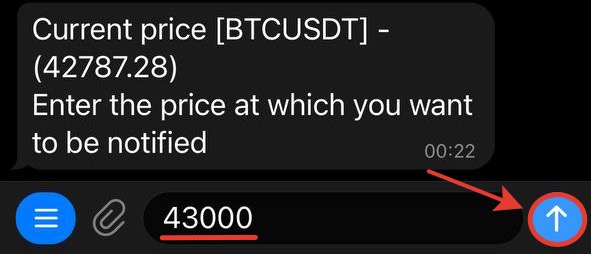
The current price for the selected pair is displayed.
Enter the price at which you want to be notified.
You can set a signal with any desired coin price (x10, x100, etc.)
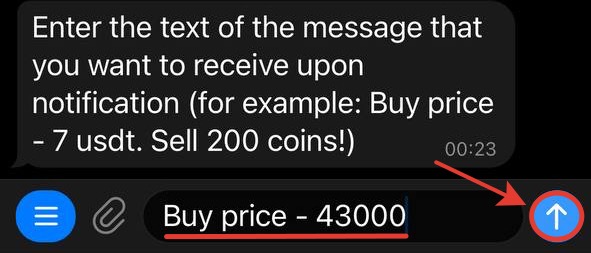
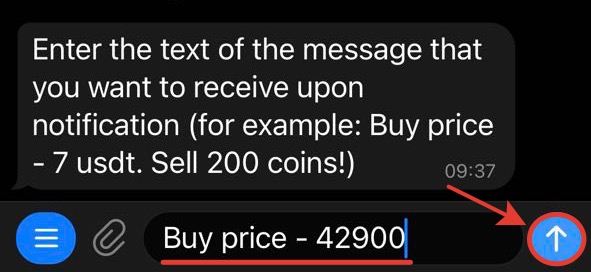
Enter the text of the message that you want to receive upon notification.
You can insert a link to the site, telegram channel, etc. into the signal message.
Displays the signal menu and a message that the signal was added successfully
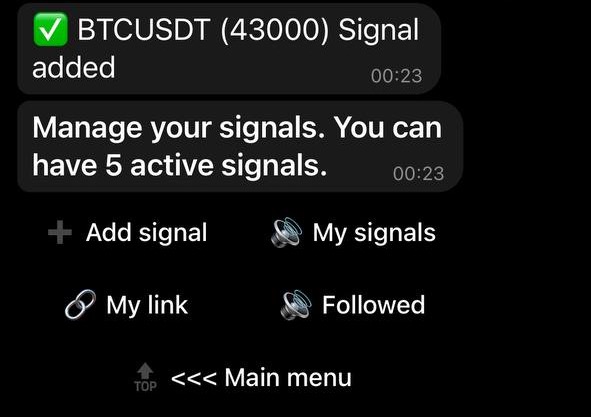
When the price specified as the target is reached, a notification is sent:

* To add a signal, you can enter the /addsignal command or call it from the menu to the left of the input field
Managing Your Signals
To view your signals, click the "My Signals" button

A list of filters for viewing user signals opens
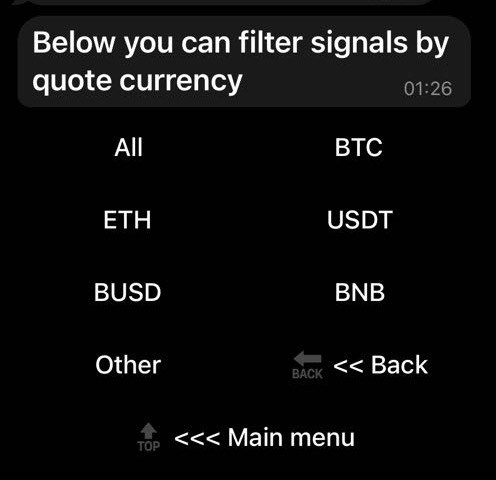
To view all your signals, click the “All” button
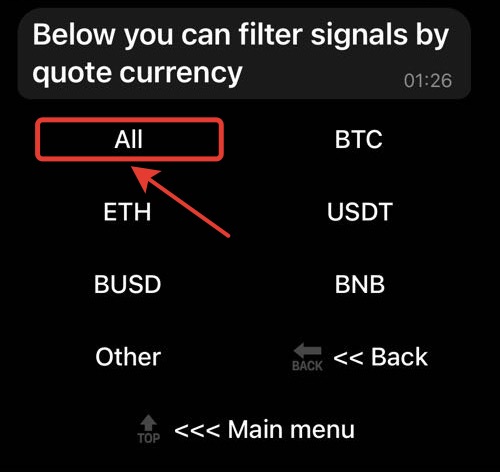
All user signals and the number of active signals are displayed

To view the user's signals in any currency, click on the button with the appropriate name. If the user has no signals with this currency, a message is displayed stating that the signals were not found.
To view and edit detailed information about your signal, click on the message with the name of the signal
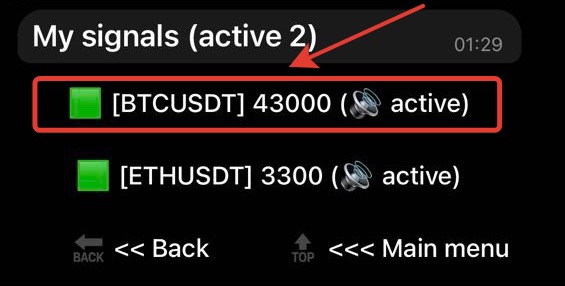
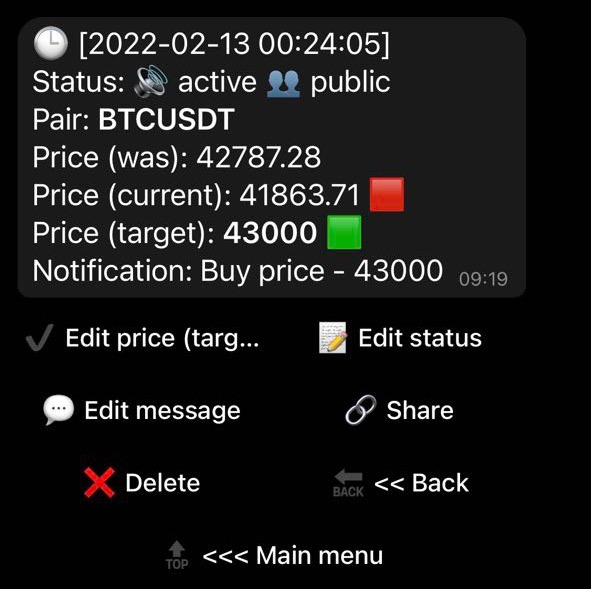
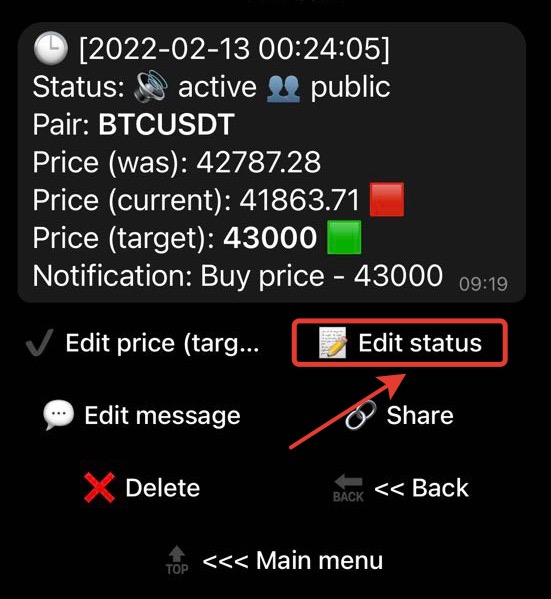
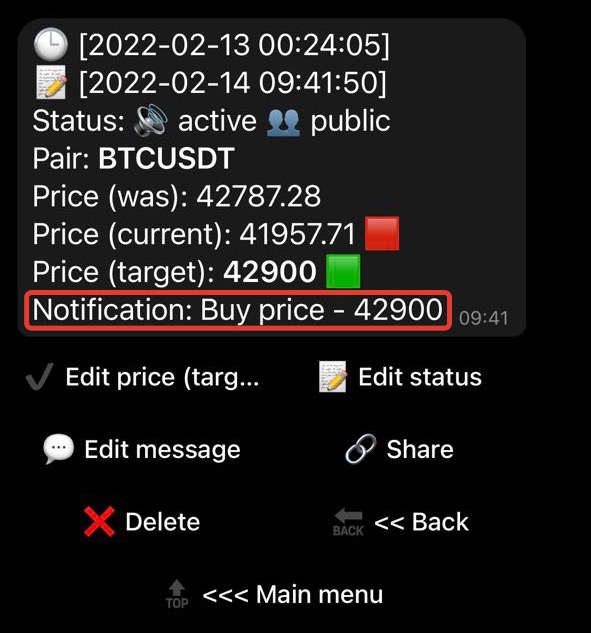
Detailed information about the signal is displayed - its status, pair, price (when setting a signal, current and target), notification text.
A menu for changing the signal is also displayed:
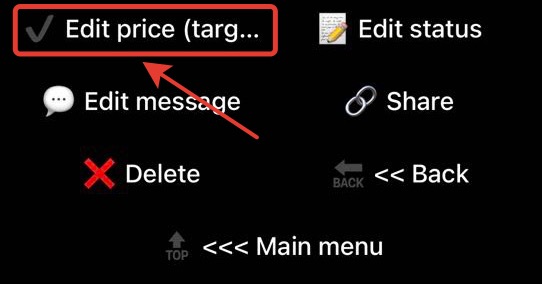
To change the target price of the signal, select "Edit price (target)"
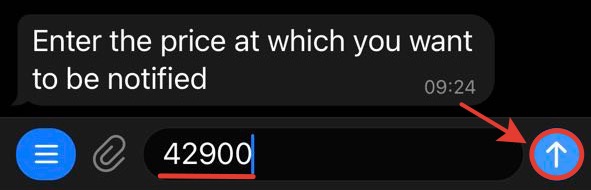
Enter a new target price
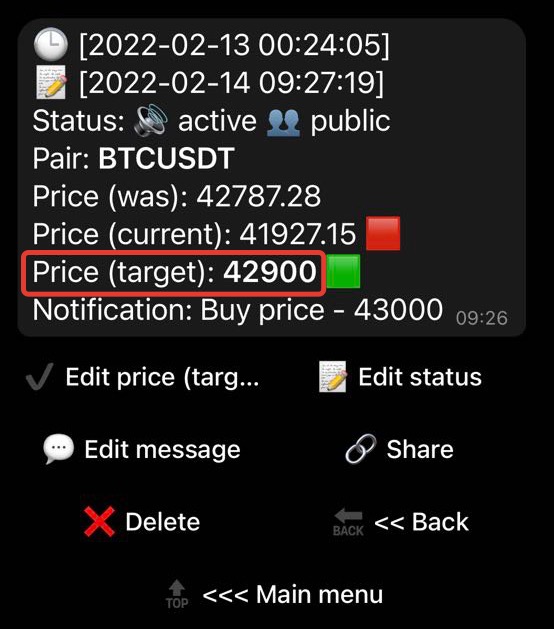
Information about the signal with the new price is displayed
To change the signal status, select "Edit status"
Menu is displayed:
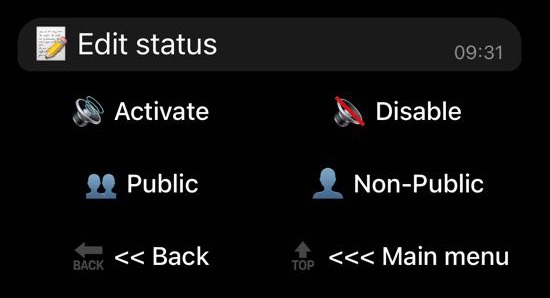
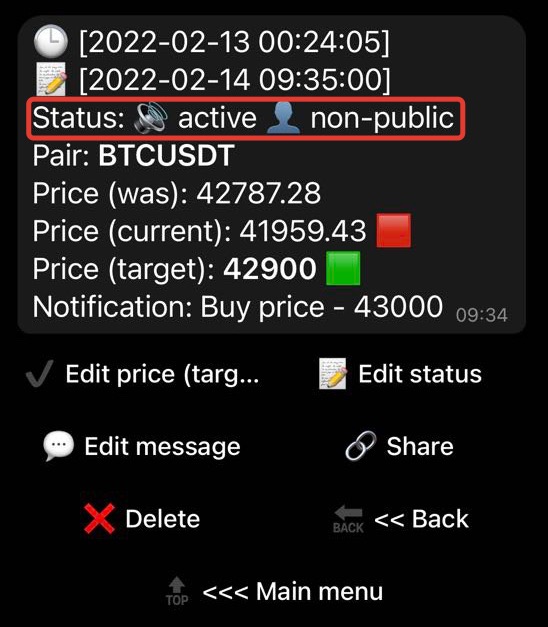
You can change the signal status by pressing any menu button, then an updated message with detailed information about the signal is displayed
Select "Edit message" to change the notification text
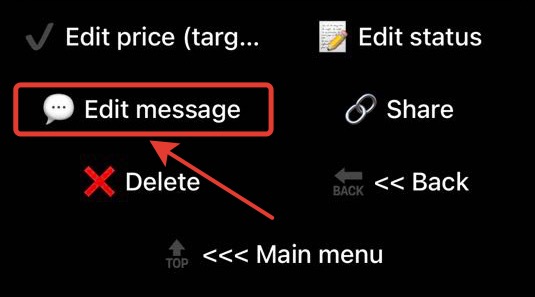
Enter a new notification text
Signal detail message with new notification text is shown in chat
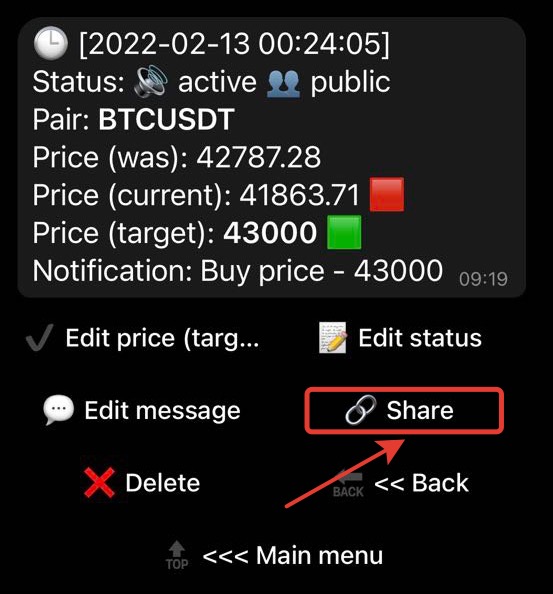
To get a link to your signals, select "Share"
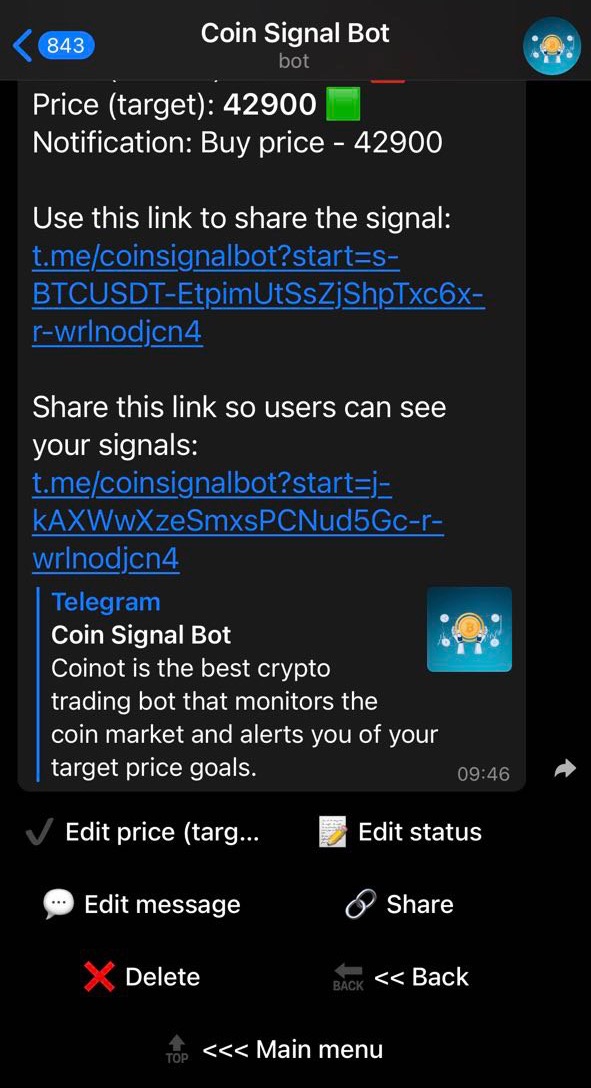
The screen displays a message with information about the signal and two links - to the current signal and to all your links
When following your link, a new user receives a message about the accrual of 10 bonuses.
Shows the signal you shared and the "Add" and "Cancel" buttons
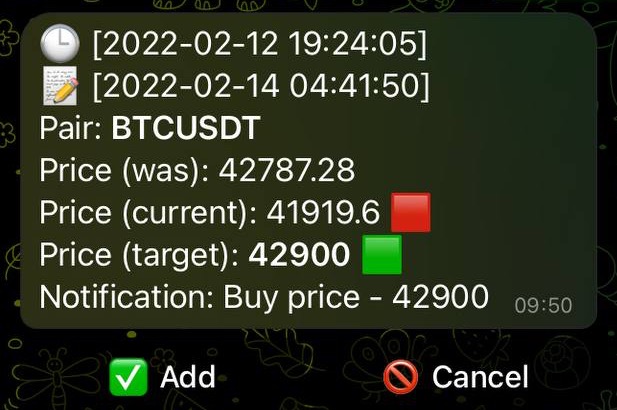
When the user clicks "Add" the signal is added to the list of user signals
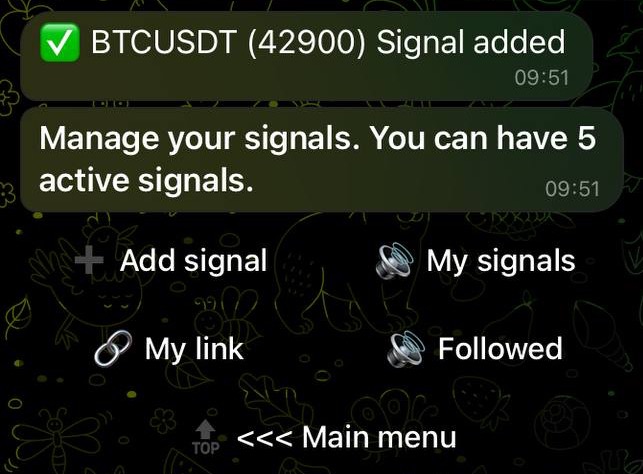
As soon as the invited user adds at least one signal, the owner of the referral link receives 1 bonus.
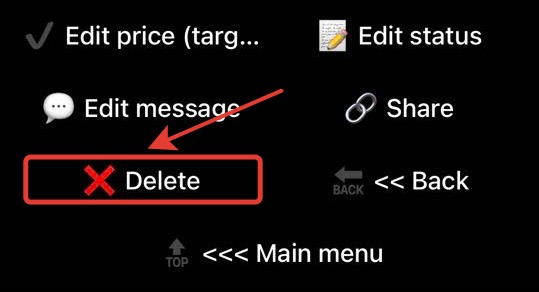
To delete the current signal, select the "Delete" item, the current signal will be deleted and the "My Signals" menu will open
To view your signals, you can enter the /mysignals command or call it from the menu to the left of the input field
Getting a link to your signals
To get a link with your signals, click the "My link" button
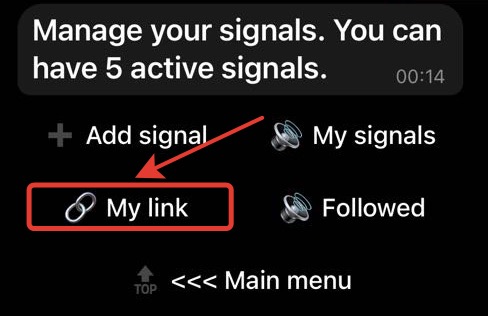
A message is displayed about the number of subscribed and unsubscribed users, current subscriptions and a link where other users can see your signals

When clicking on your link, the user receives a notification that he has subscribed to you.
Viewing Subscriptions to Signal Authors
Click the "Followed" button to view your current subscriptions
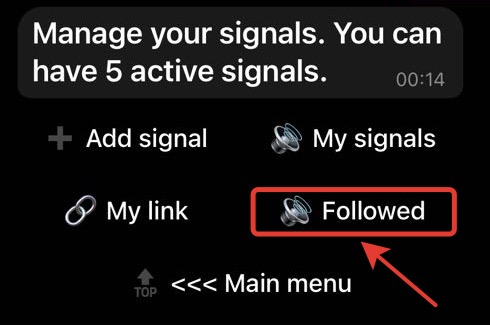
A list of your user subscriptions is displayed with the number of signals. To view information about the profile you are subscribed to, click the button with its name
Subscription Management
Click the "Subscription" button on the main menu to set up your subscription
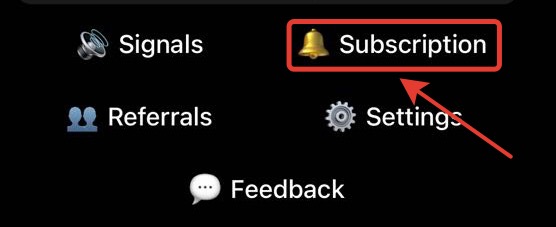
Your subscription settings are open. 5 signals are available for free
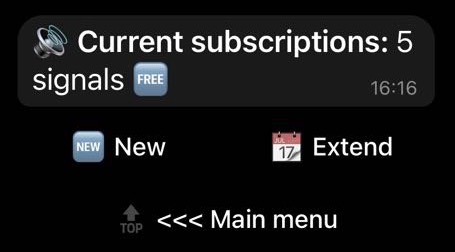
Buying an extended subscription
Click the "New" button to purchase an extended subscription
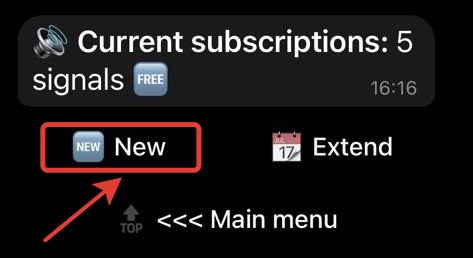
The extended subscription selection menu and your bonus balance are displayed.
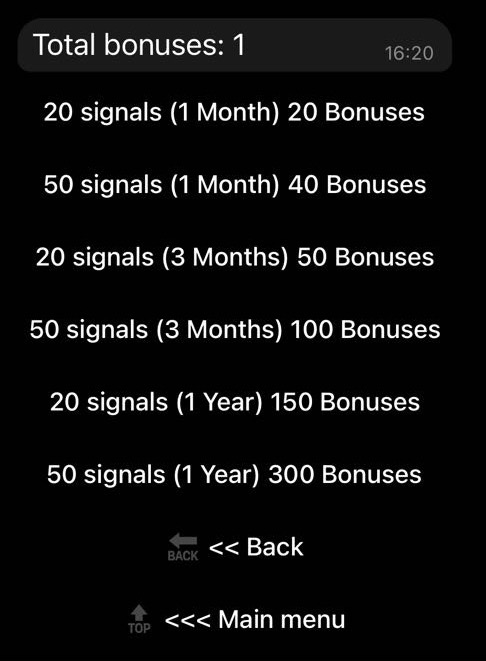
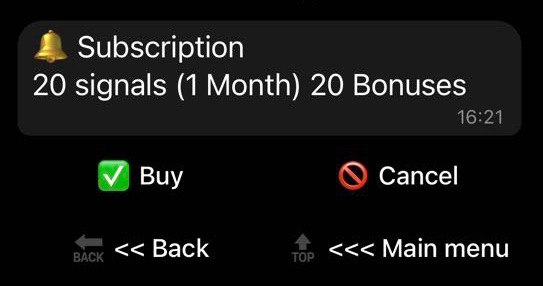
When you click on any menu item, the name of the subscription, its cost and the “Buy” and “Cancel” buttons are displayed
Subscription renewal
To renew an existing subscription, click the "Extend" button
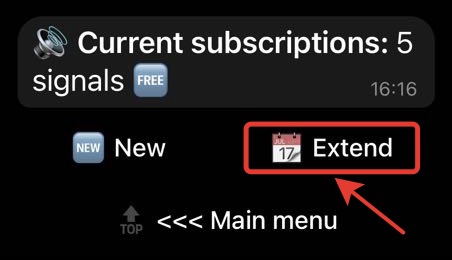
The package selection menu opens, or a message is displayed that there are no current subscriptions
Referral program
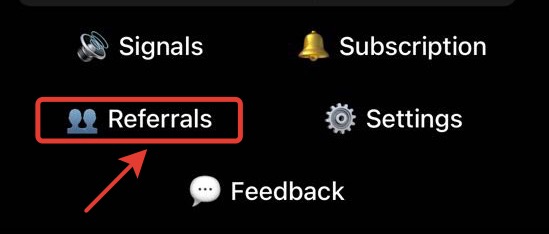
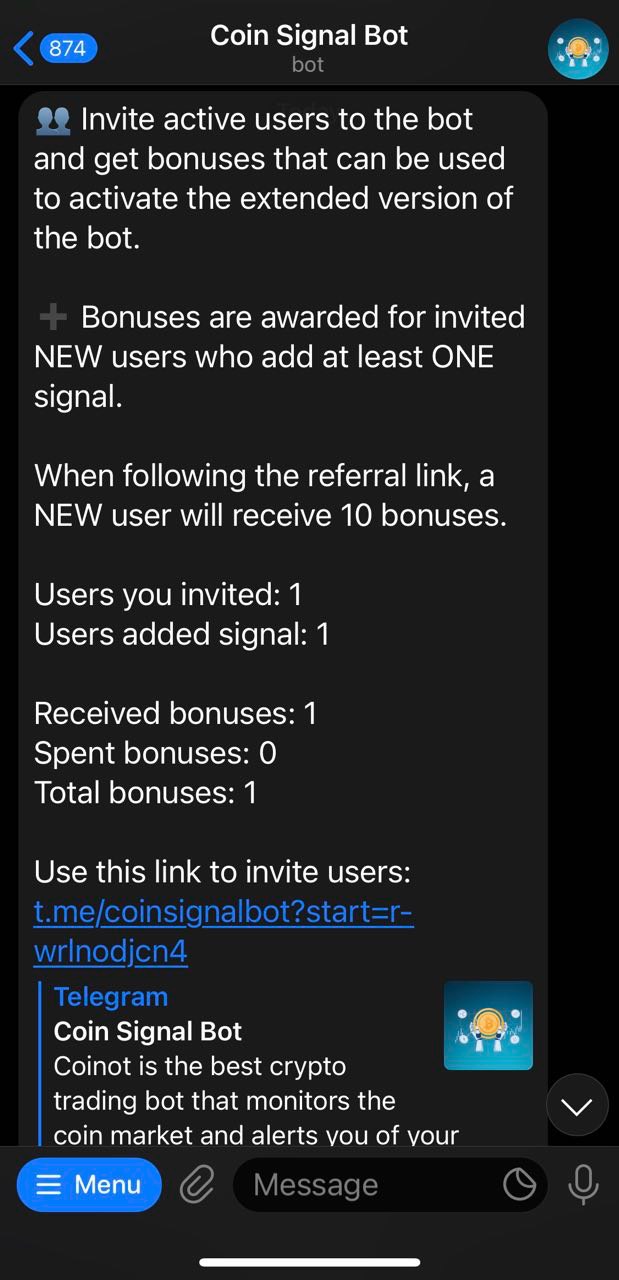
Click the "Referrals" button of the main menu to get information about invited users
The rules for calculating bonuses, the number of invited users and users who have added at least one signal are displayed. Here you can also see the number of received, spent bonuses and the current bonus balance. The same message contains a link to invite users
Bot settings
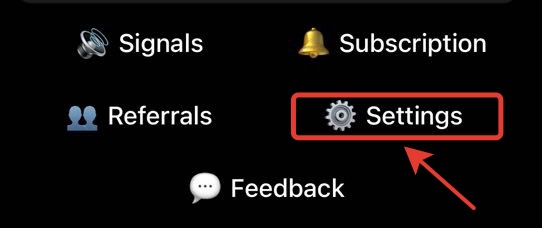
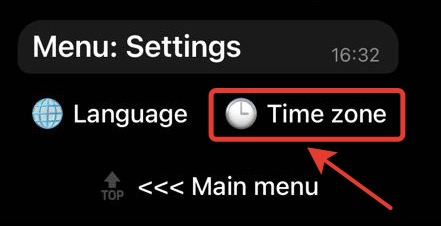
To change the language or time zone, press the "Settings" button of the main menu
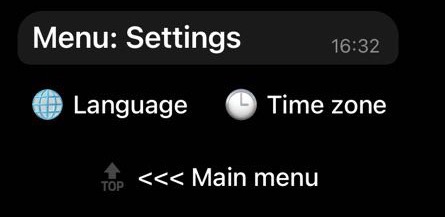
The settings menu opens:
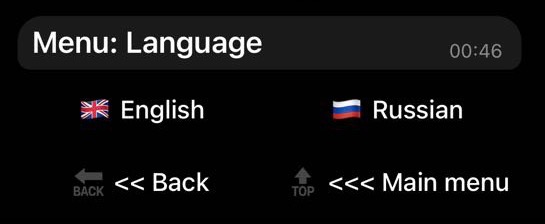
To select a language, click "Language"
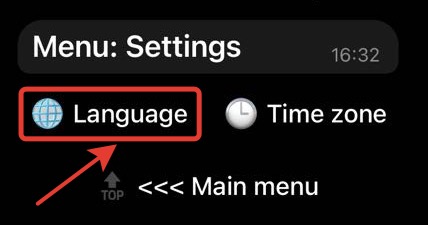
Two languages are available - English and Russian.
To change the time zone, select "Time Zone"
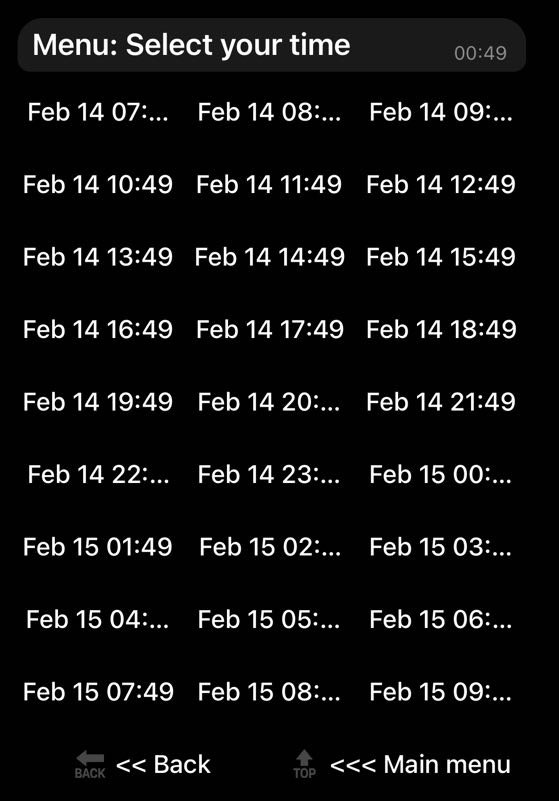
The time zone selection menu opens. Press the button with your current time.
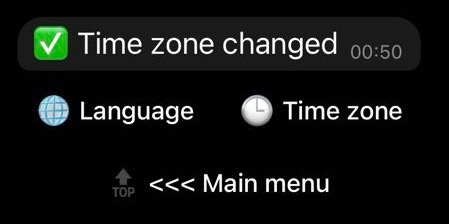
Time zone change notification is displayed
Feedback
Press the "Feedback" button of the main menu to leave feedback or report a bug
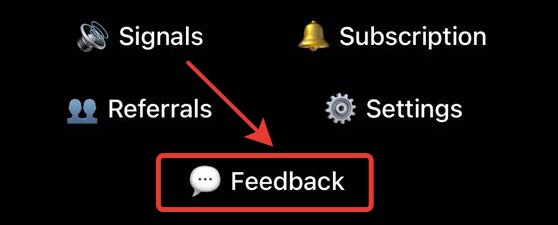
Feedback menu opens:
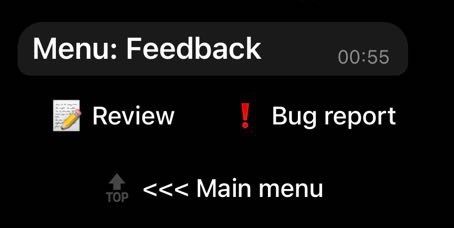
To leave a comment or suggestion, select "Review"
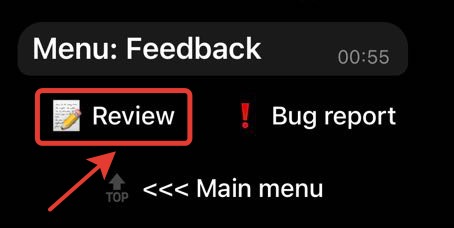
Enter your feedback text and send your message.
To report a problem, select 'Bug report'
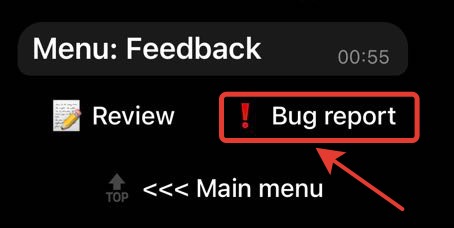
Enter text and send a message
The /help command displays an informational message about the functionality of the bot